How to share a video with a link
To share a video with a link in Videas: open the media, click Share, copy the URL that appears. The link is generated automatically when the window opens — there is no “create” button to hunt for. Your recipient opens the video in their browser, without creating an account.
The rest of this article covers how to set what that link allows: an expiry date — on by default at 7 days —, a password, a maximum number of opens, whether the video can be downloaded. The same procedure works for any other media — see Share a document, an audio file or an image below.
Create the link
- Open the media in your Videas workspace
- Click Share, at the top of the screen
- The Share files window opens and shows Creating link…, then the URL appears
- Click Copy — the button switches to Copied!
The URL looks like https://app.videas.com/share/aBc123XyZ. The last nine characters are random: the link is not guessable, but it is not secret either — anyone who gets hold of it can open the video, unless you add a password.
The Share button is also available by right-clicking a thumbnail, and from the action bar when you select several files at once.
Note: these entries only appear when you are inside a workspace. From a global view such as “All files”, the Share button is hidden.
Share several files, a folder or a collection
Select several media items before clicking Share: they are bundled into a single link, and the recipient moves between them from the same page. A folder is shared the same way, with all its content. Full procedure: Share several files with a single link.
A collection is shared exactly like a standalone media item, and appears to the visitor as a playlist — see Share a collection by link.
Share a document, an audio file or an image
Sharing is not limited to video. A PDF, an image, an audio file or any other document uploaded to your workspace is shared through the same Share button, with the same settings (expiry, password, open limit, downloads). Depending on the file type, the recipient watches or reads it straight in their browser, still without creating an account.
That is handy for pairing a video with its supporting material — a replay together with its slide deck as a PDF, an audio clip and its transcript — all in a single link if you select them together.
Set who can watch the video
The options are in the right-hand column of the share window. What follows covers everyday use; for exactly what each one does and which combinations to keep for which situation, see The 6 privacy options of a video share.
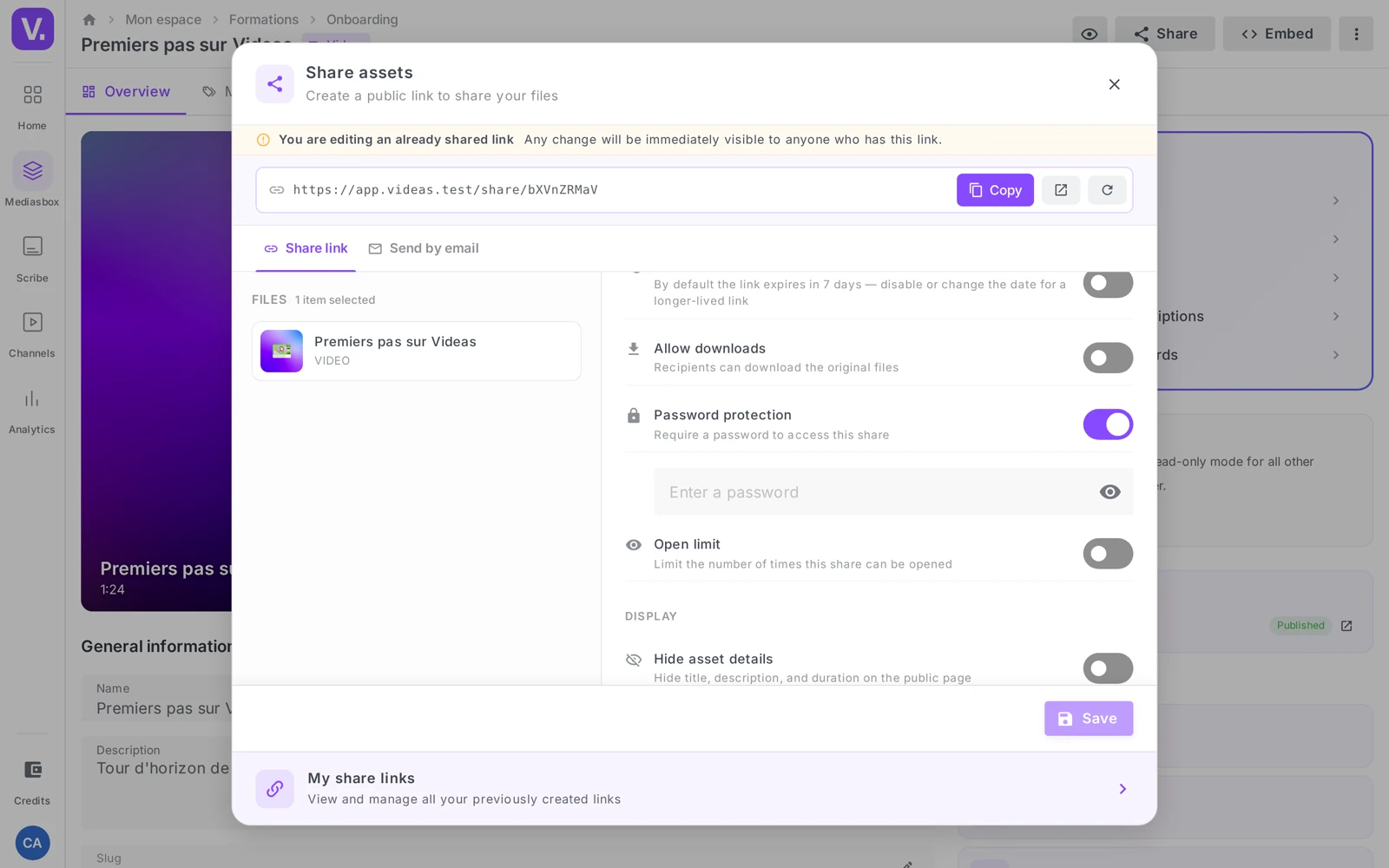
Name and description
Link name is required and pre-filled with Share of [date]. Replace it with something recognisable — this is the name you will use to find the link later, once you have twenty of them. “Client review — edit v3” will still mean something in six months; “Share of 20 July” will not.
Expiry
The Expiry toggle is on by default, set to 7 days. The Expiry date field lets you pick a date and a time; the earliest selectable date is tomorrow. A badge shows the countdown (Expires in 5 days), then Expired.
You can turn expiry off to get a permanent link. Handy for a documentation page, risky for confidential content: a link with no end date is a link you will forget.
An administrator can change this default for the whole organization from the Share links settings (from 1 to 3,650 days).
Password protection
The Password protection toggle adds an input field. The visitor will have to enter that password before reaching the player.
Videas enforces no length or complexity requirement on this password — its strength is entirely up to you. And send it through a different channel than the link: a password sent in the same email as the URL it protects protects nothing.
Open limit
The Open limit toggle reveals the Maximum number of opens field, set to 100 by default. Once that total is reached, the link deactivates itself.
Useful for a sales demo, a training excerpt, any content you want to expire by usage rather than by date. Careful: the counter tracks opens, not people. The same recipient reloading the page three times uses up three.
Allow downloads
Off by default. Once on, the recipient can retrieve the original file, not just stream it. Only turn it on if you accept that the file will travel outside Videas.
Display: hide details, hide date
Two cosmetic but useful options:
- Hide details removes the title, the description and the duration from the public page. Handy when your internal file name is
final-edit-v3-fixed.mp4. - Hide date removes the creation date — for timeless content you will re-share months later.
Send the link by email from Videas
The share window has a second tab, Send by email, which does much more than pasting the URL into your mail client:
- up to 20 recipients, with a custom subject and message
- each recipient gets their own link, distinct from the others
- an open limit per recipient (3 by default), independent of the global limit
- per-person tracking of opens and clicks, and the ability to revoke one recipient without breaking everyone else’s link
This is the only way, in Videas, to know who actually opened your video. A copy-pasted link will tell you how many opens, never by whom.
Note: the password and the global open limit do not appear on this tab — they are replaced by the individual link and its own limit. Expiry and download permission, on the other hand, apply to both.
Which options to choose, by situation
| Situation | Recommended settings |
|---|---|
| Client review of an edit | Expiry 7–14 days · downloads off |
| Quote, contractual content, sensitive data | Password · short expiry · per-recipient email send |
| Webinar replay to a known list | Email tab · per-recipient limit · expiry 30 days |
| Sales demo to a prospect | Open limit 3–5 · expiry 7 days |
| Permanent internal documentation | Expiry off · details visible |
| Delivering source files to a contractor | Downloads on · password · short expiry |
Edit, deactivate or delete a link
Reopen Share on the same media item: if an active share already exists, Videas reloads it instead of creating a second one, and shows the warning “You are editing a link that has already been shared — any change will be immediately visible to the people holding it”.
Cut off access to a link already out there
This is the point not to get wrong.
To revoke a link, there are two methods, and only two:
- The Active toggle, in the Status section of the share window in edit mode. Switched off, the link stops working immediately but stays in your history — you can switch it back on.
- Deletion from the My share links page. Videas warns: “This will revoke access for anyone using this link.” It is final.
Careful — the “Regenerate a new link” button revokes nothing. It creates a second share, with a new URL and options reset to their defaults. The old link stays active. If you are trying to cut off access after a leak, use the Active toggle or delete the share: regenerating would leave the leaked link in circulation.
Find all your links
The My share links banner, at the bottom of the window, leads to the page listing every share in the workspace: name, expiry, number of files, status. This is the screen to review from time to time to spot forgotten permanent links.
Check a link’s analytics
Videas has three analytics dashboards — depending on what you are after:
- A share link (who opened and watched this particular link): this section.
- Your videos and content (plays, completion, geography): Understanding your video analytics.
- Your channel (your site’s audience, registered members): Understanding your channel analytics.
Every share link has its own analytics, in the share history (My share links, or Workspace settings → Shares). In the list, the Opens column already gives you the counter; the View analytics action (chart icon) on a row opens the detail.
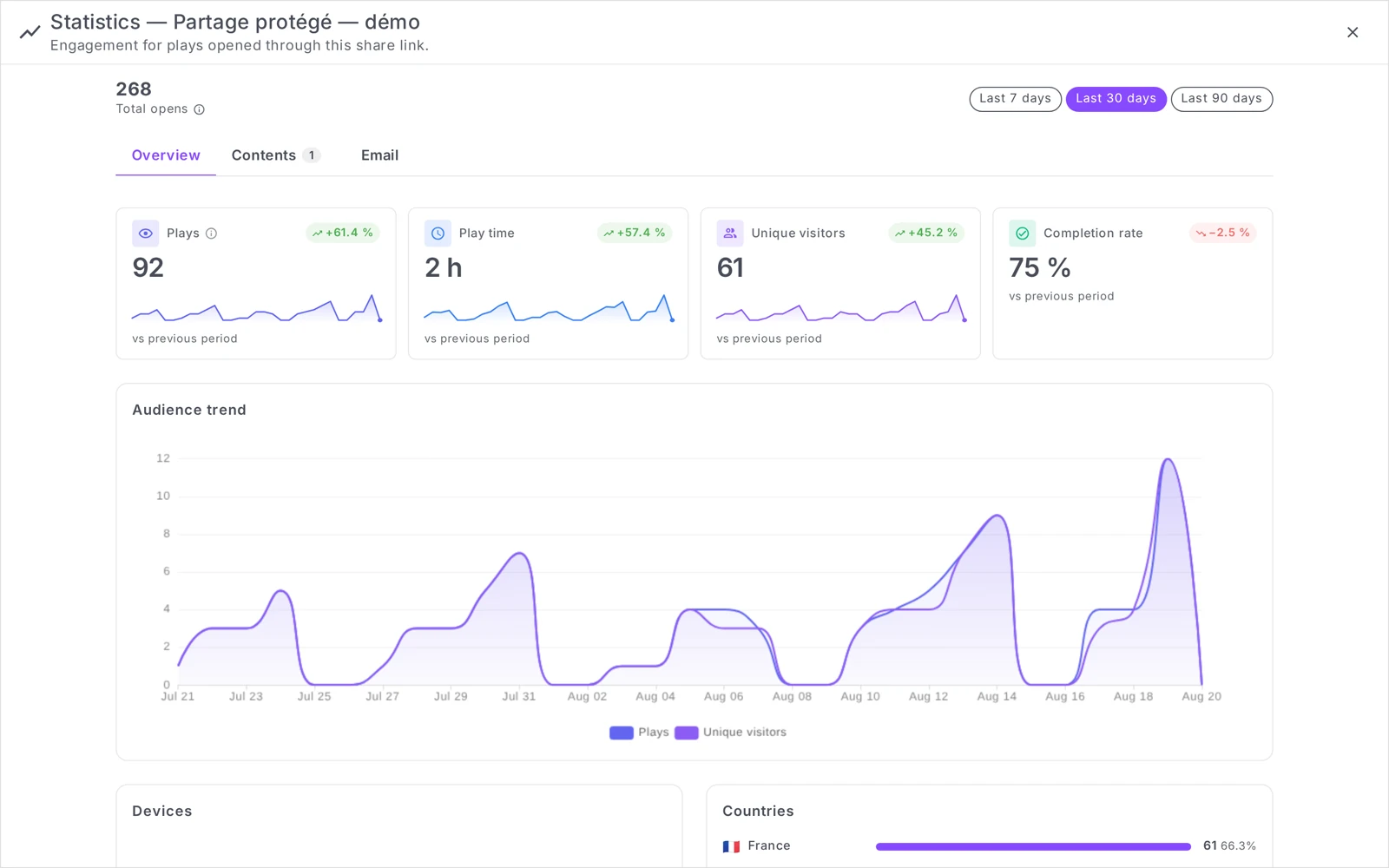
The Analytics — {share name} panel offers a period selector (last 7, 30 or 90 days) and three tabs:
-
Overview — Total opens at the top, then four metrics for the selected period, each compared with the previous one, and an audience trend chart:
- Total opens: the number of times the link was opened, counted once per visitor per 24 h, over the whole history — whatever was watched afterwards. It is the only figure the period selector does not affect.
- Plays: the content actually consumed — a play of more than 10 s for videos and audio, an open for images.
- Play time: the total time spent watching.
- Unique visitors: how many distinct people, however often they came back.
- Completion rate: the average share of the content watched before stopping.
Below that, the breakdown by device, the top countries and an hourly map of opens.
-
Content — the item-by-item breakdown when the link points to a collection: which items were consumed, with direct access to each.
-
Email — visible if you sent the link through the Send by email tab: the funnel of the send (sent → delivered → opens → clicks) and the per-recipient breakdown.
Note: you can always see the analytics of the links you created yourself, whatever your role. The Manage workspace permission is only required to read the audience of links created by someone else: an editor therefore reads their own shares without restriction, but not their colleagues’. Detailed data is only recorded from the moment this feature went live: an old link shows no earlier history.
What Videas sharing does not do
Worth knowing before you rely on it:
- It does not verify the visitor’s identity. There is no restriction by email domain: you cannot limit a link to
@your-company.comaddresses. Anyone holding the link — and the password if there is one — gets in. To track access by name, go through the Send by email tab. - It does not prevent re-sharing. No watermark, no protection against screen recording. A confidential link is still a link that can be forwarded.
- Other people’s share analytics require a higher permission. Creating a link falls under the
asset:sharepermission, granted by default to the Editor role, and its author always sees its analytics. Reading the audience of a link created by someone else, however, requires the Manage workspace permission: an editor cannot follow their colleagues’ shares.
A one-off share, with no account: the Send a video tool creates a link from the browser, without uploading anything to a workspace.
Frequently asked questions
Does the recipient need a Videas account?
No. They open the link in their browser and go straight to the player.
Can I change the options after sending the link?
Yes. Reopen Share on the media, adjust, save: the URL does not change and the modifications apply immediately to everyone who already has it.
How long does the link stay valid?
Seven days by default, adjustable case by case, or switchable off for a permanent link. An administrator can change the organization’s default.
What does the visitor see once the link has expired?
An error page. The link is marked Expired on your side; just push the expiry date back to reactivate it.
Can I find out who watched my video?
Not with a copy-pasted link, which only counts opens. Use the Send by email tab: each recipient gets a personal link and their activity is tracked individually.
Does “Regenerate a new link” cut off the old one?
No, and that is the most expensive trap in this window. Regenerating creates a second share, with a new URL and options reset to their defaults — the old link stays active and keeps working for everyone who has it.
To really cut off access, there are two moves and only two: flip the Active toggle in the Status section (reversible, the link stays in your history), or delete the share from My share links (permanent). After a leak, regenerating would leave the leaked link in circulation.
Does the open limit count people or visits?
Visits. The counter goes up on every opening of the link, not on every new visitor: one recipient reloading the page three times uses three openings from the quota.
So leave yourself room. For a demo aimed at one person, ten openings are more realistic than three. If you need a count per recipient, go through the Send by email tab instead: each person gets their own link with its own limit (3 by default).
Can I restrict a link to my company’s email addresses?
No. Link sharing does not filter on email domain: there is no setting to allow only @your-company.com addresses. Anyone who obtains the link — and the password if there is one — gets in.
To trace access by name, the Send by email tab is the right answer: up to 20 recipients, a distinct link for each, per-person tracking of opens and clicks, and the ability to revoke one recipient without breaking everyone else’s link.
Can I share a PDF or an audio file the same way?
Yes, sharing is not limited to video. A PDF, an image, an audio file or any other document uploaded to your workspace is shared through the same Share button, with the same settings: expiry, password, open limit, downloads.
The recipient reads it straight in their browser, still with no account. And by selecting several files before clicking Share, you get a single link for the lot — enough to send a replay and its PDF handout in one go.
Why doesn’t the Share button appear?
Because you are not inside a workspace. From a global view such as “All files”, the button is hidden: open the workspace holding the media item and it comes back — on the item’s page, by right-clicking a thumbnail, or in the action bar of a multiple selection.
If the button is still missing once you are in the workspace, it is a matter of role: creating a link comes under the asset:share permission, granted by default to the Editor role.
In short
- The link is created automatically when the Share window opens — no button to hunt for
- The recipient does not need an account
- Expiry on by default at 7 days; password, open limit and downloads are off by default
- To revoke a link: Active toggle or deletion. “Regenerate” does not revoke the old link
- The Send by email tab gives a personal link per recipient, with individual tracking — the only way to know who opened it
- No limit on the number of links you create
Related articles
Screenshots were taken on Videas Academy, an example channel built for this help center. It belongs to a fictional customer, not to Videas: your own channel carries your name, your branding and your prices.