How to send a video by email
To send a video by email from Videas: open the media, click Share, then switch to the second tab, Send by email. Enter the addresses, adjust the subject, click Send. You attach nothing — Videas sends a link, not a file — so the size of the video is irrelevant and your recipient has no account to create.
A one-off send, with no account: the Send a large video tool uploads the file and returns the link straight from the browser; you paste it into your email, without importing anything into a workspace.
What sets this tab apart from pasting the URL into your own mail client: every recipient gets their own link, and you then see who opened it, who watched, and who did nothing. It is the only way in Videas to track your audience person by person.
Why send a link rather than an attachment
Mail providers cap attachments at around 25 MB — less than most videos of a few minutes. Sending a link sidesteps that, and adds three things an attachment never gives you:
- The video streams in the browser: nothing to download, nothing to install.
- You keep control after sending: expiry, cutting access, changing the content.
- You know what was opened. An attachment, once sent, is out of sight.
That is also what separates Videas from a file-transfer service — see Videas compared with WeTransfer.
Sending the message
- Open the media in your workspace, then click Share
- In the window, switch from the Share link tab to Send by email
- Enter the addresses under Recipients, one at a time — the field reads Add an email…
- Adjust the Subject if needed: it is pre-filled with Files shared with you — [media name]
- Add a Message — optional, but a personal note changes open rates a lot
- Click Send to N recipients
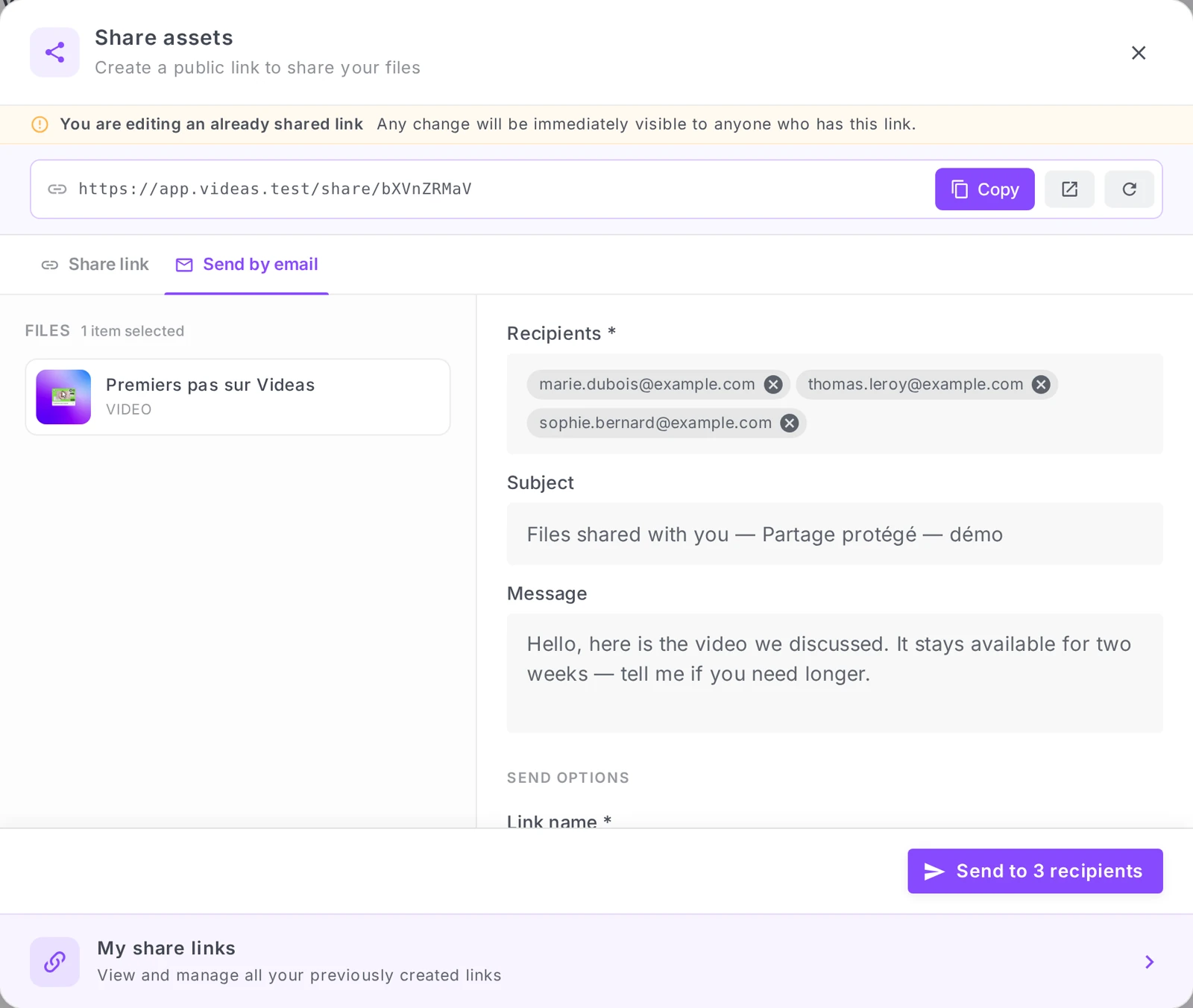
The Files section recaps what the message carries, which helps when you selected several media before opening the window.
How many recipients can I add?
Twenty per send. Beyond that Videas refuses and shows “You can send to 20 recipients at most”. Duplicates are merged automatically and malformed addresses are dropped, with the warning “Some addresses are not valid”.
For a wider audience, sending a share by email is the wrong tool: use a channel email campaign, built for a registered audience — see Create and send an email campaign to your audience.
Capping opens per person
Under Send options there is an Open limit per recipient switch. It is off by default; turning it on pre-fills the field with 3.
This cap is individual: it counts each person’s opens separately, independently of the link’s global limit. Useful for embargoed content or a contractual document, where you want as little circulation as possible.
What your recipient receives
An email containing their personal link, distinct from everyone else’s. They open it in their browser and watch the video — without creating an account.
Replies come to your address: if a recipient answers the email, they reach you, not an automated mailbox.
Note: the password and the global open limit from the Share link tab do not apply here — they are replaced by the individual link and its own cap. Expiry and download permission, on the other hand, apply to both tabs: they are settings of the share, not of the send.
Tracking who opened and who watched
This is the main point of the tab. Tracking is automatic — there is nothing to switch on.
Go to Manage share links — the banner at the bottom of the share window, or Workspace settings → Shares — then open the share’s analytics (the chart icon on its row). The Email tab only appears once you have actually sent the share by email.
You will find four figures — Sent, Delivered, Opened, Clicked — along with the deliverability rate, the total number of opens and clicks, and the email funnel showing where people drop off.
Below the funnel, the By recipient table gives the person-by-person detail: Recipient, Status, Opens, Views, Last event. Each row also offers Copy personal link, handy for re-sending someone’s link when they have lost it.
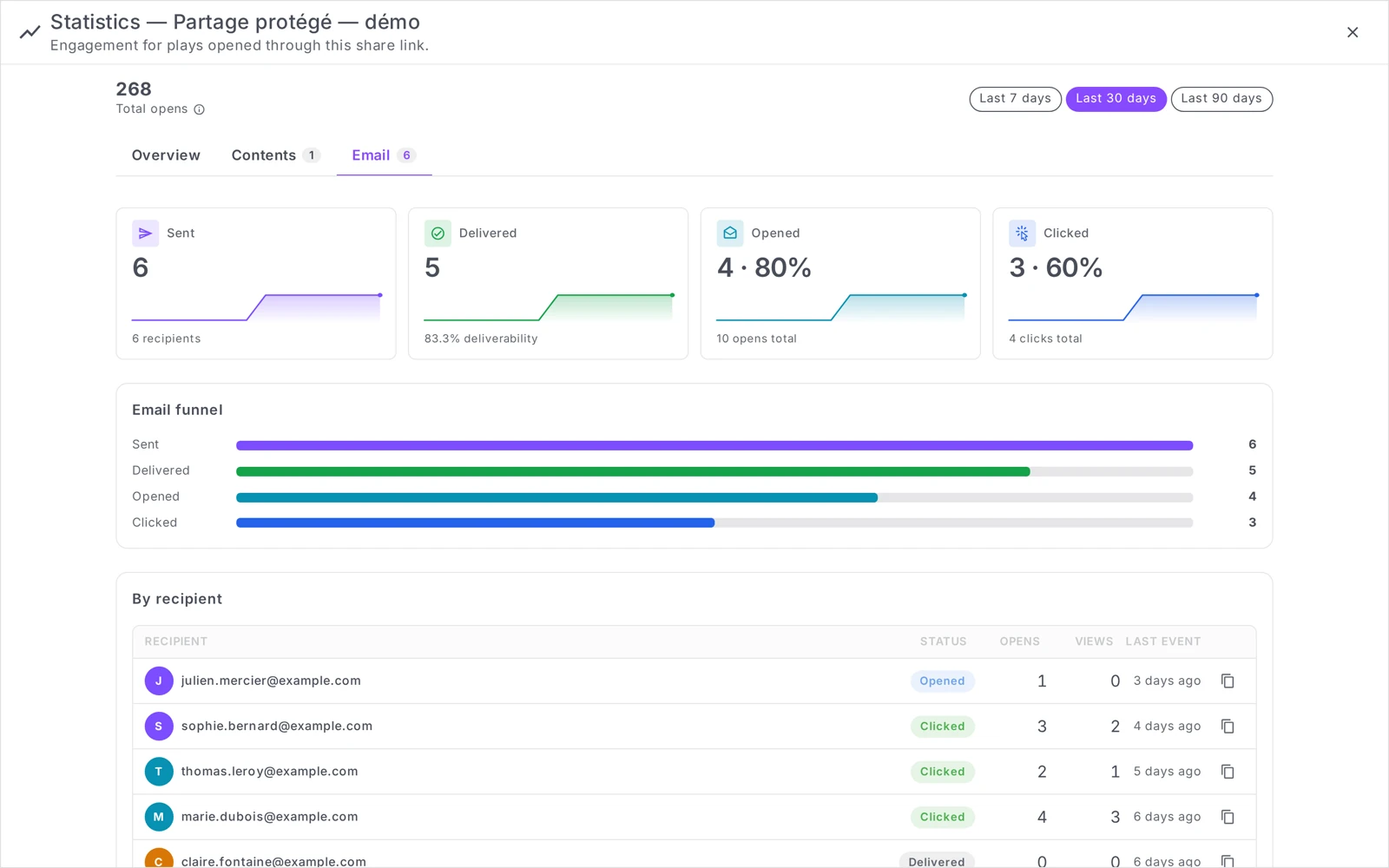
What do the statuses mean?
- Pending — the send is registered, the message has not gone out yet.
- Sent — the message has left Videas.
- Delivered — the recipient’s server accepted it.
- Opened — the email was opened.
- Clicked — the link was clicked. This is the status that counts: the rest says nothing about what was watched.
- Bounced — the recipient’s server refused the message. The address is probably wrong.
- Failed — the send did not complete on the Videas side.
Opens or Views — what is the difference?
Opens counts email opens. Views counts content actually consumed — a play of more than ten seconds for a video. Someone can therefore show three opens and zero views: they read your message without ever starting the video.
Putting a video in a newsletter
Not to be confused with the above. To place a video in a newsletter — Mailchimp, Brevo, Mailjet — the path is elsewhere: open the media, go to the Developer tab, and pick the Newsletter destination.
Mail clients block video players, so Videas produces a clickable thumbnail that opens the media in the browser, which works in every inbox. The block goes into your newsletter’s HTML editor — the “Code” block in most tools. See Embed a video on your website.
What sending by email does not do
Worth knowing before you rely on it:
- It does not cut off one recipient. Each personal link can technically be blocked, but no button in the interface does it today. To cut access you have to disable or delete the whole share — which cuts everyone at once. See Cutting off a link you have already sent in How to share a video with a link.
- It does not verify identity. A personal link is forwardable: nothing stops a recipient from passing their email on. Tracking will tell you that “their” link was opened, not who was in front of the screen.
- It does not replace a campaign. Twenty recipients per send, no segmentation, no scheduling, no reusable template.
Frequently asked questions
Does my recipient need a Videas account?
No. They open their link in a browser and reach the player directly.
Is the size of my video a problem?
No. You are not sending the file but a link: your mail provider’s attachment caps do not apply, whatever the size of the media.
Can I re-send the message to someone who never received it?
There is no “resend” button. Two options: copy their personal link from the By recipient table and pass it on another way, or run a new send to that single address.
Can I send several videos in one message?
Yes. Select the media before opening the share window: they go out in the same send, and the Files section lists them. See Share several files with a single link.
Why does a recipient stay on “Delivered” and never reach “Opened”?
Many mail clients block the tracking pixel that measures opens by default. A status stuck at Delivered therefore does not necessarily mean the message went unread — it is the move to Clicked, and the Views column, that tell you what happened.
Summary
- Sending happens from the Send by email tab of the Share window — you send a link, never a file
- 20 recipients maximum per send; duplicates merged, invalid addresses dropped
- Every recipient gets a personal link, and replies come to your address
- The open limit per recipient is off by default, pre-filled with 3 once enabled
- The password and the global limit do not apply here; expiry and download do
- Tracking is automatic: Sent / Delivered / Opened / Clicked, then the by recipient detail
- No button cuts off a single recipient: disabling the share cuts them all
Can I cut off one recipient’s access?
No, not today. Each recipient does get their own personal link, but no button in the interface revokes it individually: to cut off access you have to deactivate or delete the whole share, which cuts everyone off at once.
Plan for that when you send. If you expect to have to withdraw access from one person in particular, make a separate send per recipient rather than one group send.
How many recipients per send?
Twenty at most. Beyond that Videas refuses and shows “You can send to a maximum of 20 recipients”. Duplicates are merged automatically, and badly formed addresses are set aside with a warning.
That ceiling tells you what the tool is for: a targeted send, not a broadcast. For a wider audience, go through a channel email campaign, which brings the segmentation, scheduling and reusable templates this tab does not have.
Why does a recipient stay at “Delivered” without moving to “Opened”?
Because many mail clients block the tracking pixel that measures an email open by default. A status stuck at Delivered is therefore no proof that the message went unread.
Trust two sturdier signals instead: the move to Clicked, which means the link was actually followed, and the Views column, which counts content genuinely consumed.
“Opens” and “Views”: what is the difference?
Opens counts openings of the email. Views counts content genuinely consumed — a play of more than ten seconds for a video.
That explains a common case: three opens and zero views. Your recipient read your message several times without ever starting the video. A clearer subject line or message is what closes that gap.
How do I put a video in a newsletter?
Not through this tab, but from the media item’s Developer tab, choosing the Newsletter destination. Mail clients block video players, so Videas produces a clickable thumbnail that opens the media in the browser, which works in every inbox.
The block you get is pasted into your newsletter’s HTML editor — the “Code” block in Mailchimp, Brevo or Mailjet.
Is the size of my video a problem?
No, none at all. You attach nothing: Videas sends a link, never a file, so your mail provider’s attachment limits — around 25 MB for most — do not apply.
The recipient watches the video streamed in their browser, with no download and no software to install, and without creating an account.
Related articles
Screenshots were taken on Videas Academy, an example channel built for this help center. It belongs to a fictional customer, not to Videas: your own channel carries your name, your branding and your prices.