Protect a video with a password
To protect a video with a password in Videas, open the Share window, turn on the Password protection toggle, enter a password and save. The recipient will have to type it in before reaching the player, without having to create an account.
The password is one of the simplest protections on a Videas share — and one of the most poorly used. The rest of this article covers what really makes the difference: choosing a robust password (12 characters minimum), sending it through the right channel, and rotating it — every 3 to 6 months on a long-lived share, immediately after a leak. Creating the link itself is covered in How to share a video with a link; to make a video fully confidential, see How to share a video privately.
Step 1: Turn on protection
In the Share modal:
- Find the Password protection row in the main section
- Turn on the toggle: an input field appears just below
- Enter your password
- (optional) Click the eye icon to the right of the field to reveal or hide what you type
- If you are editing an existing share, click Save. For a new share, the password applies the next time the link is opened
Step 2: Choose a good password
Videas enforces no complexity requirement — it is up to you to set a password that actually protects.
What makes a good Videas password
- At least 12 characters, ideally 16 or more
- A mix of lowercase letters, uppercase letters, numbers, and at least one symbol
- No dictionary word and no obvious date
- No reuse of a password used elsewhere (other tools, work accounts, personal accounts)
- Specific to this share: one password per share allows clean rotation and revocation
What to avoid at all costs
| Avoid | Why |
|---|---|
videas2026 |
Guessed in under 5 seconds by anyone who knows the context |
password, letmein |
A universally known weakness |
Hello123! |
Looks robust, but appears in every list of most common passwords |
| An executive’s first name or date of birth | Guessed from a LinkedIn profile |
| A password used elsewhere (email, intranet and so on) | Risk of spread: if Videas leaks, the whole ecosystem leaks |
The right reflex: a password manager
Tools like 1Password, Bitwarden or KeePass:
- Generate a long random password (16-24 characters)
- Store it in an encrypted vault
- Let you share it internally through a team vault (without copy-pasting into Slack)
If you handle more than 5 password-protected shares a month, investing in a manager pays for itself many times over.
Step 3: Send the password
This is the step that most often reduces the password’s value to nothing. One golden rule:
Golden rule: never send the password through the same channel as the share link.
Why separate them?
An email can be forwarded (deliberately or by mistake), a Slack thread can be archived, a shared document can be indexed. If the link and the password are in the same message, you are handing over both keys the moment one of them leaks. Separating the channels forces an attacker to compromise two different media to reach the content.
Recommended patterns
| Channel for the link | Channel for the password |
|---|---|
| Private message (Slack DM, Teams, WhatsApp and so on) | |
| Slack channel | One-to-one Slack DM |
| Shared document | A separate email / SMS |
| SMS | Email / private message |
What to avoid
- ❌ Putting the password in the same email as the link (“Here is the link: … Password: abc123”)
- ❌ Pasting the password into a public Slack channel or a wide team group
- ❌ Including the password in a shared document (Notion, Google Doc, Confluence) that other people can open
Step 4: Check the visitor experience
Before sending, check what your recipient sees:
- Copy the link from the Share modal
- Open it in a private window of your browser (so you are not identified)
- The visitor lands on a password entry page, with no access to the content
- Once the password is entered, the player appears
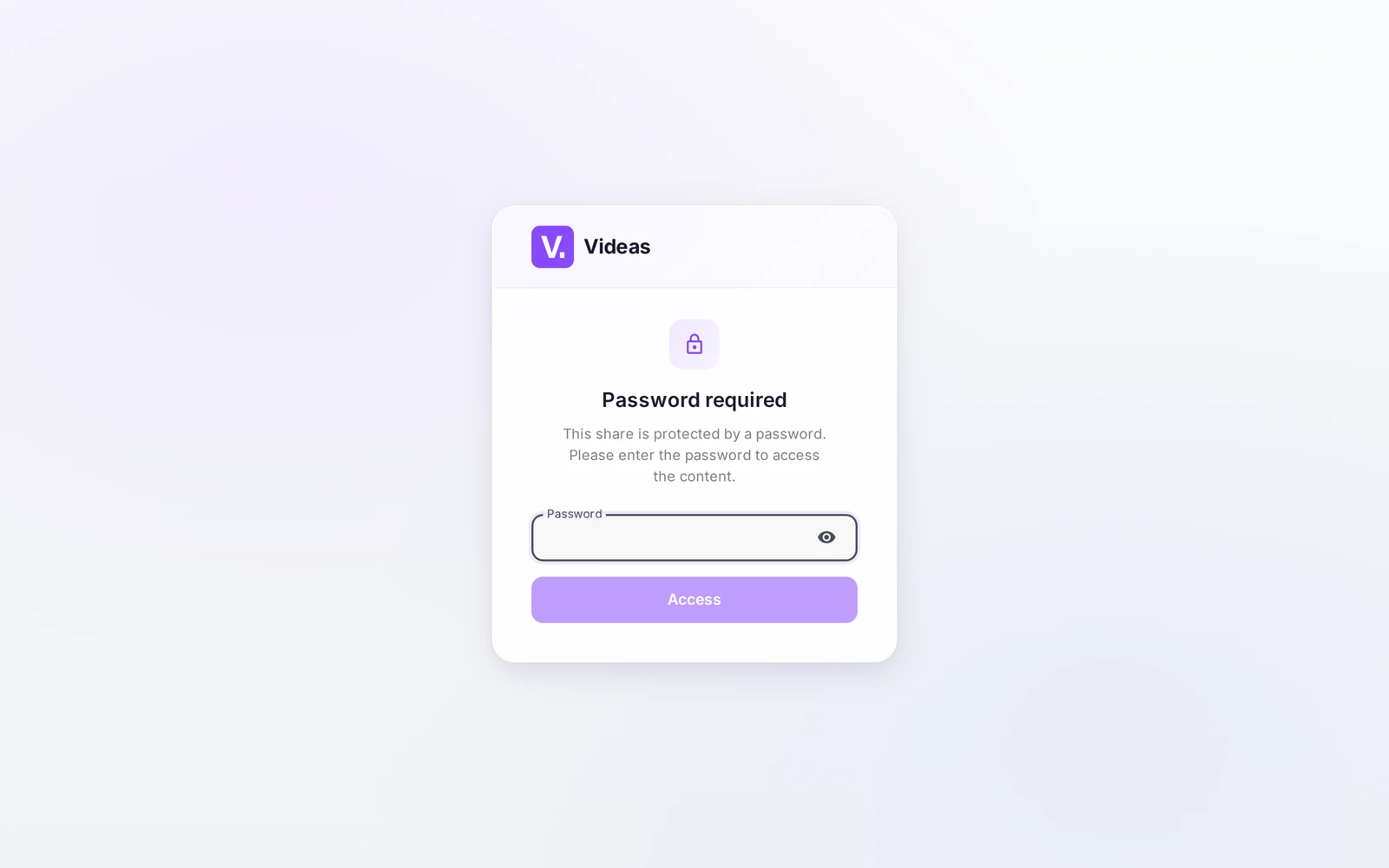
A few details to know:
- No hint: Videas shows no secret question and no entry help
- No recovery: if the recipient forgets the password, they have to come back to you — Videas will not send them a new one
- No identification: the recipient is not authenticated individually; anyone holding link + password gets in
Step 5: Change or remove the password
To adjust an existing share:
- Reopen the Share modal on the media item concerned — the existing settings are reloaded (see How to share a video with a link)
- The Password protection toggle appears in its current state
- To change it: enter a new password in the field (empty by default for security reasons — you cannot see the old one) then click Save
- To remove it: simply switch the toggle off then click Save
Note: changing the password takes effect immediately server-side. If a recipient already had the old password, they will have to use the new one on their next visit. It is the ideal tool for revoking access that has leaked, without breaking the link itself.
When a password is enough, and when it is not
| Situation | Password on its own? |
|---|---|
| Review of a client delivery with an identified, reachable recipient | Enough |
| Draft before publication shared internally | Enough |
| Non-confidential prospect demo | Optional |
| Sensitive HR content (interview, internal training) | Combine with a short expiry |
| Sales strategy, customer data, M&A | Combine with a short expiry + maximum views |
| Trade secret, pre-release media | Combine with a very short expiry + maximum views + strict private channel + audit |
Remember: the more sensitive the content, the more the password should be one element of a combination — not the only protection. A password alone does not protect against a recipient who passes on link + password to a third party. See How to share a video with a link for the recommended combinations by scenario.
Rotation and audit best practices
Change the password after a suspected leak
If you suspect a password has leaked (an email forwarded by mistake, an exposed Slack archive, a former colleague and so on), change it immediately. The change is instant and invalidates all past access without breaking the link.
Periodic rotation on long-lived shares
For a share with a long expiry (a one-year training course, a permanent resource and so on), consider changing the password every 3-6 months and warning the active recipients. Periodic rotation limits the impact of a silent leak.
Auditing password-protected shares
The Share history screen lists all your shares, with a “Password: yes/no” note. Review it every quarter:
- Spot the shares with a password but without an expiry: add one if you can
- Spot the shares without a password on content that deserves one
- Deactivate dormant shares to reduce the attack surface
Regenerate the link when rotation is not enough
If you want to really start over (cut off existing access and start on a new password): deactivate or delete the current share, then create a new one. Careful — the Regenerate button does not cut off the old link: it creates a second share and leaves the first one active. See How to share a video with a link.
What happens if the recipient forgets the password?
They have to come back to you. Videas shows no hint, asks no secret question and does not send a new password: the entry page offers no recovery flow, because the visitor has no account and is not identified in any way.
All you have to do then is pass the password on again, or set a new one from the Share window — the link itself does not change.
Can I look up the password of an existing share?
No. When you reopen the Share window on a media item you have already shared, the password field is empty, and deliberately so: the old password is never displayed again.
You can only type a new one and save, or turn the protection off. That is also why you should record your share passwords in a manager rather than counting on the interface to remind you.
Does changing the password cut off those who already had it?
Yes, and immediately. The change is applied server-side as soon as you save: a recipient who knew the old password will have to use the new one on their next visit.
That makes it the right tool to revoke leaked access without breaking the link itself — an email forwarded by mistake, an exposed Slack archive, a colleague leaving. Unlike the “Regenerate a new link” button, which leaves the old share active, changing the password acts on the existing share.
Do I need a different password for each share?
Yes. One password per share lets you rotate or revoke it without touching the others: otherwise the smallest leak means changing everywhere, and you will not do it.
A password reused from another tool is the worst case: if the share leaks, your whole ecosystem leaks with it. Past five protected shares a month, a password manager (1Password, Bitwarden, KeePass) more than pays for itself — it generates, stores, and lets you share internally without pasting the password into a team channel.
Is a password enough to protect confidential content?
It depends on the stakes. For a delivery review with an identified client, or a draft shared internally, it is enough. For sensitive HR content, pair it with a short expiry. For commercial strategy, client data or an M&A operation, add a low open limit on top.
The reason is simple: a password protects against a link left lying around, not against a recipient who passes link and password on to someone else. The higher the stakes, the more it has to be one element of a combination rather than the only protection.
In short
- The password is configured through the toggle in the Share modal plus the input field with its eye icon
- What makes a good password: 12+ characters, a mix of letters/numbers/symbols, no common word, unique to the share; a password manager makes it all easier
- Golden rule: never the password on the same channel as the link
- Changing a password: reopen the modal, enter the new one (the old one is not shown), save — it invalidates all past access
- No recovery on the visitor’s side: forgotten = they come back to you
- No identification of the visitor: whoever has link + password gets in
- The password is not enough on its own for very sensitive content — combine it with a short expiry + maximum views
- Rotation: every 3-6 months on long-lived shares; immediately after a suspected leak
Related articles
Screenshots were taken on Videas Academy, an example channel built for this help center. It belongs to a fictional customer, not to Videas: your own channel carries your name, your branding and your prices.