Upload your first videos
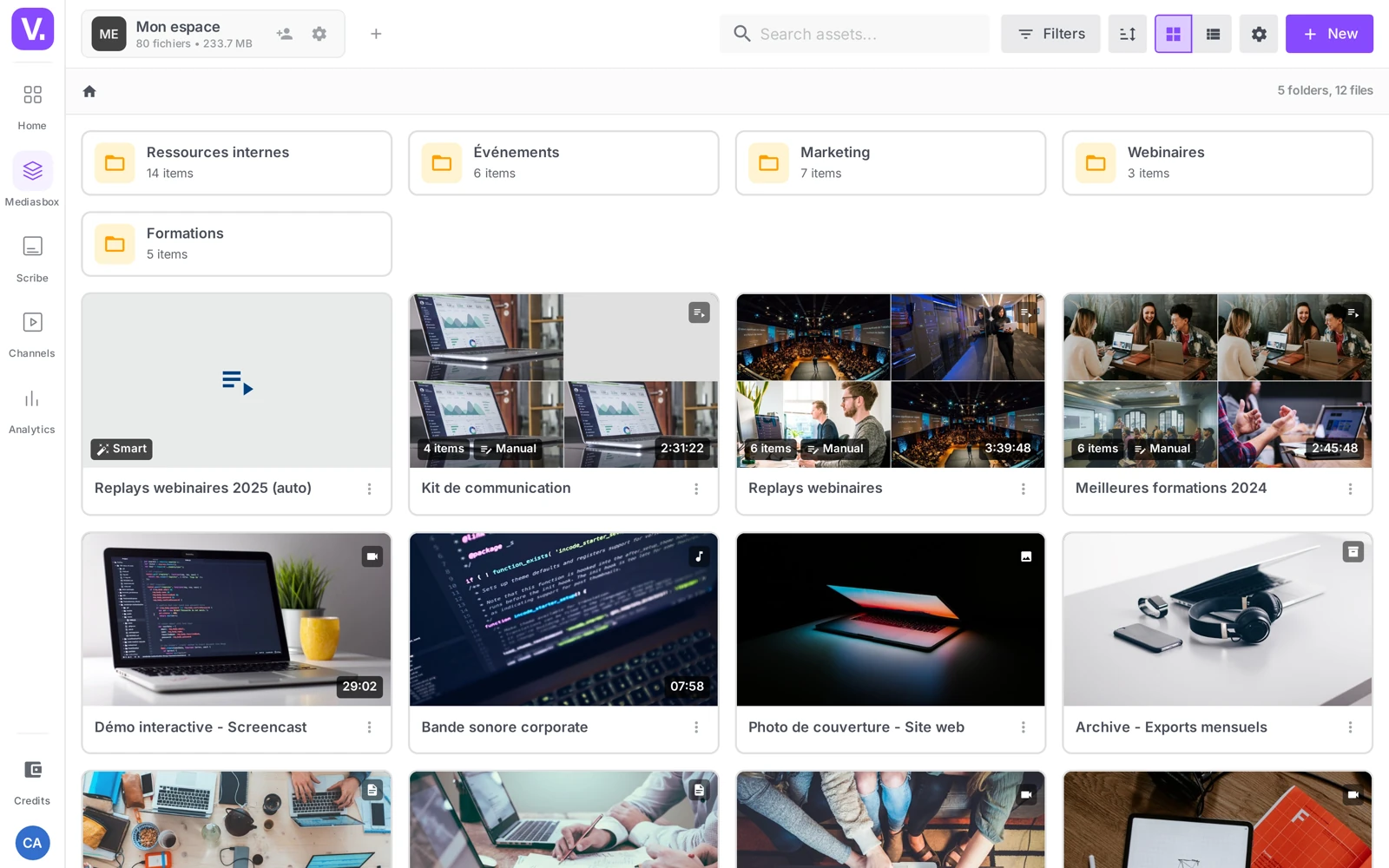
To upload a video to Videas, open Mediasbox (your media library), click New then Upload files — or simply drag your files onto the page. Videas handles the transfer — 3 files in parallel, up to 100 GB each — the transcoding and the thumbnails automatically. You need the Editor role (or higher) on the workspace; Viewer roles cannot upload.
This guide covers the three upload methods, tracking your transfers, the accepted formats and how to troubleshoot common errors.
Just one file to put online? The Host a video tool publishes it with no account and returns a playback link — one file at a time, 2 GB, ten minutes, seven days. For a library, the upload described here is the right route.
Step 1: Choose an upload method
Videas offers three methods, all from Mediasbox.
Method 1 — Drag and drop
Drag your files from your computer anywhere on the page. A drop zone appears (Click or drop files here, then Drop files to upload while hovering). Let go: the upload starts immediately. This is the fastest method for a batch you have prepared in a local folder.
Method 2 — File selection
Click New, then the drop zone (on a workspace that is still empty, Videas offers an Upload files button directly), and pick your files in the file browser. Handy if your files are scattered across your disk.
Good to know: if you have several workspaces, Videas first asks you to Choose a workspace, then click Upload.
Method 3 — Import from a URL (YouTube, Vimeo, Dailymotion)
Videas can fetch a public video straight from YouTube, Vimeo or Dailymotion:
- Click New → External video
- Paste the URL into the field provided
- Videas shows a preview (title, description, thumbnail, duration) taken from the source
- Click Import to fetch the video
Note: the video must be public. Private, unlisted or protected videos are not accessible.
Step 2: Track the progress
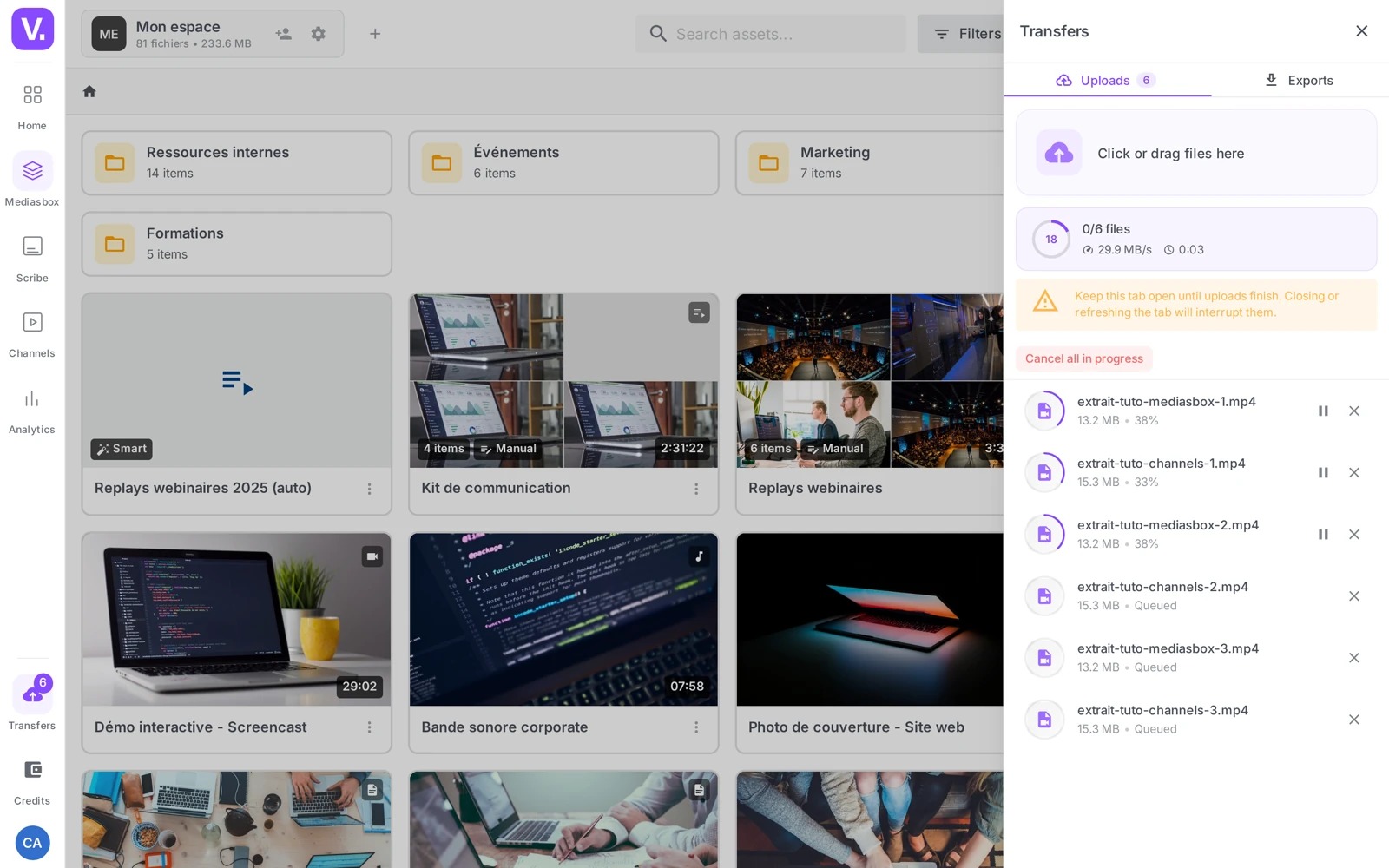
As soon as an upload starts, Videas shows the progress in two places: a mini bar at the bottom of the screen (overall progress, speed, queue) and an uploads panel where each file has its own bar. Videas handles up to 3 uploads in parallel; any extra files go into the queue.
Pause, resume, cancel, retry
| Action | Effect |
|---|---|
| Pause | Interrupts the upload (the work already done is kept) |
| Resume | Picks up where it left off |
| Cancel | Abandons the upload and frees up the queue |
| Retry | Restarts an upload that failed |
A limit to know about: Pause/Resume work for files larger than 5 MB. Smaller ones are sent in a single pass (but they go through in seconds anyway).
Automatic resume after a dropout
Videas automatically retries each upload up to 3 times, with an increasing delay. For large files, the upload resumes exactly where it stopped thanks to the TUS protocol, with nothing to redo. You can close the tab and come back later on the same browser.
Step 3: Processing after upload
Once received, your media item goes through several statuses in Mediasbox:
| Status | Meaning |
|---|---|
| Processing | Analysing the file (duration, codec, dimensions, audio tracks) |
| Encoding | Transcoding into several qualities for adaptive streaming |
| Ready | The media item can be delivered and shared |
| Error | The file could not be processed (see troubleshooting) |
| Archived | The media item was archived manually |
During processing, Videas automatically extracts: the technical metadata (duration, codec, resolution, fps, bitrate, audio tracks), four thumbnails (at 25%, 50%, 75% and 90% of the duration) and the audio track into a separate file, and it starts the speech detection that prepares the automatic subtitles.
The default title is the file name without its extension. You can change it at any time from the media page (see Edit a media item’s information).
Supported formats and sizes
Videas accepts: MP4, MOV, MKV, WebM, AVI, as well as WMV, FLV, MPEG/MPG, M4V, 3GP, OGV, VOB, TS, MTS, M2TS, MXF and ASF.
Maximum size per file: 100 GB. No limit on the number of files, within your organization’s storage quota.
Recommended source codecs and quality
For fast uploading and transcoding:
- Container: MP4 · Video codec: H.264 (the fastest to process)
- Resolution: 1080p or 4K depending on the need
- Indicative bitrate: 8 to 12 Mbps at 1080p, 35 to 50 Mbps at 4K
The other common codecs — H.265 (HEVC), VP9, AV1, ProRes — are accepted and converted automatically. Videas then generates the versions matched to every quality (adaptive HLS streaming).
Prepare your files before uploading
- Name your files clearly: the name becomes the default title (
product-presentation-2026.mp4rather thanIMG_0042.mp4) - Group them in a local folder before drag and drop
- Avoid special characters (
/,\,?,*and so on) - Check your quota before a large batch
- Compress very heavy rushes if you do not need maximum quality (an 80 GB 4K file often comes down to 20 GB with no visible loss)
Troubleshooting
“The file exceeds the maximum size”
The file is over 100 GB. Compress it (HandBrake, CapCut) or split it before uploading again.
“Not enough storage”
Quota reached. Delete unneeded media, archive some, or ask an Admin to raise the quota.
“Unable to start the upload”
Check your connection and click Retry. A restrictive corporate proxy or an extended dropout can block the upload.
The format is rejected
The file is not recognised as a video (misleading extension, corrupted file, unsupported format). Convert it back to MP4 H.264 with a free tool such as HandBrake, then try again.
The video stays stuck on “Processing”
Transcoding can take several minutes for large files (4K, 8K). If the status has not changed after an hour, contact support with the video’s name.
Real-world use cases
- A batch of rushes: drag and drop the whole local folder in one go. Videas uploads 3 files at a time and queues the others — you can keep working while they go up.
- YouTube/Vimeo migration: use New → External video to bring your public videos over one by one, without downloading them again. Ideal for moving to a platform hosted in the EU.
- Resuming after a dropout: reopen Videas on the same browser and the uploads pick up where they stopped.
What becomes of your files: the Video hosting page details the storage, the delivery and the hosting of what you upload here.
Can I close my browser during an upload?
Yes, as long as you come back on the same browser. Videas sends large files with the TUS protocol, which resumes exactly where the upload stopped instead of starting over. So you can close the tab, shut the screen, lose your connection: when you return, the uploads pick themselves back up. Videas also retries each upload up to 3 times on its own, with an increasing delay.
The one constraint is the browser: an upload started in Chrome will not resume in Firefox, or on another machine.
Do I need to compress a video before uploading it?
No, in most cases. Videas re-encodes every video automatically into several qualities for adaptive streaming, so uploading a heavy master degrades nothing — it only costs upload time. H.265, VP9, AV1 and ProRes are accepted and converted with nothing for you to do.
Compress only in two situations: the file is over 100 GB (the maximum size per file), or your storage quota is tight. An 80 GB 4K rush often comes down to 20 GB with no visible loss.
Can I import a private or unlisted YouTube video?
No. URL import (New → External video) only fetches public videos from YouTube, Vimeo and Dailymotion. A private, unlisted or password-protected video is not reachable by Videas, and the import fails.
To bring a non-public video over, you have two options: switch it back to public for the duration of the import, or download it from your source account and drag and drop the file.
In short
- Three methods: drag and drop, New → Upload files, New → External video (YouTube/Vimeo/Dailymotion)
- Up to 3 uploads in parallel, automatically resumable after a dropout
- Maximum size: 100 GB per file, within the organization’s quota
- Transcoding, thumbnails and the audio track generated automatically
- Uploading requires the Editor role (or higher)
Related articles
Screenshots were taken on Videas Academy, an example channel built for this help center. It belongs to a fictional customer, not to Videas: your own channel carries your name, your branding and your prices.