Replace a video without breaking its links
To replace the file of a media item without breaking its URLs, embeds, shares and analytics, use the Videas version system: open the media item’s detail page in Mediasbox (your media library), go to the Files tab, click Replace file and upload the new one. The previous version stays in the history, and your existing links automatically point to the new one. You need the Editor role (or above), and a replacement file of the same type (video → video, audio → audio…).
Versions ≠ attached files. On the Files tab, do not confuse versions (the same media item, content that evolves over time — this guide) with Attached files (other media items attached to it, such as a PDF handout — see Attach related files to a media item).
Replace the source file
On the media item’s detail page, open the Files tab (Files & Versions section), then click Replace file. Videas warns you: “This will create a new version. The current version will be kept in the history.” Confirm, choose your file, and the upload starts (resumable if the connection drops, like a standard upload).
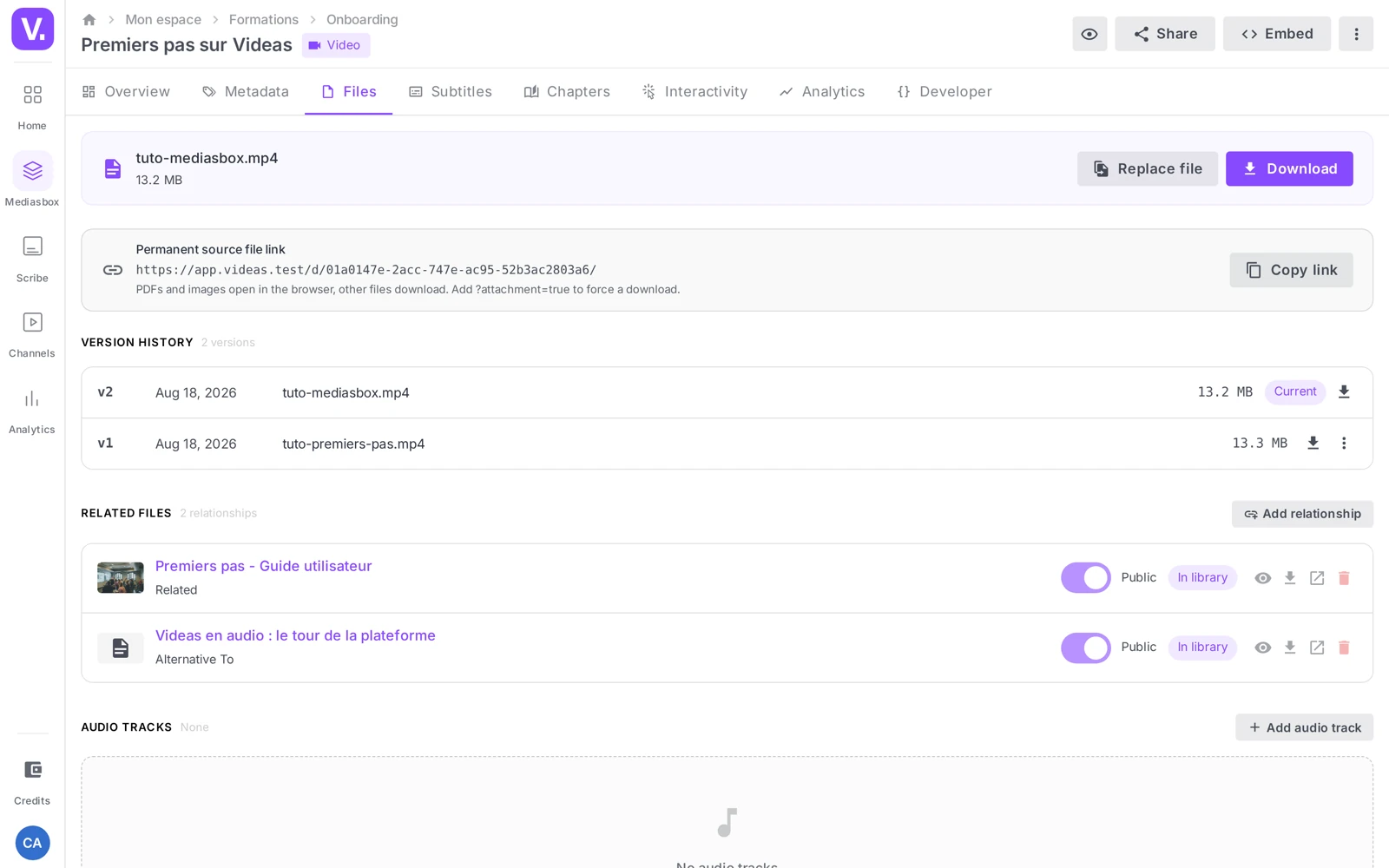
When the upload finishes, Videas restarts processing (metadata, thumbnails, encoding, waveform for audio). Once it is done, the new version becomes Current and the previous one moves into the history.
Two rules to know:
- The type of the file must match the type of the media item (a video media item only accepts videos, and so on).
- The duration, resolution and aspect ratio are not checked: you can replace a 10-minute video with an 8-minute one, but that may throw chapters, subtitles and interactivity out of sync (see below).
The version history
Below the button, the Version history lists the successive versions, with the active one carrying the Current badge (and Deleted on a deleted version). On each version, you can:
- Download the original source file
- Revert to this version — it becomes the current version again
- Delete this version — only on a version that is not current
Good to know: the history is purely chronological — no note, label or author per version. To track why each change was made, keep a short changelog in the media item’s description.
Revert to an earlier version
Revert to this version makes the chosen version current again without creating a new row: if you revert to v1, it is v1 that becomes Current again (not a copy called v4). The operation is fast (the file is already encoded) and reversible at any time.
Delete a version
Delete this version removes the source file of a non-current version; the row remains, with the Deleted badge. You cannot delete the current version — revert to another version first, then delete the old one.
What survives a replacement (and what does not)
| Item | After replacement |
|---|---|
| Public URL, embed code, share links | Unchanged — your links do not break |
| Cumulative analytics | Preserved |
| Description, tags, metadata | Preserved |
| Custom thumbnail | Preserved (auto thumbnails are regenerated) |
| Chapters, subtitles, interactivity | Kept as they are — their timecodes may no longer match if the duration has changed |
| Encoding / streaming | Re-encoded on the new version |
Tip: after a replacement that changes the duration, run through the Chapters, Subtitles and Interactivity tabs to check the timecodes.
Limits to be aware of
- No parallel versions: you cannot expose a short version and a long version on the same media item. For that, create two separate media items (grouped into a collection or attached as related files).
- No note, label or author per version (chronological history).
- Old versions stay stored and take up space — delete the versions you have abandoned.
The system works identically for videos, audio, images and documents (each type only accepts a replacement of the same type).
What happens to a link already sent after a replacement?
It keeps working and serves the new version. That is the whole point of the system: the public URL, the embed code and the share links are unchanged, and your cumulative analytics, description, tags and custom thumbnail are preserved.
That is the difference with a re-upload: re-uploading creates a new media item, with a new URL, analytics starting from zero and every previous link to redo.
Is there anything to check after replacing a file?
Yes, as soon as the length changes. Videas checks neither the duration, nor the resolution, nor the aspect ratio of the replacement: it will accept an eight-minute version in place of a ten-minute one. Yet chapters, subtitles and interactivity are kept as they are, with their original timecodes.
The round to make after a re-edit: the three tabs Chapters, Subtitles and Interactivity. If the edit has moved by more than a few seconds, regenerating the subtitles is usually faster than catching the drift up segment by segment.
Can I offer a short and a long version of the same item?
No. The version system is chronological: one version is Current at any moment, and the others sit in the history. There are no parallel versions exposed at the same time.
For that need, create two separate media items — you can then group them in a collection, or attach one to the other as a related file to mark their kinship.
How do I go back to the previous version?
Through the Revert to this version action in the history. The chosen version becomes Current again without creating a new row: if you go back to v1, it is v1 that takes the place, not a copy numbered v4.
The operation is fast, since the file is already encoded, and reversible at any time. Note that the current version cannot be deleted: to remove a version, revert to another one first, then delete the old one.
How do I know why a version was replaced?
The history will not tell you: it is purely chronological, with no note, no label and no author per version. That is its main limitation.
The workaround is a habit: keep a short changelog in the media item’s description, one line per replacement. Without it, three versions later, nobody will know which one matches the edit the client approved.
In summary
- Files tab → Replace file keeps the URL, embed, shares and analytics
- The Version history marks the active version with a Current badge
- Revert to this version makes it current again without creating a new row
- Delete this version only works on a version that is not current
- Chapters, subtitles, interactivity are kept but need re-checking if the duration changes
- No parallel versions; the Editor role (or above) is required
Related articles
Screenshots were taken on Videas Academy, an example channel built for this help center. It belongs to a fictional customer, not to Videas: your own channel carries your name, your branding and your prices.