Generate a title, description and keywords with AI
To generate the title, the description, a summary or SEO keywords for a video, open it in Mediasbox, stay on the Overview tab, and in the AI assistant card click Write titles and descriptions: the AI writing window uses the media item’s transcription to suggest several pieces of text, which you apply in one click. You need a video (or audio file) with detected speech, and the Editor role (or above).
If the option is missing, it is because the video has no transcription: AI writing then shows “This feature requires a video or audio file with detected speech”. Generate the subtitles first.
The four content types
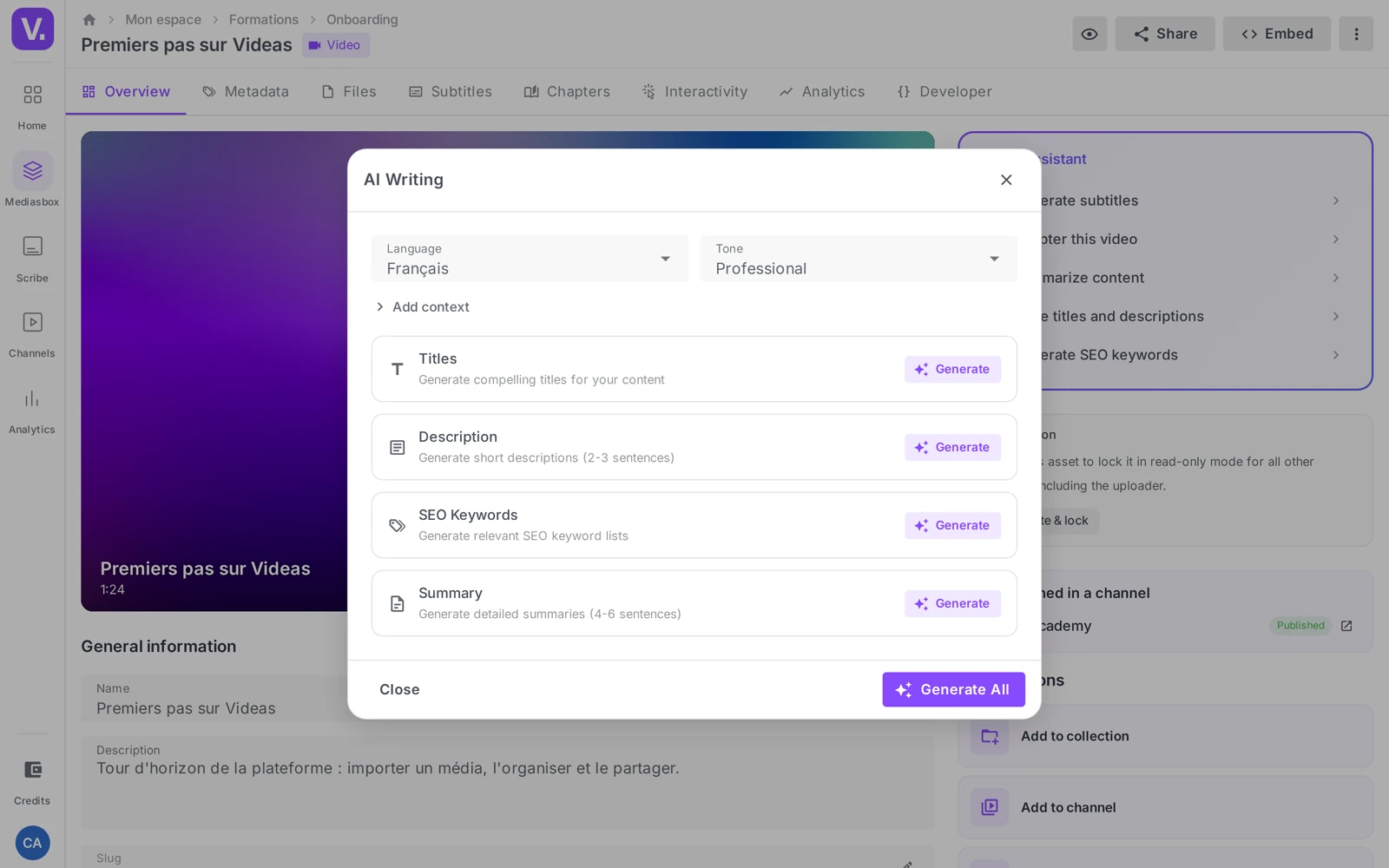
The AI writing window offers four cards:
- Titles — several title suggestions; Apply updates the media item’s Name field
- Description — description suggestions; Apply fills in the Description field
- SEO keywords — keywords drawn from the content
- Summary — a longer, more narrative summary
Note: the Summary is provided for reference only — the app makes clear that it “cannot be applied directly to a field”. Use Copy to reuse it wherever you like.
Set the language, tone and context
At the top of the window, three settings apply to every generation:
- Language — the language of the text produced (it can differ from the spoken language: a video in French, titles in English for LinkedIn EN)
- Tone — Professional, Casual, Formal or Creative
- Add context — a free-text area to steer the AI with what the transcription does not say
The most valuable lever is the context. Spell out the audience and the channel (“Non-technical HR audience, stress how simple it is”; “Sales webinar, targeting marketing directors at SMBs, stress the ROI”): that changes relevance far more than a change of tone.
Generate and apply
On each card, Generate produces the suggestions (a few seconds); Regenerate offers different ones with the same settings. The Generate all button (at the bottom) launches all four types in parallel — ideal for processing a brand-new video in one go.
For each suggestion: Copy (to the clipboard) or Apply (writes to the media item’s field, with an Applied badge). Changing your mind replaces the value; Copy is the cautious option if you want to stay in control of the field.
Best practices
- Review the transcription first. The AI starts from the transcribed text: if Scribe wrote “Leon” for “Lyon”, the title will repeat the error. Generate the subtitles, review them, then run AI writing.
- Iterate on the context rather than regenerating blindly: add an audience, a channel, a constraint (“title under 60 characters”).
- Keep your brand voice. The AI gives you an excellent starting point, not the final word — adjust phrasing, anglicisms and emoji to fit your style guide.
- Need an official term to appear (company name, brand)? Put it in the context.
The other uses of AI: the Artificial intelligence page covers what Videas automates beyond writing — transcription, chapters, keywords.
Why is AI writing unavailable on my video?
Because it has no transcript to read. The assistant works from the transcribed text, not from the picture: with no detected speech, the window shows “This feature requires a video or audio with detected speech”.
So the route is always the same: generate the subtitles first, then come back to the Overview tab. Purely musical content or an image cannot benefit from it.
Tone or context: which one really changes the result?
Context, by a long way. Tone (Professional, Casual, Formal, Creative) adjusts the register, but it tells the AI nothing about what the transcript does not contain — your audience, your channel, your constraints.
That is where one sentence changes everything: “Non-technical HR audience, stress simplicity”, “Sales webinar, audience is marketing directors at SMEs, stress ROI”, “title under 60 characters”. Iterate on the context rather than regenerating blindly with the same settings.
Should I review the transcript before generating a title?
Yes, otherwise you propagate the error. The assistant takes the text as it was transcribed: if Scribe wrote “Leon” for “Lyon”, the suggested title will carry “Leon” over, and you will correct twice instead of once.
So the efficient order is: generate the subtitles, review them in the editor, then run AI writing. And if the same terms come back from one video to the next, feed the glossary so the problem stops recurring.
Can I generate a title in a language other than the video’s?
Yes. The Language setting at the top of the window applies to the texts produced, not to the language spoken. A French video can therefore yield English titles and description — handy for a LinkedIn post aimed at an English-speaking audience.
Copy or Apply: what is the difference?
Apply writes the suggestion straight into the media item’s field (the Name for a title, the Description for a description) and shows an Applied badge; applying another suggestion replaces the value.
Copy puts the text on the clipboard without touching anything — the cautious option when you want to rework the text before saving it. The Summary, in fact, only offers Copy: it is provided for reference and matches no field on the media item.
In summary
- Overview tab → AI assistant card → Write titles and descriptions → the AI writing window
- Four types: Titles, Description, SEO keywords, Summary (the Summary cannot be applied to a field — Copy only)
- Settings: Language, Tone (Professional / Casual / Formal / Creative), Add context (the major lever)
- Generate / Regenerate per card, or Generate all; Copy or Apply (Applied badge)
- Requires detected speech; review the transcription before generating
- Requires the Editor role (or above)
Related articles
Screenshots were taken on Videas Academy, an example channel built for this help center. It belongs to a fictional customer, not to Videas: your own channel carries your name, your branding and your prices.