Share a collection by link
To share a collection: open it in Videas, click Share, copy the link. Your recipient opens a playlist player that runs through every item in the collection, moves between them, and does it all without creating an account.
Sharing a collection uses exactly the same window as sharing a video: the link is created automatically when it opens, with the same settings. This article focuses on what is specific to collections; for the detail of each option, see How to share a video with a link.
Create the share link
- Open the collection page in your media library
- Click Share in the action bar
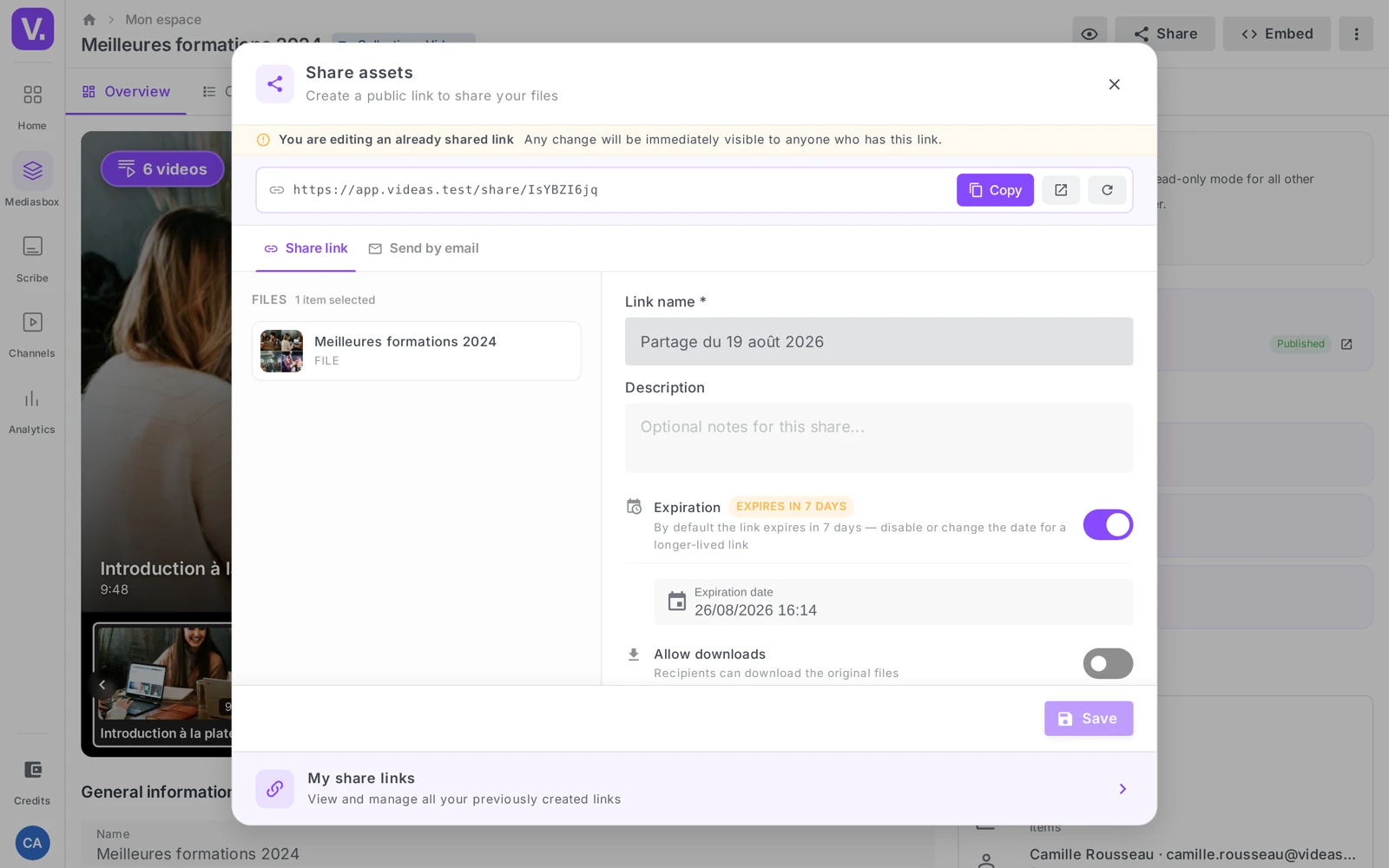
- The Share files window opens and the link appears automatically
- Click Copy
In the Files list on the left, the collection shows up as a single item: it really is the collection that is shared, not its media broken out. Any change to the collection carries through to the link.
Collection or multiple selection? Sharing a collection shares a set that lives over time (it follows additions and removals). Selecting several media items and clicking Share creates a grouping frozen at the moment of sharing. Choose depending on whether your list has to evolve or stay stable.
Set up the share
Every option from video sharing applies identically: link name and description, expiry (on by default at 7 days), password, open limit, downloads permission, Hide details and Hide date, and the Active toggle to cut off access. Each setting and the recommended combinations are covered in How to share a video with a link.
Note: the open limit is counted globally on the link, across all media. If you set 10 opens and a visitor watches 3 videos from the collection, that uses up 3 opens.
What the recipient sees
The recipient opens a dedicated page with:
- the collection’s name and description (unless you turned on Hide details);
- the list of media with thumbnails and titles;
- a player that starts on the first item.
They can click any item in the list, use the next / previous buttons, and get automatic sequencing depending on your player’s default configuration. No account is required.
The case of smart collections
A smart collection updates itself automatically according to rules. Sharing it gives access to its current content, not to a frozen snapshot: a video joining the collection appears in the link, and an edited rule can take one out.
- For content that has to evolve (a resource library, the quarter’s replays), that is an advantage — say so in the description.
- For content that has to stay fixed (contractual delivery, locked version), go for a manual collection.
See Group media automatically.
Best practices
- Name the collection for the visitor: “Onboarding training 2026” rather than “Test” — that name is visible on the recipient’s side.
- Write a proper description: it works as the instructions (recommended order, total duration, intended audience).
- Order the media along a clear logic, especially for a training course (a manual collection is reordered by drag and drop).
Who can share
Creating a share link requires the Editor role on the workspace (the sharing permission); the Viewer role cannot share.
Does the link follow items added after sharing?
Yes. A collection is shared as a whole: in the Files list of the share window it appears as a single item, not as its media broken out. Any item added to or removed from the collection appears in or disappears from the link you already circulated, with no need to recreate it.
That is what separates sharing a collection from a multiple selection, which is frozen at share time.
What happens if I share a smart collection?
The link gives access to its content at that moment, not to a snapshot. A video that matches the rules joins the collection and appears in the link; a changed rule can equally remove one.
That is an advantage for a resource library or a quarter’s replays — mention it in the description so the recipient knows the page keeps growing. For a contractual delivery or a locked version, prefer a manual collection.
What exactly does the recipient see?
A dedicated page with the collection’s name and description (unless you turned on Hide details), the list of media with thumbnails and titles, and a player starting on the first one.
They click any item in the list, use the next / previous buttons, and get automatic continuation according to your player’s default configuration. No account is required.
Do the collection’s name and description matter?
Yes, because both are visible to the recipient. “Onboarding training 2026” is understood at a glance; “Test” or “Collec v2” leave your contact facing a page they cannot read.
The description works as instructions: suggested order, total running time, intended audience. On a training set, also take the time to order the media by drag and drop — in a manual collection, that order is what carries the teaching progression.
In short
- Sharing a collection gives a playlist player reachable through a single link, with no account for the recipient
- The Share window and all its options are identical to a video’s — see How to share a video with a link
- The collection shows up as a single item in the Files list and follows its own changes (unlike a frozen multiple selection)
- The open limit is counted globally on the link
- A smart collection shares its content of the moment — go for a manual collection to freeze it
- Sharing requires the Editor role
Related articles
Screenshots were taken on Videas Academy, an example channel built for this help center. It belongs to a fictional customer, not to Videas: your own channel carries your name, your branding and your prices.