











Add subtitles to a video for free, with no subscription

Drop in a video or an audio file: Scribe pulls synchronized subtitles out of it in minutes, in over a hundred languages. You correct the wording and the timing in the editor, then export as SRT or VTT — or burn the subtitles straight into the picture.

ONISEP
AFNOR
Ville de Roubaix
Safran
France-Soir
Crédit Agricole
France Travail
Magnard-Vuibert
Sodiaal
Yoplait
Call

Subtitles generated, then corrected

Subtitles are not only about accessibility: they make a video watchable with the sound off, in an open-plan office or on a train, and they make it searchable, because it becomes text. It is the first thing social feeds and training platforms ask for.

With Videas Scribe, generation takes minutes, then you take over in a built-in editor: fix the wording, nudge the timecodes, merge segments, replace a term across the whole transcript. Export to SRT, VTT, TXT or DOCX, or publish straight to the Videas player. The tutorial generate automatic subtitles walks through the same path from an account, and the Scribe page shows the same engine applied to a whole library. The account is not bought: you pay for what you use, and the Pricing page says how much.


Subtitle your videos in 3 steps

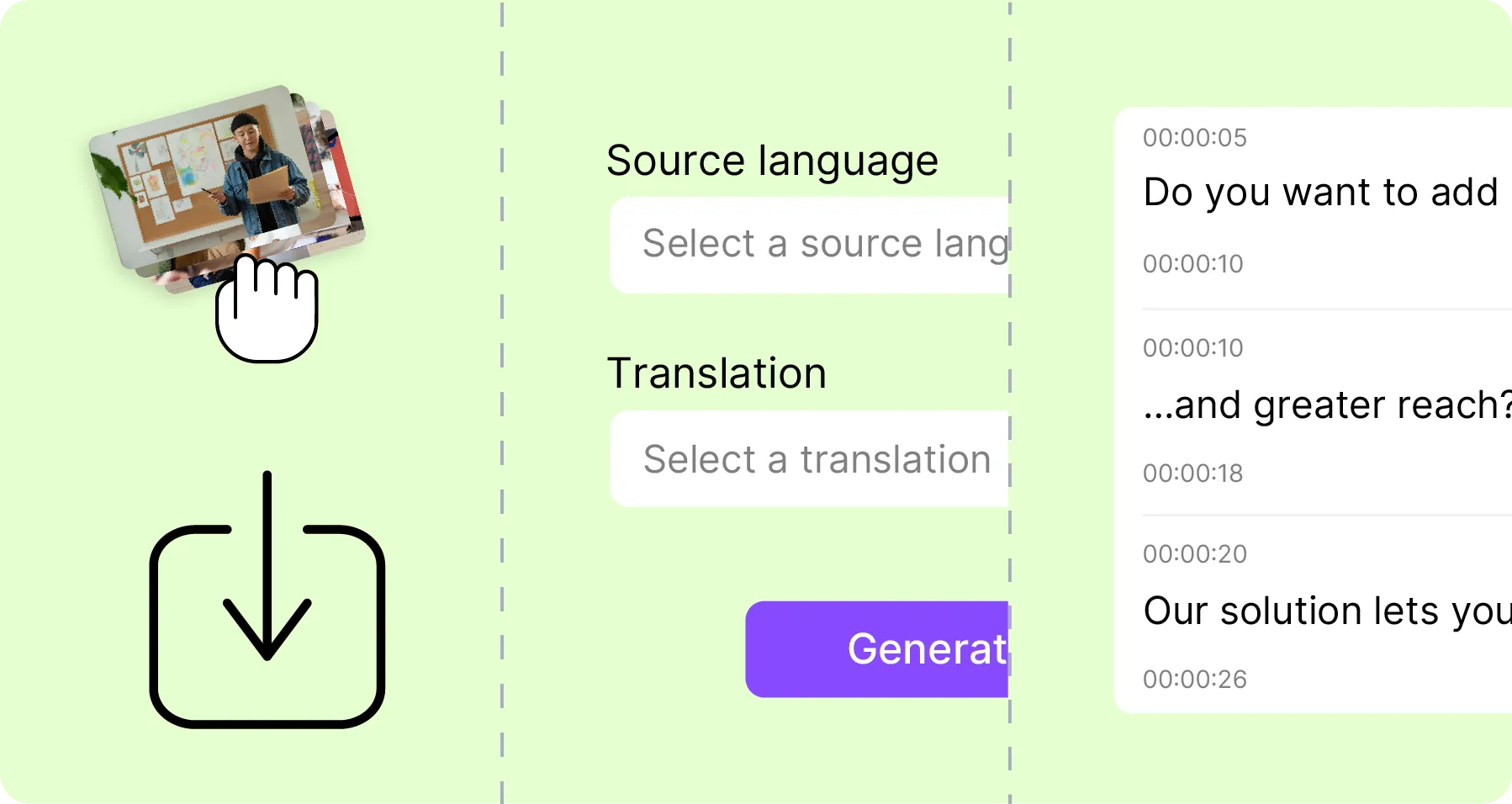
  1. 1. Import your files.

    Video or audio, in all the common formats. Without an account: 2 GB and 10 minutes per file. You can also start from a file in your Mediasbox library.

  2. 2. Generate automatically

    AI generates synchronized subtitles and a transcription in the language you choose. Add translations if you need them, in a single pass.

  3. 3. Edit & export

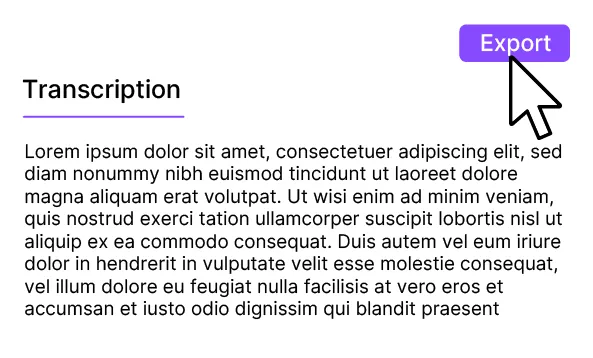
    Adjust the text and the timing, customize the style, then export to SRT, VTT, TXT or DOCX. Publish straight into the Videas player.

Video subtitling in 3 steps

A subtitle editor, word by word

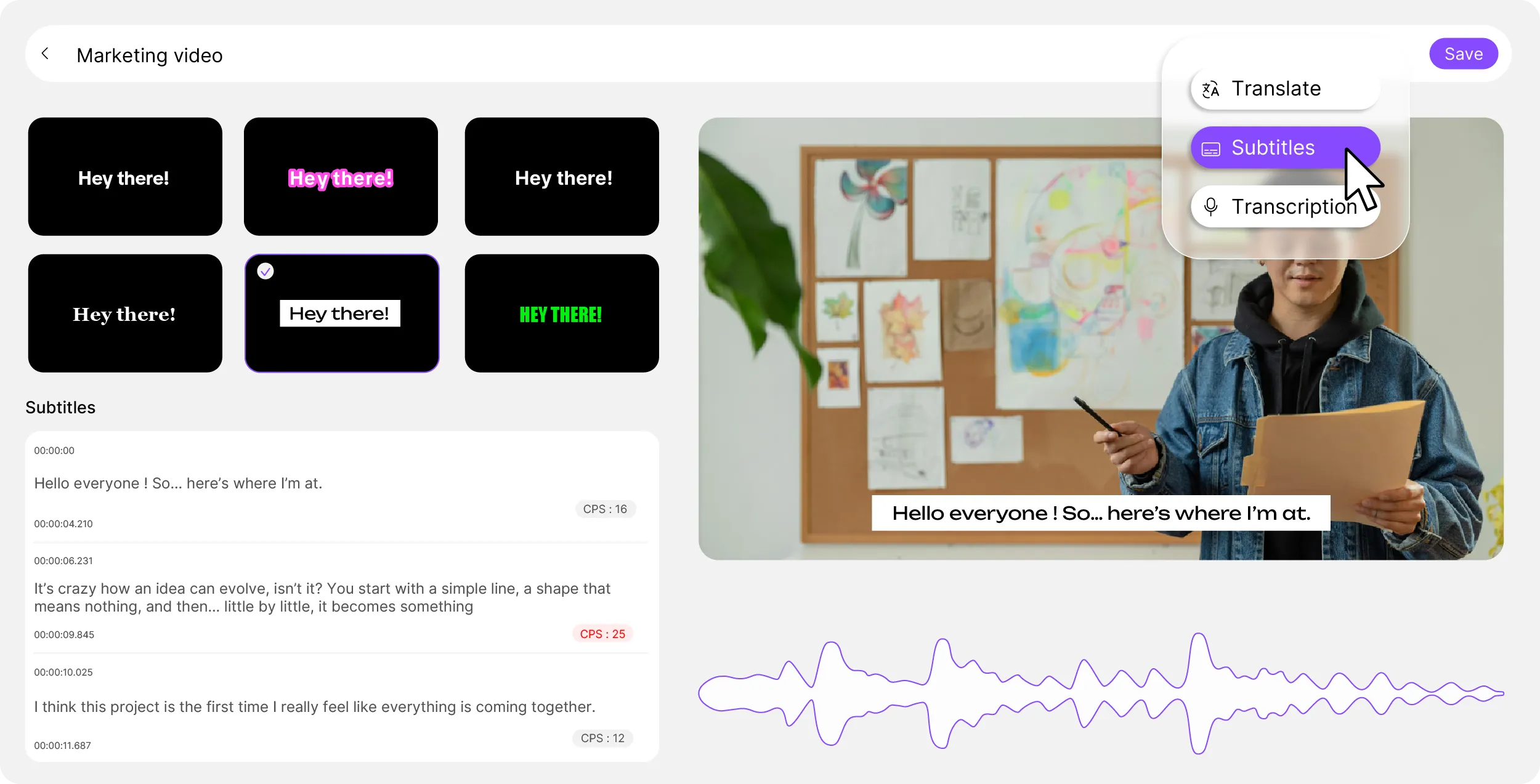
Correct the text, fine-tune the timing and control every subtitle line. The real-time preview in the player lets you check the result before publishing. Search and replace, segment merging, timecode adjustment: it all happens in one place. The editor handles several subtitle tracks at once for multilingual projects.

Video subtitling and transcription

No sound needed, a hundred languages

Subtitles for social media

Ready for social feeds

Subtitles that read clearly without sound, designed for short formats and mobile viewing. Export your videos with burned-in subtitles, ready to publish on LinkedIn, Instagram or TikTok.

Multilingual subtitles in over 100 languages

Over a hundred languages

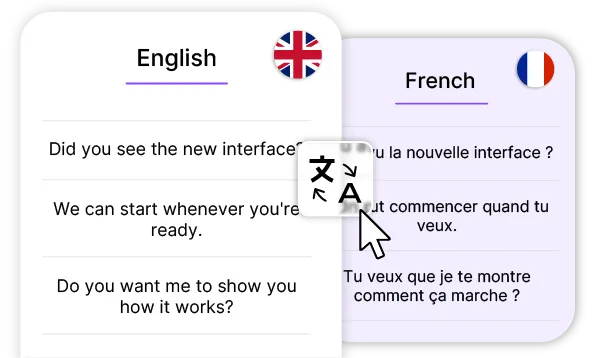
Generate subtitles and translations to reach an international audience, without piling up tools. Automatic source-language detection simplifies the process for multilingual content.

Correcting and styling subtitles

  • 2 GB and 10 minutes, no account

    The limit is stated before the upload, not discovered once processing ends. From an account, neither duration nor size is capped.

  • One word fixed everywhere

    Fix a misrecognized word across the whole transcription instantly. Apply the replacement to every occurrence in one click.

  • Timing, to the tenth

    Fine-tune your timecodes, merge or split segments for perfect alignment with the audio.

  • The look, before publishing

    Real-time preview directly in the Videas player. Check how your subtitles look before publishing or exporting.

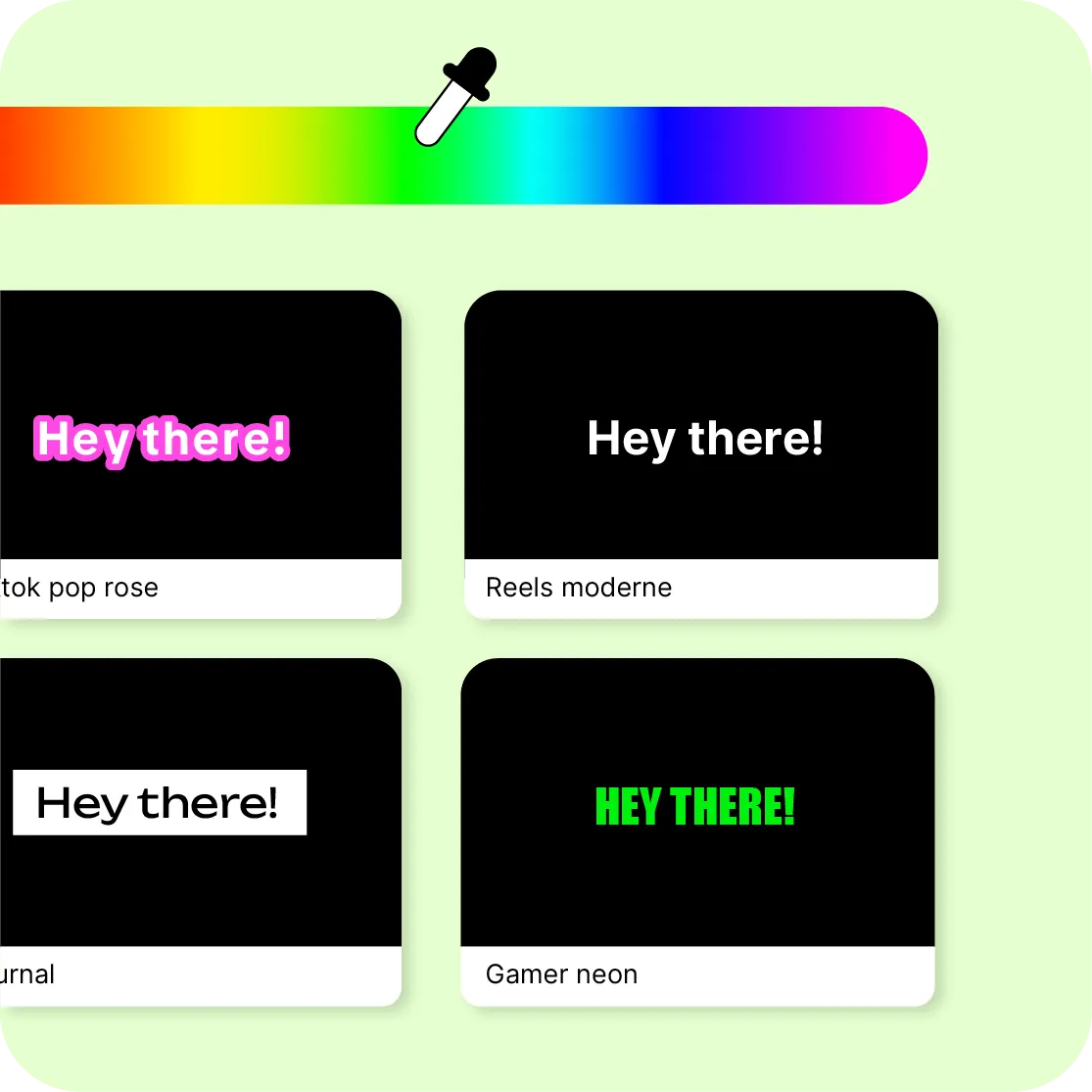
Four subtitle styles previewed side by side, under a color strip and its eyedropper.

Styled subtitles

AI generates subtitles with clean punctuation and timecodes, ready to use. Customize the look — font, colors, size, position — for a result consistent with your visual identity. Then add translations in over 100 languages to reach new audiences, all from the same interface.
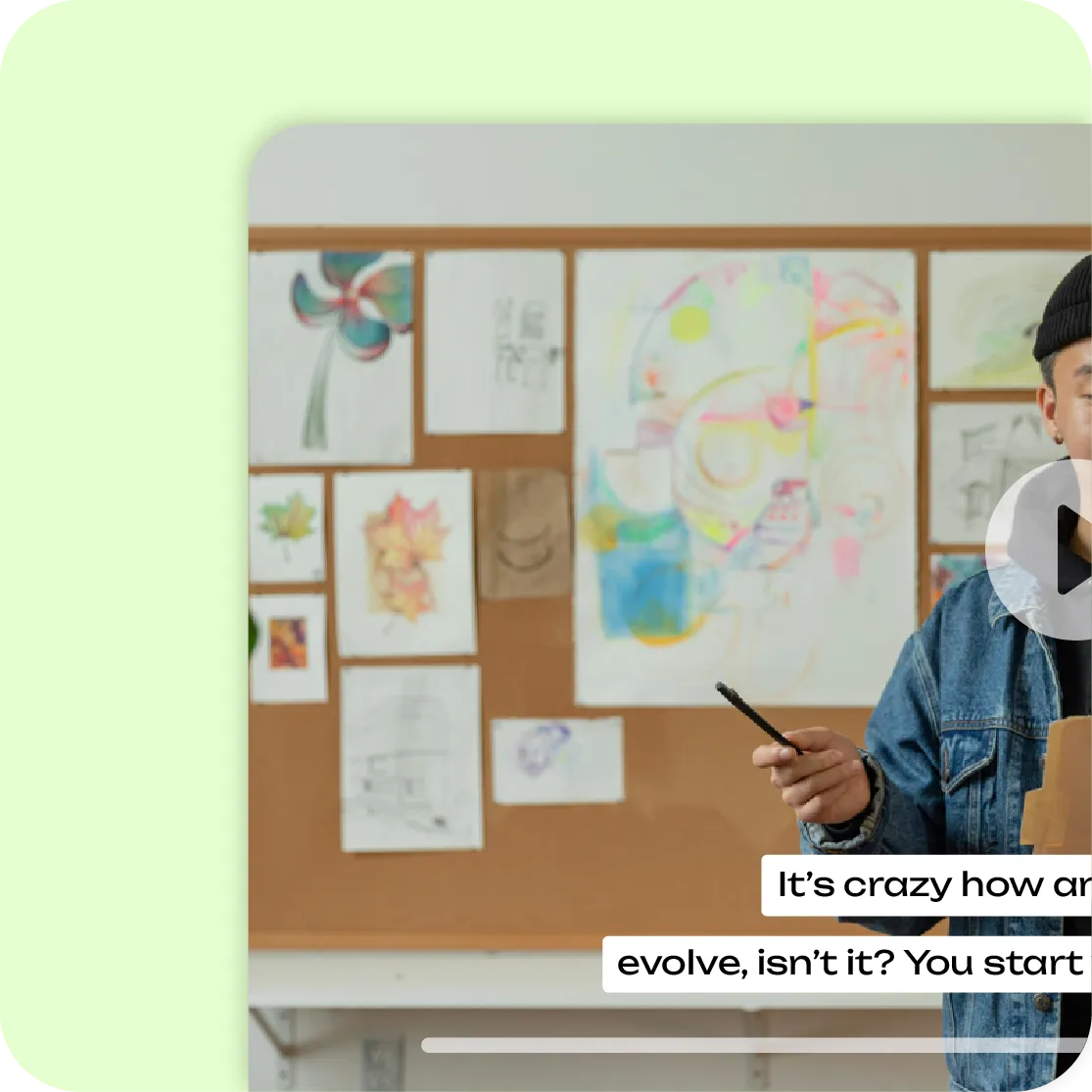

A video with its subtitles burned into the picture.

Subtitles burned in on export

Apply your style: casing, size, position and readability. Export your videos with the subtitles burned directly into the image (hardcoded) for social media, or as separate SRT/VTT files for the web. Keep a clean, consistent result across all your channels, compatible with the Videas player and the major platforms.

Six tools working on the same files

You upload a file once: it is stored, encoded and served over a CDN, then picked up as is by the channel, the page or the player. What Stream records comes back into the library. Nothing to wire together.

The other tools, and what comes next

Transcribe a video

Share a video

Translate a video

Host a video

Video freelancers

They are Videas customers


Frequently asked questions

How do I generate subtitles automatically?

Drop your file into the tool: Scribe analyses the audio track, detects the language being spoken and returns segmented, synchronized subtitles within minutes. You read them back in the editor, correct whatever speech recognition misheard, then export them or publish them straight away.

Can an audio file be subtitled?

Yes. A podcast, an interview recorded on a dictaphone or the soundtrack of a conference are handled exactly like a video: what is recognized is the speech, not the picture. You get the same SRT or VTT file, ready to lay over whichever edit you choose.

Which formats are supported?

Going in, the common audio and video formats: MP4, MOV, WebM, MP3, WAV. Coming out, SRT and VTT for players and platforms, TXT and DOCX when you want the text on its own. You can also publish straight into the Videas player, without producing a file at all.

Can subtitles be edited after generation?

Yes, completely. Every line can be edited: the wording, the in point, the out point. You can merge two segments that are too short, split one that runs too long, and fix a misheard word everywhere at once with global replace — handy for a proper noun or an industry term.

Can I customize how the subtitles look?

Yes: font, size, colour, position in the frame and how readable the background is. The setting shows up immediately in the player preview, before you publish. And it survives the export: if you burn the subtitles into the picture, your settings are what gets burned in.

Can subtitles be translated?

Yes, in the same pass. Scribe transcribes the audio track then translates into the languages you pick, without going file by file. Several tracks sit on the same video, and the viewer chooses theirs in the player. The Translate a video tool does the same thing from its own page.

Which formats can subtitles be exported in?

SRT and VTT, the two formats most players and platforms read; TXT for plain text; DOCX for a document someone else will proofread. You can also export the video with the subtitles burned into the picture, for feeds that will not take a separate track.

Can I export a video with burned-in subtitles?

Yes. Burning in writes the text into the picture, with the style you set: it is what social feeds that play without sound and refuse a separate track expect. The original video is untouched — burning in produces a new file alongside it.

Are subtitles useful for accessibility?

Yes, and not only for deaf or hard-of-hearing viewers. They make a video watchable with the sound off, in an open-plan office or on a train, and they help follow an accent or technical vocabulary. They also make the content searchable, because it turns into text.

Where are the files hosted?

In France, in a secure environment compliant with the GDPR. Your files serve the processing you asked for and nothing else: they are never scanned for other purposes, never indexed, never used to train a model, and you can delete them at any time.

Do I need an account to use the tool?

Not to try it: you drop a file, generation runs and you see the result on your own video. The free account is what lets you take the work away — export, publishing to the player — and find it again later. Work already done is attached to the account when you sign up.

How long does generation take?

A few minutes for ten minutes of video — the maximum without an account — and you do not have to stay on the page: processing continues and the result is waiting when you come back. It depends mostly on how long the file is, very little on the language.

What do subtitles cost from an account?

€0.10 per minute of video, and per language generated: a ten-minute video subtitled into three languages costs €3. Billing is based on the media duration rather than the speech detected, so you know the price before starting. And €5 in credits is free every month.