Set up your organization: identity, members, billing
Your organization settings open from your avatar (top right) → Organization settings: identity, language, branding, members, roles, billing, credits and player defaults are all gathered there. The organization is the root entity of your Videas account — it carries the subscription, groups your workspaces, holds the list of your collaborators and sets the visual defaults (player logo, primary color) applied across everything you do.
Most of these settings require the organization Owner or Administrator role; other members only get a limited view. This guide tours the sections and spells out, for each one, who can do what and where to click.
The Videas hierarchy at a glance
Organization
└── Workspace (n)
└── Media (n)- Organization: your business or your entity. One per customer account. This is where you set the global identity, the members, the billing.
- Workspaces: the internal subdivisions (by project, client, team…). They inherit several organization settings and can override them.
- Media: videos, audio, documents, images, collections — filed inside a workspace.
The settings described below apply to every workspace in your organization, unless stated otherwise.
Step 1: Open the organization settings
From any Videas screen, click your avatar in the top right, then Organization settings (depending on your version, the entry may be called Administration or Settings). A new page opens with a side menu holding all the sections described below.
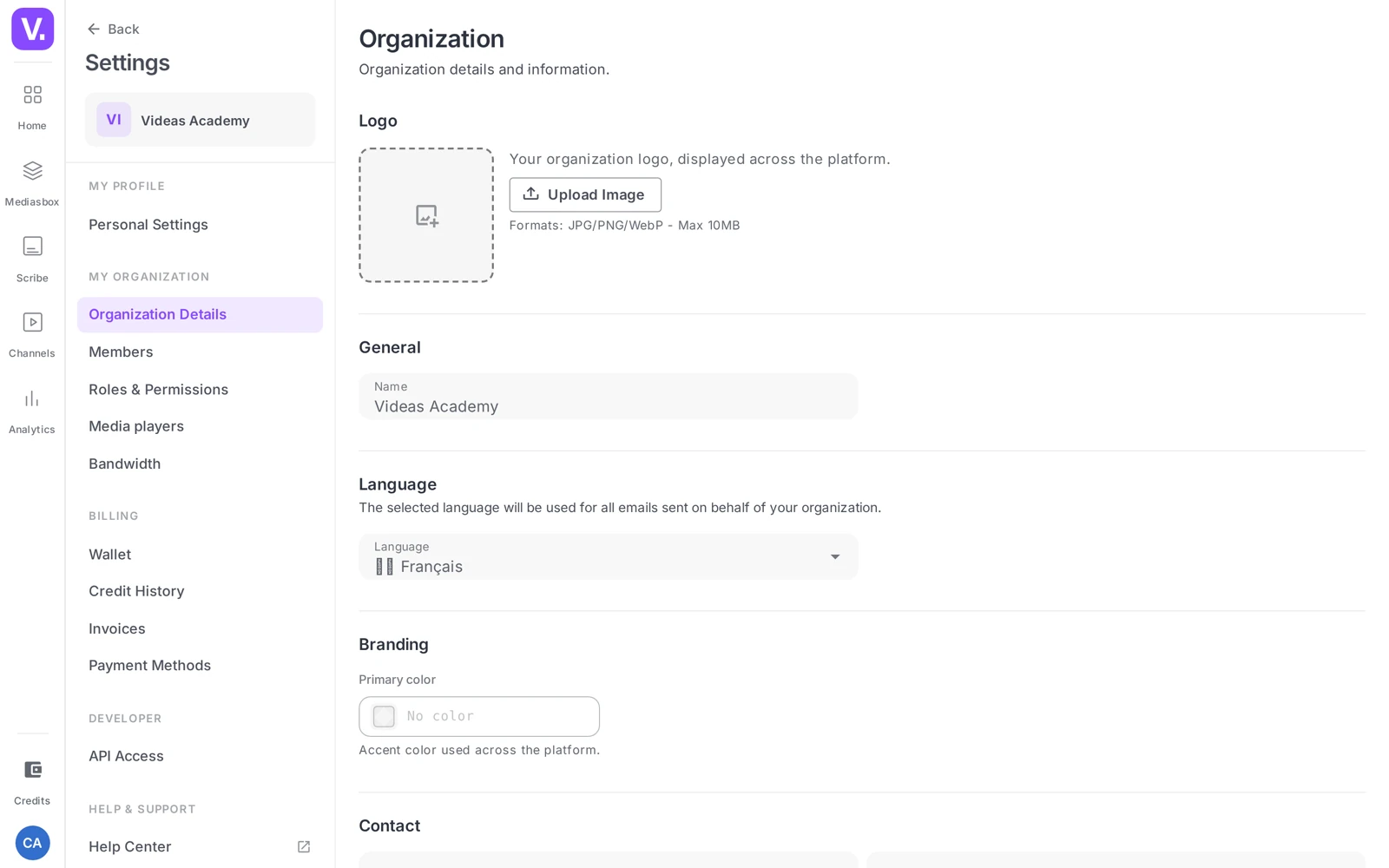
Step 2: Fill in identity and branding
The Account (or General) section holds the information that defines how your organization looks in Videas.
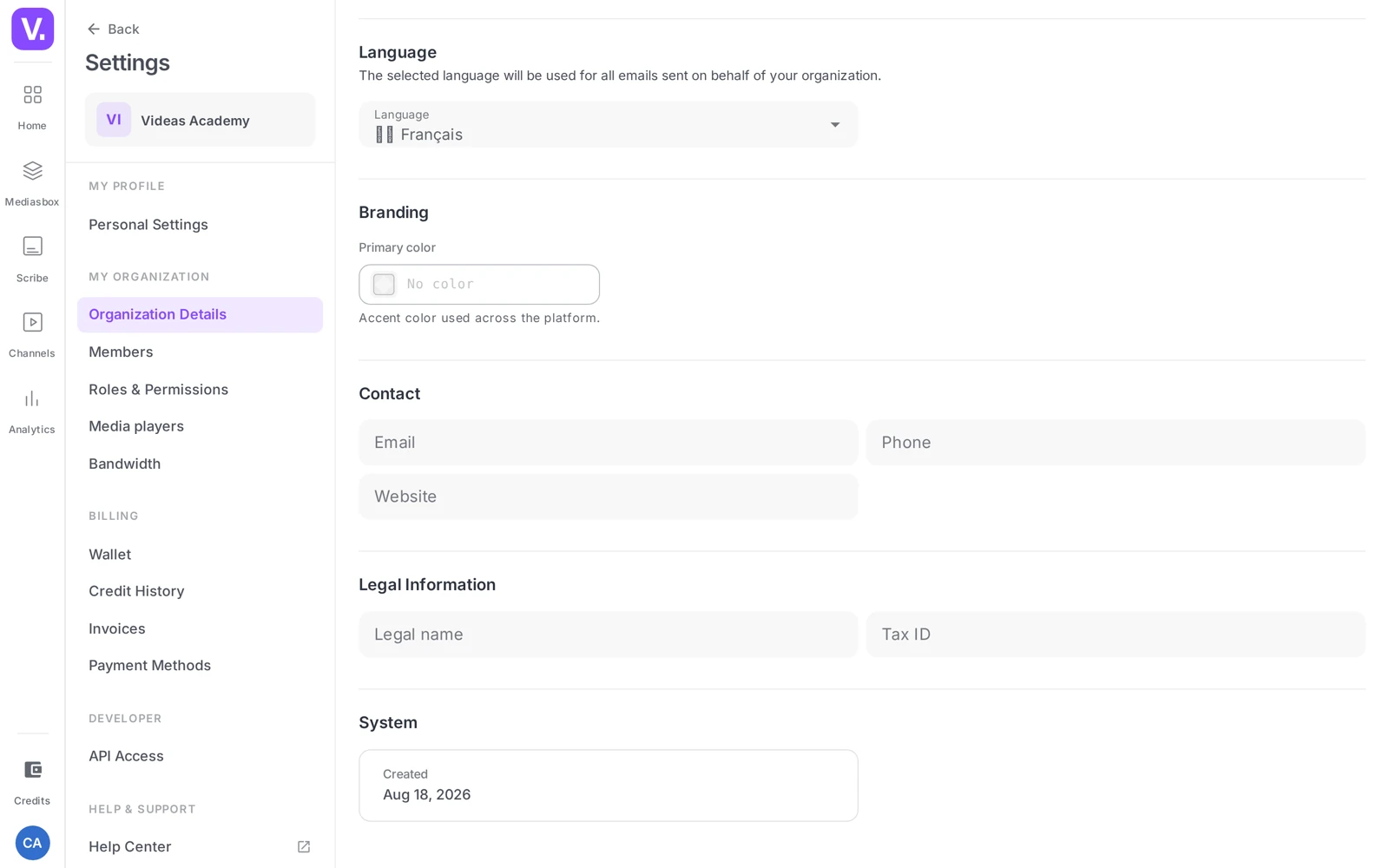
Identity
- Name: your organization’s name, visible everywhere (top of the interface, emails, invoices)
- Icon: a small square logo (PNG, JPEG or WebP recommended), shown in the organization switcher and the settings header
Language
- Default language: French or English, applied to the interface for new members and to automatic emails. Each user can then change their language from their personal preferences.
Branding
- Primary color: a color picker (Videas purple by default). This color drives buttons, links and visual accents — it can be overridden at workspace level for specific channels.
Contact
- Email, phone, website: the contact details shown on invoices and used by support
Legal information
- Legal name, VAT number: for invoices and accounting compliance. Fill them in carefully before your first invoice.
System
- The organization’s creation date (read-only)
Step 3: Overview of members
To see every collaborator in your organization at a glance, open any workspace then Settings > Team. This team view is cross-workspace: it lists all the organization’s members with their name, their email, their role and the workspace they have access to. You can filter it by workspace or by role, and search by name.
Inviting a new collaborator, changing a member’s role and removing them all happen from this screen, or directly from a specific workspace’s settings.
See also: for invitation details and onboarding best practices, see Invite collaborators to a workspace.
Step 4: Understand the roles
Videas relies on a roles + permissions system to define who can do what.
The Owner
One Owner per organization. That is the person who created the account, or to whom ownership was transferred. They have all rights over the organization, including billing and deletion. Owner is not a role you assign from the list: it is set directly at organization level and is protected (it cannot be removed).
Workspace roles
The roles you assign day to day are set inside each workspace: a member is Viewer (read-only), Editor (create and edit media) or Admin (manage the workspace and its members). The same user can have a different role from one workspace to another.
At organization level, membership gives a common baseline (create workspaces, invite people into the organization); billing, though, stays reserved for the Owner.
Custom roles
Beyond the system roles, you can create your own roles (for example Editor-in-chief, Approver, Analyst) with a precise subset of permissions — directly from Settings → Roles & Permissions, without going through support.
See also: role creation, the full permission catalog and the detailed procedure in Manage roles and permissions.
Step 5: Track billing and credits
Videas runs on prepaid credit (a wallet in euros), not on subscription tiers. The Billing section brings together five pages: Wallet (balance + top-up), Recurring costs, Credit history, Invoices and Payment methods.
Key takeaway: you consume credits based on your real activity (storage, bandwidth, transcoding, AI subtitling) and you top up your wallet whenever you like — manually or automatically. There is no plan to pick or to change, so nothing to ask support in order to “switch offer”.
See also: the credit model, top-ups, usage, invoices and cards in Billing and credits: understanding the Videas wallet.
Step 6: Customize the default player
The Media players section defines the player’s visual defaults for every workspace in the organization:
- Player logo: a logo displayed on the player, for your videos as well as your audio. Each workspace inherits it by default and can override it in its own settings.
- Presets: the player configuration templates (autoplay, controls, light / dark / colored theme, aspect ratio…). This page manages organization presets (set them as default per media type, delete them); you create a preset from the Developer tab of a media item.
This is the tool that enforces a single visual identity across all your players without reconfiguring workspace by workspace.
See also: the full procedure (presets per type, promotion / restriction org ↔ workspace, locking) in Customize the default video player.
Switching between several organizations
If you belong to several Videas organizations (for example, a freelancer working for two clients, or a consultant attached to several structures), you can switch between them.
- Click the organization switcher in the top left (or from your avatar)
- The list of organizations you belong to appears
- Click another organization: Videas switches into its context (its workspaces, its members, its branding)
- A transition overlay of less than a second signals the change
Each organization is completely isolated from the others: media, workspaces, members and invoices stay partitioned.
What is not managed here
To save you a false trail, here are the topics that look like they belong to the organization but are handled elsewhere, or are not available yet.
- Listing / creating / deleting workspaces → done from the workspaces drawer in the media library, not from the org settings
- Custom metadata schemas → configured by the Videas team — contact support if you need them
- Advanced moderation (pre-approval workspaces) → also enabled with support, see Media life cycle
- SSO / SAML / domain verification → not self-service, contact support for specific needs
- Deleting an entire organization → on request from support (not self-service). Deleting your account or a workspace, on the other hand, you do yourself — see Delete your account, an organization or a workspace
Where is a workspace created?
Not in the organization settings, despite what you might expect. Listing, creating and deleting workspaces all happen from the spaces panel, inside the media library.
That is the most common false trail on this page. Organization settings carry the identity, the members, the roles, the billing and the player defaults — not the management of the workspaces themselves.
Can I belong to several organizations?
Yes, and it is common for freelancers and consultants. The organization switcher, top left or from your avatar, lists the ones you are a member of and moves between contexts in under a second.
Each organization is entirely isolated from the others: media, workspaces, members and invoices stay separate. Nothing crosses from one organization to another, your roles included.
How do I apply one brand style to every player at once?
Through the Media players section of the organization settings. The player logo you upload there is inherited by every workspace, and organization presets can be designated as the default per media type.
Each workspace can then override that logo for a particular case — a client channel in different colours. Note how the two screens divide the work: you manage presets here, but you create one from a media item’s Developer tab.
What should I fill in before the first invoice?
The legal entity name and the VAT number, in the Legal information section, along with your contact details — email, phone, website — which appear on invoices.
Those fields feed the accounting documents directly. Correcting them afterwards has no retroactive effect on invoices already issued, which is why they are worth filling in before the first payment.
What is not self-service?
Four subjects go through support: custom metadata schemas, advanced moderation with pre-approval workspaces, SSO / SAML and domain verification, and the deletion of a whole organization.
Conversely, two things often assumed to need support do not: the creation of custom roles, done from Roles & Permissions, and the deletion of your account or of a workspace, which you do yourself.
Who can change these settings?
The organization Owner or an Administrator for most sections; other members only get a limited view. Billing stays reserved for the Owner.
That Owner is unique and protected: the person who created the account, or to whom ownership was transferred. It is not a role assigned from the member list, and transferring it goes through support.
In short
- The organization is the root of your Videas account: it carries the subscription, the members, the visual defaults
- The settings split into several sections: Account / Branding, Members, Roles, Billing, Media players
- A single Owner; day-to-day roles (Viewer, Editor, Admin) are set per workspace; custom roles are configured through support
- Billing by credit, not by strict quota
- Plan upgrades, org deletion, audit log and SSO go through Videas support
- Multi-organization is supported: a user can belong to several orgs and switch in one click
Related articles
Screenshots were taken on Videas Academy, an example channel built for this help center. It belongs to a fictional customer, not to Videas: your own channel carries your name, your branding and your prices.