Billing and credits: understanding the Videas wallet
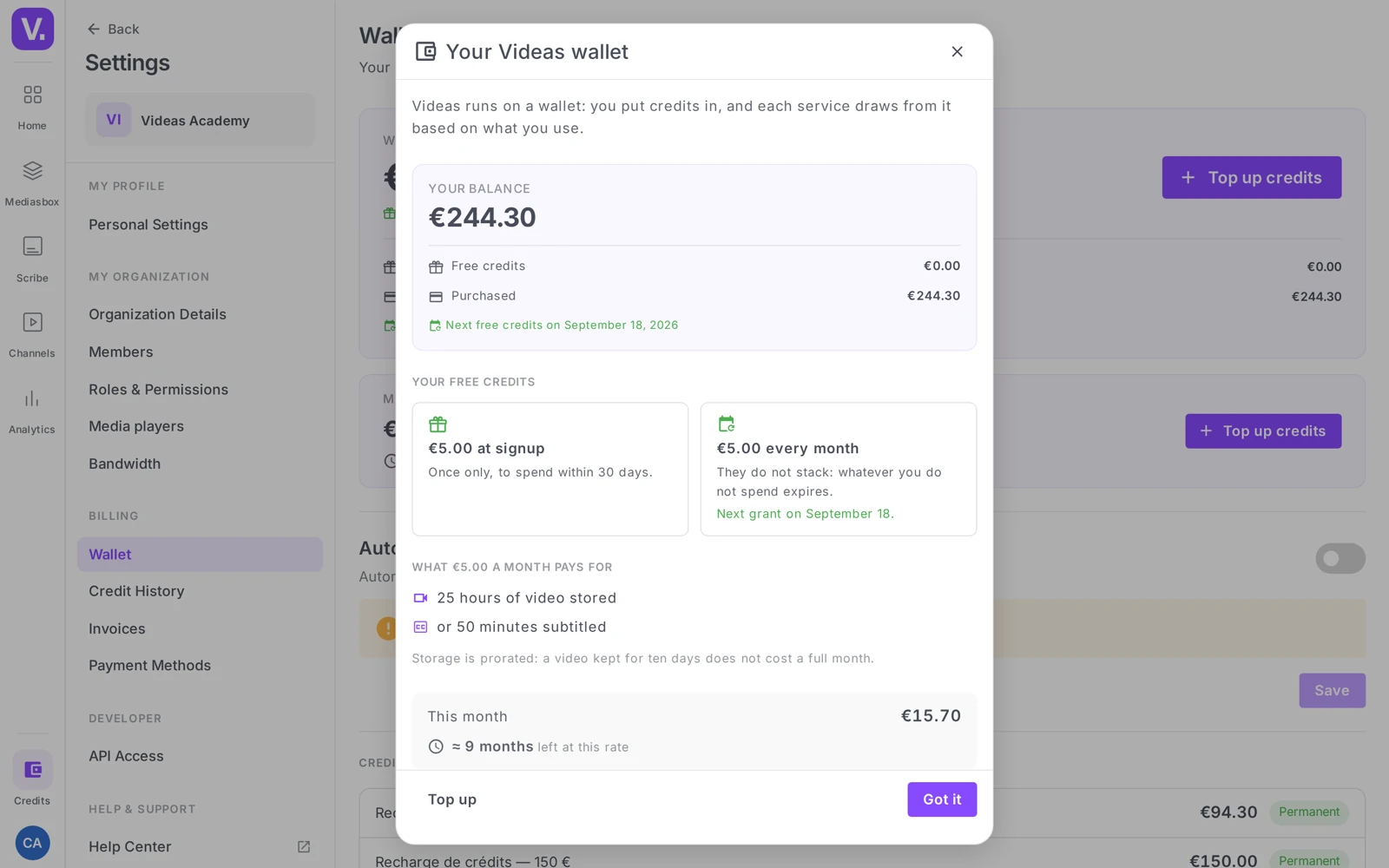
Videas billing is self-service from Settings → Billing: that is where you top up your balance, track your usage and manage cards and invoices. The model is not a tiered subscription (Free / Pro / Business…) but a prepaid credit wallet, in euros — 1 credit = 1 cent.
You top up your balance, and your activity (storage, transcoding, bandwidth, AI subtitling, channels…) draws it down as you go. Access to this section requires the Manage billing permission (typically the Owner or an Admin).
Where billing lives
The Billing section only appears if it is enabled on your account and if you have the Manage billing permission (typically the Owner or an Admin). It brings together four pages:
| Page | What it does |
|---|---|
| Wallet | Your credit balance, top-ups, auto top-up, recurring costs, upcoming expiries |
| Credit History | The detail of every transaction (top-ups, usage…) |
| Invoices | Your invoices, downloadable as PDF |
| Payment Methods | Your saved bank cards |
Top up your wallet
On the Wallet page, the Top up credits button opens secure payment (Stripe): choose an amount, see You pay / You receive, and confirm. The balance is credited immediately.
Good to know — top-up bonus: large top-ups earn bonus credits (for example +5%, +10% or +15% depending on the tier). The detail is shown when you pick the amount.
Auto top-up
The Auto top-up card prevents interruptions: as soon as your balance falls below a threshold you set, Videas automatically tops up a set amount (with a daily cap). Ideal if you deliver continuously and do not want to watch the balance by hand.
How credits are consumed
You only pay for what you actually use. The main items:
| Item | Unit (indicative rate) |
|---|---|
| Video storage | per hour of video per month |
| File storage | per GB per month |
| Bandwidth | per GB delivered |
| AI subtitling (Scribe) | per minute transcribed |
Plus monthly recurring costs for certain building blocks: each active channel and each custom domain draws a flat credit fee per month. They are not a page of their own: they are gathered in the Monthly cost card on the Wallet page, which only appears once you have at least one recurring cost.
See the exact rates: up-to-date amounts are on the Videas pricing page (View pricing details button from the wallet). The rates given here are indicative only.
Track your usage
The Credit History page lists every transaction — Date, Type, Description, Amount, Balance after. The types you will come across:
- Purchase (a top-up), Auto-renewal, Recurring credit (credits granted by a plan), Donation, Adjustment, Refund, Expiry
- Usage, with its category: Bandwidth, Transcoding, Storage, or Other
This is the screen to watch to anticipate a falling balance and understand where your credits go.
Free credits
- On sign-up, a small amount of credits is granted so you can try things out.
- Accounts with no top-up receive a small free monthly allowance, renewed each month.
Invoices and payment methods
- Invoices — every payment generates an invoice, viewable and downloadable as PDF (Download PDF button).
- Payment methods — add a card, set one as default, or delete one. The default card is used for top-ups (manual and automatic).
What about “plans” / subscriptions?
There is no plan to choose and none to change (no upgrade/downgrade). The credit wallet replaces the classic subscription: you have no tiers to compare and no commitment — you top up according to your real usage. It also means there is no “plan change” to request from support: everything is self-service from the wallet.
Which subscription plan should I choose?
None: Videas has no plans — no tiers to compare, no commitment, no upgrade or downgrade to request. The model is a prepaid credit wallet, in euros, where 1 credit is worth 1 cent.
You top up your balance, and your activity consumes it as you go. The practical consequence: there is no “plan change” to ask support for — everything is self-service from the wallet.
How do I avoid an interruption when the balance hits zero?
Turn on auto top-up, on the Wallet page. You set a threshold and an amount: as soon as the balance falls below the threshold, Videas tops up automatically, within a daily cap you also define.
That is the setting to put in place as soon as you broadcast continuously. Failing that, the Credit history page remains the screen to watch, to anticipate a drop and understand where your credits go.
What consumes credits?
Four usage-based items: video storage (per hour of video per month), file storage (per GB per month), bandwidth (per GB delivered) and AI subtitling (per minute transcribed).
On top of that come monthly recurring costs for certain building blocks: each active channel and each custom domain charges a monthly amount. They do not form a separate page — they are gathered in the wallet’s Monthly cost card, which only appears if you have at least one recurring cost.
Is topping up a large amount cheaper?
Yes, large top-ups grant bonus credits — in the order of +5%, +10% or +15% depending on the tier reached. The detail is shown as you choose the amount, with You pay and You receive.
The balance is credited immediately after payment, which is processed by Stripe.
Are there free credits?
Yes, in two cases. A small amount is granted at sign-up to try the platform. And accounts with no top-up receive a free monthly allowance, renewed each month.
Those two arrangements are enough to evaluate Videas, not to run regular distribution: as soon as storage and bandwidth climb, topping up becomes necessary.
Why can’t I see the Billing section?
Two possible reasons. Either it is not enabled on your account, or you do not hold the Manage billing permission — typically reserved for the organization Owner and Admins.
If you need access, an Admin in your organization can grant you the permission, from the Roles & Permissions page.
In short
- Videas runs on prepaid credit (a wallet in euros, 1 credit = 1 cent), not on subscription tiers
- Settings → Billing: Wallet, Credit History, Invoices, Payment Methods
- You top up manually (Top up credits) or through auto top-up (threshold + amount)
- Usage follows real consumption: storage, bandwidth, transcoding, AI subtitling; channels and domains = monthly recurring costs, shown in the wallet’s Monthly cost card
- Invoices as PDF, cards managed self-service
- Access restricted to the Manage billing permission
Related articles
Screenshots were taken on Videas Academy, an example channel built for this help center. It belongs to a fictional customer, not to Videas: your own channel carries your name, your branding and your prices.