Create a workspace
A workspace (“space”) separates your media by project, client or team: each one has its own media library, members and settings. To create one: in Mediasbox, open the Workspaces panel and click Create a new workspace. Creation is open to members of the organization (the permission is granted by default; an administrator can restrict it).
The Videas hierarchy: Organization → Workspaces → Media. The organization pays for the subscription and holds the workspaces; workspaces are its subdivision, at the same level as channels.
Step 1: Create the workspace
In the Workspaces panel (on the left in Mediasbox), click Create a new workspace. The Create a workspace window asks for:
- Name — for example
Marketing 2026,Acme client(placeholder My workspace) - Description (optional) — the scope of the workspace
- Color — a visual marker so you can spot the workspace at a glance
- Privacy — Public or Private
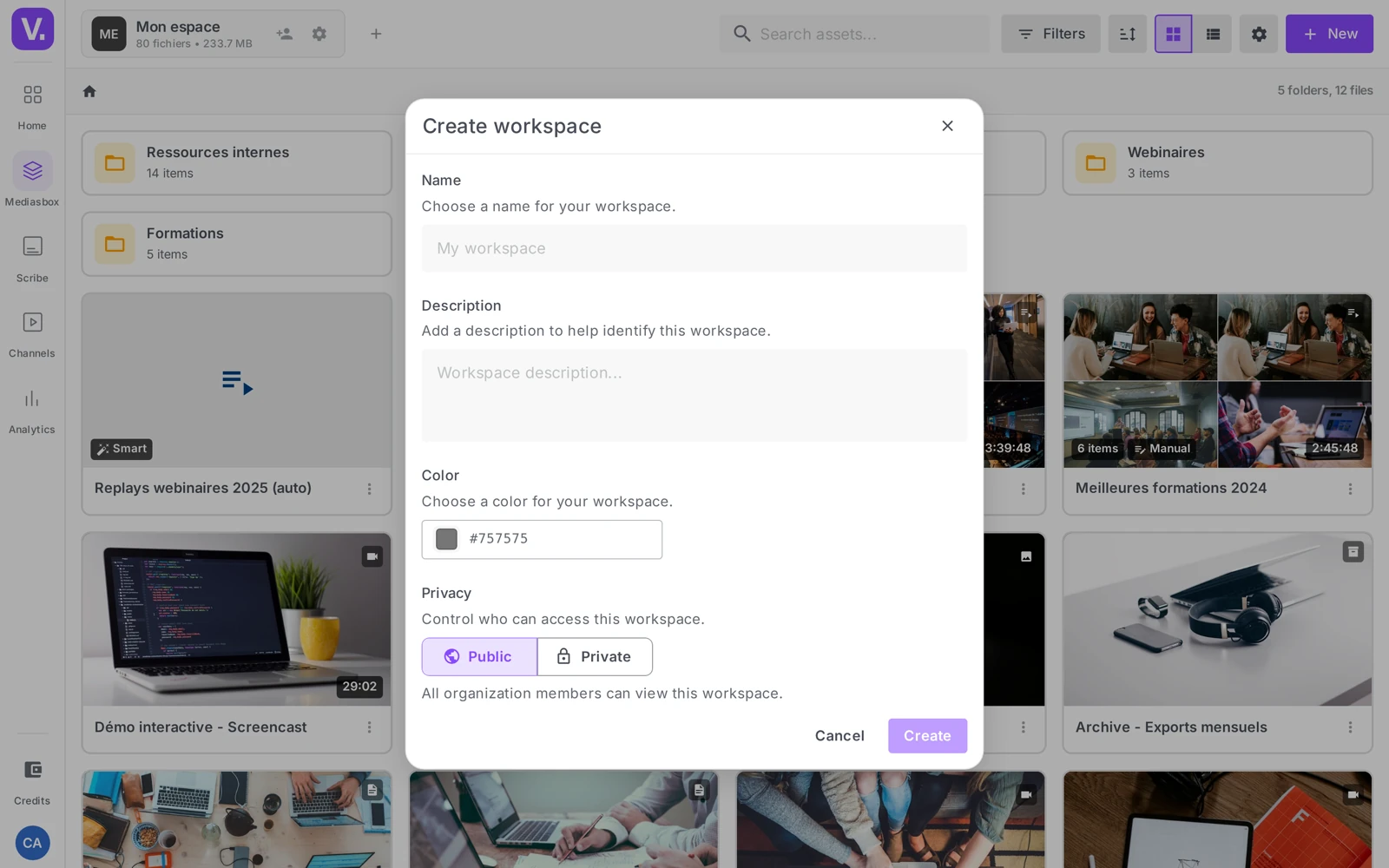
Public = visible to every member of the organization (ideal for a shared resource bank). Private = reserved for people who are explicitly invited (client project, sensitive content). You can change this choice later in the settings.
Confirm with Create: the workspace is created and Videas takes you into it.
Step 2: Set up the workspace
Open the workspace settings (available to workspace Admins). The settings are grouped into sections:
| Section | Contains |
|---|---|
| General | Name, description, privacy, members, deleting the workspace |
| Members | Invite, list, change the role of or remove collaborators |
| Content → Tags | Tag vocabulary, closed-list mode |
| Embedding | Media players, Embed settings, Calls to action, Advertising |
| Sharing | Share history, Share link settings |
| Data | Export, Deletion history |
Inheritance: several settings show “Inherited from the organization” — the value comes from the global settings and applies automatically. You can override it for this workspace (a player logo carrying a client’s name, for instance). Some sections only appear if the feature is enabled on your plan.
Step 3: Invite collaborators
In Members, the list shows each person, their role and their status (Active or invitation pending). Invite people by email, choosing a role:
- Owner — every right, including deleting the workspace (this is the creator; it cannot be assigned in an invitation)
- Admin — manages content, members and settings
- Editor — creates, edits and organizes media, without touching settings or members
- Viewer — read-only
Details in Manage roles and permissions and Invite collaborators to a workspace.
Set the defaults before you invite
A workspace carries default settings inherited by all of its media. Worth setting from the start:
- Media players (Embedding) — the player logo and style applied to every video
- Closed-list tags (Content → Tags) — prevents tags being created on the fly, which avoids duplicates (
marketing,Marketing,mkt…) - Embed settings — lock down the player options for a consistent brand look
Tip: set these defaults before inviting a lot of people — it is much simpler than fixing a media library that is already full.
Navigating and deleting
The Workspaces panel lets you switch between projects (search, pinned favorites, color, media count, storage) and offers an Overview aggregating all of your workspaces.
To delete a workspace: settings → General → Danger zone → Delete workspace. Videas asks you to type the exact name to confirm. The operation is irreversible — export the data first (section Data → Export) if you have any doubt.
Public or private workspace: which one?
Public means visible to every member of the organization — the right setting for a shared resource bank, a brand media library, a common document pool. Private reserves the workspace for people explicitly invited: a client project, HR content, a sensitive file.
The choice is not final: it can be changed in the workspace settings. But order matters — a workspace created public will have been seen by the whole organization before you close it.
Do I need a workspace or a folder?
A folder organises inside a workspace; a workspace separates the media, the members and the settings. Create a workspace when the people with access are not the same, or when the settings need to differ — a player logo in a client’s name, a tag list specific to one trade.
If everyone has access to everything and the settings are shared, stay in one workspace and organise with folders: that is lighter to administer.
What should I set before inviting the team?
Three defaults, because they are inherited by every item created afterwards. The player logo and style (Embedding → Media players), which will apply to every video in the workspace. Closed-list tags (Content → Tags), which prevent creation on the fly and avoid duplicates like marketing / Marketing / mkt. And the embed settings, if you want to lock the player options for a consistent brand style.
Fixing those three on a library already filled by five contributors costs considerably more than setting them up front.
What does “Inherited from the organization” mean on a setting?
That the value comes from the global settings and applies automatically, without you having defined it here. You can override it for this workspace — which allows, for instance, a player logo in a client’s colours on one workspace, without touching the rest.
Note too that some settings sections only appear if the feature is enabled on your plan: a missing section is not necessarily a permissions problem.
What happens when a workspace is deleted?
The operation is irreversible, and Videas underlines it by requiring you to type the workspace’s exact name to confirm. It sits in the settings, under General → Danger zone.
The reflex before confirming: go through Data → Export to recover the workspace’s metadata, and download the source files you want to keep. The export contains metadata only, not the files themselves.
In summary
- Hierarchy Organization → Workspace → Media; workspaces keep your media separate
- Created from the Workspaces panel → Create a new workspace (Name, Description, Color, Public/Private), open to members of the organization
- Settings (Admin): General, Members, Content (Tags), Embedding, Sharing, Data
- Settings are inherited from the organization and can be overridden per workspace
- Roles: Owner, Admin, Editor, Viewer
- Deletion via General → Danger zone (irreversible)
Related articles
Screenshots were taken on Videas Academy, an example channel built for this help center. It belongs to a fictional customer, not to Videas: your own channel carries your name, your branding and your prices.