Create a media collection
A collection in Videas groups several media items around a theme, without moving them out of your media library, in a playback order that you control. To create one: in Mediasbox (your media library), click New → Collection, name it, choose its type, then add and order your media. You need the Editor role (or above).
A collection is typed: it groups media of a single type — videos, audio, images or documents. Depending on the type, it looks different to viewers: a collection of videos or audio becomes a playable playlist, a collection of images a gallery, a collection of documents a browsable set. The same media item can belong to several collections.
This guide covers manual collections (free selection and order); for collections that fill themselves according to rules, see Group media automatically.
Step 1: Create the collection
In Mediasbox, click New, then Collection. The Create a collection window asks for:
- Collection name — for example
New employee onboarding,Podcast — Season 5,2026 event photos - Collection type — four exclusive cards: Videos, Audio, Images, Documents
Confirm with Create. Videas opens the collection’s detail page right away.
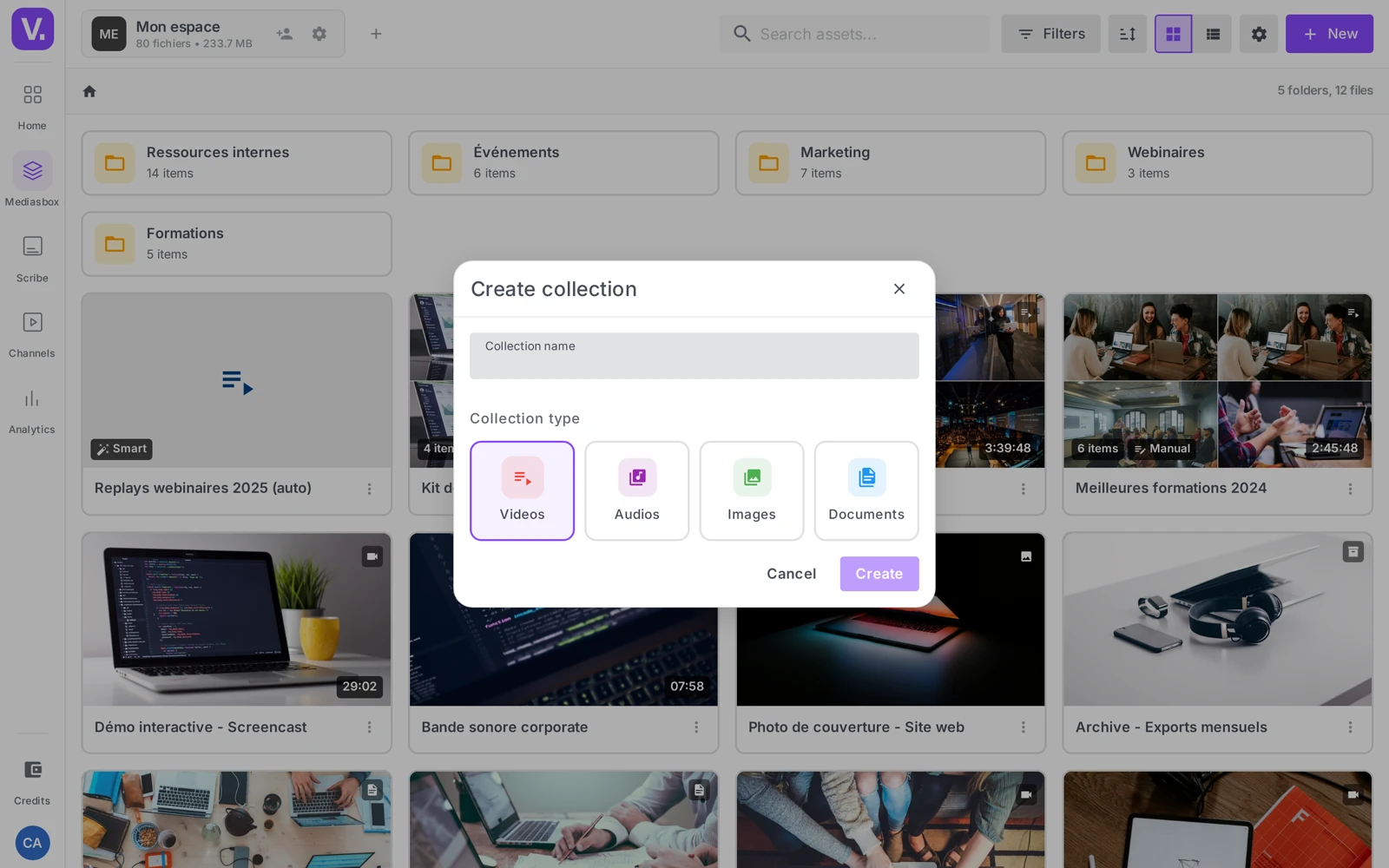
Important: a collection does not mix types — a Videos collection only contains videos, an Images collection only images, and so on. To group content of different types, use a folder or a tag instead (see Organize your media).
Step 2: Choose “Manual” mode
The first time you open it, the Content tab asks How do you want to build this collection? with two cards:
- Manual — you choose the media and their order by hand
- Smart — the collection fills itself according to rules
Click Manual. You can switch later; when going from Smart back to Manual, Videas offers to freeze the current items or to start from an empty list.
Step 3: Add media
There are two ways to fill the collection.
- From the collection (Content tab): click Add items. The window offers multi-select, search and filters, a badge on media already in the collection (no duplicates), and adding an entire folder in one click. Only media compatible with the collection’s type are shown.
- From a media item: on its detail page (Overview tab), use the Add to a collection quick action, then choose the collection.
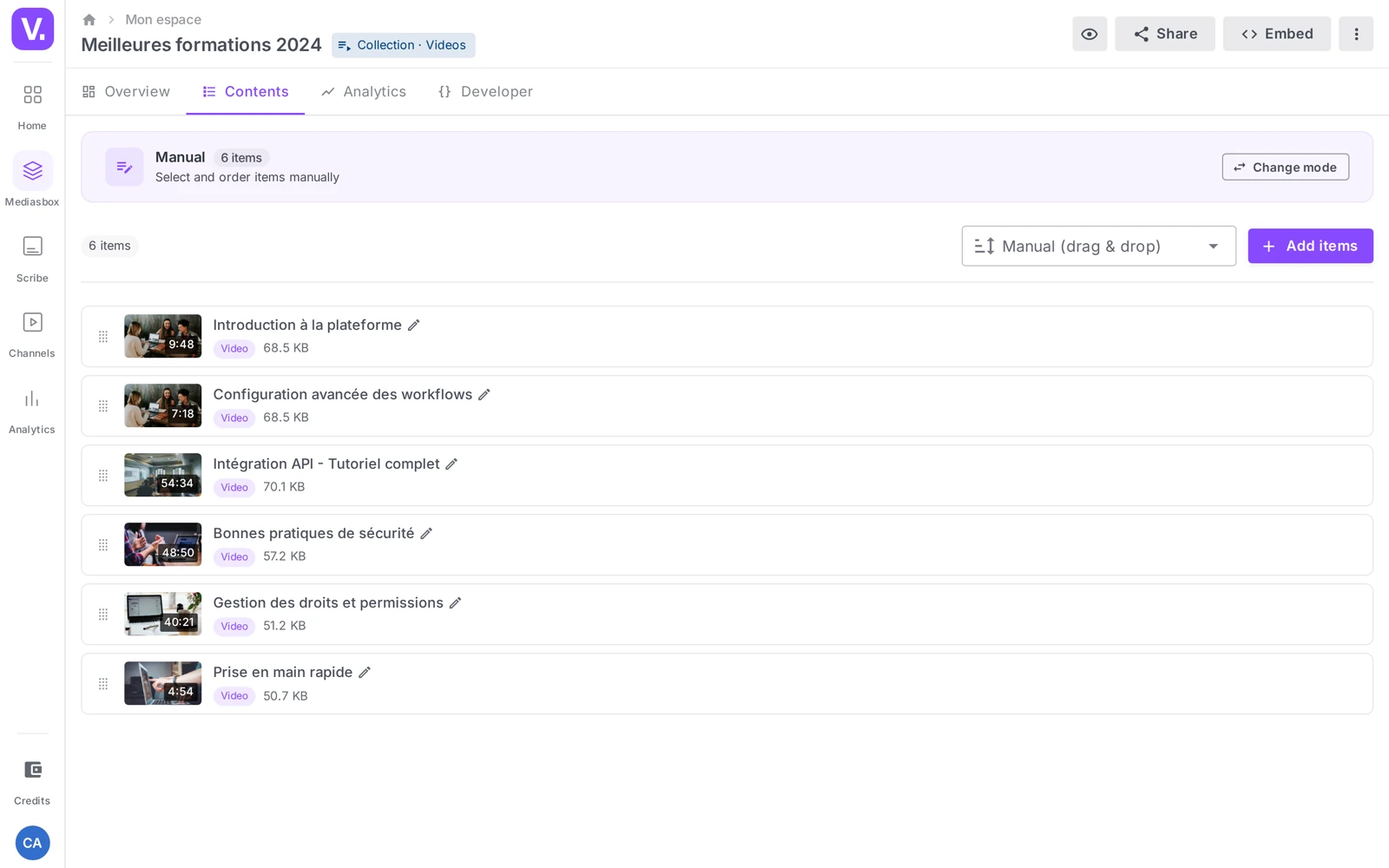
Tip: to build a large collection quickly, use Add items from the collection — multi-select and adding whole folders are much faster than adding items one by one.
Step 4: Order the media
The order determines playback on the viewer’s side (video/audio playlist, gallery, and so on). Above the list, the sort menu offers: Manual (drag and drop), Name (A-Z / Z-A), Created (newest / oldest), Duration (shortest / longest).
For a precise order, choose Manual (drag and drop): drag each row to reposition it. Videas saves the order server-side, and it is respected everywhere (channel, embed, player). With any other sort, drag and drop is disabled, but your manual order is kept — go back to Manual (drag and drop) to find it again.
Step 5: Cover image and publishing
On the Overview tab, the Thumbnails section defines the collection’s cover image (shown in Mediasbox, on channels and in embeds): Videas generates it from the first media items, or you can Upload an image (JPEG, PNG, WebP). You can also fill in the description, tags and slug.
To publish the collection:
- On a channel: the Add to a channel quick action (wizard: Channel → Visibility → Categories → Publish). To visitors, a collection of videos or audio appears as a browsable playlist.
- As an embed on an external site: see Embed a collection on your website.
Delete a collection
From the collection’s action menu, choose Delete (a confirmation is requested).
Important: deleting a collection does not delete the media. A collection is only a list of references: your media stay in Mediasbox and in their other collections, folders and channels.
Can I mix videos and images in one collection?
No. A collection is typed — Videos, Audio, Images or Documents — and the type is exclusive: a Videos collection holds only videos, even if audio items share the same theme. That is what guarantees a coherent display for the viewer: a playlist for videos and audio, a gallery for images.
To group content of different types, use a folder or a tag instead. And if you need to deliver a mixed set in one go, a multiple selection shared as a single link does the job.
Does deleting a collection delete the media?
No, never. A collection is only a list of references: your media stay in Mediasbox, as well as in their other collections, folders and channels.
That is the flip side of the principle that a collection groups without moving. So you can create, test and delete collections with no risk at all to your files.
How do I set the playback order of a playlist?
Choose Manual (drag and drop) in the sort menu above the content list, then drag each row into place. Videas saves that order server-side, and it is respected everywhere — on a channel, in an embed, in the player.
The other sorts (Name, Created, Duration) disable dragging, but your manual order is preserved: just switch back to Manual (drag and drop) to find it intact.
What is the fastest way to fill a large collection?
The Add items button, from the collection’s Content tab. It opens a window with multiple selection, search and filters, and lets you add a whole folder in one click — far faster than opening each media item to add it individually.
Items already in the collection carry a badge there, which avoids duplicates, and only media compatible with the collection’s type are shown.
In summary
- A collection groups media of a single type (videos, audio, images or documents) without moving them
- A collection of videos or audio plays as a playlist; a collection of images shows as a gallery
- You create one via New → Collection (Name + Collection type)
- The Manual / Smart mode is chosen after creation, on the Content tab
- You fill it via Add items and order it in Manual (drag and drop)
- Publish on a channel or as an embed; deleting a collection never deletes the media
- Creating a collection requires the Editor role (or above)
Related articles
Screenshots were taken on Videas Academy, an example channel built for this help center. It belongs to a fictional customer, not to Videas: your own channel carries your name, your branding and your prices.