Decide who can do what in your organization
Roles and permissions are set from Settings → Roles & Permissions, where you adjust the system roles and create your own tailored ones. A role is a collection of permissions; it is always the permission that is checked, never the role directly — that is what answers who can import a video, publish, invite a collaborator or view the billing?
Creating or editing roles requires the organization Administrator or Owner role. This guide tours the two role families (organization and workspace), the permission catalog and the page that lets you set everything up yourself.
Two role families: organization and workspace
Videas splits access into two families, managed in the same place (Settings → Roles & Permissions):
- Organization roles — the “company” scope: manage members, manage billing, create workspaces, open access to Analytics or Scribe…
- Workspace roles — the “media library” scope: what you can do with the media in a specific workspace.
The same user has an organization role and a role per workspace. Day to day, it is mostly the workspace role that matters: that is the one deciding what can be done with the videos.
The Owner
Two “owners”, both protected (not reassignable like an ordinary role):
- The organization Owner: the person who created the account (or to whom ownership was transferred). One only per organization, all rights, including billing. To transfer ownership, contact support.
- The workspace Owner: the creator of the workspace, with all rights over that workspace. Shown read-only in the member list.
The system roles
Each family ships with ready-made system roles (System badge).
Organization roles:
| Role | Default role | Role |
|---|---|---|
| Administrator | Manages the organization: members, settings, workspaces | |
| Member | ✅ | The role for newcomers: can create workspaces and invite |
| Guest | Restricted access, mostly read-only |
Workspace roles:
| Role | Default role | Role |
|---|---|---|
| Administrator | Manages the workspace and its members | |
| Editor | Creates, edits and deletes media | |
| Viewer | ✅ | Read-only |
Good to know: you can adjust the permissions of most system roles, and reset them at any time. Only the Administrator role is locked — “The Admin role always has every permission.” The name of system roles, however, cannot be changed.
What each workspace role can do
A practical view of the system workspace roles. The workspace Owner has everything.
| Action | Viewer | Editor | Admin |
|---|---|---|---|
| View and play media | Yes | Yes | Yes |
| Create / import media | — | Yes | Yes |
| Edit content (title, description, tags) | — | Yes | Yes |
| Organize (folders, collections, tags) | — | Yes | Yes |
| Share by link / embed | — | Yes | Yes |
| Trash and restore | — | Yes | Yes |
| Delete permanently | — | — | Yes |
| Moderate / publish / unpublish | — | — | Yes |
| View the workspace analytics | — | — | Yes |
| Export content | — | — | Yes |
| Create and manage streams (live) | — | — | Yes |
| Manage the workspace and its members | — | — | Yes |
Special case — subtitles: the subtitle editor is not restricted by a dedicated role: as soon as someone has access to the media item, they can correct its subtitles (see Correct and edit subtitles).
The permission catalog
When you create or adjust a role, you tick permissions grouped by category. Here is the full catalog, by role family.
Permissions of an organization role:
| Category | Permissions |
|---|---|
| Organization | Manage members · Invite members · Manage all invitations · Manage billing · Manage settings · Access all workspaces · Manage all workspaces · Create workspaces · View all workspaces · View public workspaces |
| Analytics | Access analytics |
| Scribe | Access Scribe |
Permissions of a workspace role:
| Category | Permissions |
|---|---|
| Workspace | Delete the workspace · Manage the workspace · Invite members to the workspace · Manage workspace members |
| Content | Create content · Edit content · Delete content · Trash and restore · Export content · View analytics · Moderate content · Share content |
| Stream | Create streams · Manage streams |
Create and manage custom roles
If the system roles are not enough — an Editor-in-chief who publishes but does not delete, an Analyst who sees the analytics without touching the content — create your own, self-service.
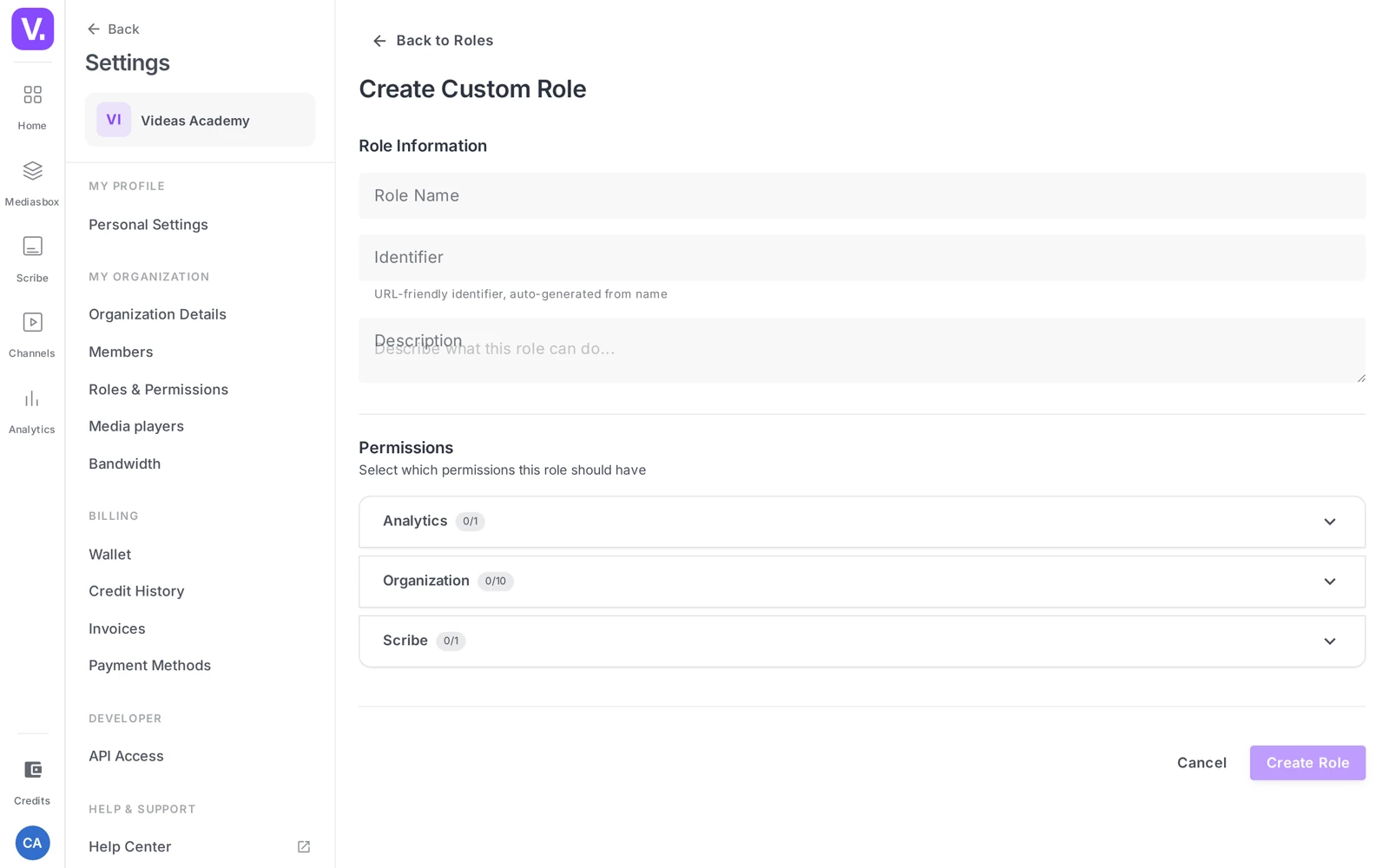
Go to Settings → Roles & Permissions (reserved for Administrators and the Owner). Two tabs: Organization roles and Workspace roles; each one separates System and Custom roles.
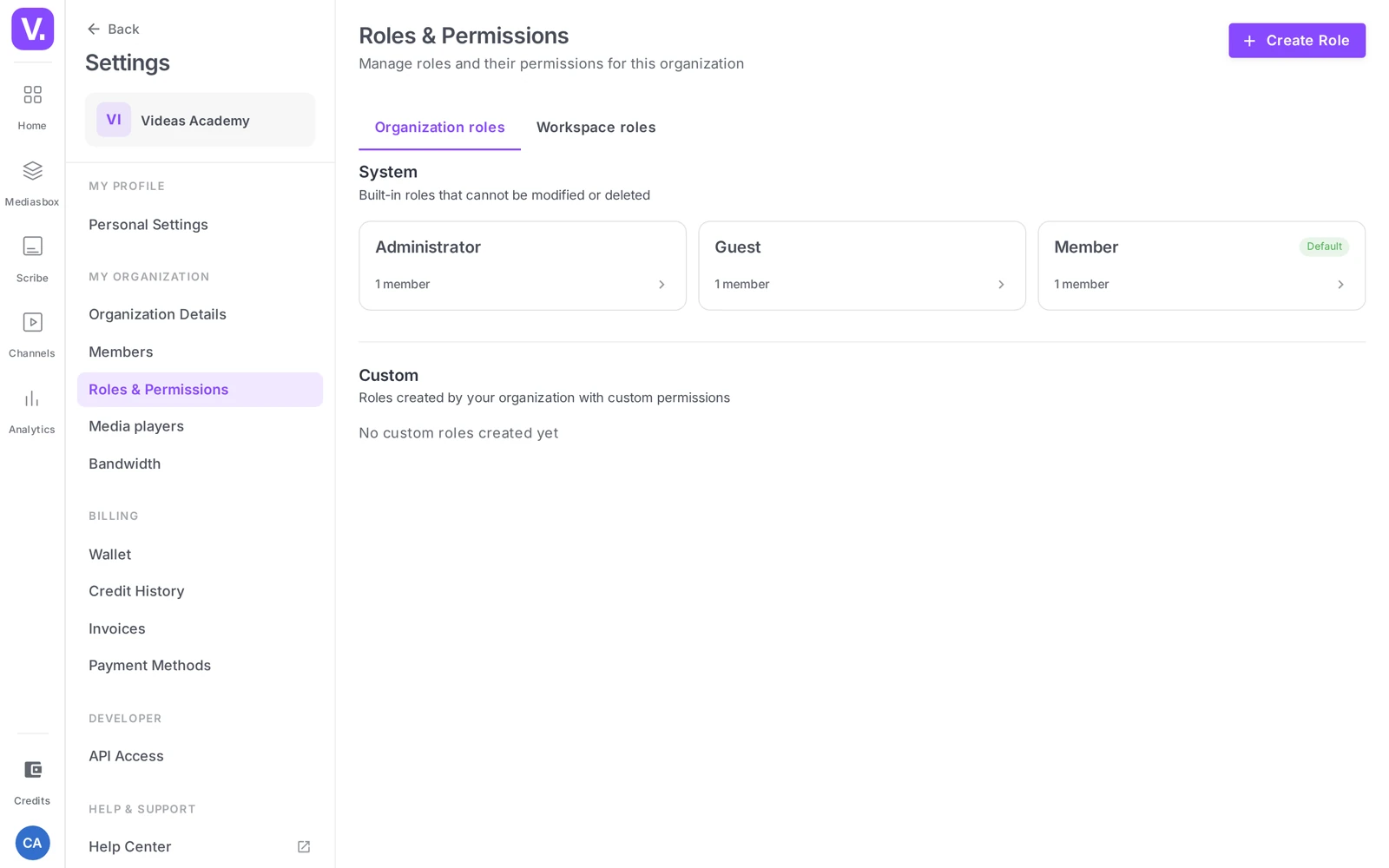
- Create — the Create a role button (or Create a workspace role). Fill in a Role name, an Identifier (generated automatically from the name), a Description, then tick the permissions in the per-category panels (Select all, {selected}/{total} counter).
- Edit — open a role and adjust its permissions, then Save. A system role (except Admin) stays adjustable, with a Reset button that restores its default permissions.
- Delete — in the Danger zone of a custom role. Not possible while members are still assigned to it: “Reassign them to another role first.”
A different role per workspace
This is where the system is flexible: at invitation time as well as when editing, it is the role in the workspace concerned that is asked for.
Marie can therefore manage the organization (invite, see the general list) while being only an Editor in the Marketing International workspace, where Paul is the day-to-day Admin. You delegate the management of a workspace to its business owner without opening up the whole organization to them.
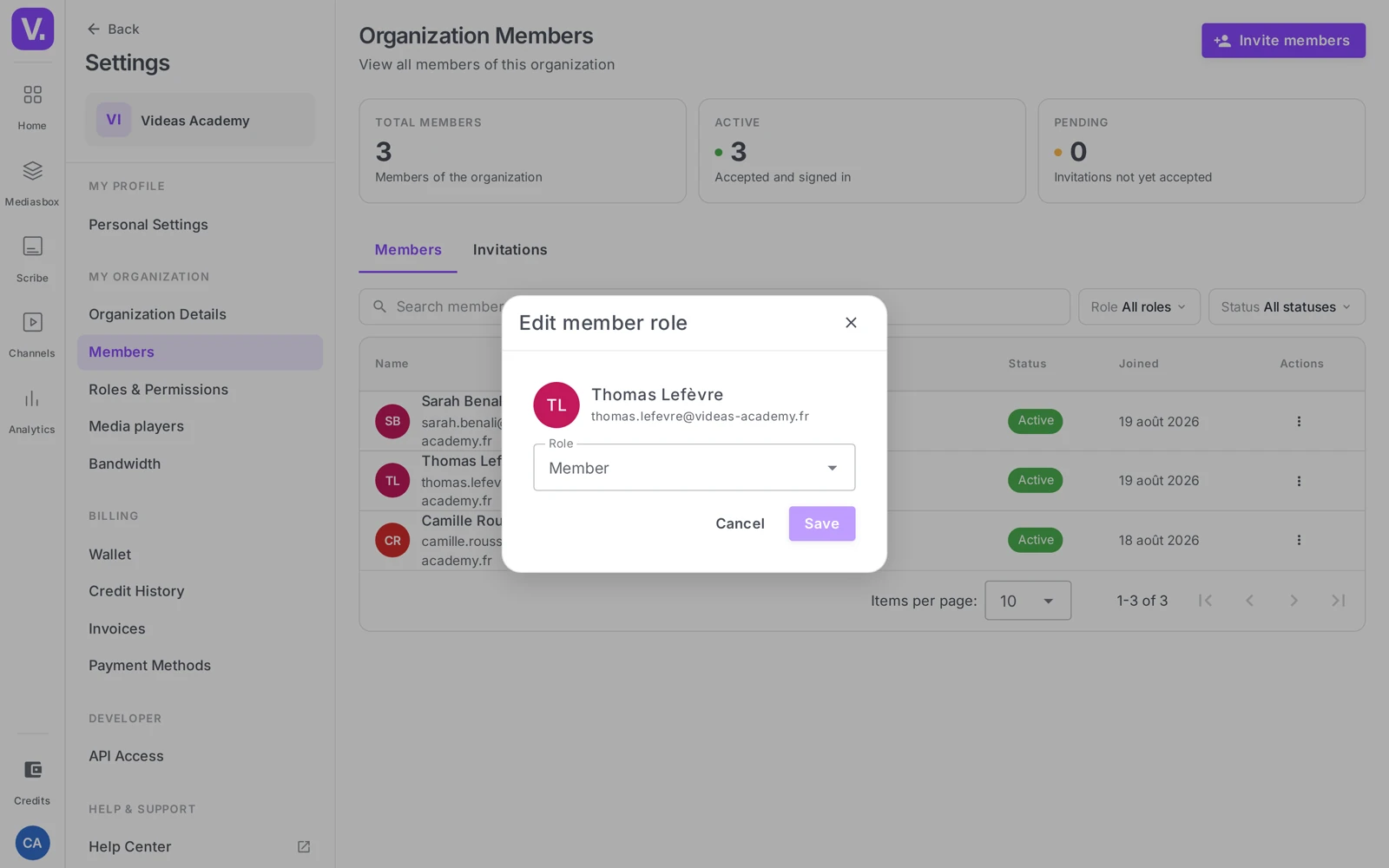
Change a member’s role
Two paths:
- From Workspace settings → General → Members: click a member’s current role, choose the new one, confirm.
- From Roles & Permissions: open a role to see the members who hold it and change the role of one of them.
The change is immediate: on the member’s next action, their permissions are recalculated.
Best practices
- Least privilege — give everyone the minimum useful role. The Editor role covers most contributors.
- Limit the Admins — one or two Admins per workspace is enough.
- Align with the job — content creators → Editor; approvers/publishing → Admin or a custom Approver role; observers → Viewer.
- Document — keep an internal record of who has which role and why.
Organization role or workspace role: which one decides?
Both, but on different ground. The organization role covers the “company” scope — managing members, billing, creating workspaces, opening access to Analytics or Scribe. The workspace role covers what can be done to the media in one specific workspace.
A single user carries both. Day to day, the workspace role is what counts: it decides whether you can upload, publish or delete a video.
Can someone have a different role per workspace?
Yes, and that is the point of the system. Both at invitation and when editing, it is the role in the workspace concerned that is asked for.
Marie can therefore manage the organization — invite people, see the general list — while being only an Editor in the International Marketing workspace, where Paul is the day-to-day Admin. That is what lets you delegate a workspace to its business owner without opening up the whole organization.
Can I change the permissions of a system role?
Yes for most, with a Reset button that restores the original permissions at any time. One exception: the Administrator role, which is locked — “The Admin role always has every permission”.
The names of system roles cannot be changed. If you need a job-specific title, create a custom role instead: an Editor-in-chief who publishes without deleting, an Analyst who reads the analytics without touching the content.
Why can’t I delete a custom role?
Because members are still assigned to it. The role’s Danger zone refuses deletion while that is the case, with the message “Reassign them to another role first”.
Open the role to see the members holding it: that is where you switch them to another role, one by one, before deletion becomes possible.
Who can create or edit roles?
The Administrator role or the organization Owner, from Settings → Roles & Permissions. It is a self-service operation: there is no need to go through support to create a tailored role.
Note the distinction with the system’s two owners, both protected: the organization Owner, unique, who holds every right including billing (transferring it goes through support), and a workspace Owner, its creator, shown read-only in the member list.
Do I need a special role to correct subtitles?
No. The subtitle editor is not protected by a dedicated role: as soon as someone has access to the media item, they can correct its subtitles.
It is an accepted exception in an otherwise granular system, and it has a practical consequence: if you open a media item to a supplier for review, they will also be able to change its tracks. For a review without access to the media, use Scribe’s share-for-review instead.
In short
- Two role families, managed in Settings → Roles & Permissions: organization roles and workspace roles
- System workspace roles: Viewer (default, view) → Editor (create/edit/share) → Admin (manage the workspace) → Owner (everything); on the organization side: Member (default), Administrator, Guest
- The permissions of system roles are adjustable (and resettable) — except Admin, always complete
- You create your custom roles yourself (name + permissions ticked by category), without going through support
- It is the permission that is checked, not the role — the same user can have a different role per workspace
- Creating / editing roles requires the Administrator or Owner role
Related articles
Screenshots were taken on Videas Academy, an example channel built for this help center. It belongs to a fictional customer, not to Videas: your own channel carries your name, your branding and your prices.