Organize your media: folders, collections and tags
To organize your media in Videas, you combine three tools in Mediasbox (your media library): folders (hierarchical storage, one location per media item), collections (cross-cutting groupings, without moving the files) and tags (filtering labels). On top of that come filters and saved searches to find content in one click. Creating and organizing requires the Editor role (or higher) on the workspace.
This guide shows how to combine these levers to keep a clear media library, even with hundreds of files.
Three tools, three complementary uses
| Tool | Logic | A media item can belong to… | Ideal for |
|---|---|---|---|
| Folder | A tree (1 location per media item) | one folder only | Filing by project, client, year |
| Collection | Cross-cutting grouping (nothing is moved) | several collections | A themed selection, a playlist, a delivery |
| Tag | A label (keyword) | several tags | Filtering and searching by topic, language, status |
Good to know: these tools combine. A video can sit in the 2026 / Product launch folder, be part of the Best of 2026 collection and carry the tags en, interview, published.
Folders: your tree
Folders work like the ones on your computer: a hierarchical tree where each media item is filed in one folder at a time.
Create a folder
In Mediasbox, click New at the top, then Folder. The Create folder window opens: fill in the Folder name and confirm with Create. The folder appears at the root of the current workspace.
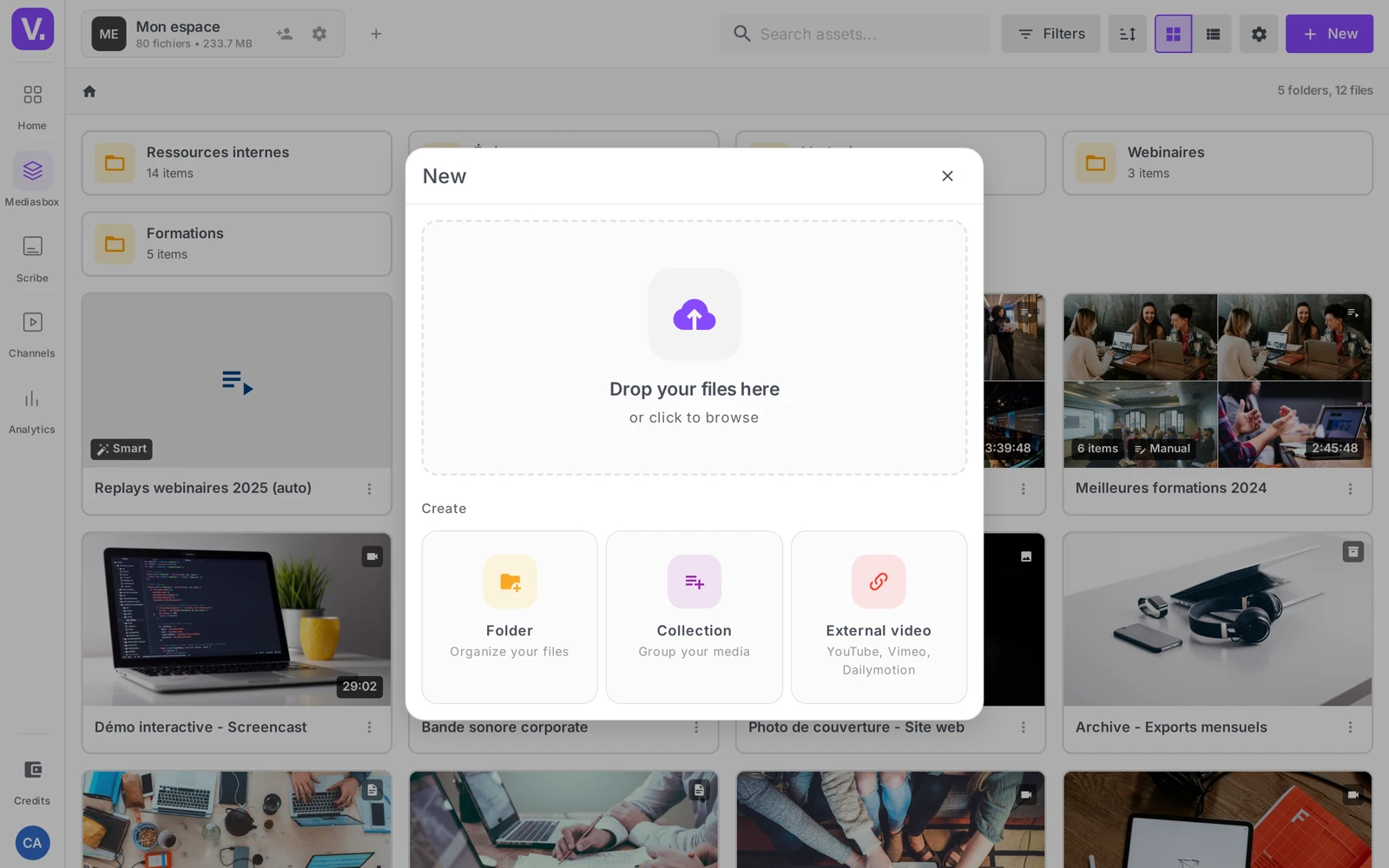
For a subfolder, open the parent folder first, then go through New → Folder again. Videas does not limit the depth, but avoid going below 3-4 levels.
Move a media item into a folder
Three methods:
- Drag and drop the media item (or a selection) onto the target folder
- Right-click a media item → Move → choose the destination (the window shows Select the destination folder, with Root at the top)
- Multiple selection → Move in the action bar at the bottom
Collections: grouping without moving
A collection groups media items without changing where they sit, and the same media item can belong to several collections. It is the ideal tool for a playlist, a training path or a selection to deliver. Collections are Mediasbox items in their own right, with their own page, cover and analytics.
Create a collection
Click New → Collection. In the Create collection window, enter the Collection name, then choose the Collection type: Videos, Audio, Images or Documents (a collection does not mix types, which keeps it consistent on the player side).
A collection can then be Manual (you add and order the media by hand — Manual badge) or Smart (Videas fills it automatically according to rules on tags, type and sorting — Smart badge).
| Type | How it works | Ideal for |
|---|---|---|
| Manual | An ordered selection made by hand | A best-of, a fixed event playlist |
| Smart | Filled automatically by rules | A feed that updates itself (every video tagged podcast) |
The details of each mode have their own guide: Create and use collections and Create a smart collection.
Add a media item to a collection
- From a media item’s page (Overview tab), the Add to a collection quick action
- From a multiple selection, the Create collection action in the bottom bar
A collection is published on a channel like any media item (the Add to a channel action); on the visitor’s side, it appears as a navigable playlist.
Tags: cross-cutting classification
Tags are filtering labels. A media item can carry as many as needed, and the same tag applies to any media type.
Apply a tag
On a media item’s page, Overview tab, Tags field: type into Search or add tags…, Videas offers autocomplete, and you can Create tag if it does not exist yet.
Free mode or closed list
An Admin can restrict tags to a closed list from the workspace settings → Tags. The field then only shows Search tags…: no more creating on the fly, and a controlled vocabulary. The Manage button (next to the Tags field) leads to those settings.
| Mode | Upside | Downside |
|---|---|---|
| Free | Flexible, fast | Risk of duplicates (en / EN / english) |
| Closed list | Consistent vocabulary | Initial setup |
Tip: beyond a hundred media items, or with several contributors, switch to a closed list to avoid the mess.
Find a media item quickly
Search and filters
At the top of Mediasbox, the search bar filters by name. The Filters button narrows down by type (Video, Audio, Image, Document), status, tags, presence of subtitles, and so on. Filters combine. Detail in Search and filter in Mediasbox.
Sorting and view
Sort by name, date added, date modified, size or duration, and switch between grid view (thumbnails) and list view (a dense table, ideal for large media libraries).

Saved searches
Once you have set up a useful search (for example English videos, tagged podcast, 2026), save it so you can bring it back in one click. Create one per recurring task: To publish, To subtitle, Drafts.
Work on several media items at once
Tick several media items (or click and drag on the background for a rectangular selection): an action bar appears at the bottom with the number of selected items. You can then Move, Share, Group into a folder, Create collection or Delete in one go. Full detail in Run bulk operations.
Three real-world scenarios
Multi-client agency — top-level folders per client (
Acme Corp,Globex), subfolders per project; cross-cutting status tags (client approved,delivered); a saved search To deliver this week.
Training catalog — folders per curriculum; a smart collection Beginner modules automatically brings together everything tagged
level-1; a manual collection New manager path offers an ordered playlist.
Weekly podcast — each episode in
Podcast / Season 5; a smart collection fed by thepodcasttag, sorted by date descending, published on the channel: the latest episode rises to the top on its own.
The media library as a whole: the Mediasbox product page presents what the library handles beyond filing — versions, metadata, rights, sharing.
Folder or collection: which one should I use?
A folder files things away, a collection brings them together. A media item exists in one folder at a time, as on your hard drive — that is the tool for filing by project, client or year. A collection groups media without moving them, and the same item can belong to several collections.
The question to ask: “am I filing, or am I broadcasting?”. A playlist, a training path or a selection to publish on a channel are collections. Your working tree is folders. The two combine without conflict: a video filed under 2026 / Product launch can also sit in the Best of 2026 collection.
Should I switch tags to a closed list?
Yes, as soon as the library goes past a hundred items, or as soon as several people contribute. Free mode lets anyone create a tag on the fly: handy at first, but it quickly breeds duplicates — fr, FR and french meaning the same thing and never meeting in a filter.
The closed list is set in the workspace settings → Tags (the Manage button next to the Tags field). The field then only shows Search tags…: the vocabulary becomes consistent, at the cost of some initial setup.
How many levels of subfolders can I create?
Videas sets no depth limit, but past three or four levels the tree becomes more expensive to walk than the search itself.
The habit that keeps trees shallow: hold on to two or three levels (client → project) and push everything else onto tags and saved searches. A saved search called To subtitle beats a folder named “in progress”.
How do I find a media item when I can’t remember its name?
Through filters, not the search bar: the bar filters by name, whereas the Filters button crosses type (video, audio, image, document), status, tags and whether subtitles exist. Filters combine.
When a combination proves useful more than once, store it as a saved search. Create one per recurring task — To publish, To subtitle, Drafts — and Mediasbox starts behaving like a work queue rather than a stockroom.
In short
- Folders = a tree (one location per media item) — created through New → Folder
- Collections = cross-cutting groupings, Manual or Smart — created through New → Collection (type Videos/Audio/Images/Documents)
- Tags = labels, in free mode or closed list (workspace settings → Tags)
- Filters and saved searches turn Mediasbox into a search engine
- Multiple selection lets you move, share, group or delete in bulk
- Organizing requires the Editor role (or higher)
Related articles
Screenshots were taken on Videas Academy, an example channel built for this help center. It belongs to a fictional customer, not to Videas: your own channel carries your name, your branding and your prices.