Set up a workspace: members, player, sharing
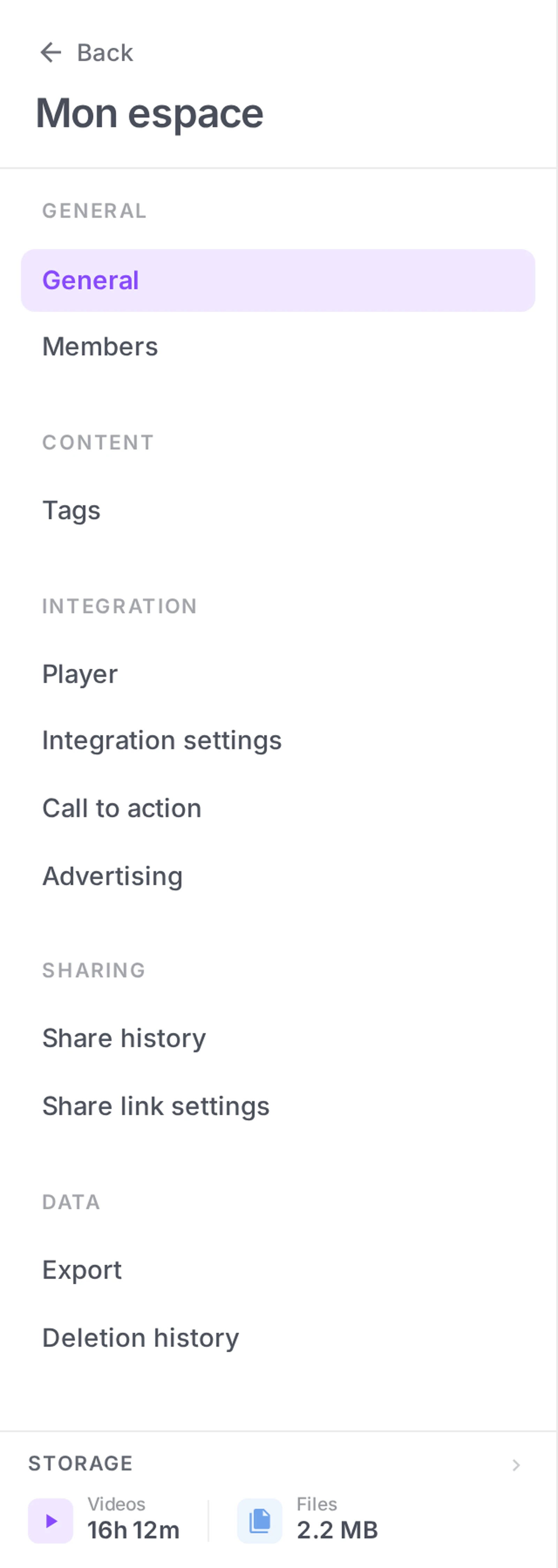
A workspace’s settings open from the gear icon at the top of the workspace: around ten tabs gather the workspace identity, the members, the player, tags, embedding, advertising, CTAs, shares and their settings, data export and deletion history. Several of these settings inherit from the organization configuration and can be overridden per workspace when a project calls for it.
Configuring a workspace requires the Admin role on that workspace (or Owner of the organization); the Viewer and Editor roles can only view the settings. This guide tours each tab and points you to where to go for each one.
Overview of the tabs
| Tab | What it does |
|---|---|
| General | Name, description, color, visibility (public/private), workspace deletion |
| Members | List of workspace members, invitations, role management |
| Media players | Player logo, customization lock, presets |
| Tags | Tag creation and management, restriction to existing tags |
| Embedding | Restrict which domains may embed your media |
| Advertising | VAST settings for advertising inside videos |
| Calls to action | Create CTAs, reviews and recommendations shown on the player |
| Shares | Tracking, analytics and management of public share links |
| Share link settings | Default link expiry, share page logo |
| Export | Metadata export to CSV or Excel |
| Deletion history | List of deleted items, restore |
Step 1: Open the settings
From your workspace:
- Click the gear icon (Settings) at the top of the workspace
- The settings side menu opens, with the tabs listed above
- Move freely from tab to tab — each change is saved by its own save bar at the bottom of the screen
General tab
This is the workspace’s identity.
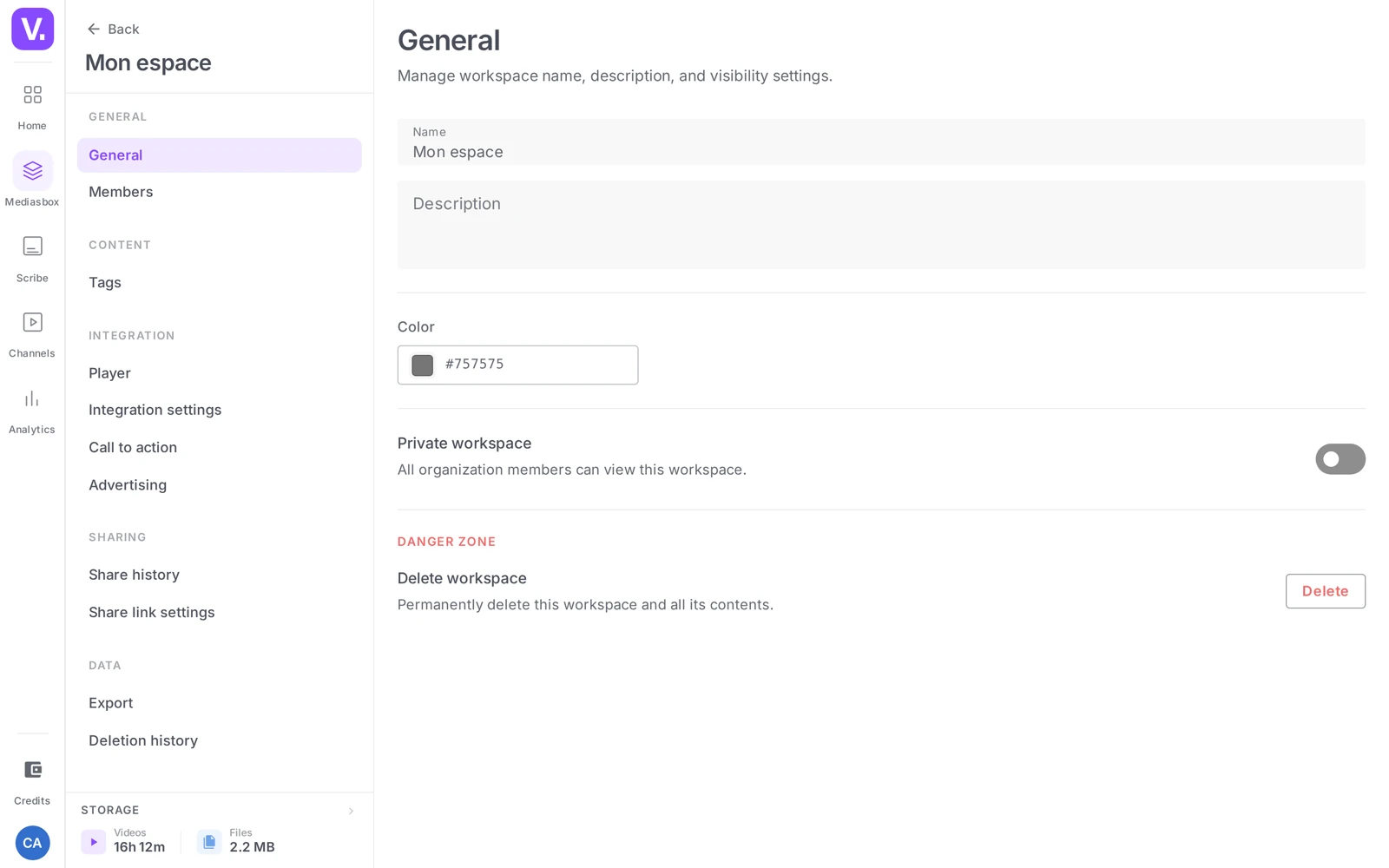
- Name and description: visible in the workspace drawer, in the media library, in share emails
- Color: a palette picker used to tell workspaces apart visually in lists (drawer, team overview…)
- Private / Public: a toggle that sets the workspace’s visibility to the other members of the organization. Private = only invited members see it; Public = every member of the organization can enter it
- Danger zone: workspace deletion, an irreversible action — only users with the Delete workspaces permission (typically Admin) have access to it
Members tab
A list of the members with access to this workspace, with their role, their status (Active / Pending / Expired) and an Invite button to add new people.
See also: for the full invitation procedure (individual email, bulk, reusable link, 7-day expiry, role change, removal with safeguards), see Invite collaborators to a workspace.
Media players tab
Sets the visual defaults of the Videas player for this workspace.
- Player logo: the image shown on the player. If nothing is set, the workspace automatically inherits the organization’s logo
- Lock player customization: a toggle that stops users from changing the player media by media or creating presets — they can then only apply existing presets, handy for enforcing brand guidelines
- Presets: player configuration templates (autoplay, controls, theme, aspect ratio…). You manage them here (default per type, promotion org ↔ workspace); you create them from a media item’s Developer tab
See also: for the detail on presets, see Customize the default video player.
Tags tab
Central management of the tags used in the workspace.
- A list of all existing tags, with their usage count
- Renaming, merging and deleting tags
- Restrict to existing tags: a toggle that stops users from creating new tags on the fly. Tags can then only be added to a media item by picking from a closed list — useful for strict editorial discipline
This is the main lever for structuring your media library (see Organize your media: folders, collections and tags).
Embedding tab
Controls who can embed your media through an iframe on external sites.
- Domain restriction: a toggle that turns on an allowlist
- List of allowed domains: you enter the domains (
example.com,partner-x.fr…) and iframes will work only on those domains
With no restriction, any site can embed your videos. With the restriction on, only the listed domains can. Handy for content with controlled delivery (paid training, internal content).
Advertising tab
VAST settings to enable ad delivery in this workspace’s player, or to use the configuration inherited from the organization. Reserved for organizations that monetize their content through advertising.
See also: for detailed configuration and monetization best practices, see the articles in the Monetization & sales category.
Calls to action tab
Creates and manages the interactions shown on the workspace’s media: calls to action (clickable buttons), reviews (collecting viewer feedback), recommendations (videos to offer at the end of playback). These interactions then apply to one or more media items, as you choose.
This is where marketing managers wire up interactions at scale rather than configuring them one media item at a time.
Shares tab
An overview of the share links generated from this workspace.
- A list of active links with their target media, their status and their number of opens
- Analytics per link: the View analytics action opens the audience detail for a share — Total opens, Views consumed (7 / 30 / 90 day period), breakdown by content and email funnel
- The option to deactivate or delete a link at any time, and to filter by media
Useful for regular audits: who shared what, where to, with what audience, and revoking the links that no longer need to be active.
See also: creating, revoking and reading a link’s analytics in How to share a video with a link.
Share link settings tab
The default settings applied to this workspace’s new share links (inherited from the organization, overridable here):
- Default expiry: a toggle and a duration. When on, every new share link arrives with a pre-filled expiry date — the user can still remove it case by case
- Share page logo: the logo shown in the header of the public page a recipient opens. It is separate from the player logo (Media players tab) and also inherits from the organization by default
Export tab
A tool for extracting media metadata to CSV or Excel: filters by date, type, name; column selection; immediate export, or by email beyond 1,000 media items; reusable presets.
See also: full procedure and limits in Export data from a Videas workspace.
Deletion history tab
The workspace’s trash: every recently deleted media item, folder and collection ends up here with its deletion date and who did it. You can:
- Restore an item in one click
- Permanently delete an item (irreversible, frees up storage)
The history is time-limited (typically 30 days), after which items are purged automatically. For a recovery request beyond that window, contact support.
Understanding organization → workspace inheritance
Several settings are defined at two levels: in the organization settings (where they apply by default to every workspace) and in each workspace’s settings (where you can override them). This is notably the case for the player logo, the embedding presets and advertising.
In practice:
- If the workspace has no value set for that setting, it automatically inherits the organization’s. An “Inherited” label appears next to the field.
- If the workspace sets its own value, it takes precedence over the organization’s. A “Custom” label appears.
You can return to inherited behavior at any time by clearing the overridden value — the workspace will automatically pick the organization configuration back up.
Key takeaway: set your defaults at the organization level for brand consistency, and only override at workspace level for special cases (a client channel with different brand guidelines, a separate project…). That is the best trade-off between consistency and flexibility.
Permissions by role
| Action | Viewer / Editor | Admin | Owner |
|---|---|---|---|
| View the settings | Yes | Yes | Yes |
| Change the identity (General) | No | Yes | Yes |
| Invite / remove members | No | Yes | Yes |
| Configure the player | No | Yes | Yes |
| Manage tags / embedding / advertising / CTAs | No | Yes | Yes |
| Export the data | No | Yes | Yes |
| Delete the workspace | No | Yes* | Yes |
| Restore from history | No | Yes | Yes |
* The Admin must have the Delete workspaces permission in their role (on by default for Admin, and removable by a custom role).
See also: for the full permission grid, see Manage roles and permissions.
What does “Inherited” next to a setting mean?
That the value comes from the organization settings and applies automatically, for want of having been defined here. As soon as you enter a workspace-specific value, the label switches to Custom and the local value takes precedence.
Going back is always possible: clear the overridden value, and the workspace picks the organization’s configuration back up. This applies notably to the player logo, the embed presets and advertising.
Should defaults be set at organization or workspace level?
At organization level for everything that concerns brand consistency, and only override at workspace level for particular cases — a client channel with a different style, a project apart.
That is the best balance between consistency and flexibility. The opposite excess — setting everything workspace by workspace — produces a library where every project has its own identity, and where a visual refresh means going through them all.
Which logo appears on a share page?
Not the player’s. These are two separate settings: the player logo (Media players tab) overlays the video, while the share page logo (Share link settings tab) appears in the header of the public page your recipient opens.
Both inherit from the organization by default and are overridden independently. It is a frequent confusion when trying to work out why a logo is not showing where you expected.
How do I force an expiry date on all new shares?
Through the Share link settings tab, the Default expiry setting. Turned on, every new link created in this workspace arrives with a pre-filled expiry date.
One nuance to know: it is a default, not a constraint. The user can still remove the expiry case by case when creating their link. For stricter control, regular auditing of the Shares tab remains necessary.
How do I stop tags being created on the fly?
Through the Tags tab, the Restrict to existing tags setting. Once active, users can no longer create a tag by typing: they only choose from the closed list you have built.
The same tab lets you rename, merge and delete tags, with their usage counts. It is the main lever for structuring a library, and the moment to merge the duplicates accumulated in free mode.
How long is a deleted item kept?
About thirty days, in the workspace’s Deletion history. Each item appears there with its deletion date and the person who did it, and can be restored in one click or permanently deleted to free storage.
After that, items are purged automatically. For recovery beyond that window, you have to contact support — with no guarantee.
In short
- A workspace’s settings are organized into about ten tabs: General, Members, Media players, Tags, Embedding, Advertising, Calls to action, Shares, Export, Deletion history
- Several settings inherit from the organization and can be overridden per workspace (player logo, embedding, advertising)
- Each change is saved per tab through a save bar at the bottom of the screen
- The workspace Admin drives almost all the settings; the Viewer and Editor roles can only view them
- For the deeper topics (team, player, export), dedicated articles detail the procedures
Related articles
Screenshots were taken on Videas Academy, an example channel built for this help center. It belongs to a fictional customer, not to Videas: your own channel carries your name, your branding and your prices.