The lifecycle of a media item: publish, schedule, unpublish
Unlike other platforms, Videas does not attach a single status (draft → published → archived) to a media item. Its visibility depends on several levers: whether it is on a channel, its publication date, its share links, and — for organizations that enable it — moderation. After upload, a media item is visible to your team only until you have explicitly published it. This guide maps out those levers.
Two statuses not to confuse. The technical status of a media item (Processing, Ready, Error, Archived) describes its encoding — it appears on the thumbnails in Mediasbox. The publication status (Published, Scheduled, Draft) describes its presence on a channel — it appears on the detail page, in the Published on a channel section. This guide is about the second one.
Publish a media item
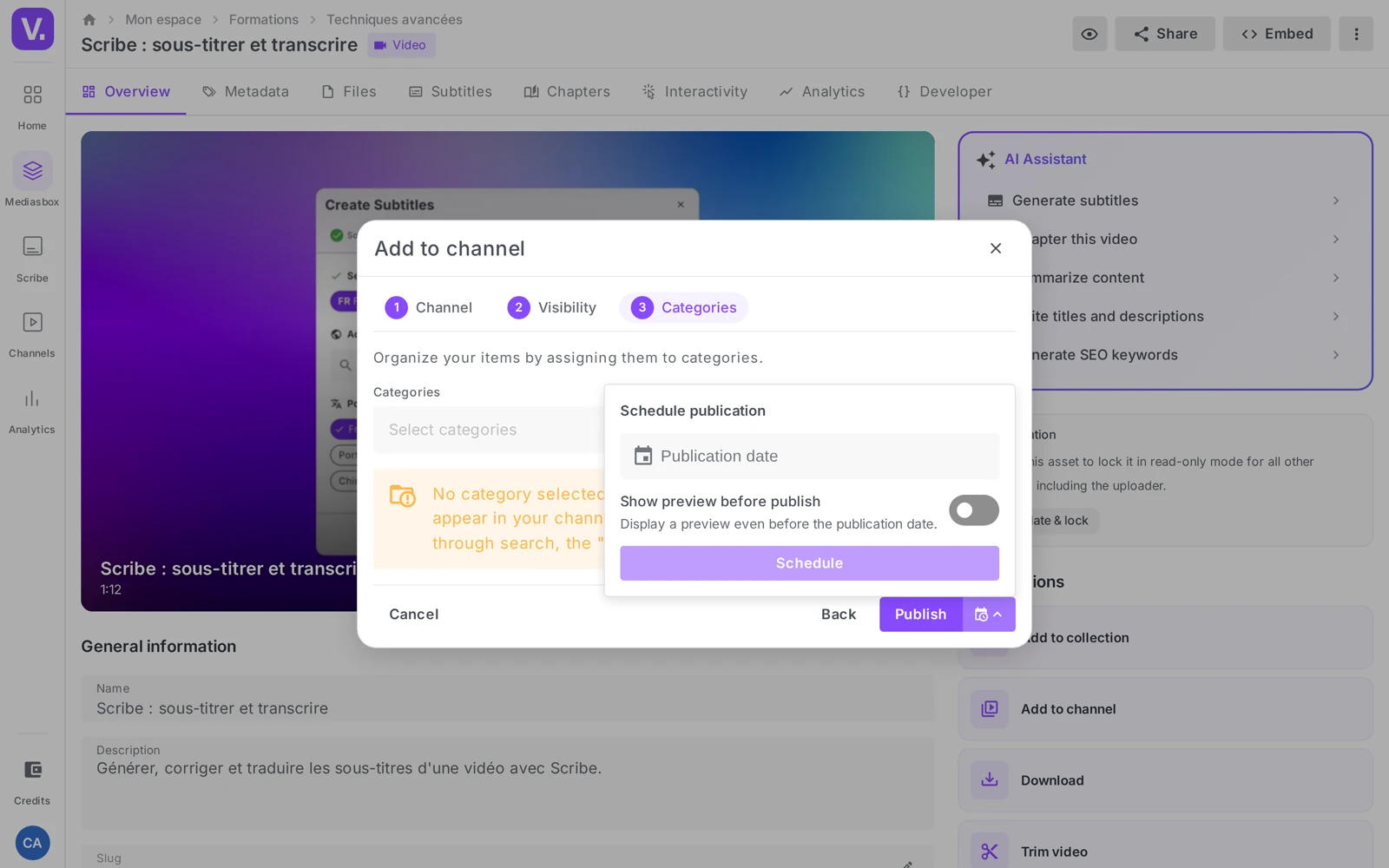
Publishing means adding to a channel. From the media item’s detail page (Overview tab), use the Add to a channel quick action: the wizard opens (Channel → Visibility → Categories), and you finish with Publish. The media item becomes accessible to the channel’s visitors, according to the access rules set at the Visibility step. Publishing is the channel Owner’s job. Details in Publish your first content on a channel.
Schedule a publication
Instead of Publish, choose Schedule and set a publication date. The media item joins the channel’s catalog but stays invisible until the deadline (Scheduled status), then goes live automatically.
Unpublish a media item
“Unpublishing” covers three different actions:
- Remove it from the channel — from the channel, Content tab, unpublish the media item: it leaves the catalog but stays in Mediasbox.
- Push the publication date into the future — the item disappears from public view and comes back on the new date. Handy if you plan to put it back online (nothing to reconfigure).
- Deactivate a share link — if it is being distributed through a link rather than a channel, act on the share (the Active toggle or an expiry date), see How to share a video with a link.
Limit: there is no native expiry date on a channel item. For a removal on a fixed date from a channel, plan to do it manually.
Moderation before publication
Some organizations want a media item to be approved before it becomes visible. For that, Videas offers a Moderation view at workspace level, available to Admins (moderation permission).
There, an approver filters media by status — Pending, Approved, Rejected, Exempt — and acts:
- Approve (or Approve selection in bulk) — the media item becomes publishable
- Reject (or Reject selection) — a window asks for the Rejection reason, which is passed on to the author
- Reset to pending — to revisit a decision
On the detail page of a media item under review, a card shows Awaiting approval, Approved or Rejected, with a View reason link.
Note: advanced setups (a dedicated pre-approval workspace, a “shared pool” across workspaces) require specific configuration — contact Videas support to set them up.
Send to the trash and restore
Deleting a media item (the Delete action, one at a time or in bulk) sends it to the workspace trash: it is no longer visible or reachable through its old links, but it is not permanently erased.
To get it back: Workspace settings → Data → Deletion history, tick the media items and click Restore (a counter shows the days left before permanent deletion). Sending to the trash is allowed from the Editor role upwards; permanent deletion and export are for Admins.
Careful: restoring a media item does not restore its publications on channels — add it back to the channel if you need it there.
Is an uploaded video publicly visible?
No. After upload, a media item is visible to your team only, until you have explicitly distributed it — added it to a channel or shared it by link. There is no default publication to switch off.
That explains the absence of a “draft” status: draft is the default state of every item, and publishing is something you do, not something you undo.
What is the difference between technical status and publication status?
The technical status describes encoding — Processing, Ready, Error, Archived — and shows on the thumbnails in Mediasbox. The publication status describes presence on a channel — Published, Scheduled, Draft — and shows on the item’s page, in the Published on a channel section.
So a media item can be technically Ready and published nowhere: the two dimensions are independent. Do not look in one for an answer that lives in the other.
How do I take content off the public site?
Three moves, depending on how it is distributed. If the item is on a channel, unpublish it from the Content tab: it leaves the catalogue but stays in Mediasbox. If you plan to put it back, push the publication date forward instead: the item disappears from public view and comes back on its own at the new date, with nothing to reconfigure.
If distribution goes through a share link, the share is what to act on — the Active toggle or the expiry — not the channel.
Can I schedule a removal on a fixed date?
No, not on a channel: there is no native expiry date on a channel item. A removal on a fixed date has to be done by hand, or worked around by pushing the publication date forward.
A share link, on the other hand, does have a native expiry. When distribution must stop on a known date, link sharing is the tool that guarantees it without intervention.
How do I have a media item approved before publication?
Through the workspace’s Moderation view, available to Admins holding the moderation permission. A reviewer filters items by status — Pending, Approved, Rejected, Exempt — and acts individually or in bulk: Approve, Reject (a window then asks for the reason, which is passed to the author), or Send back to pending.
On the author’s side, the item’s page shows a card reading Awaiting approval, Approved or Rejected, with a See the reason link. More advanced arrangements — a dedicated pre-approval workspace, a shared pool across workspaces — require specific configuration to request from support.
Does restoring a media item put its publications back online?
No. Restoring from the Deletion history brings the item back into Mediasbox, but does not restore its publications on channels: you have to add it to the channel again.
The history is found in Workspace settings → Data → Deletion history, with a counter of the days left before permanent deletion. Sending to the trash is allowed from the Editor role; permanent deletion is for Admins.
In summary
- The visibility of a Videas media item is multi-lever: channel, publication date, share link, moderation
- Publish = Add to a channel (Publish or Schedule); unpublish = remove it from Content, push the date back, or deactivate a share
- Distinguish the technical status (Processing / Ready / Error / Archived) from the publication status (Published / Scheduled / Draft)
- Moderation (Moderation view, Admin) approves before publishing: Approve / Reject (with a reason) / Reset to pending
- The trash (Deletion history) holds deleted media; they can be restored during the retention period
Related articles
Screenshots were taken on Videas Academy, an example channel built for this help center. It belongs to a fictional customer, not to Videas: your own channel carries your name, your branding and your prices.