Publish your first content on a channel
To publish a video on a Videas channel, two paths lead to the same result: from Mediasbox (your media library), open the media item and use the Add to a channel action; or from Channels (your channels), open the channel, go to Content and click Add content. Both go through the same wizard (Channel/Selection → Visibility → Categories) and end with Publish.
This guide assumes you already have a media item uploaded (Upload your first videos) and a channel created (Create your video channel). Publishing is done as the Channel owner.
Path 1 — From Mediasbox (publish one specific media item)
This is the most direct route when you are starting from a video.
- In Mediasbox, open the media item’s page
- In the More actions menu (or the quick action on the Overview tab), choose Add to a channel
- The wizard opens: select the destination Channel, set the Visibility, choose the Categories
- Click Publish (or Schedule for a delayed release)
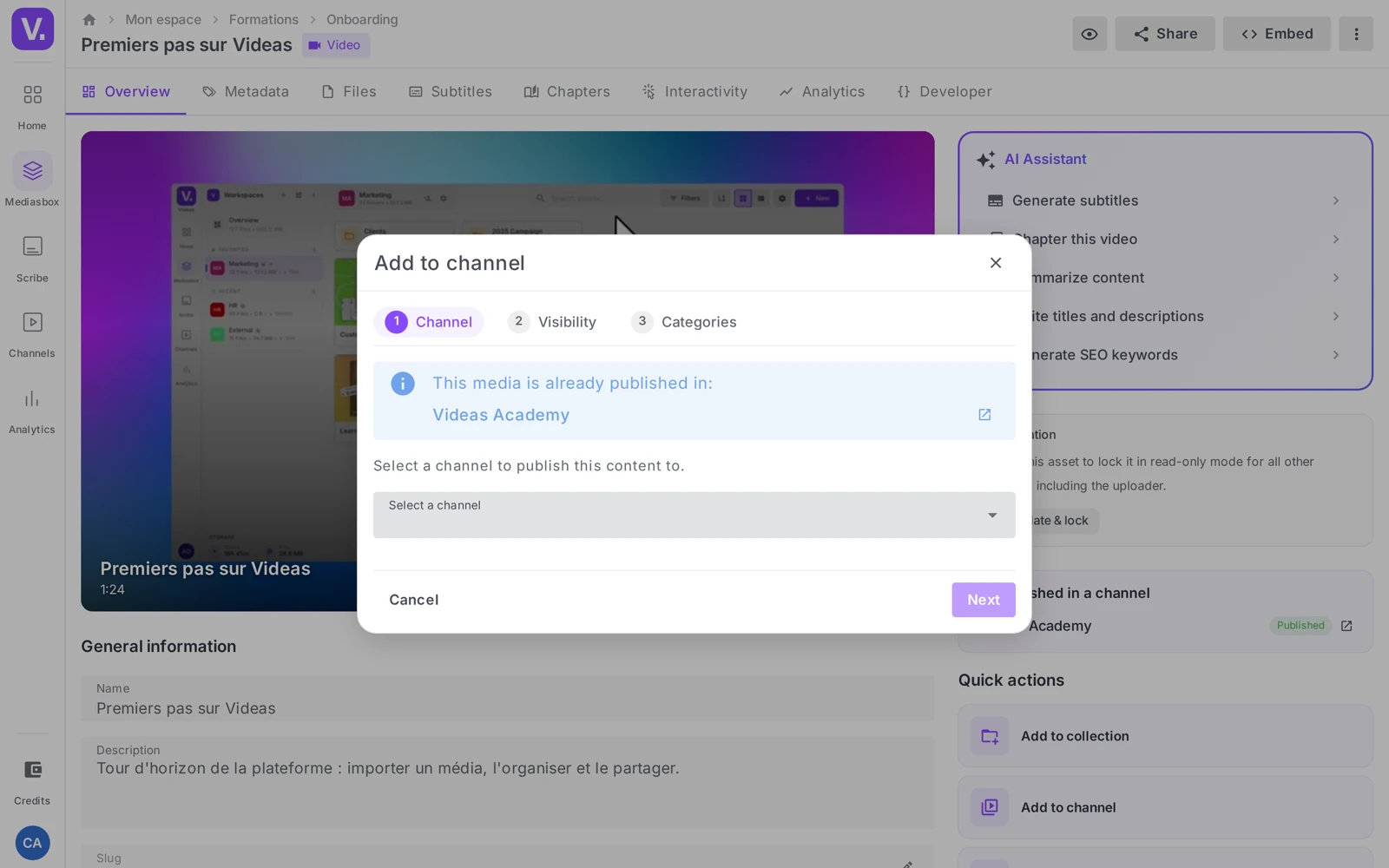
The media item’s page then shows, read-only, the Published on a channel section with the matching status (Published, Scheduled, Draft).
Path 2 — From the channel (publish a batch)
Handy when you want to fill out the channel’s catalog.
- Open Channels in the side menu, then your channel
- Go to Content (the list of content published on the site)
- Click Add content
- Follow the wizard: Selection of media from Mediasbox → Visibility → Categories
- Finish with Publish ({n}) or Schedule ({n})
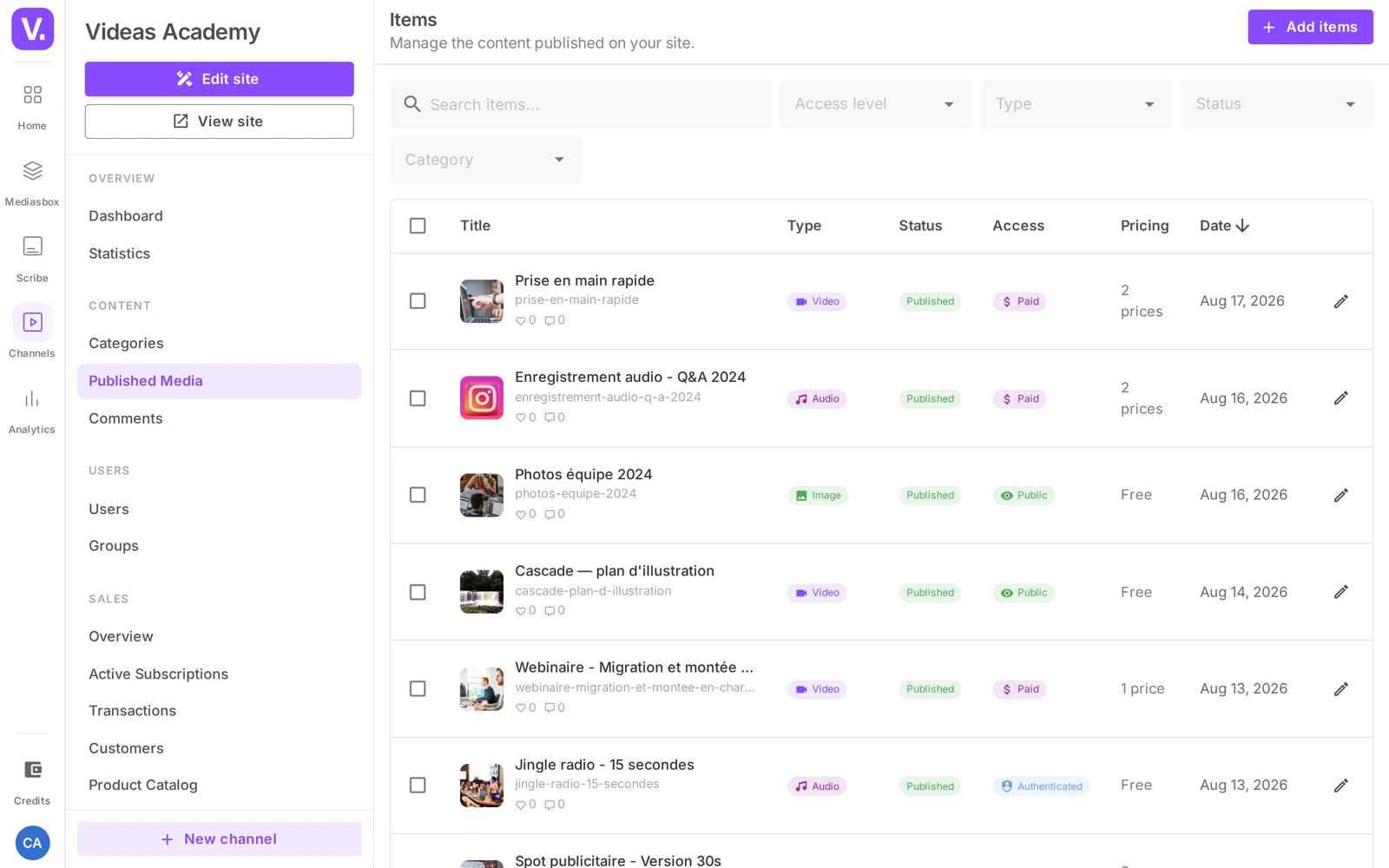
Good to know: Videas flags media already in the channel (Already in channel badge) to avoid duplicates; new ones carry the New badge.
Set the visibility
The Visibility step defines each item’s access level on the channel — from public playback with no account through to Paid access (if monetization is enabled). The fine-grained settings (registration, mandatory sign-in, access groups, paid content) have their own guides:
- Configure registration and sign-in
- Restrict access to a piece of content
- Set the price of a piece of content
Remember: in Videas, publishing = adding to the catalog of the channel. There is no “draft” step to confirm afterwards. To take content down, unpublish it from Content — the original media item stays in Mediasbox.
Check and share
Open your channel’s URL (your-subdomain.videas.fr) in a private browsing window: it is the most reliable test, since no signed-in session skews what you see. You get exactly what your audience will get — home page, catalog, player.
Once you are happy, share the link:
- Default URL:
your-subdomain.videas.fr - Custom domain: to use your own domain name, see Configure a custom domain name
Does publishing put the video online right away?
Yes. In Videas, publishing = adding to the catalogue of the channel: there is no “draft” step to approve afterwards, and the content becomes visible as soon as the wizard finishes, within the Visibility you gave it.
If you want a delayed release, end the wizard with Schedule instead of Publish: the content then carries the Scheduled status and goes live by itself on the date you picked.
How do I take a video off a channel without deleting it?
Unpublish it from the channel’s Content section. The item disappears from the public catalogue, but the original stays in Mediasbox with its subtitles, its analytics and its shares: you can republish it later, or on another channel.
That is the distinction worth keeping in mind: a channel broadcasts media, it does not host them. Removing content from a channel is never destructive.
Can the same video be published on several channels?
Yes, and with different visibility on each. The same Mediasbox item can be public on your showcase channel and paid on your training channel: the access level is set per publication, not on the media itself.
The media item’s page sums this up, read-only, in the Published on a channel section, with the status for each one (Published, Scheduled, Draft).
Why test in a private browsing window?
Because your signed-in session distorts what you see. Logged in as the owner, you see content the public cannot — unpublished, restricted, paid — and you never meet the login screen or the paywall.
A private browsing window on the your-subdomain.videas.fr URL shows you exactly what your audience will get: home page, catalogue, player, restrictions included.
In short
- Two paths to publish: Mediasbox → Add to a channel, or Channels → Content → Add content
- The same wizard: Selection → Visibility → Categories, then Publish (or Schedule)
- Publishing = adding to the catalog; there is no draft step
- Visibility runs from public to paid — details in the dedicated access guides
- Test in private browsing, then share the
subdomain.videas.frURL - Publishing is done as the Channel owner
Related articles
Screenshots were taken on Videas Academy, an example channel built for this help center. It belongs to a fictional customer, not to Videas: your own channel carries your name, your branding and your prices.