Set the price of a video: purchase or rental
To sell a piece of content: open it, set its access level to Paid, then in the Monetization tab that appears, click Add a price. You can sell content individually (purchase, permanent access) or as a rental (time-limited access), and stack several prices on the same item.
Prices are set per item, in your channel’s currency (see Activate monetization on your channel). This operation requires the Channel owner role.
Step 1: Switch the content to Paid
The Monetization tab only appears on paid content.
- In your channel menu, open your content (Content → Items section)
- Click the item you want to monetize to open its record
- In the Access section, choose the Paid level
A Monetization tab then appears on the content record. (For the other access levels, see Content access restrictions.)
Step 2: Open the Monetization tab
The Monetization tab is organized into three sections:
| Section | What it does |
|---|---|
| Trailer | A short, freely accessible preview to make people want to buy |
| Prices | The individual prices (purchase or rental) for the content |
| Subscriptions | Link the content to one or more subscription plans |
As long as it has neither a price nor a subscription, paid content shows a reminder — you need at least one of the two for it to be sellable.
Step 3: Add a purchase price
In the Prices section, click Add a price. The dialog offers:
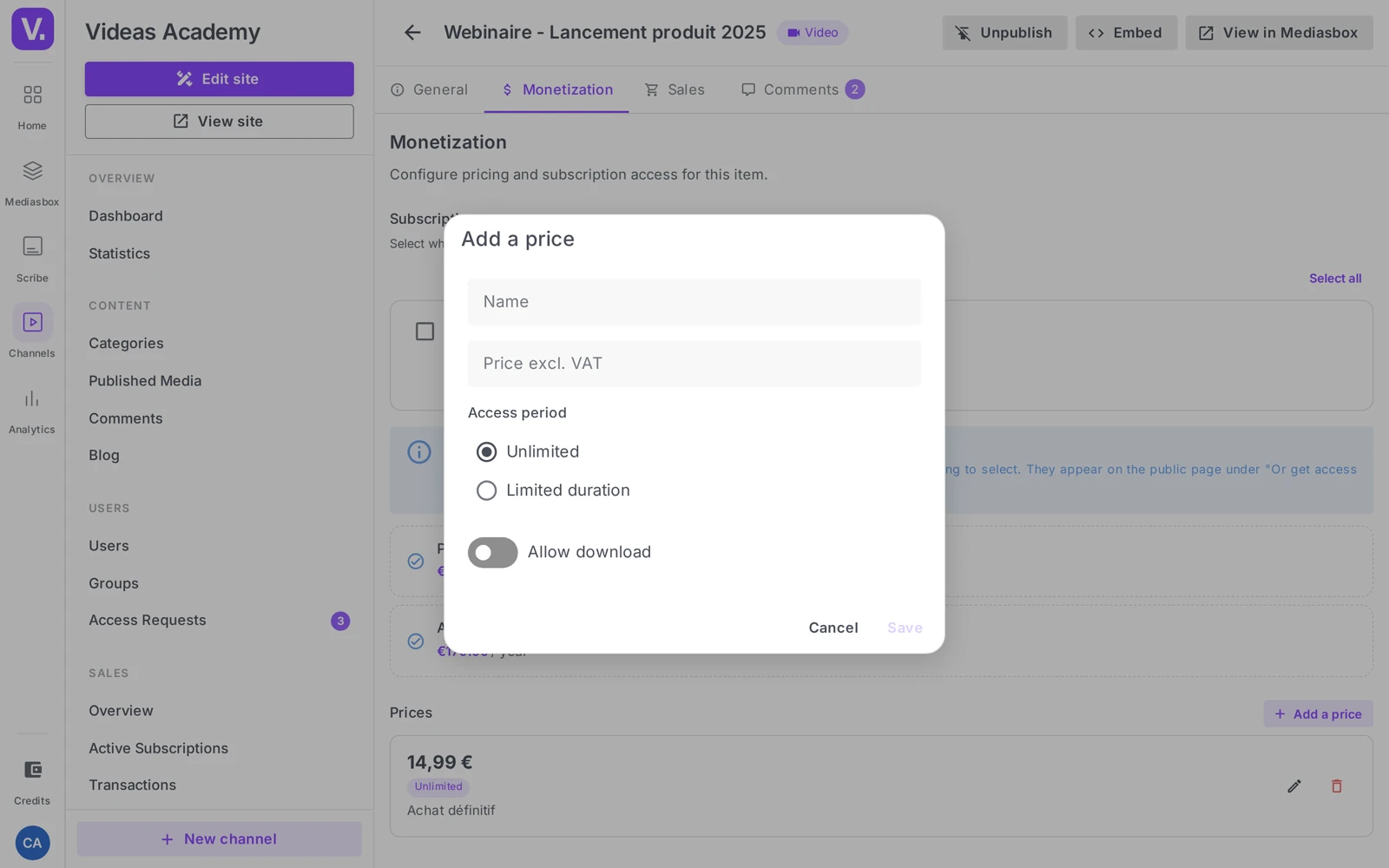
- Name (optional) — to tell several prices apart (Standard, HD…). Essential as soon as you offer more than one.
- Price excl. VAT — the amount before tax, in your channel’s currency (minimum 1.00). VAT is added at checkout, based on the buyer’s country.
- Access period — for a purchase, choose Unlimited: the buyer keeps access for life.
- Allow download — lets the buyer get the file itself, on top of streaming.
Trade-off: downloading adds value for the customer but takes the file off the platform. Save it for content where you are comfortable with that.
Click Save: the price appears in the list.
Step 4: Add a rental price
For temporary access, add a price and choose Limited duration under Access period. Two fields appear:
- Duration — a number (minimum 1)
- Unit — Hours, Days, Months or Years
| Use case | Recommended duration |
|---|---|
| Webinar replay | 48 Hours |
| Access to a training course | 30 Days |
| Feature film rental | 7 Days |
The rental price appears in the list, set apart from purchases by its period (e.g. “48 Hours”).
Step 5: Stack several prices
You can create as many prices as you need on the same item. On the customer side, every price appears as a clickable card at purchase time (name, price, period, download). Examples:
- Purchase + rental: Unlimited purchase €30 and 48h rental €9
- Several durations: 24h replay €5, 7 days €12, 30 days €25
- Several quality levels: Standard €15, HD with download €25
Each price card can be edited or deleted. Changing a price does not affect sales already made: previous buyers keep their rights.
Step 6: Trailer and subscriptions
- Trailer — upload a short preview (1 to 3 min), freely accessible: it converts hesitant visitors and stays indexable by search engines.
- Subscriptions — tick the subscription plans that should grant access to this content (see Create subscription plans). The same item can both be sold individually and be included in a subscription.
Why doesn’t the Monetization tab appear?
Because the content is not set to the Paid access level. The tab only appears on paid content: open the content’s page, go to the Access section, and switch the level to Paid — the tab then appears.
If you can see the tab but the content still is not sellable, it has neither a price nor a subscription. At least one of the two is needed, and Videas shows a reminder until that is the case.
Can I sell a video individually and include it in a subscription?
Yes, the two are not mutually exclusive. The Monetization tab carries a Prices section for unit pricing and a Subscriptions section to tick the plans that give access to this content.
So the same item can be bought outright by someone who is not subscribed, and be part of the catalogue for those who are. It is the most common arrangement on a mixed catalogue.
Purchase or rental: which duration?
Purchase corresponds to the Unlimited access period: the buyer keeps access for good. Rental uses Limited duration, with a number and a unit — hours, days, months or years.
Three markers that work: 48 hours for a webinar replay, 30 days for course access, 7 days for a feature film rental. The right duration is the one that lets the content be consumed comfortably without allowing it to be stockpiled.
Should I allow downloads?
It depends on what you accept losing. Downloading is real added value for the customer, but it takes the file out of the platform: once downloaded, it lives its own life independently of your channel.
Keep it for content where you accept that, or make it a pricing differentiator — a Standard streaming-only card at €15, an HD with download card at €25.
Does changing a price affect previous buyers?
No. Changing or deleting a price does not affect sales already made: earlier buyers keep the rights they paid for, at the duration and terms in force when they bought.
So you can adjust your pricing grid without retroactive concerns — raise a price, remove a rental card, add a new one.
What is the trailer for?
To convert the hesitant and to stay visible. It is a short preview — one to three minutes — that is freely accessible, giving a glimpse of the content without opening access to it.
It has a second, often underestimated effect: being public, it stays indexable by search engines, where the paid content itself is not. It is your only organic way in to a closed catalogue.
Is the price shown tax-inclusive?
No, you enter an excluding-tax price, with a minimum of 1.00 in your channel’s currency. VAT is added at payment time, according to the buyer’s country.
That means the final amount varies from one customer to another. If your marketing quotes a tax-inclusive price, work it out for your main market and check it on the checkout journey before publishing it.
In short
- Prices are set per item, in the Monetization tab, which is only visible if the content is at the Paid access level
- Two types: Purchase (unlimited access) and Rental (limited duration — Hours / Days / Months / Years)
- Several prices are possible per item; each price has a Name (optional), a Price (min 1.00), an Access period and an Allow download toggle
- The currency is the channel’s
- The Monetization tab also hosts the Trailer and the link to subscriptions
- Configuration is reserved for the Channel owner
Related articles
Screenshots were taken on Videas Academy, an example channel built for this help center. It belongs to a fictional customer, not to Videas: your own channel carries your name, your branding and your prices.