Choose who can access your channel
To choose who gets access to your Videas channel, go to Settings → Authentication. The Access mode section offers 4 modes — Public, Password, Users (optional) and Users (required) — and, in Users mode, options for sign-up, two-step verification and the login background. Click a mode, set its options, then Save.
This guide helps you pick the right mode for your project, then configure it.
The 4 access modes
In Settings → Authentication, the Access mode section (“Choose how visitors access your site”) shows four cards:
| Mode | Description shown | Who it is for |
|---|---|---|
| Public | “No authentication required. All content is publicly accessible.” | Traffic and SEO, mainstream media |
| Password | “Visitors must enter a shared password to access the content.” | A small circle, pre-launch |
| Users (optional) | “Visitors can browse freely but can create an account for extra features.” | Freemium, lead collection |
| Users (required) | “Visitors must create an account and log in to access the content.” | Training, intranet, monetization |
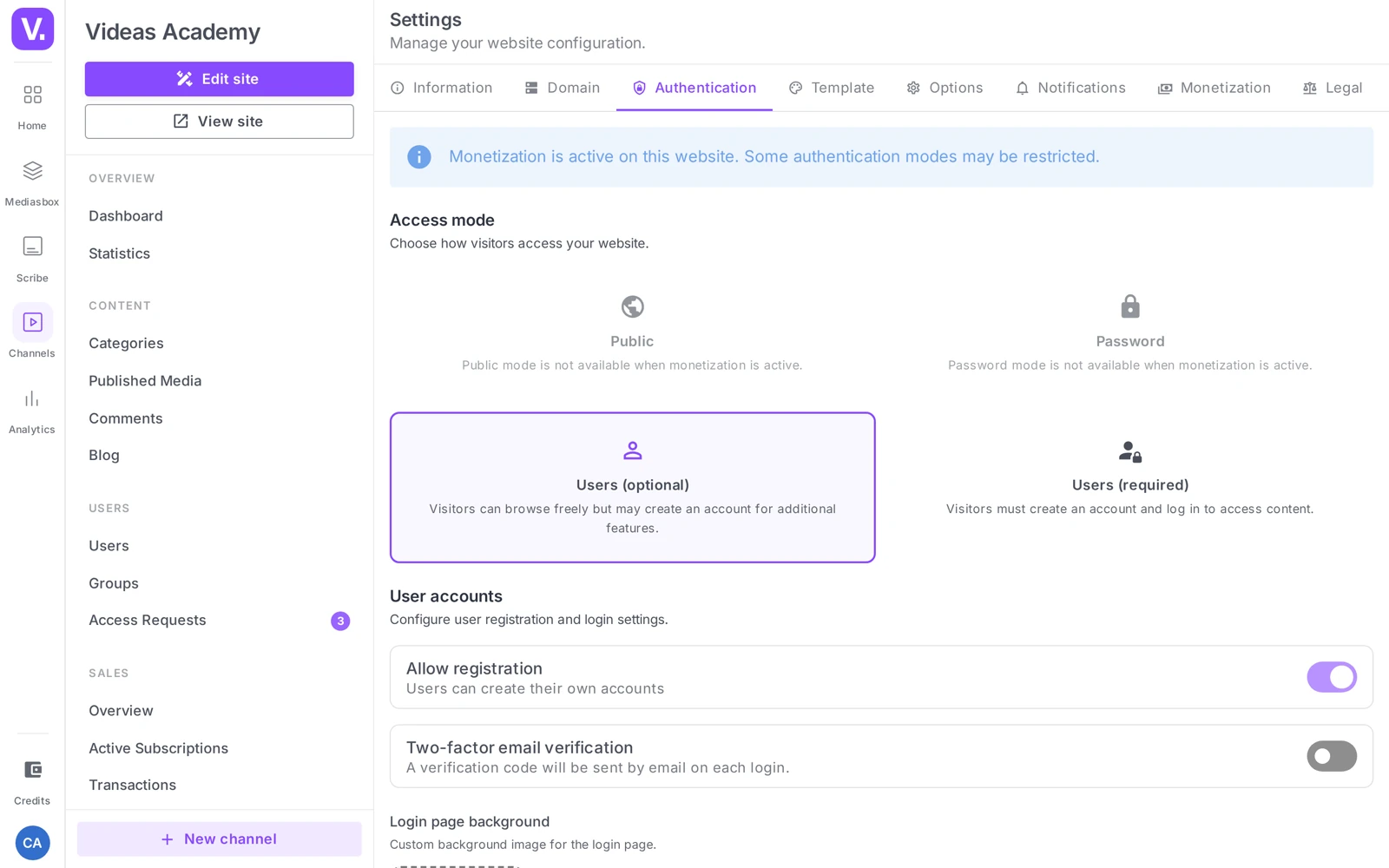
Monetization: if monetization is on, a warning appears (“Monetization is active on this site. Some authentication modes may be restricted.”) and the Public and Password modes are disabled (buying requires individual identification). Switch to Users (optional) or (required).
Click the card for the mode you want, set the options that appear below it, then Save. The change is instant for visitors — warn your audience before a major change.
Password mode
When you choose Password, a Password section appears (“Set a shared password for visitors”) with the Shared password field. That is what your visitors will enter to get in.
Remember: a shared password is blunter than an account: you do not know who is watching, you cannot revoke an individual’s access, and a leaked password is compromised for everyone. Send it through a channel separate from the URL, and keep it for small circles over short periods.
Users mode
When you choose Users (optional) or (required), a User accounts section appears (“Configure the sign-up and login settings”):
- Allow sign-up (toggle) — “Users can create their own accounts”. Off, only the people you invite can join the channel (see Manage your channel users).
- Two-step email verification (toggle) — “A verification code will be emailed on every login”. It strengthens security at the cost of a little friction at login.
- Login page background — an image picker (“Custom background image for the login page”): upload a visual that will appear behind the login form.
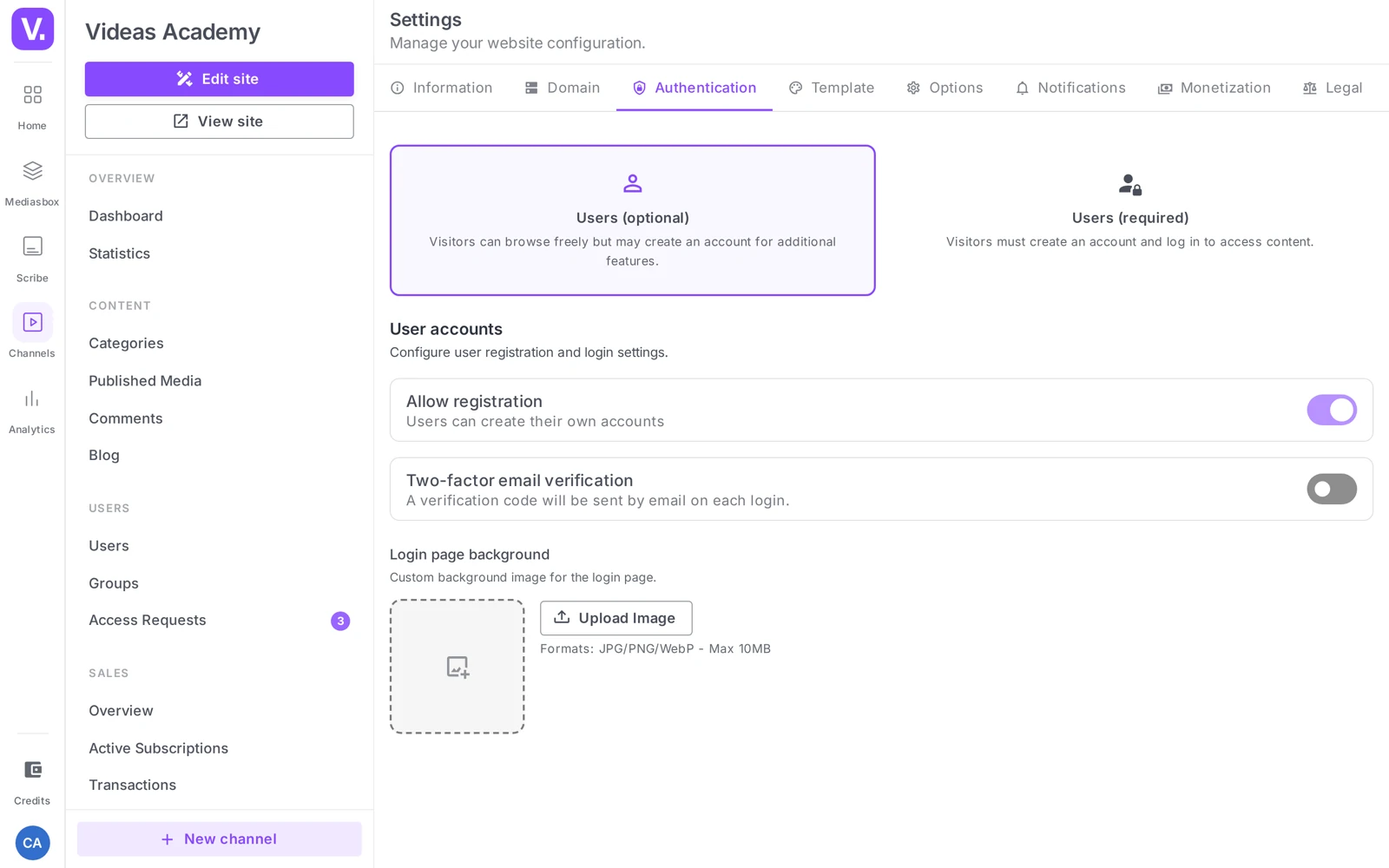
Tip: switch on two-step verification as soon as there is something at stake (paid courses, confidential documents, a monetized channel). Turn off Allow sign-up for a known, closed audience (clients, colleagues, students) to avoid stray registrations.
Once authentication is on, the Login, Sign-up (if sign-up is allowed) and My profile pages become available as menu links — add them to the header or the footer to make them visible. See Organize the catalog: categories and menus.
Best practices
- Choose the mode before you share the URL: switching to Users (required) after the fact throws an audience used to open access.
- Turn on email 2FA as soon as there is something at stake: free, simple, and it blocks most account compromises.
- Take care of the login image: it is the first screen a user sees — an image consistent with your identity is reassuring.
- Test the journey in private browsing before launch: the redirect to login (required mode), the sign-up form, the welcome email, and 2FA if you enabled it.
Shared password or user accounts?
The shared password is simpler but markedly cruder: you do not know who is watching, you cannot revoke one person’s access, and a leaked password is compromised for everyone at once.
Keep it for small circles over short periods — a pre-launch, a review committee — and circulate it on a channel separate from the URL. As soon as you need to know who is getting in, cut off one access, or sell, you need accounts.
Why are the Public and Password modes greyed out?
Because monetization is active on your channel. An alert says so, and both modes are disabled: a purchase implies individual identification, without which Videas would not know whom to deliver access to.
Switch to Users (optional) if you want to keep the catalogue freely visible, or to Users (required) if the whole channel must be closed.
Users optional or required: which one?
Optional lets people browse freely and reserves the account for extra features: it is the freemium and lead-capture mode, and the only one that preserves your search ranking, since engines can see the catalogue.
Required closes everything behind a login: it is the mode for training, intranets and strict monetization. It does, however, cut off all organic visibility — nothing remains indexable.
Should I enable two-step verification?
As soon as there is something at stake: paid courses, confidential documents, a monetized channel. A code emailed at each login blocks the majority of account compromises, for low friction and no cost.
On a consumer channel with no sensitive content, it adds a step to every login without removing a real risk — the calculation then tips the other way.
How do I prevent unwanted sign-ups?
Turn off the Allow sign-up toggle. Only people you invite can then join the channel — the right setting for a known, closed audience: clients, colleagues, a training cohort.
The mode stays Users, with everything that brings: individual access, targeted revocation, per-viewer analytics. You are simply controlling the front door.
Where do the Login and Sign-up pages appear?
Nowhere, until you add them yourself. Once authentication is active, Login, Sign-up (if it is allowed) and My profile become available as menu links — but you have to place them in your header or footer.
It is a frequent oversight at launch: the channel requires a login, and the visitor cannot find where to log in.
Can I change mode after launch?
Yes, and the change is instant for visitors. Which is precisely why it calls for care: switching a freely accessible channel to Users (required) disorients your audience overnight.
So choose the mode before circulating the URL, and if a major change becomes necessary later, warn your audience before applying it.
In summary
- 4 access modes in Settings → Authentication: Public, Password (shared password), Users (optional), Users (required).
- Public and Password are disabled when monetization is on.
- In Password mode: a Shared password field.
- In Users mode: the Allow sign-up and Two-step email verification toggles, plus an image picker for the login background.
- Once auth is on, Login / Sign-up / My profile are available as menu links.
Related articles
Screenshots were taken on Videas Academy, an example channel built for this help center. It belongs to a fictional customer, not to Videas: your own channel carries your name, your branding and your prices.