Create a video channel (branded video portal)
To create a video channel — a video portal under your own brand — in Videas, open the Channels app from the sidebar, click New, then follow the wizard: it announces six questions, two minutes. Finish with Create my channel and your site goes live on a your-choice.websites.videas.com subdomain.
A Videas channel is a complete website dedicated to broadcasting your content: home page, catalogue, blog, monetisation, user management. This guide walks through the wizard question by question and explains what each choice commits you to — knowing that nothing is final: everything can be changed afterwards in the channel settings.
Opening the creation wizard
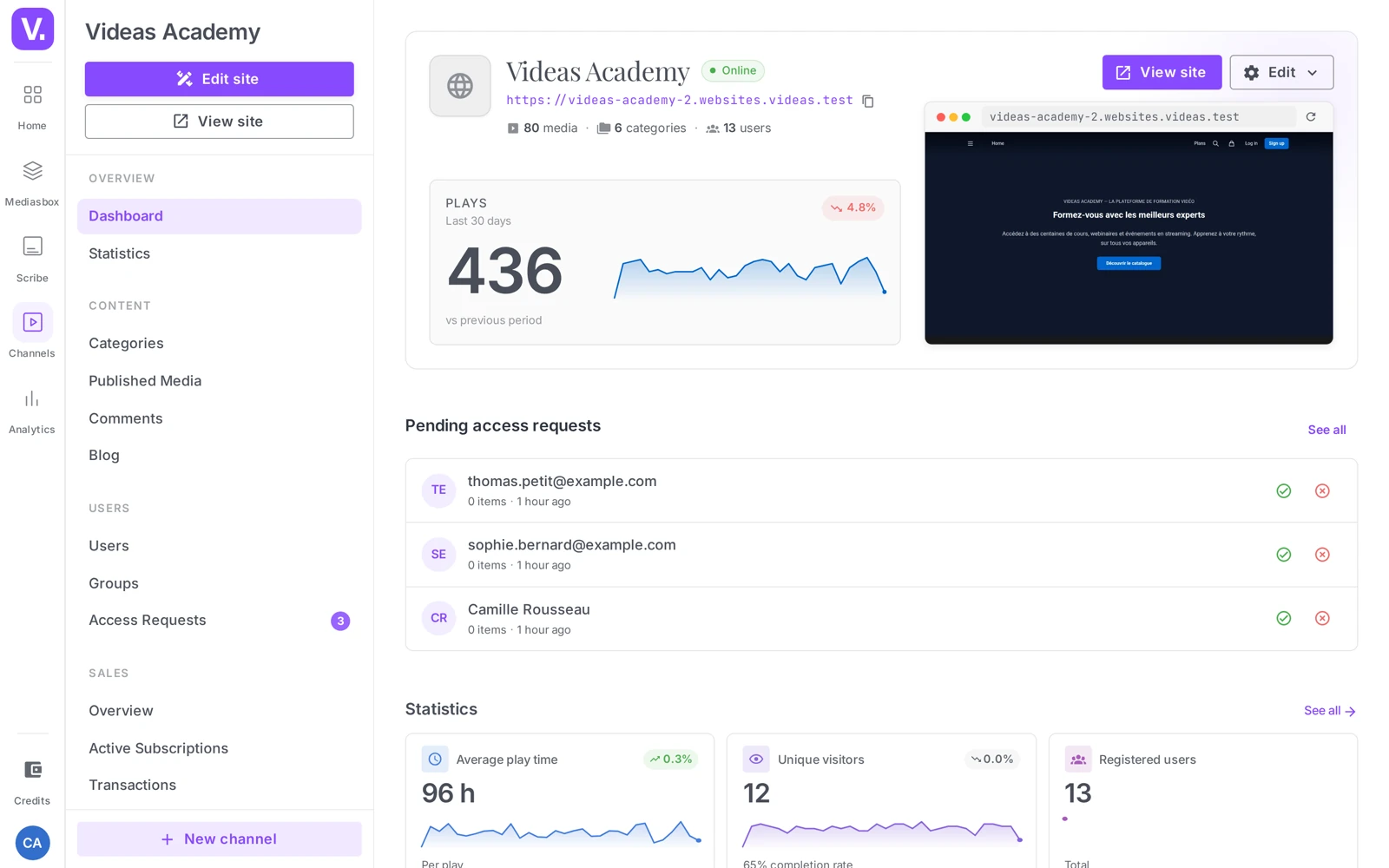
From the sidebar, open the Channels app. You land on your workspace’s Websites list.
- If you already have channels: click New, top right.
- If this is your first channel: click Create a site on the empty screen.
The wizard opens full screen, titled Create a channel. The close cross sits top left, the Need help? button top right.
The starting screen
Before the first question, the wizard sets the scene: Create your channel, and the run-through in three acts.
| Act | What you are asked |
|---|---|
| 1. The layout | The shape of your catalogue, then a template |
| 2. Your identity | A name, a sentence, a colour |
| 3. Your content | What gets published right away, and who can see it |
An At the end box shows the address you will get — your-channel.websites.videas.com — and notes that the site stays a draft until you publish it.
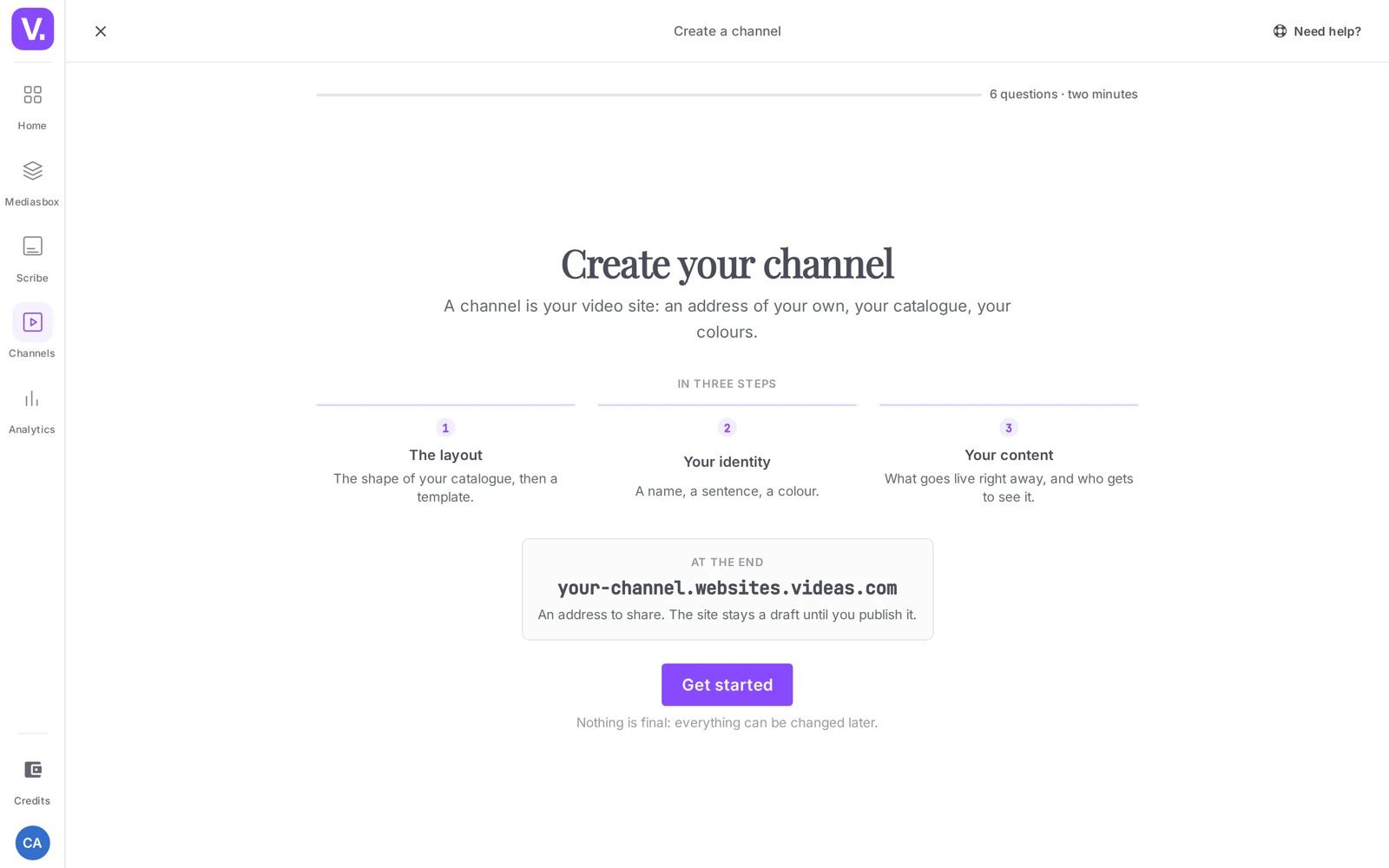
Click Get started.
Worth remembering: the line under the button says it plainly — nothing is final: everything can be changed afterwards. Do not agonise over a choice; the wizard is there to get you going, not to lock you in.
Question 1 — What are you publishing?
Three cards, describing the shape of your catalogue rather than your line of business.
| Choice | Description | Who it suits |
|---|---|---|
| A single piece of content | A film, a talk, a webinar | One recording to broadcast, with no catalogue around it |
| A small selection | A handful of items, no filing needed | A handful of videos that fit on one page |
| A catalogue (suggested) | Organised in categories, with search | A library set to grow |
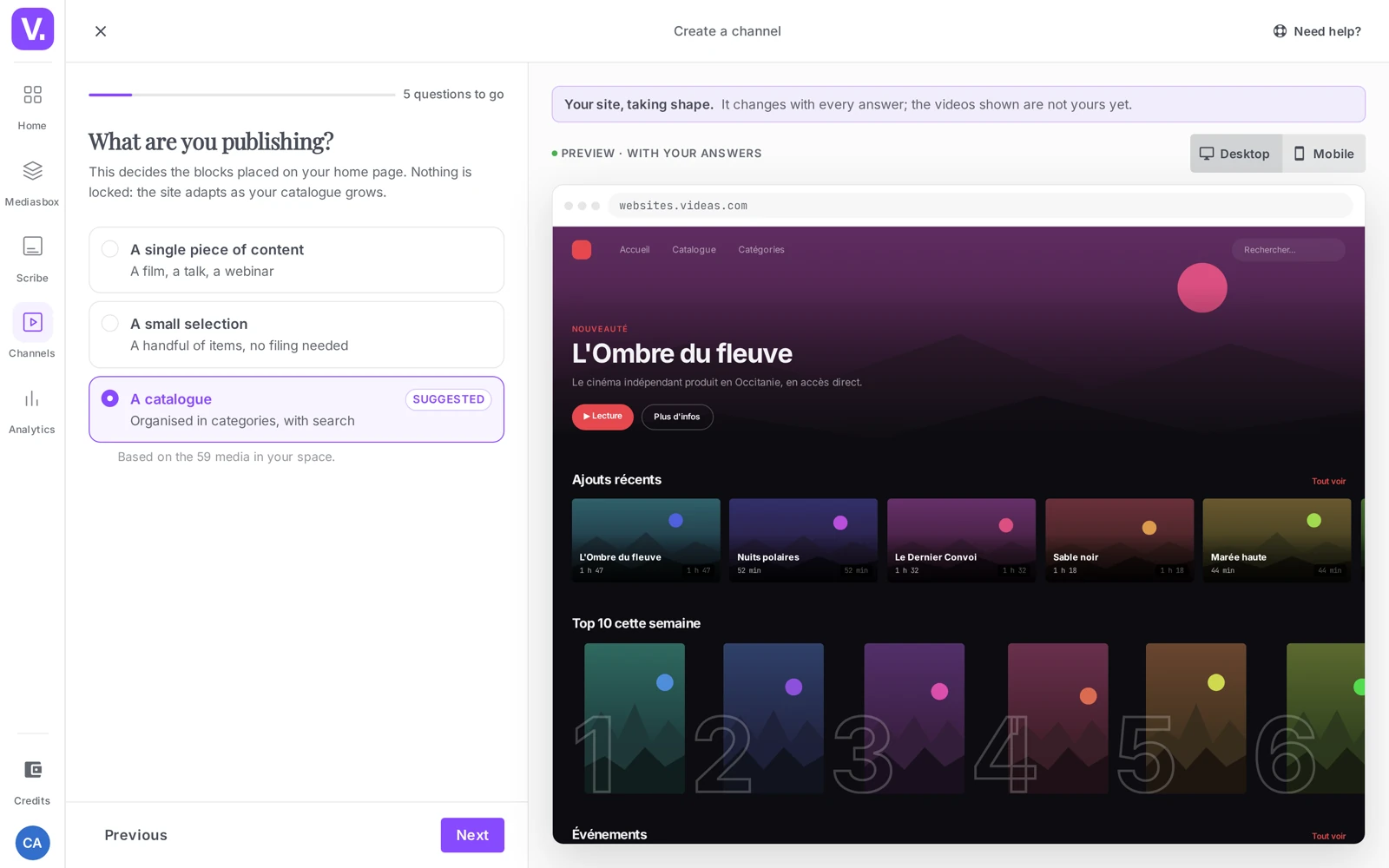
This choice drives the site structure offered at the next question. A catalogue brings categories and search; a single item brings a page built around the player.
Question 2 — Choose a template
A template gallery along the bottom, with the live preview of the selected template above it and its name and description on the right. Templates are not mere colour themes: they change the home page structure, the blocks on offer and the wording. The progress bar shows how many questions are left.
| Template | Focus |
|---|---|
| Nocturne | Cinema & VOD |
| Atrium | Internal channel |
| Tribune | Media & magazine |
| Souffle | Wellbeing & practice |
| Cadence | Sport & training |
| Comptoir | Food & craft |
| Cursus | Training & academy |
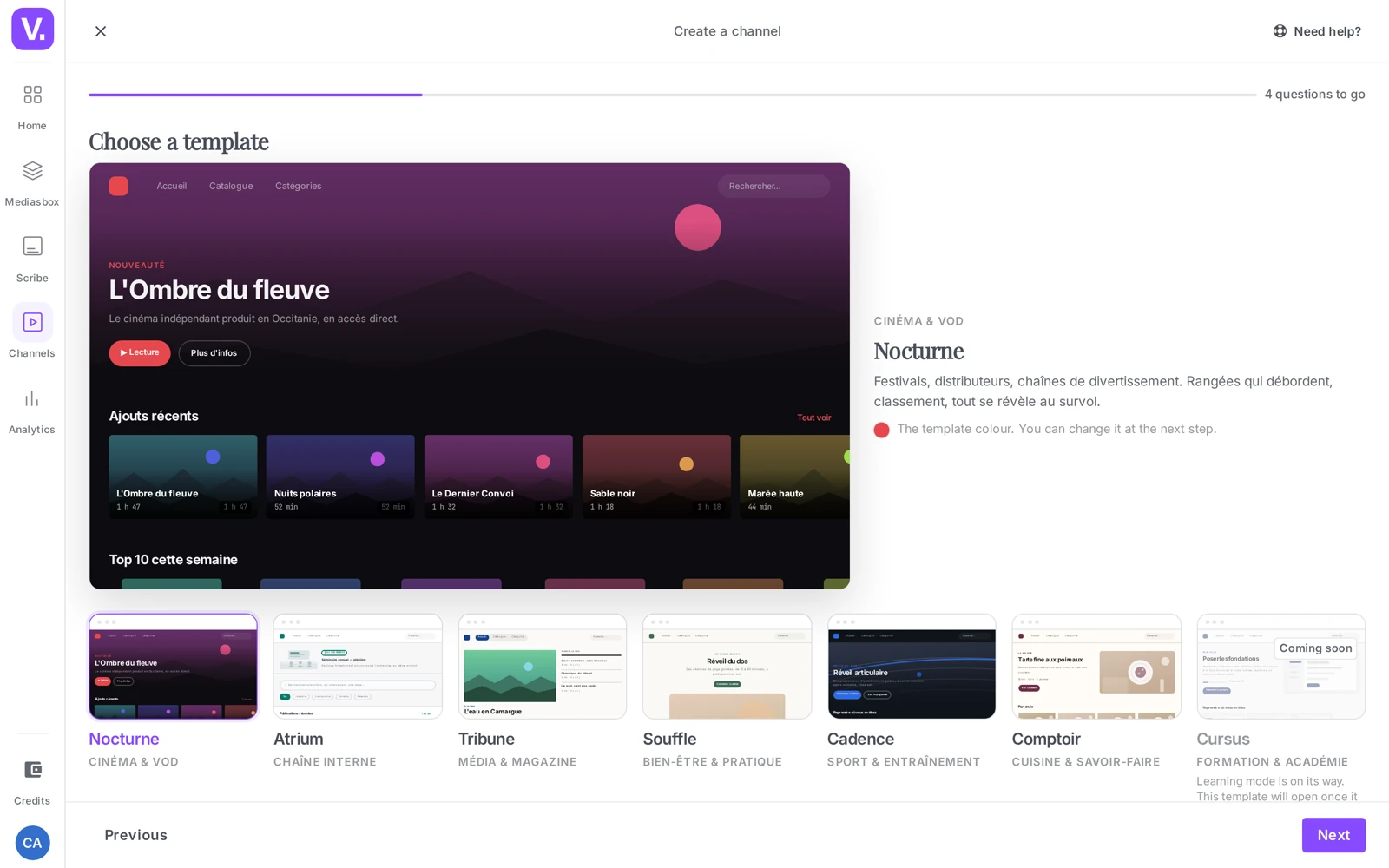
The preview switches between Desktop and Mobile — use it to check the small-screen rendering, which is often where a catalogue’s readability is won or lost.
Each template comes with its own colour, which you can change at the next question.
Note: the Cursus template shows Training mode is coming soon — it cannot be selected yet. For a training channel today, go with Atrium or A catalogue; the structure is close.
Question 3 — Your identity
Three fields, and the site on the right becomes yours.
- Site name — the publicly displayed name (header, metadata, shares).
- Address — it is derived from the name; there is no separate field. Videas shows
your-name.websites.videas.comunder the field and checks availability live. If the address is taken, the wizard says so — your site keeps its name, only the address has to be unique — and offers free variants to pick in one click. - Description — in one sentence, what do people find here? It becomes your home page’s subtitle and the description shown when the link is shared.
- Colour — the accent colour, pre-filled by the template you chose. A picker lets you enter your brand’s exact code.
- Logo — two buttons: Library to pick from your media, Upload to send a file from your computer.
Careful: the Next button stays greyed out until the name, the description and an available address are all in place. If nothing happens when you click, it is almost always the address — check the message under the Name field.
A note reminds you that if you already own a domain name, you will be able to connect it from the settings once the site is created — see Set up a custom domain name.
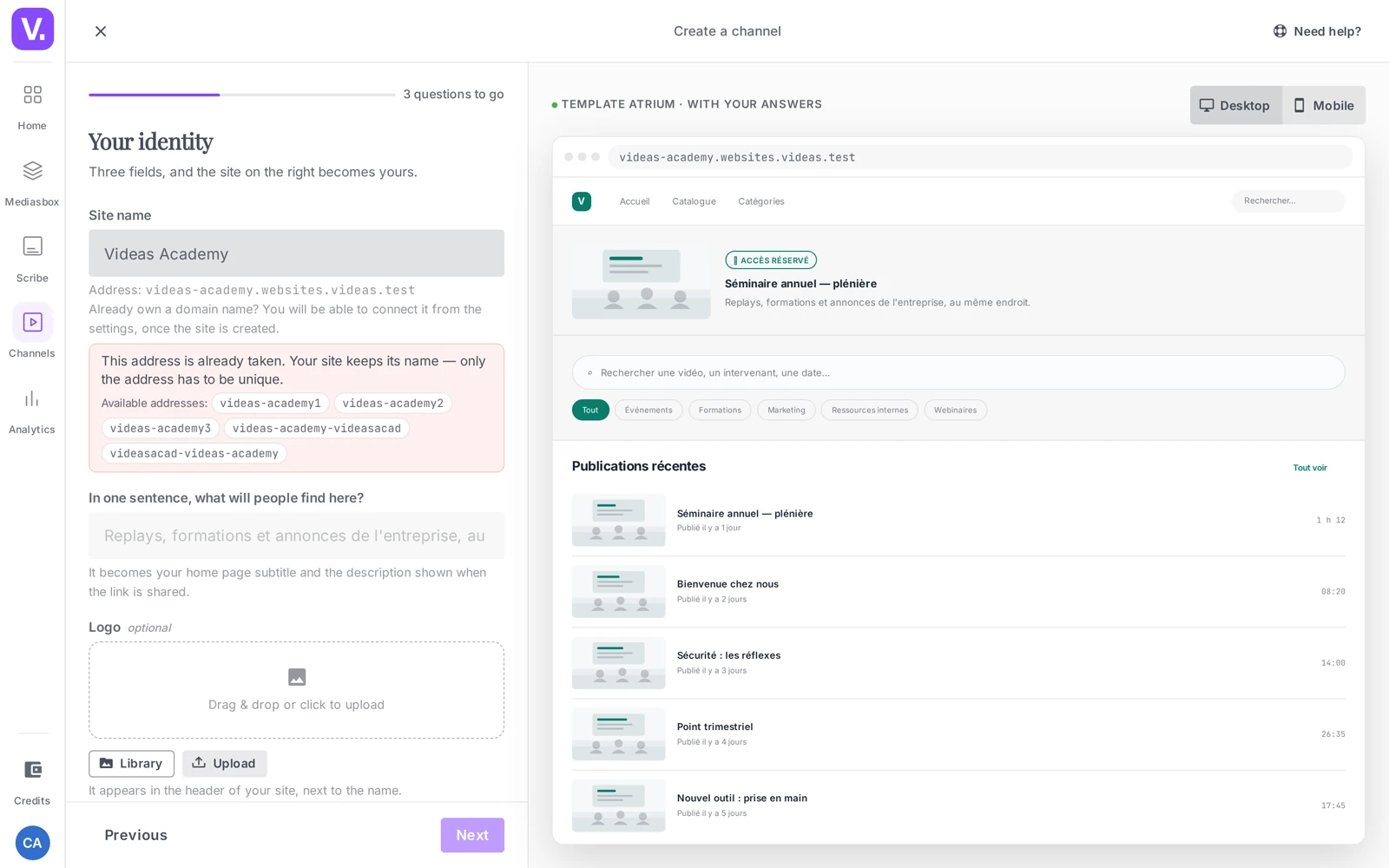
The preview updates as you type: the name, the sentence and the colour appear immediately in the mock-up on the right.
Question 4 — Your content
The wizard offers your media library as checkboxes, with an Unselect all button to start from an empty selection. Whatever you tick here is published as soon as the site is created.
This question is optional: the Skip button takes you to the next one, and you can add content later from Published media.
Question 5 — Who can see your site?
The wizard is upfront: first of the two access questions, and this one is not about money.
| Choice | What it means |
|---|---|
| Everyone | The site is public, findable by search engines and by models |
| People with an account | Visitors must sign in to reach the content |
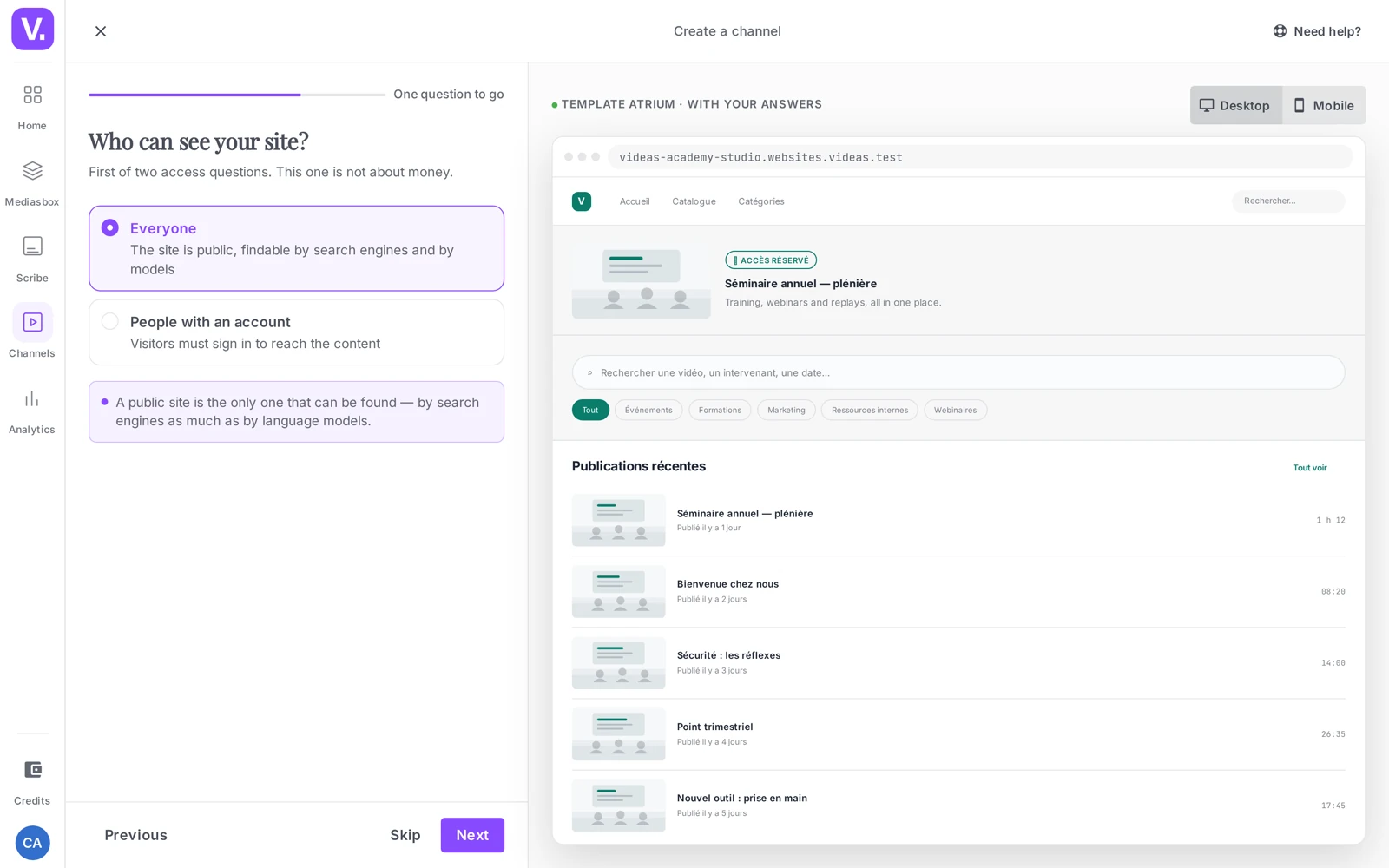
For search visibility: a public site is the only one that can be found — by search engines as well as by language models. If visibility matters to you, this choice is not a neutral one.
Optional as well. The setting reappears later under Settings → Authentication — see Set up authentication and sign-up.
Question 6 — Is it paid?
The second access question, the one about money.
| Choice | Description |
|---|---|
| Everything is free | No payment, no plans |
| Everything is paid | Subscription or one-off purchase |
Optional too. Monetisation is configured in detail afterwards — plans, one-off prices, promo codes — see Enable monetisation on your channel.
Creating the channel
The last screen announces Your site is ready. Click Create my channel: Videas provisions the site and its subdomain, then takes you to your new channel’s dashboard.
Your channel is reachable at https://your-choice.websites.videas.com, as a draft until you publish it.
Tip: open that address in a private browsing window to see what visitors actually get, without your admin session masking some access restrictions.
Recommended set-ups by scenario
| Scenario | What are you publishing? | Template | Who can see? | Is it paid? |
|---|---|---|---|---|
| Public corporate showcase | A catalogue | Tribune | Everyone | Free |
| Internal company channel | A catalogue | Atrium | Accounts | Free |
| One recording to broadcast | A single item | Nocturne | Everyone | Free |
| Paid catalogue | A catalogue | Nocturne | Accounts | Paid |
What a channel can do: the Channels product page shows sites already online and the features available — catalogue, blog, monetization, user management.
What comes next?
Your channel exists but still needs dressing up. The usual next steps:
- Customise the appearance (logo, colours, navigation and thumbnail styles) — see Customise your channel’s appearance
- Build your pages with the Page Builder (hero, carousels, categories…) — see Build your pages with the Page Builder
- Organise the catalogue into categories and menus — see Organise the catalogue: categories and menus
- Connect a custom domain — see Set up a custom domain name
- Decide who accesses what — see Set up authentication and sign-up and Content access restrictions
- Publish your first videos on the channel — see Publish a video on your channel
In short
- A channel is created from the Channels app → New, through a six-question wizard announced as a two-minute job.
- The wizard runs in three acts: the layout (catalogue shape, then template), the identity (name, address, sentence, colour, logo), the content (published media, access, pricing).
- The site address is derived from the name and checked live; the wizard offers variants when it is already taken.
- Seven templates cover different uses — from Nocturne (cinema) to Atrium (internal channel); Cursus is coming soon.
- The last three questions are optional: content, access and pricing are just as easily set after creation.
- A public site is the only one findable by search engines and language models.
- You finish with Create my channel; the site stays a draft until you publish it.
Related articles
Screenshots were taken on Videas Academy, an example channel built for this help center. It belongs to a fictional customer, not to Videas: your own channel carries your name, your branding and your prices.