Find your way around Videas: where everything is
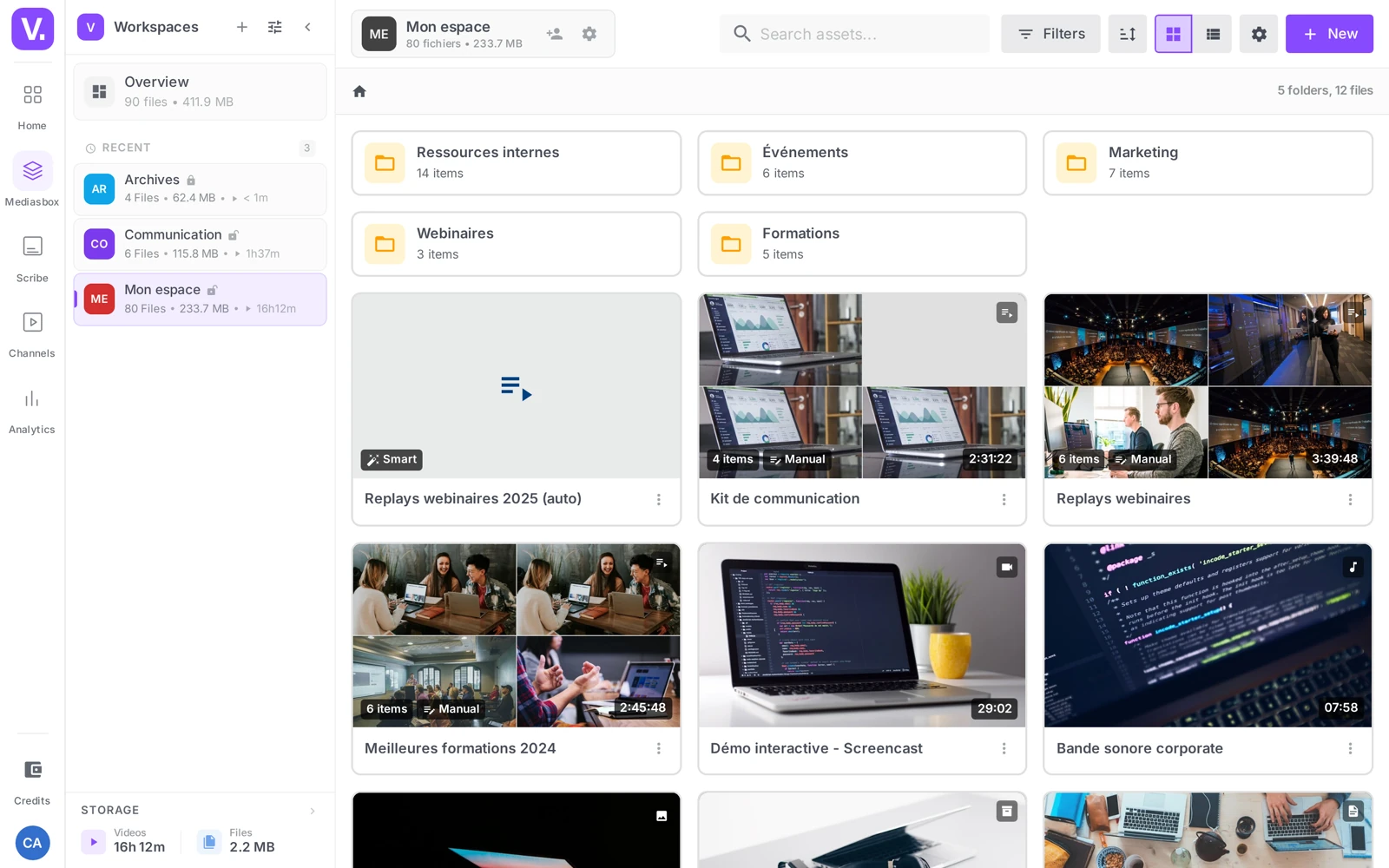
Videas is built around a side menu on the left that gives access to its apps — Home, Mediasbox (your media library), Scribe (subtitles), Channels (your channels), Streams (live) and Analytics — and a user menu (your avatar, at the bottom) that brings together your account, settings, organizations and invitations. This guide gives you all the landmarks you need to navigate from your first steps.
The hierarchy: organization, workspaces, channels
When you sign in, you land in your organization: the entity (company, team, agency) that holds your resources, your collaborators and your billing.
An organization contains two things, at the same level (they are not nested):
- workspaces (“spaces”) — to keep your media separate by project, client or department, in Mediasbox;
- channels — your video delivery sites, in Channels.
Example: the agency Studio XYZ has one organization, two workspaces (Client A, Client B) to keep each client’s media apart, and one channel to deliver a selection to an audience. Workspaces organize, channels deliver.
The side menu: a suite of tools
Videas is not a single application but a suite of tools — each one usable independently of the others. On the left of the screen, a bar of icons (the rail) lets you switch between them: you can go straight to Scribe to subtitle a video, to Analytics to check your audience, or to Channels to manage a delivery site — without necessarily going through the media library.
| Icon | Application | What it is for |
|---|---|---|
| Home | Dashboard | Overview, recent media, shortcuts |
| Mediasbox | Media library | All your media: videos, audio, images, documents |
| Scribe | Subtitles | Generate, edit and translate subtitles |
| Channels | Channels | Your video delivery websites |
| Streams | Live | Live streaming |
| Analytics | Analytics | The audience and performance of your content |
Good to know: some applications (Scribe, Channels, Streams, Analytics) only appear if they are enabled on your plan or if your role gives you access. So you will not necessarily see every icon.
Mediasbox: the heart of your media
Mediasbox centralizes all your media. This is where you upload (the New button), organize (folders, collections, tags), search and manage your content. Two guides cover these uses in detail: Upload your first videos and Organize your media.
Switch workspace
Inside Mediasbox, a second Spaces panel lists all your workspaces. Click a workspace to switch to it, pin your favourites, or open the Overview for cumulative analytics. The Create a new space button adds a workspace (per project, client or department).
The user menu (your avatar)
Clicking your avatar, at the bottom of the side menu, opens a panel that brings together everything to do with your account and your organization:
- Account settings: organization settings, default player, billing (subscription, credits, invoices)
- Invite users: add collaborators (see below)
- Organizations: switch between your organizations, or create a new one
- Quick actions and Help - Documentation
- Theme (light / dark / system) and language (Français / English), remembered on your account
Good to know: there is no “Settings” entry in the side menu — the account settings live in this user menu. At the bottom of the icon bar you will also find your Credits and the Help button.
Invite collaborators
From Invite users, you choose your guests’ role on the workspace — Viewer (view), Editor (create and edit media) or Admin (manage the workspace and its members) — and the workspaces they get access to. You can send an invitation by email or generate an invitation link.
The detail of roles and permissions is in Manage roles and permissions and Invite collaborators to a workspace.
Do I have to go through the media library to use Scribe or Analytics?
No. Videas is not a single application but a suite of tools, each usable on its own from the icon rail on the left. You can go straight to Scribe to subtitle a file, to Analytics to check your audience or to Channels to run a broadcasting site, without opening Mediasbox.
Mediasbox stays the natural way in when you start from a specific media item — that is where you upload, file and find your files.
Workspace or channel: what is the difference?
A workspace organizes, a channel broadcasts. The workspace separates your media by project, client or department inside Mediasbox; the channel is a public website that presents a selection of those media to an audience.
The two live at the same level in your organization — they are not nested. An agency can have two workspaces (one per client) and a single channel, or the other way round.
Why is there no “Settings” entry in the side menu?
They are not there, and that is by design: everything to do with your account and your organization sits in the user menu, reached by clicking your avatar at the bottom of the side menu. That is where you find account settings, the default player, billing, organizations, invitations, theme and language.
At the bottom of the icon bar you will also find your Credits and the Help button.
Why don’t some applications show up in my menu?
Because the rail only shows what you are entitled to. Scribe, Channels, Streams and Analytics appear only if they are enabled on your plan or if your role gives you access to them.
So when an application is missing, the question is twofold: does your plan cover it, and does your role on the workspace allow it? An organization Admin can answer both.
In short
- The side menu gives access to the apps: Home, Mediasbox, Scribe, Channels, Streams, Analytics
- An organization contains workspaces (in Mediasbox) and channels (in Channels), at the same level
- You switch workspace through the Spaces panel, inside Mediasbox
- The user menu (avatar) brings together account settings, organizations, invitations, theme and language — there is no “Settings” in the side bar
- A workspace’s roles are Viewer, Editor, Admin (and Owner, the person who created it)
Related articles
Screenshots were taken on Videas Academy, an example channel built for this help center. It belongs to a fictional customer, not to Videas: your own channel carries your name, your branding and your prices.