Set up a custom domain name
To connect your own domain name to your Videas channel, go to Settings → Domain, click Add a domain, choose Custom domain, enter your domain (videos.your-company.com or example.com), then create the DNS records Videas shows you at your registrar. Once the DNS is verified, the SSL certificate is generated automatically and your channel becomes reachable over HTTPS on your domain.
By default, your channel is already reachable through its your-choice.websites.videas.com subdomain. This guide explains how to add a branded domain, how to choose the primary domain, and what it costs.
Open the domain settings
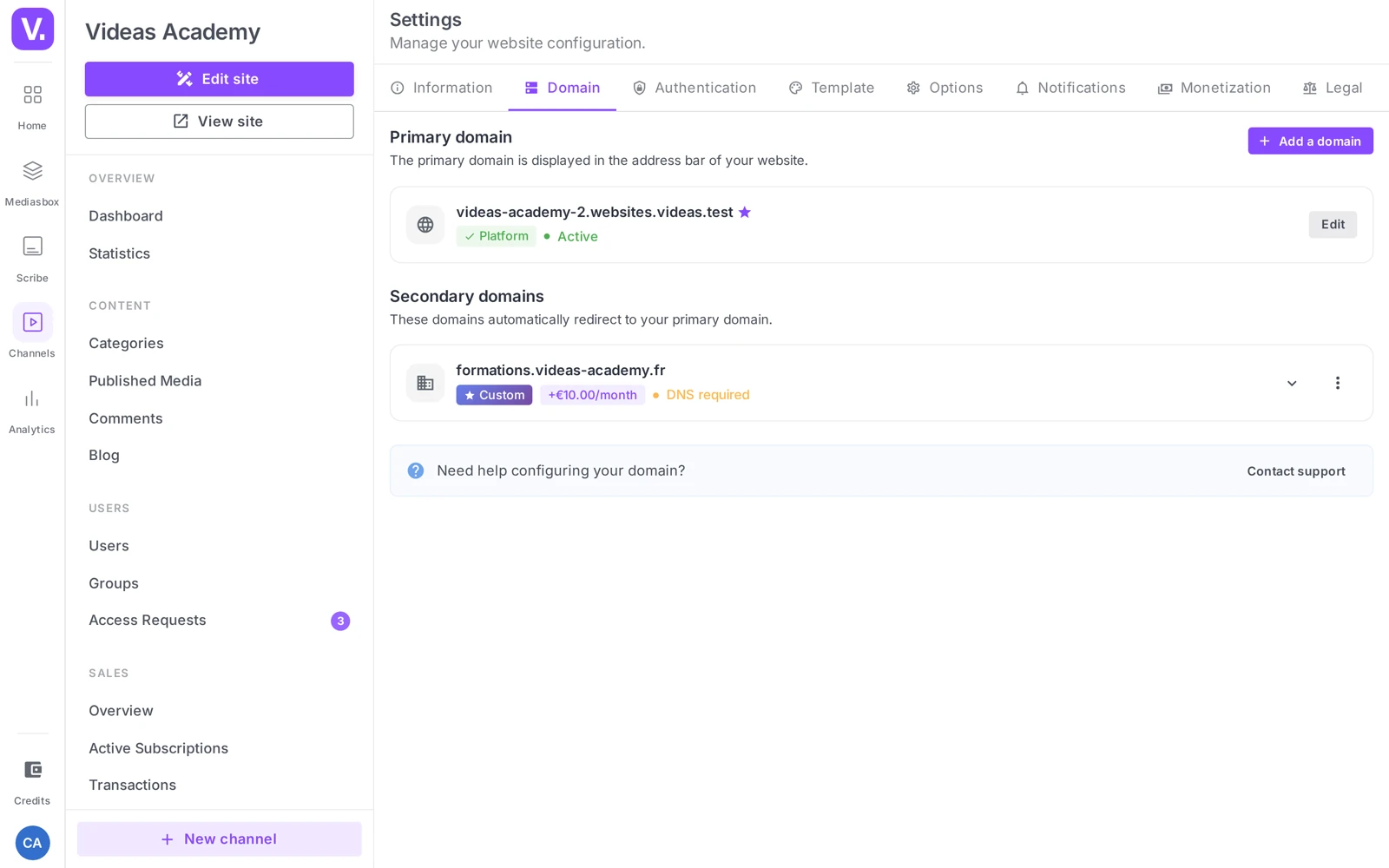
Open your channel, then Settings → Domain. The page has two sections:
- Primary domain — the domain shown in your visitors’ address bar (to begin with, your
.websites.videas.comsubdomain). - Secondary domains — “These domains redirect automatically to your primary domain”.
How much does it cost? The
.websites.videas.comsubdomain is free (it carries a Free chip). Connecting a custom domain is charged monthly in credits, on top of the channel: the amount shown is the one on your account (€10/month by default) and appears on the chip of the Custom domain option. An exempt channel — one that went online before publishing became paid — shows an Included chip instead, and pays nothing for its domain. See Billing: the credit wallet.
Add a domain
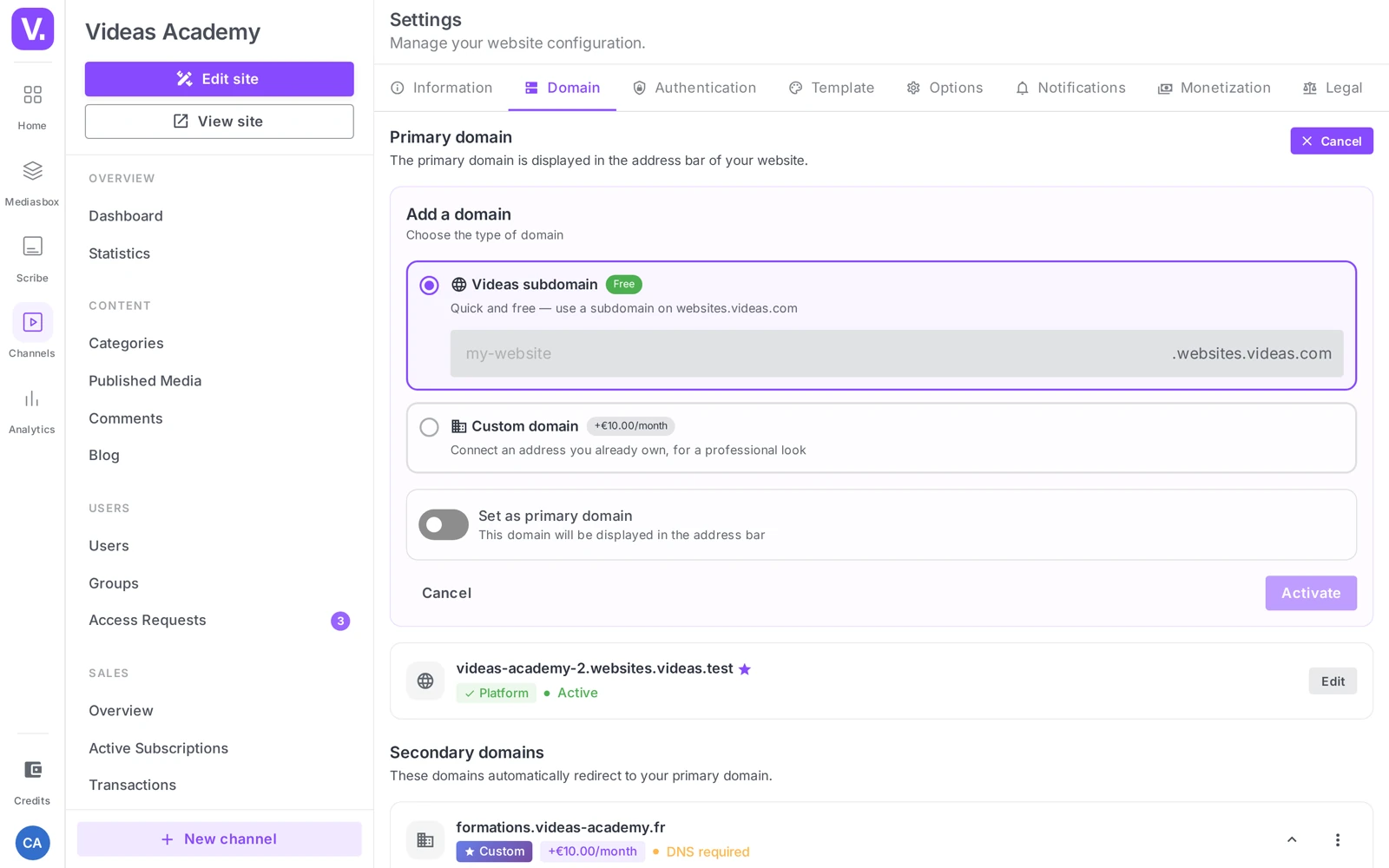
Click Add a domain, at the top of the Primary domain section. The form does not open in a window: it is a panel that unfolds inside the page, and the button switches to Cancel for as long as it is open. It offers two options:
Videas subdomain (free)
Marked with a Free chip: “Quick and free — use a subdomain on websites.videas.com”. Enter the slug you want (placeholder my-site), 3 to 63 characters, lowercase letters, digits and hyphens. Availability is checked live. Click Activate.
Custom domain
“Connect an address you already own, for a professional look”. Enter the full name (placeholder videos.example.com). Videas automatically detects whether it is a root domain (apex, e.g. example.com) or a subdomain (e.g. videos.example.com) and shows the matching DNS configuration. Below the instructions, a cost note states: “Connecting an address you already own: €10/month in credits, on top of the channel.”, followed by “Videas does not sell domain names: buy yours from a registrar, then connect it here. Debited from your wallet every month.” That note disappears for an exempt channel. Click Add and configure.
A Set as primary domain toggle (“This domain will be shown in the address bar”) lets you make it the primary domain straight away.
Good to know: if the domain is already attached to another channel, Videas shows “This domain is already used by another channel” (or “This domain has already been added” if it is already in your list).
Configure the DNS at your registrar
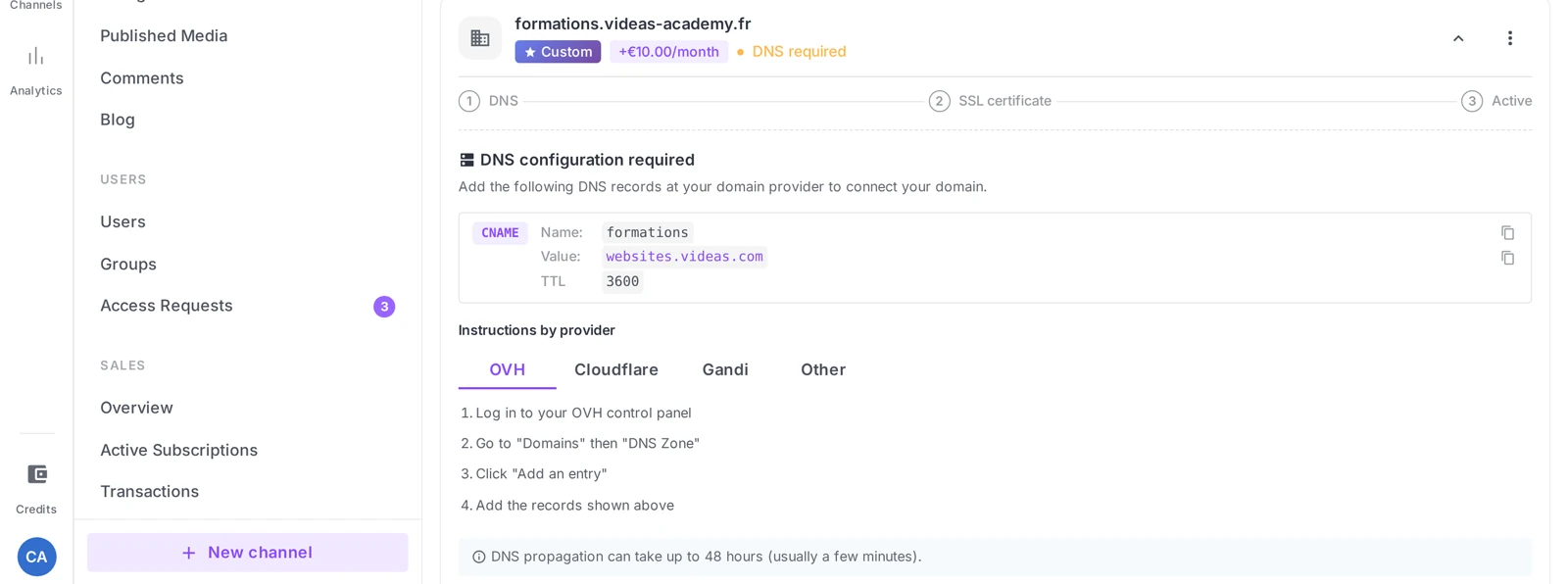
Once added, Videas shows DNS configuration required with the exact records to create at your registrar — every value has a Copy button, and tabs guide you through the main providers: OVH, Cloudflare, Gandi, Other.
For a subdomain (videos.example.com)
A single record:
| Type | Name | Value | TTL |
|---|---|---|---|
| CNAME | videos |
websites.videas.com |
3600 |
For a root / apex domain (example.com)
Two records:
| Type | Name | Value | TTL |
|---|---|---|---|
| A | @ |
91.225.1.242 |
3600 |
| CNAME | www |
websites.videas.com |
3600 |
The @ stands for the root of the domain; the www CNAME makes sure www.example.com works too.
Propagation time: usually a few minutes, up to 48 hours in rare cases. If you are still stuck after an hour, check that the values were copied without a stray space or trailing dot.
Verify and activate
Back in Settings → Domain, your domain’s card shows its status: DNS required, then Verifying…, then Active / Online. The card follows three provisioning steps: DNS → SSL certificate → Active.
Click Check status on the domain card: Videas queries the public DNS, updates the state once propagation is detected, then automatically generates the SSL certificate. You can run the check again as many times as you need.
Once SSL is in place, your channel is reachable over HTTPS, with no manual configuration. The certificate is renewed automatically.
Set the primary domain
From the actions menu on a domain card, click Set as primary, then confirm. What that does:
- Your new domain becomes the channel’s displayed URL (address bar).
- The former primary domain becomes secondary: it keeps working and redirects automatically to the new one. The links you shared on the old subdomain do not break.
The actions menu also offers Check status, Edit (for a Videas subdomain) and Delete.
Good to know: keep your
.websites.videas.comsubdomain as a secondary domain after the switch — it preserves every link you have already shared (emails, social media, embeds) without breaking anything.
Common error cases
| Situation | Likely cause | Fix |
|---|---|---|
| Status stuck on DNS required / Verifying… | DNS not propagated yet, or mistyped | Double-check the copied values; run Check status again |
| “This domain is already used by another channel” | The domain is attached elsewhere | Use another domain, or detach it from the other channel |
| SSL slow to activate after DNS is fine | Certificate issuance in progress | Wait a few minutes; if it persists, contact support |
Best practices
- Subdomain vs apex: a dedicated subdomain (
videos.<your-brand>,tv.<your-brand>) is almost always the better choice — a single CNAME to create, and no risk to a site that may already sit on your root domain. Only use the apex if the root domain is free. - Test before you announce it: wait for the Active status, open the domain in private browsing, and check HTTPS with no warning, on several pages.
- Need help? The Domain page has a Contact support button that opens a ticket with your context attached.
Subdomain or root domain: which one should I connect?
A dedicated subdomain — videos.your-brand.com, tv.your-brand.com — in almost every case. It needs only one CNAME, and it leaves your root domain alone, where a site may already exist.
The apex (example.com) needs two records — an A record to the address provided and a www CNAME — and only makes sense if the root domain is free. Videas automatically detects which of the two you entered and shows the matching configuration.
How much does a custom domain cost?
€10/month by default, charged in credits, on top of the channel’s cost. The exact amount shown is the one on your account, on the Custom domain option’s badge.
The .websites.videas.com subdomain stays free — it carries a Free badge. And an exempt channel, published before publishing became chargeable, shows an Included badge and pays nothing for its domain.
Does Videas sell domain names?
No. You have to own yours already: buy it from a registrar — OVH, Cloudflare, Gandi or another — then connect it here.
What Videas does provide are the exact DNS records to create, with a Copy button on every value, and tabs guiding you through the main providers.
How long does DNS propagation take?
A few minutes generally, up to 48 hours in rare cases. The Check status button queries public DNS and can be run as many times as needed.
If you are still stuck after an hour, the cause is almost always a mistyped value: check there is no stray space or trailing dot in the records you entered at your registrar.
Do I have to configure HTTPS myself?
No. Once the DNS is verified, the SSL certificate is generated automatically, and renewed on its own thereafter. There is nothing to install and nothing to watch.
Your domain’s card follows the three provisioning steps: DNS → SSL certificate → Active. If SSL is slow while the DNS is fine, the certificate is simply being issued — a few minutes usually suffice.
Do my old links break when I change primary domain?
No. The former primary domain becomes secondary and redirects automatically to the new one: emails already sent, social posts and embeds keep working.
Hence the advice: keep your .websites.videas.com subdomain as a secondary after the switch. It costs nothing and it preserves every link already shared.
What if my domain is already in use elsewhere?
Videas refuses the connection and shows “This domain is already used by another channel” — or “This domain is already added” if it is already in your own list.
Two ways out: use another domain, or detach this one from the channel currently holding it. A single domain can serve only one channel at a time.
In summary
- Domains are managed in Settings → Domain: one primary domain (displayed) and secondary domains (which redirect to the primary one).
- Add a domain offers Videas subdomain (free) or Custom domain (apex or subdomain, detected automatically).
- DNS: 1 CNAME →
websites.videas.comfor a subdomain; 1 A →91.225.1.242+ 1wwwCNAME →websites.videas.comfor an apex. OVH / Cloudflare / Gandi / Other tabs. - Check status triggers verification and then automatic SSL (renewed on its own).
- Set as primary switches the displayed URL; the old domain stays secondary and redirects.
- Connecting a custom domain is charged monthly in credits (the amount read from your account, €10/month by default); an exempt channel shows an Included chip; the
.websites.videas.comsubdomain stays free. Videas does not sell domain names: yours must already be yours.
Related articles
Screenshots were taken on Videas Academy, an example channel built for this help center. It belongs to a fictional customer, not to Videas: your own channel carries your name, your branding and your prices.