Bringing the Getting started steps back to your home page
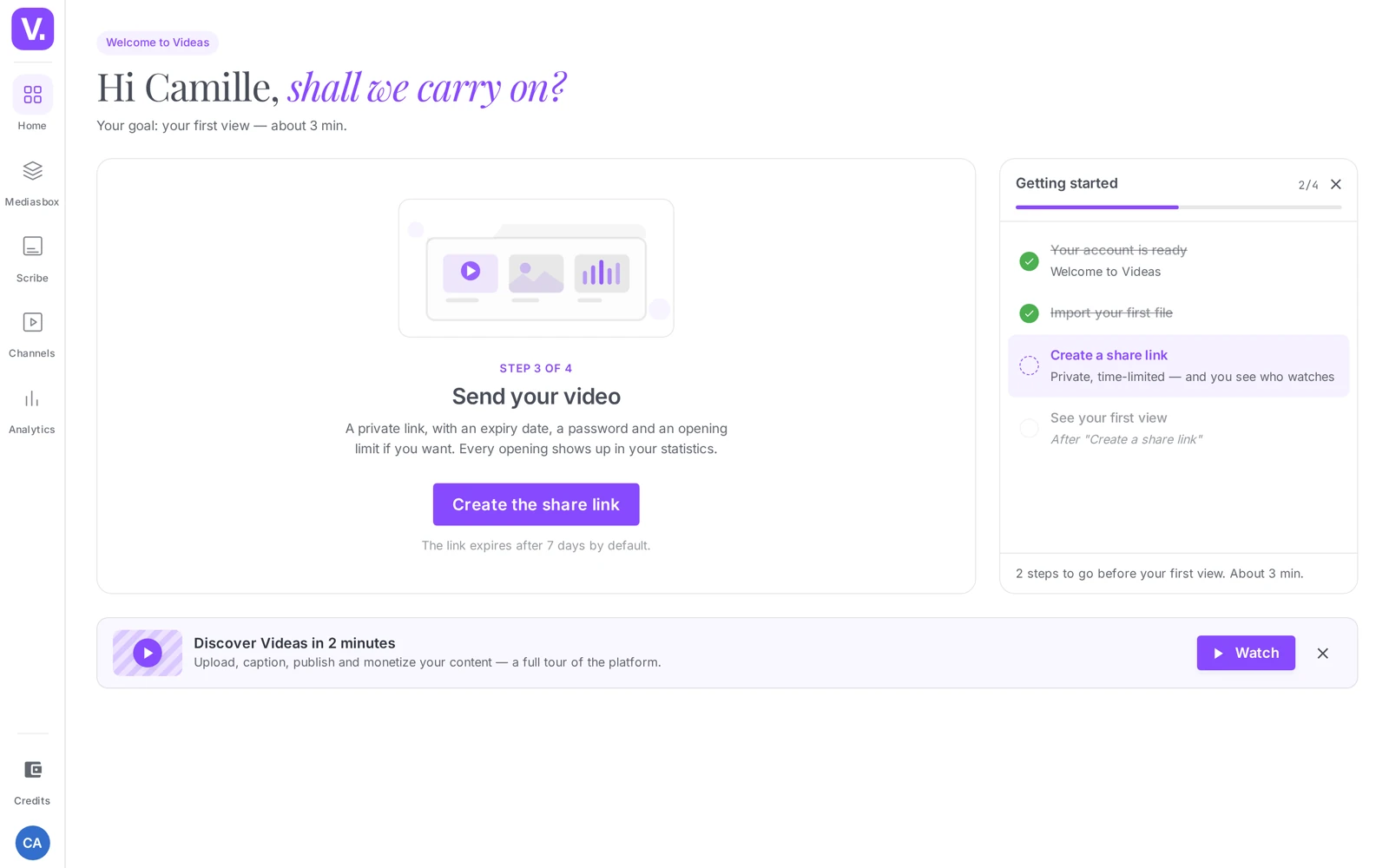
Getting started is the short guided run Videas shows on your Home page when you create your account — a scene on the left, a column of steps on the right. Once finished or hidden, it leaves your home page for good: by design it has no entry in the side menu or the user menu, and it never comes back on its own. To see it again, write to support — we put it back on your home page within minutes.
What the Getting started run is
On your first visit, Videas asks what you want to do first. Your answer picks one of four runs, and each one shows only the steps that lead to its result:
| Your goal | What you walk away with | Announced time |
|---|---|---|
| Send a video to someone | the share link | ≈ 3 min |
| Subtitle a video | the .srt file | ≈ 4 min |
| Put a channel online | the public address | ≈ 6 min |
| Embed a media file on your site | the code to paste | ≈ 3 min |
Good to know: a goal is only offered if the app it needs is open on your plan and on your role — Scribe (subtitles) for “Subtitle a video”, Channels (your channels) for “Put a channel online”. So you will not necessarily see all four.
Two questions follow — whether you work on your own or with a team (with a team, an “Invite your team” step is added to the run), and how you heard about us. The steps then tick themselves automatically as you actually do things: Videas re-reads your content, there is no box to tick by hand.
Why it disappeared
Four situations, all of them normal:
- You reached the end. The closing screen hands you your result (the link, the file, the address or the code), warns you that these steps are leaving your home page, and points you to the help centre to bring them back — this page. The Go to my home button closes the run.
- You hid it along the way, with the cross at the top of the Getting started column. It is the only hide button in the interface, and it is permanent.
- You turned down the first question. Closing the questionnaire without picking a goal puts the run away for good: there is nowhere else it could be resumed from.
- You joined an organization that already held media. Getting started only offers itself on an empty organization: there would be nothing left to walk you through in a space your colleagues have already filled.
Good to know: the run is yours — every person joining Videas gets their own, and finishing yours takes nothing away from anyone else. It does, however, stay attached to the organization where you started it: its content is what the steps re-read, so the run does not follow you if you switch to another organization.
While it shows, the home page belongs to it
During the run, your Home page keeps the getting-started layout — the current step’s scene on the left, the step column on the right — including after your first upload. The usual dashboard (recent media, shortcuts) comes back as soon as the run is finished or hidden. That is deliberate: switching to the dashboard on the first uploaded file would have cut you off mid-run.
Bringing it back
Contact support with the email address of your account. We put Getting started back on your home page, and you will find it on your next visit to Home, starting from the first question — so you can take the opportunity to pick a different goal than last time.
There is no button to do it yourself, and that is deliberate: a getting-started run left sitting in the menus long after the start clutters the interface for everyone.
What a replay does not change
Bringing Getting started back touches the guided run only. Your media, shares, subtitles, channels and settings stay exactly where they are.
One direct consequence: because the steps are read from your real content, the ones you have already completed tick again straight away. If you have already uploaded a file, the “Import your first file” step is green the moment the run appears. So you pick up where you are, not from scratch.
Good to know: the first step really is about your first file, not your first video. The dropzone takes videos, images, audio files and PDFs, and the run never asks for the type: it takes the last file you uploaded.
You don’t have to wait for support
Getting started only walks you to features that are available at any time in Videas. If you already know what you are after, these guides cover the same ground:
- Upload your first videos — the “Import your first file” step
- Upload audio files and documents — for audio, images and PDFs
- How to share a video with a link — the “Send a video to someone” run
- Publish your first content on a channel — the “Put a channel online” run
Why did the Getting started steps disappear from my home page?
Because they are designed to show only once. They leave your home page for good in three cases: you finished them, you clicked the cross on the “Getting started” column, or you answered no to the first question.
This is neither a bug nor a hidden setting: the Getting started run deliberately has no entry in the side menu or the user menu, and it does not come back on its own.
Can I bring the Getting started steps back myself?
No. Only the Videas team can put them back on your home page: write to support with the email address on your account. There is no button, shortcut or profile option to recall them.
While you wait for a reply, nothing is blocking you: every step of the run matches an action you can take directly, and this help centre covers the same ground.
Does bringing them back erase my videos or my settings?
No. Bringing them back touches no content: your media, your channels, your workspaces and your settings stay exactly as they are. All it does is show the guided run again on your home page.
The steps you already completed tick themselves back on — you do not redo what is done, you simply see what is left.
Why don’t I see them in my new organization?
Because they stay attached to the organization where you started them, and they only offer themselves spontaneously to an empty organization. An organization that already holds media will not trigger them.
If you need the run in another organization, say so to support: it is the organization, not the account, that determines where the run reappears.
In short
- Getting started shows on the Home page, once, and has no menu entry of its own
- It leaves for good when you finish it, when you click the cross on the Getting started column, or when you turn down the first question
- It only offers itself on an empty organization, and stays attached to the organization where you started it
- Only Videas support can bring it back: write to us with your account email
- A replay touches no content, and the steps you already completed tick themselves again
Related articles
Screenshots were taken on Videas Academy, an example channel built for this help center. It belongs to a fictional customer, not to Videas: your own channel carries your name, your branding and your prices.