Host a podcast or an audio file
An audio file in Videas (podcast, training, interview, meeting) uses the same detail page as videos, in Mediasbox (your media library): a dedicated player with a waveform, automatic transcription, chapters, and publishing on your channels. This guide covers what you do with it after uploading — for the upload itself, see Upload audio files and documents. Editing actions require the Editor role (or above).
The tabs of an audio file
An audio file does not have quite the same tabs as a video:
| Tab | Audio | Details |
|---|---|---|
| Overview | ✅ | Waveform player, information, quick actions |
| Metadata | ✅ | Custom fields (depending on your schema) |
| Files | ✅ | Versions of the source file plus attached files |
| Subtitles | ✅ | Scribe transcription or manual import |
| Chapters | ✅ | Manual or automatic entry |
| Developer | ✅ | Embed code and player options |
| Interactivity | ❌ | Video only |
| Analytics | ❌ | No per-audio analytics |
The Overview tab and the cover image
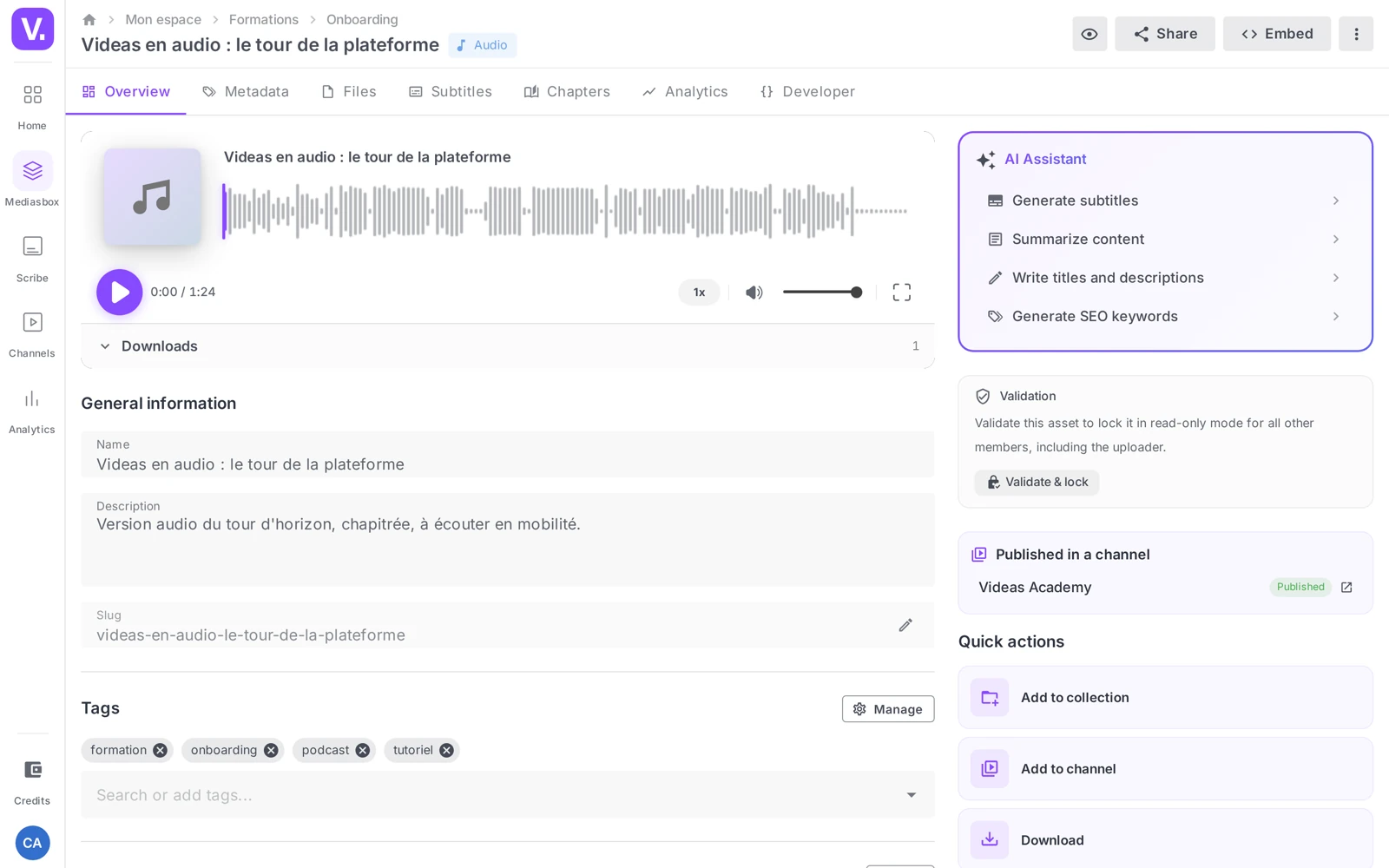
The Overview tab shows the audio player with its waveform, the information (Name, Description, Slug, Tags), the quick actions and the processing status.
The cover image is managed in the Thumbnails section: Videas generates one by default, or you can Upload an image (JPEG, PNG, WebP). For a podcast, go for a square visual that stays readable at small sizes — that is what shows up in a playlist.
Transcribe with Scribe
On the Subtitles tab, if speech is detected, the Generate subtitles button starts Scribe (the Videas transcription engine). Once the transcription is ready, you can review and edit it, export it as SRT/VTT, translate it, or display it in the player. A purely musical file produces no transcription: that is normal. Details in Generate subtitles automatically.
Add chapters
The Chapters tab structures a long audio file into sections (title + timestamp), manually (with drag and drop) or automatically if speech has been detected. For listeners, chapters become clickable points on the waveform and a list next to the player — essential for an hour-long podcast.
Set up the player (Developer tab)
The Developer tab provides the embed code and the audio player options:
- Show waveform — visualization enabled or hidden (compact player)
- Player theme — Light, Dark or Colored
- Show playlist — for an audio collection
- Permission to download the source file, autoplay, loop…
A live preview shows the result before you copy the iframe code.
Publish an audio file
- On a channel: the Add to a channel quick action (wizard: Channel → Visibility → Categories → Publish)
- As an embed: the iframe code on the Developer tab
- By link: the Share action (see How to share a video with a link — sharing works for any media item)
- As a series: group your episodes into an Audio collection; the player then offers a browsable playlist (see Create a media collection)
Versions and attached files
As with video, the Files tab lets you replace the source file (a new mix, without breaking the public link) and attach related files (PDF transcription, episode notes) — see Manage versions and Attach related files.
Limits to be aware of
- No interactivity (CTAs, polls) — video only
- No per-audio analytics — track consumption at channel level
- No RSS feed generated for Apple Podcasts / Spotify / Deezer — use a dedicated podcast host alongside Videas
Does Videas generate an RSS feed for Apple Podcasts or Spotify?
No. Videas hosts, plays, transcribes and distributes your audio files, but does not produce an RSS feed to submit to podcast directories.
If your podcast has to be distributed on Apple Podcasts, Spotify or Deezer, use a dedicated podcast host alongside. Videas remains relevant for distribution on your own site and your channels — with the waveform player, the transcript and the chapters, which directories do not provide.
Can I track plays of an audio file?
Not at file level: an audio item has no Analytics tab, unlike a video. Tracking happens at the level of the channel the audio is published on.
If you need fine-grained tracking per episode, the alternative is the share link: each link has its own analytics for opens and consumption, whatever the media type.
Can audio carry interactions (CTA, poll)?
No, the Interactivity tab is video only. An audio item exposes neither a call to action nor an end-of-playback poll.
The equivalent lever is the attached file: attach the transcript, episode notes or a resource sheet with Public visibility, and they appear under the player on share pages, with a download button.
Which cover art should I use for a podcast?
A square image, readable small. That is what appears in a playlist and in content lists, at a size where a title in small type or a busy visual becomes unreadable.
It is set in the Thumbnails section of the Overview tab: Videas generates one by default, or you Upload an image in JPEG, PNG or WebP.
How do I publish a series of episodes?
By grouping them in an Audio-type collection. The player then offers a navigable playlist: the listener moves from one episode to the next without leaving the page, and you distribute the whole set through a single link or a single embed.
For a series that keeps growing, a smart collection fed by a podcast tag and sorted newest first brings the latest episode to the top on its own, with no need to touch the collection.
Why won’t my transcript start?
Because no speech was detected in the file. Scribe analyses voice, not music: an instrumental track or an ambient recording will produce no transcript, and that is expected behaviour.
On a podcast, an interview or a recorded meeting, the Generate subtitles button appears normally on the Subtitles tab. If speech is present but the button stays unavailable, the audio analysis is probably not finished.
In summary
- An audio file uses the same detail page as a video, with a waveform player
- Useful tabs: Overview, Metadata, Files, Subtitles, Chapters, Developer (no Interactivity or Analytics)
- Scribe transcribes the audio if speech is detected; chapters structure long formats
- The Developer tab controls the waveform, the theme and downloads
- Publish on a channel, as an embed, by link or as a collection/playlist
- Editing is restricted to the Editor role (or above)
Related articles
Screenshots were taken on Videas Academy, an example channel built for this help center. It belongs to a fictional customer, not to Videas: your own channel carries your name, your branding and your prices.