Generate subtitles automatically
To generate automatic subtitles in Videas, open the video in Mediasbox, go to the Subtitles tab, then click Generate and choose the language. Scribe, the Videas automatic video subtitling tool, produces the track in a few minutes, in more than 100 languages, on servers hosted in the EU. The video must contain speech, and you must be able to edit the media item (Editor role or above).
Two ways in: this article describes subtitling from a media item’s Subtitles tab. Scribe can also be used as a standalone tool from the rail — to find all your projects in one place and start one by direct upload, see Discover Scribe.
Step 1: the preliminary audio analysis
On the Subtitles tab, a Scribe banner at the top changes according to the state of the media item’s audio analysis — Videas first checks that there really is speech to transcribe:
| State | Meaning | Action |
|---|---|---|
| Audio analysis required | Media item not analyzed yet | Analyze button |
| Analysis in progress | Analysis running in the background | Wait (a few minutes) |
| Analysis failed | Unreadable audio / unusual format | Retry button |
| No speech detected | No usable voice (music only…) | Generation unavailable → Import an .srt/.vtt file |
| Ready (speech detected) | Title Automatic subtitles and transcription, Scribe badge | Generate button |

Step 2: generate the track
In the ready state, click Generate. The Add a language window opens: “Select one or more languages to generate subtitles”.
- Choose from the Popular languages shown, or search in All languages (the Search for a language… field)
- You can select several languages at once — Videas then generates one track per language
- Confirm with Generate (or Generate {n} languages)
Important: select the language that is actually spoken in the video. Generating directly in another language amounts to translating — it is the same button; the details are in Translate the subtitles of a video.
Each language you start appears in the track list with the status In progress… and a progress indicator.
Step 3: follow the processing
Scribe works in the background — you can close the page and come back later. Allow 1 to 3 minutes for 10 minutes of video depending on load. The status refreshes on its own, and a message tells you when it is done (or if there is an Error, with a Retry button on the row).
A finished track carries the Auto-generated badge and becomes fully manageable.
Step 4: manage the tracks
Hovering over each track reveals actions:
- Edit (the pencil) — opens the editor so you can correct the text (see Correct and edit subtitles)
- Download — gets the track as .srt or .vtt
- Retry — restarts a generation that failed
- Delete
Badges indicate each track’s role: Default in the player, Hidden in the player, Auto-generated, Imported.
Step 5: set up the display in the player
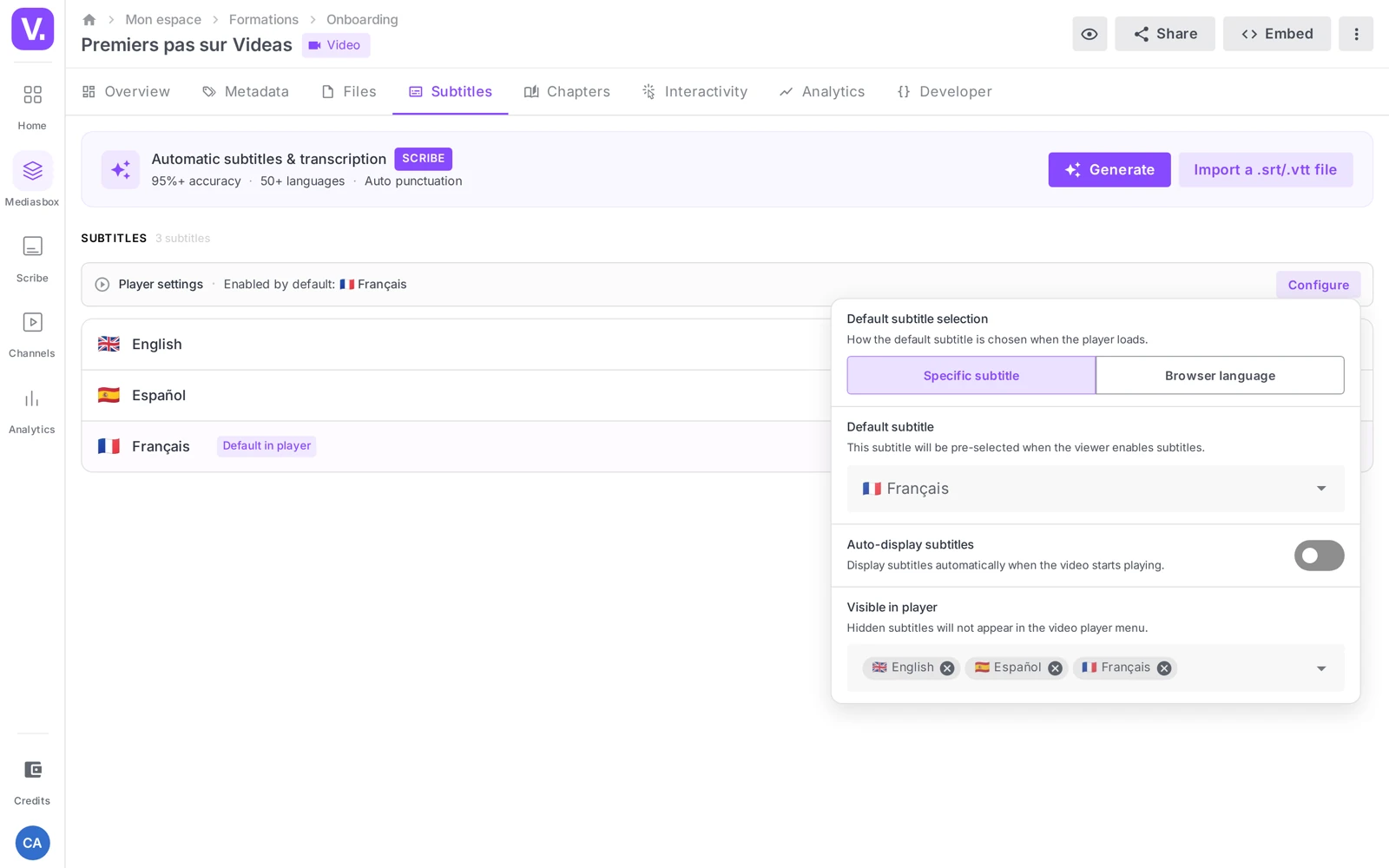
As soon as a track is ready, the Configure button (at the top of the list) opens the Player configuration:
- Default subtitle — the track offered when a viewer turns subtitles on. Choose the Specific subtitle mode (one particular track) or Browser language (the player activates the track matching the visitor’s language, if it exists)
- Show subtitles automatically — subtitles are on as soon as playback starts
- Visible in the player — tick the tracks offered to viewers; untick a track you are keeping internal (it stays in Videas but does not appear in the player’s selector)
Tip: the Browser language mode is ideal when you offer several languages — a French visitor sees French, an English speaker sees English, with nothing to set.
Best practices
- Review before publishing. Scribe is accurate (95%+ on clean audio) but not infallible: check proper nouns, industry terms and punctuation in the editor, or have the track reviewed by a third party.
- Preload your vocabulary. If Scribe keeps stumbling on the same terms (company name, jargon, acronyms), feed the glossary: it is taken into account in subsequent generations.
- Validate the source language before translating. Correcting the original track before translating it produces better translations.
Subtitling without a Videas account? The Subtitle a video tool runs the same automatic generation from the browser — handy for testing the result before industrialising it in Mediasbox.
How long does it take to subtitle a video?
Count on 1 to 3 minutes of processing for 10 minutes of video, depending on server load. Scribe works in the background: you can close the page and come back later, the track’s status refreshes on its own and a message tells you when it is done.
On top of that, the first time round, comes a short audio analysis of the media — the step that checks there really is speech to transcribe before generation starts.
How accurate are automatic subtitles?
Over 95% on clean audio. That is enough to publish after a quick review, but not enough to publish without reviewing: proper nouns, industry jargon and punctuation are the three things that need checking.
Two levers improve the result for good. The glossary teaches Scribe how to spell your company name, your brands and your acronyms, and it takes them into account on later generations. External review lets someone else check the track, without opening an account for them.
Why is the Generate button unavailable on my media item?
Because the audio analysis found no usable speech — the typical case of purely musical content or a recording with no voice. Generation is disabled then, which is expected behaviour.
The Scribe banner at the top of the tab tells you exactly where you stand: Audio analysis required (Analyse button), Analysis in progress (wait), Analysis failed (Retry button, often an unusual audio format), or No speech detected. In that last case you can still import an .srt/.vtt file.
How do I make a visitor see subtitles in their own language automatically?
Set the Browser language mode in the Configure window, at the top of the track list. The player then turns on the track matching the visitor’s language, if it exists: a French visitor gets French, an English speaker gets English, with nothing for them to set.
The other mode, Specific subtitle, forces one track on everyone. The same window also lets you turn subtitles on from the start of playback, and untick a track you keep internally — it stays in Videas but disappears from the player’s selector.
Is generating in another language the same as translating?
Yes, it is the same button and the same mechanism: choosing a language that is not the one spoken in the video amounts to asking for a translation.
Hence the rule: always generate first in the language actually spoken, correct that source track, and translate afterwards. A translation made from an unreviewed source reproduces and amplifies its errors.
In summary
- Subtitles tab → Generate (after the audio analysis), then the Add a language window
- More than 100 languages; multiple selection possible (one track per language)
- Processing takes a few minutes; the status refreshes automatically, with Retry if it fails
- Each track: Edit, Download (.srt/.vtt), Delete; Auto-generated badge
- The Configure button sets the default track, the mode (specific / browser language), automatic display and track visibility
- Subtitles are hosted in the EU; generating requires the Editor role (or above)
Related articles
Screenshots were taken on Videas Academy, an example channel built for this help center. It belongs to a fictional customer, not to Videas: your own channel carries your name, your branding and your prices.