Export the data of a workspace
To export the metadata of your media (reporting, catalog audit, feeding a business tool), open the workspace settings, section Data → Export, set the format and the filters, then click Export. The export produces a CSV or Excel file — not the source files. You need the Admin role (or Owner) on the workspace.
Good to know: the export is an optional feature. If it is not enabled for your organization, Videas shows “Asset export is not available for your organization” — contact support to have it enabled.
What is exported (and what is not)
| ✅ Included | ❌ Not included |
|---|---|
| Metadata (name, description, tags, dates, owner, duration, size…) | The source files (videos, audio, PDFs…) |
| Custom fields (if metadata schemas are configured) | Subtitles, chapters, version history |
| Technical identifiers, processing state | Comments, publication status on channels |
This is an export of metadata, not of content. To retrieve the source files, download them from each detail page.
Open the export tool
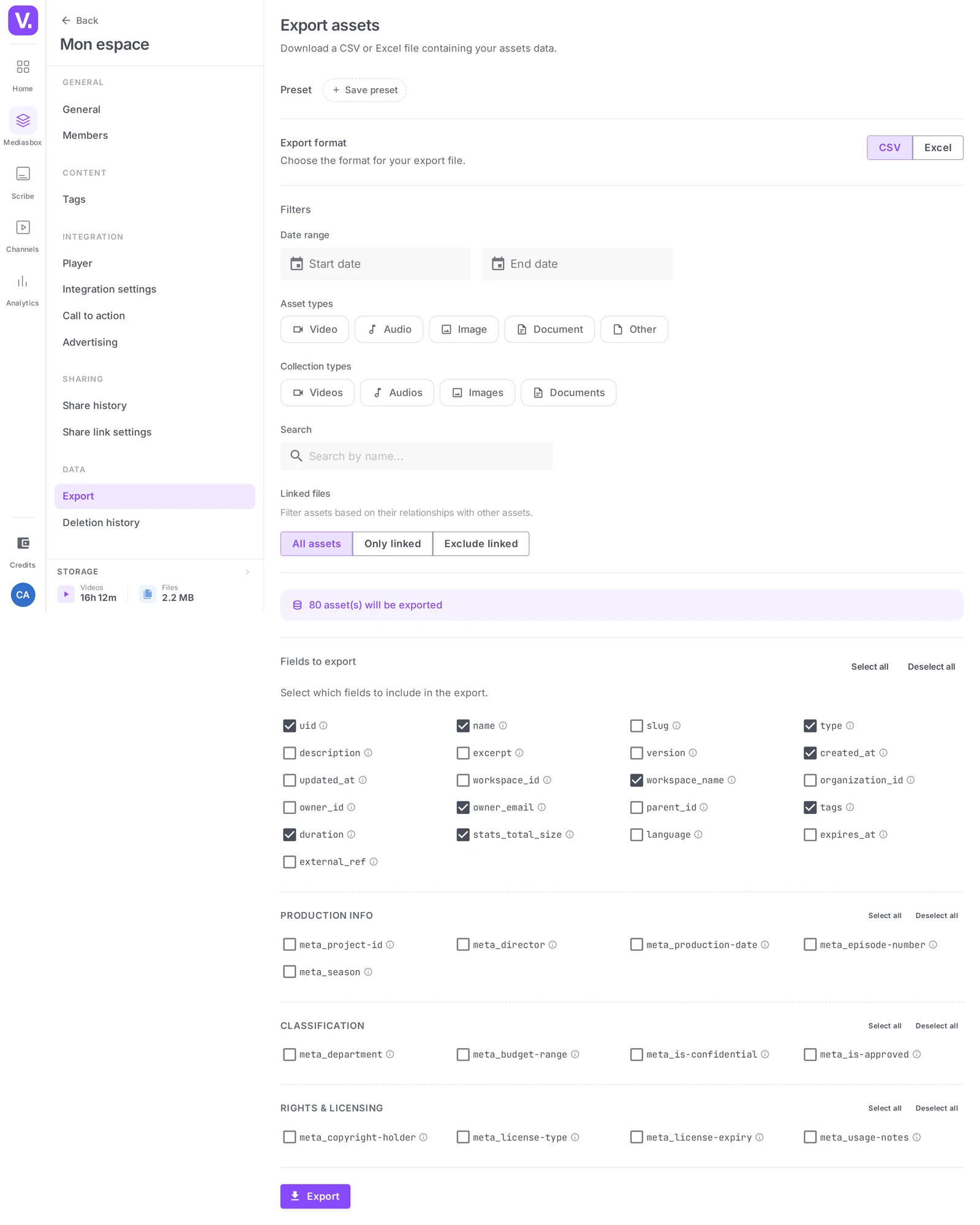
In Mediasbox, open the workspace settings, then, in the Data section, click Export. The Export assets screen is laid out as: format, filters, fields, and the Export button.
Choose the format
Export format: CSV (lightweight text, opens anywhere, ideal for a script or another tool) or Excel (XLSX) (formatted header, field descriptions in cell comments — easier for a colleague to read).
Define the scope (Filters)
All filters are optional and can be combined:
- Date range — two dates (start / end); leave empty to export everything
- Asset types — Video, Audio, Image, Document…
- Collection types — to target one type of collection
- Attached files — All assets, Attached only, or Exclude attached
Choose the columns (Fields to export)
The Fields to export section lists everything that can appear in the file: identification (UID, name, slug, type), description, dates, location (workspace, folder), owner, tags, technical characteristics (duration, size, language, state). The Select all / Deselect all buttons act in one go.
If your organization has configured custom metadata schemas, their fields appear here, grouped by schema.
Run the export
Click Export.
- Small volume: the file is generated and downloaded immediately in the browser.
- Large volume (beyond a thousand or so media items): Videas warns you that the export moves to the background. The file is prepared server-side, then made available (an email lets you know) — your browser is not held up.
Reuse a configuration
Set up the filters, format and columns, then Save the preset under a name (Monthly export — Marketing, Annual audit…). You can then reload it in one click. The Export history section keeps a record of your previous exports.
Limits to be aware of
- Metadata only — no export of the video/audio/PDF files
- Not a GDPR export of personal data — for a request about a user’s data, contact support
- On very large volumes, split by date range to run several successive exports
Does the export contain my video files?
No. It is a metadata export — names, descriptions, tags, dates, owner, duration, size, technical identifiers, custom fields — in a CSV or Excel file. The source files do not travel with it.
To recover the videos, audio or PDFs themselves, download them from each item’s page, or in multiple selection through the Download action in the group action bar.
CSV or Excel: which one?
CSV if the file is going to be read by a machine — a script, an import into a business tool, an automated process. It is light text, openable anywhere, with no format surprises.
Excel (XLSX) if the file is going to be read by a person. The header is formatted and each field’s description sits in a cell comment, which saves explaining the columns to a colleague.
What should I do when the export does not come back?
Nothing: past roughly a thousand items, Videas moves the export into the background and tells you so. The file is prepared server-side and then made available, with an email to let you know — the browser is not blocked and you can close the tab.
On genuinely large volumes, the safest approach remains to segment by date range and run several successive exports rather than one very big one.
What if Export does not appear in the settings?
Then the feature is not enabled for your organization — export is optional. Videas says so explicitly: “Asset export is not available for your organization”.
Contact support to enable it. Check your role while you are at it: export is restricted to workspace Admins and Owners, and an Editor does not see the section.
Can I use the export to answer a GDPR request?
No. Asset export covers the metadata of your media, not a user’s personal data. It does not constitute an answer to an access or portability request.
For that kind of request, go through support: it is a separate procedure, not one handled from the workspace settings.
Do I have to redo the settings for every export?
No. Once your filters, format and columns are set, save a preset under a meaningful name — Monthly export — Marketing, Annual audit. You then reload it in one click.
The Export history section also keeps a record of previous exports, which stops you doing the same work twice without knowing.
In summary
- Export of metadata (CSV or Excel), not of the source files
- Workspace settings → Data → Export, restricted to Admins
- Date range / Asset types / Collection types / Attached files filters plus a choice of fields
- Small volume = immediate download; large volume = prepared in the background
- Reusable presets and an Export history
- Optional feature (it may be disabled for the organization)
Related articles
Screenshots were taken on Videas Academy, an example channel built for this help center. It belongs to a fictional customer, not to Videas: your own channel carries your name, your branding and your prices.