Edit several videos in one go
To act on several media at once in Mediasbox (your media library), select them (checkboxes, Shift/Ctrl + click, or lasso selection): an action bar appears at the bottom of the screen and applies the chosen action to the whole selection. These actions require the Editor role (or above).
Select several media
Several methods, and you can combine them:
- Tick on hover — a checkbox appears at the top of each thumbnail; the action bar shows up as soon as one item is ticked
- Shift + click — selects the whole range between two media items (handy after sorting by date)
- Ctrl + click (Windows/Linux) / Cmd + click (macOS) — adds or removes a media item without opening its detail page
- Lasso selection — click and drag on the background (outside the thumbnails) to draw a rectangle, effective in grid view
- Select all — a master checkbox in the bar ticks every displayed media item
Limit: the selection only covers the media loaded on screen. If the view loads as you scroll, scroll down to load everything before clicking Select all. You can mix media and folders; Move only prevents you from putting a folder inside itself.
The bulk actions
The bottom bar shows a counter (12 selected) and the following actions:
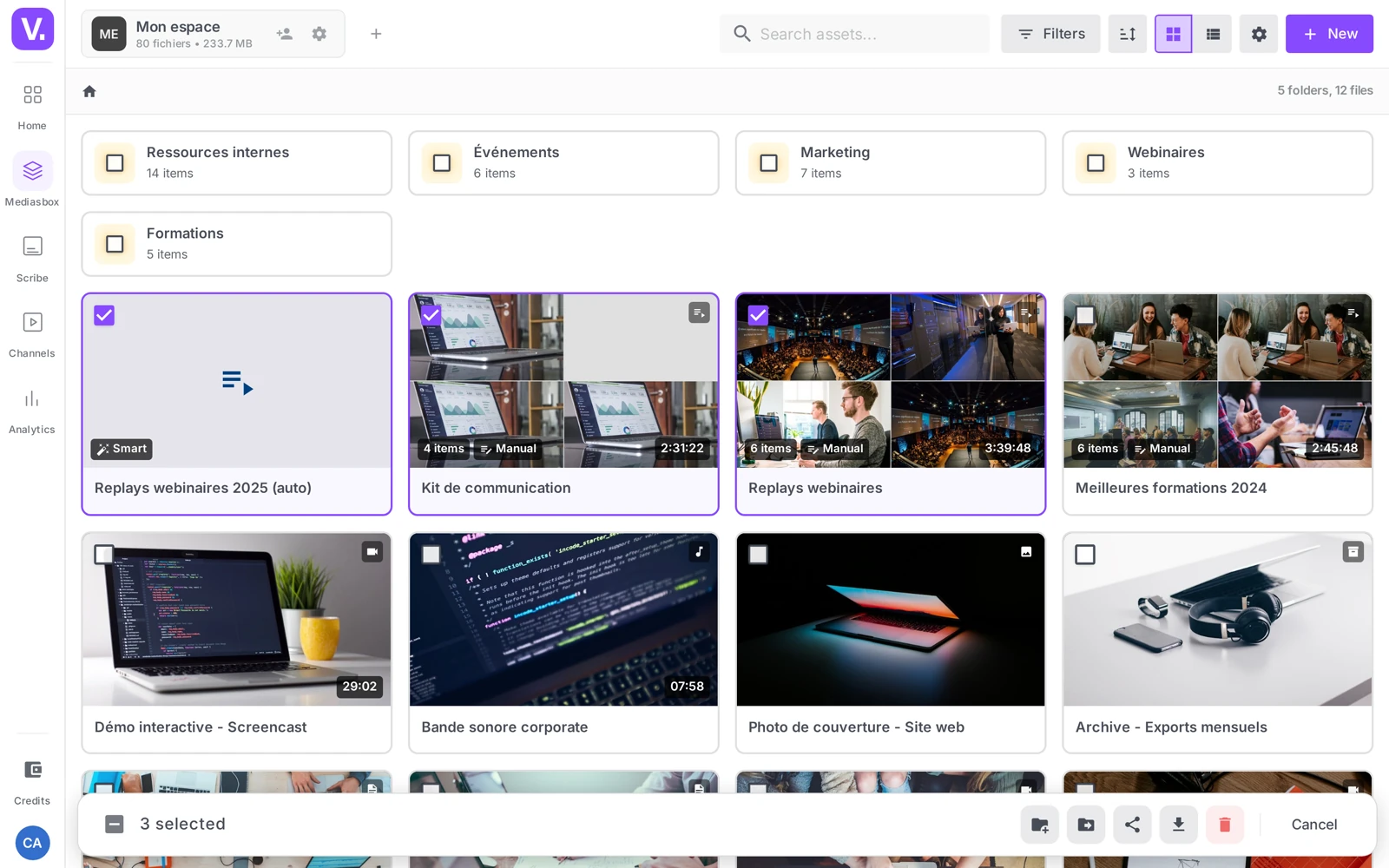
| Action | Effect |
|---|---|
| Group | Puts the selection into a new folder |
| Create a collection | Creates a collection from the selection (available if the media are all of the same type) |
| Move | Opens the Move window (Select the destination folder, including the Root) and moves the selection |
| Share | Creates a single share link for the whole selection (see How to share a video with a link) |
| Download | Downloads the source files of the selection |
| Delete | Sends the selection to the trash (reversible) after confirmation |
Cancel (or unticking the master checkbox) clears the selection without applying anything.
Combine with filters
Multiple selection becomes formidable when combined with filters. Example: filter Type = Video + Tag = archive, sort by date, scroll to load everything, Select all, then Move to Archives 2025 — a whole batch archived in under a minute. See Search and filter in Mediasbox.
What is not in the bulk bar
| You want to… | Method |
|---|---|
| Add to an existing collection | From the collection → Add items (accepts multi-select and whole folders) |
| Publish several media on a channel | From the channel → Content → Add content |
| Tag several media at once | Tag on upload through a team workflow, or tag by tag from the detail page |
| Rename several media | Individual renaming (right click → Rename) |
A strategy that pays off: rather than waiting for a bulk action, invest in systematic tagging on upload. Combined with smart collections and saved searches, it removes the need for most bulk operations.
Restore a deleted media item
A bulk deletion is reversible as long as the media are in the trash: Workspace settings → Data → Deletion history, tick them and click Restore. Beyond the retention period, the deletion becomes permanent.
Why doesn’t “Select all” take all my media?
Because the selection only covers items loaded on screen. If the view fills as you scroll, anything not yet displayed escapes the master checkbox.
The habit: scroll to the bottom to load everything before clicking Select all, and check the counter in the action bar (12 selected) before launching anything. Filtering first also cuts down how much there is to load.
Can I tag several media at once?
No, bulk tagging is not in the group action bar. Tags are applied item by item, from each page’s Overview tab.
That is an accepted limit, and the workaround is upstream: tag on upload, as part of a team workflow. Combined with smart collections and saved searches, systematic tagging avoids most bulk operations — it is the tag that does the work, not the multiple selection.
How do I publish several media to a channel at once?
Not from Mediasbox’s action bar, which does not offer it. Go through the channel: Channels → your channel → Content → Add content, a wizard that accepts multiple selection.
The same logic applies to adding to an existing collection: that is done from the collection, through Add items, which accepts multiple selection and whole folders.
Is a bulk deletion reversible?
Yes, as long as the items are in the trash. Go to Workspace settings → Data → Deletion history, tick the items concerned and click Restore.
Past the retention period, deletion becomes permanent. That is the one place where a badly targeted bulk action really costs — which is why checking the counter before confirming is worth the second.
What is the fastest way to archive a whole year?
By combining filters and selection. Filter on Type = Video and Tag = archive, sort by date, scroll to load everything, click Select all, then Move to your Archives folder.
That is where multiple selection earns its keep: on its own it handles what you can see; backed by filters, it handles exactly what you described.
In summary
- Select with a checkbox, Shift/Ctrl + click, the lasso or Select all (displayed media)
- Bulk bar: Group, Create a collection, Move, Share, Download, Delete
- Publishing to a channel and bulk tagging are not in the bar → go through the channel or a tagging workflow
- Deletions are reversible via the Deletion history
- These actions require the Editor role (or above)
Related articles
Screenshots were taken on Videas Academy, an example channel built for this help center. It belongs to a fictional customer, not to Videas: your own channel carries your name, your branding and your prices.