Activate monetization on your channel
Selling on your channel is not a one-click switch: you submit an activation request, our team reviews it within 2 working days, and you then open your payment account with Stripe. Videas then takes an all-inclusive 15% commission on every sale. Collecting money commits a company — yours, whose identity will appear on your buyers’ invoices — hence the check up front.
Everything happens in your channel’s Settings → Monetization.
Before you start
Selling requires a registered entity. You cannot collect payments as a private individual. You need a registered company, non-profit or sole trader. Stripe checks these details against official registries: an incomplete or inaccurate identity gets the file rejected.
Two things worth knowing, so you don’t go through the flow twice:
- Once per organization. The identity you enter, and the Stripe account that follows from it, belong to your organization, not to a channel. Your other channels reuse both without repeating this step.
- Get your documents ready. They are not asked for straight away, but Stripe will want them at the end: the director’s identity document, proof of company registration and the bank details your revenue should be paid into.
The journey in four moves
| Step | Where | How long |
|---|---|---|
| 1. Tell us about your company | Videas wizard, 3 screens | 5 minutes |
| 2. Get your request approved | Our team | 2 business days |
| 3. Create your Stripe account | At Stripe, documents at hand | ~10 minutes, then verification |
| 4. Set your prices and sell | Your channel | — |
The Monetization page shows where you stand on that line at all times: Request sent → Videas review → Stripe setup → First sale.
Step 1: Submit the request
Open your channel, go to Settings → Monetization. While nothing is active, the page lays out how it works, what it costs and the four steps. Click Request activation to open the wizard.
Screen 1 — Identity
Who is selling? These details will appear on the invoices given to your buyers and are sent to Stripe. They must match exactly the registered entity that will collect the payments.
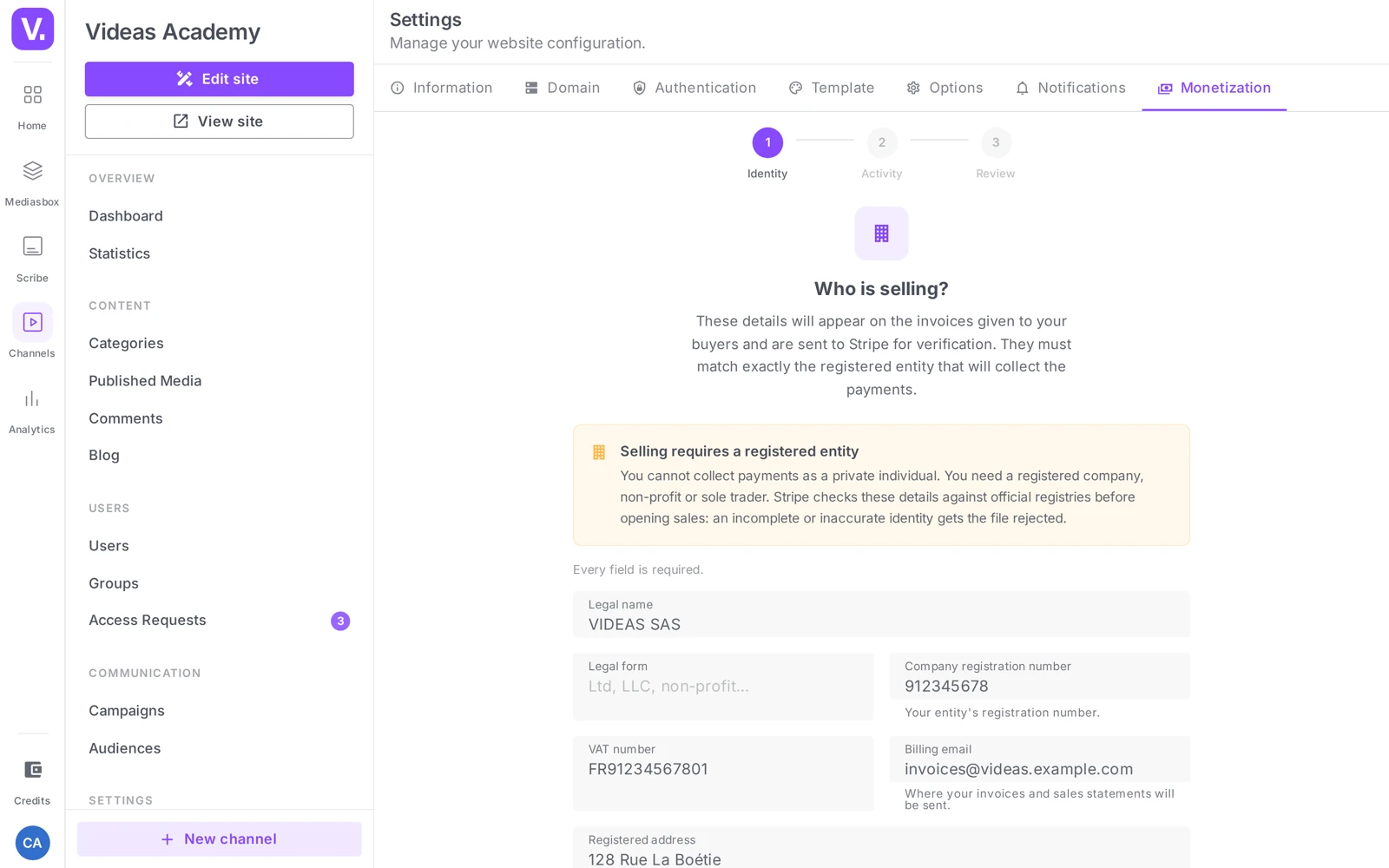
Every field is required (except the second address line):
| Field | What to enter |
|---|---|
| Legal name | The entity’s legal name, as registered |
| Legal form | Ltd, LLC, non-profit… |
| Company registration number | Your entity’s registration number |
| VAT number | Your intra-community VAT number |
| Registered address, Postal code, City, Country | The address on the register |
| Billing email | Where your invoices and sales statements will be sent |
The Continue button stays live even when the form is incomplete — deliberately. On click, every missing line lights up at once, rather than a greyed-out button saying “no” without saying which of the nine fields is at fault.
Screen 2 — Activity
What you plan to sell, and in which currency.
- Selling currency — Euro (EUR), Dollar (USD), Pound (GBP) or Swiss franc (CHF). One currency per channel, and it is set at activation: changing it later means going through support. Pick the one most of your audience uses.
- Country of taxation — decides the VAT applied to your sales.
- What do you sell? — a free-text description of your activity, sent to Stripe to verify your account. Be concrete: “filmed cookery classes”, “recordings of medical conferences”.
- Sale types you plan to use — tick at least one of the three: One-off purchase (permanent access), Subscription (recurring access to the catalogue), Rental (time-limited access). It is a statement of intent, not a lock: prices are set content by content later on.
Screen 3 — Review
One last look at the seller, the currency, the sale types and the commission, then Send request. A What happens next panel recaps what awaits you at Stripe.
Step 2: Wait for the review
Once sent, the page shows Request sent on …. Our team reviews it within 2 business days and you get an email as soon as it is handled.
In the meantime you keep control:
- Edit request — reopens the wizard; sending updates the request in place, it does not queue a second one.
- Withdraw request — takes it out of the review queue.
If the request is declined, the page shows the date and the reason written by our team. Fix and resend reopens the wizard with your answers already filled in: you only correct what was flagged.
Step 3: Set up your payments with Stripe
As soon as it is approved, monetization is open on your channel: you can already prepare your prices and plans. Public sales, however, only open once Stripe has cleared your payment account.
A side effect worth knowing. Turning monetization on also turns on user accounts on your channel, if they were not on already: you cannot sell without the buyer being able to sign in.
Click Set up my payments. You leave Videas for Stripe for the duration of the flow, then come back here automatically. Depending on your situation, Stripe will ask for:
| What Stripe asks for | In practice |
|---|---|
| Your personal information | The director’s name, date of birth and address |
| Director’s identity document | A valid ID card, passport or residence permit |
| Proof of company registration | Your registration certificate, or its equivalent in your country |
| Company information | Legal name, registered address, industry and website |
| Bank details | The account Stripe will pay your revenue into |
| Stripe terms acceptance | A checkbox at the end of the flow |
The Monetization page lists what is left to provide and tracks the state of your file:
- Stripe setup left unfinished — you stopped along the way. Stripe kept your answers: Resume setup picks up where you left off.
- Stripe is verifying your information — nothing to do on your side. A few minutes usually, sometimes up to two business days. You will be emailed as soon as sales open.
- Account suspended — that decision belongs to Stripe. The button points to their support, the only ones who can give the reason; our team can help you through it.
The page once monetization is active
A Monetization active banner confirms your channel can collect payments, with direct access to your Stripe dashboard.
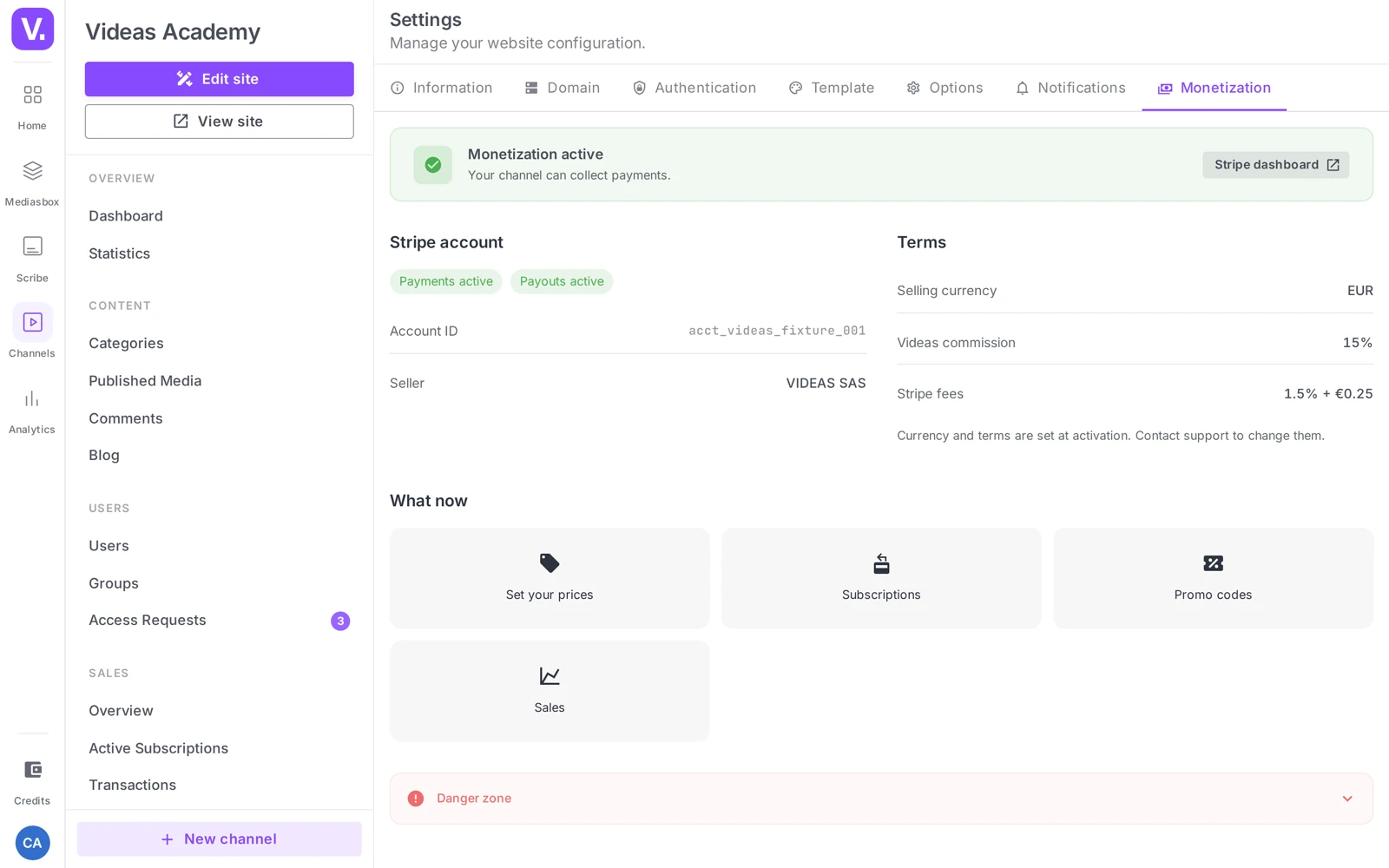
The page then brings together:
- Stripe account — the account ID, the seller, the last sync, and two status chips: Payments and Payouts.
- Terms — your currency and your commission rate. Both are set at activation; contact support to change them.
- What now — shortcuts to Set your prices, Subscriptions, Promo codes and Sales.
“Your payouts are waiting on a document”. This amber banner means your sales carry on as usual and Stripe is holding the funds until a missing document arrives. Complete my file takes you back to Stripe; a deadline is shown whenever Stripe sets one.
What it costs
No upfront fee, no subscription: you only pay on what you sell.
| Component | Amount |
|---|---|
| Videas commission | 15% of the sale, all inclusive |
Example. On a €10 sale, the Videas commission is €1.50. No other fee is taken: payment processing is covered by the commission.
What is deducted, and how you get paid, is covered in Commission and payouts.
See what others sell: the Distribution and monetization page presents channels that live off their content, and the models they chose.
Turning monetization off
Settings → Monetization, Danger zone section, Turn off monetization. A confirmation asks you to type DEACTIVATE.
What it does, and what it does not:
- No new sale is possible: the cart and checkout close, and the plans page disappears from your channel. The interface warns that your current subscribers lose access to paid content.
- Your sales data stays available, and your Stripe account stays yours: Videas does not touch it. Reopening sales later means a new activation request, but not redoing the whole Stripe flow.
- Current subscriptions are not cancelled by this. Cancel them before turning monetization off, or your subscribers keep being charged for access they no longer have (see Manage your subscribers and customers).
Can I sell as a private individual?
No. Taking payments requires a registered entity — a company, an association or a registered sole trader. Stripe checks that information against official registers, and an incomplete or inaccurate identity gets the application refused.
That is the point of the activation request: your seller identity will appear on the invoices given to your buyers, and it commits the entity that collects the money.
How long does it take to open sales?
Two working days for our team to review your request, then around ten minutes of configuration at Stripe, followed by their own verification — a few minutes usually, sometimes up to two working days.
You are not blocked in the meantime: as soon as the request is accepted, monetization is open on your channel and you can already prepare your prices and plans. Only public sale waits for Stripe’s validation.
Do I have to repeat the process for each channel?
No. The identity you enter and the Stripe account that follows from it are attached to your organization, not to a channel. Your other channels reuse them without going through this step again.
That also explains why the currency is a structural choice: it is fixed at activation, one per channel, and changing it afterwards means going through support. Pick the one your audience mostly uses.
Which documents will Stripe ask for?
Three, worth preparing before you start: the director’s ID (identity card, passport or valid residence permit), a proof of registration (company registry extract or equivalent), and the IBAN on which to receive your revenue.
Stripe also asks for the director’s personal details — name, date of birth, address — the company’s details, and acceptance of its terms. You can stop midway: Stripe keeps your answers, and Resume configuration picks up where you left off.
What if the request is refused?
The page shows the date and the reason written by our team. The Correct and resubmit button reopens the wizard with your answers already in place: you only fix what was flagged.
While the request is under review you also keep control: Edit the request updates the existing one rather than creating a second, and Cancel the request takes it out of the queue.
What happens to my subscribers if I turn monetization off?
They lose access to paid content, but their subscriptions are not cancelled: they keep being charged for access they no longer have.
That is the trap in this operation. Cancel the running subscriptions before deactivating. The rest is reversible: your sales data stays available and your Stripe account remains yours — reopening sales requires a new activation request, but not going through the Stripe journey again.
Does activating monetization change anything else on my channel?
Yes, a side effect worth knowing: activation also turns on user accounts on your channel, if they were not already.
It is mechanical — you cannot sell without the buyer being able to identify themselves, nor deliver their access with no account to attach it to. If your channel was entirely public until then, plan on polishing your sign-up page before opening sales.
In short
- Monetization is requested, it does not switch itself on: a 3-screen wizard (Identity, Activity, Review), then a review by our team within 2 business days
- Selling requires a registered entity — company, non-profit or sole trader; no selling as a private individual
- Identity and Stripe account are shared across the whole organization: done once, however many channels you run
- Once approved, you set your account up at Stripe (identity, registration, bank details); in the meantime you can already prepare your prices
- One currency per channel, set at activation
- Commission: an all-inclusive 15% of the sale, with no upfront fee and no subscription
- Turning it off goes through the Danger zone (type
DEACTIVATE) — cancel current subscriptions first
Related articles
Screenshots were taken on Videas Academy, an example channel built for this help center. It belongs to a fictional customer, not to Videas: your own channel carries your name, your branding and your prices.