Organize the catalog: categories and menus
To organize your channel catalog in Videas, create categories from the channel’s Categories section (they group your content by theme), then expose the paths to them through the header and footer menus, in the channel editor → Settings → Menus tab. You create the categories first, then build the menus.
This guide covers both mechanisms: creating categories (hierarchy, appearance, SEO, access) and setting up the navigation menus.
Categories and menus: two distinct roles
| Element | Role | Visible where? |
|---|---|---|
| Category | Thematic grouping of content | A category’s page, Categories blocks in the Page Builder |
| Menu | List of navigation links | Top bar (header) or footer |
A category can be linked to a menu to make it reachable in one click, but the two exist independently.
Create a category
In your channel menu, open Categories. The screen lists your categories with three views to choose from: Grid, Tree (default) and List. At the top, three indicators sum up the catalog: Total, Active, Content. A status filter offers All / Active / Inactive.
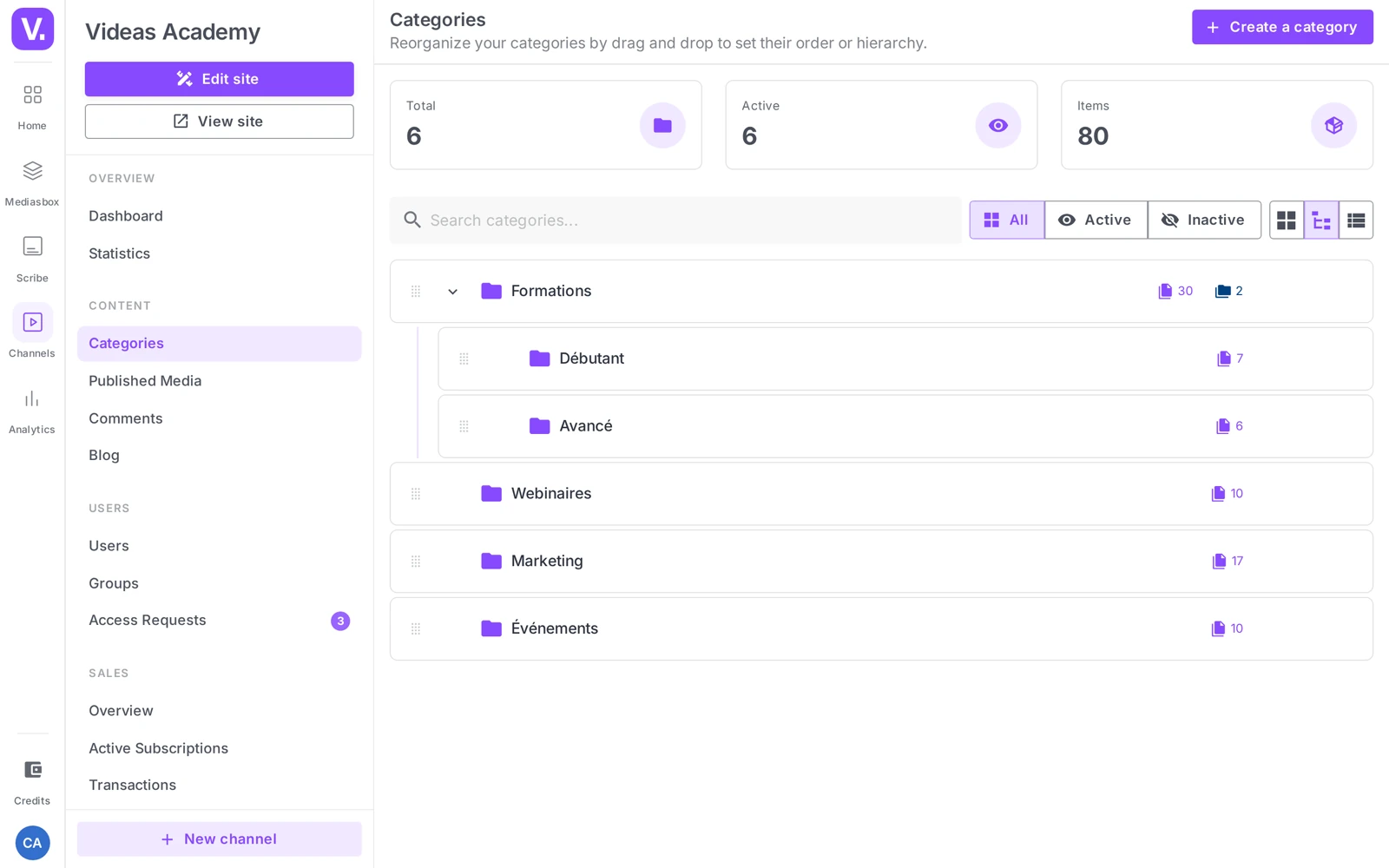
Click Create a category: a window opens for you to enter the name, then you land on the category page, organized into the Information, Content and Access rights tabs (the last one only appears if your channel has user accounts).
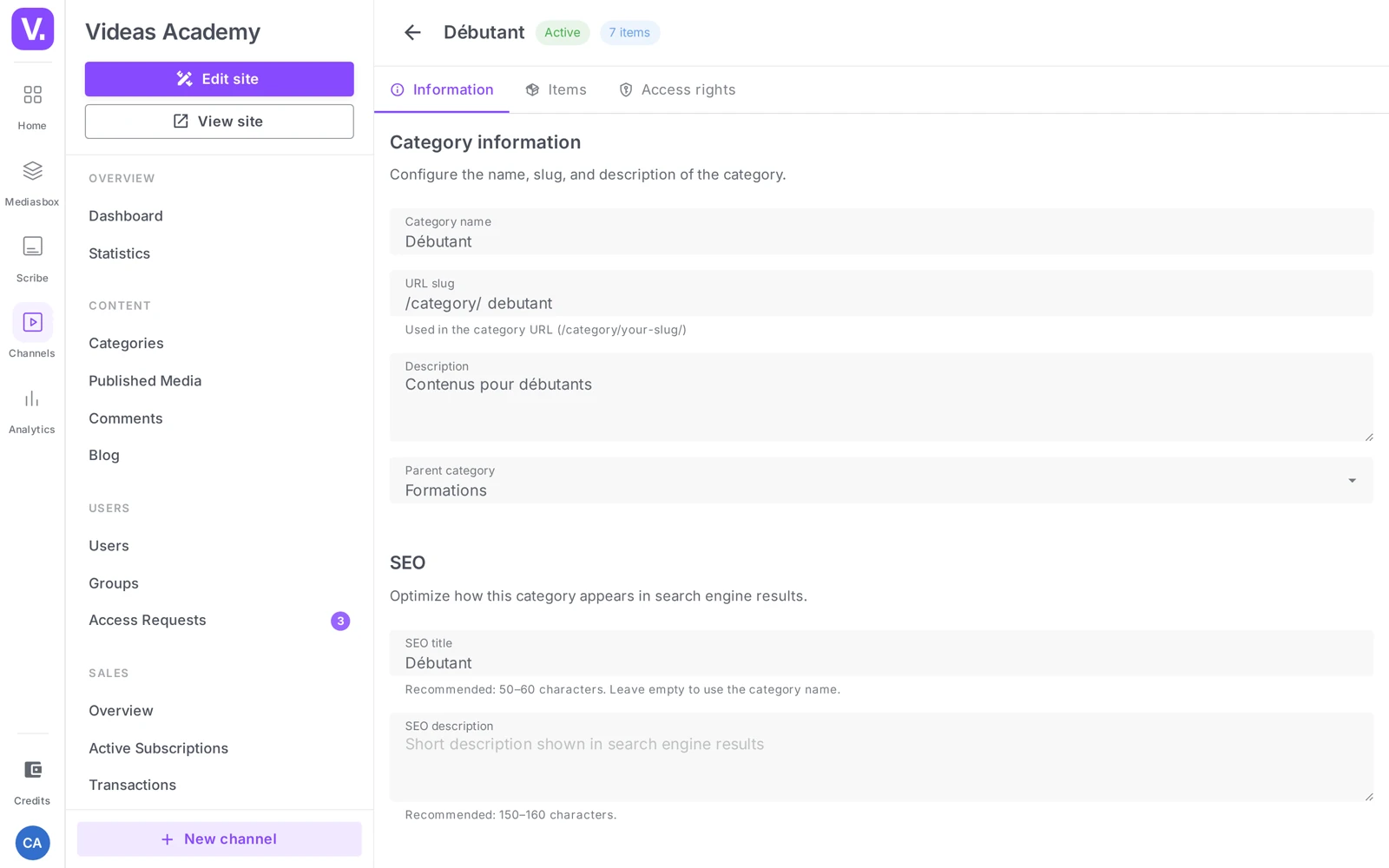
The Information tab
The category settings are grouped into sections:
- Category information — Category name (required, 2 to 100 characters), URL slug (used in the category URL,
/category/your-slug/), Description, Parent category (leave it on None (root) for a top-level category). - SEO — SEO title (60-character counter) and SEO description (160-character counter) for the category page. See Optimize the SEO of your content.
- Appearance — Icon, Thumbnail, Banner image, and Accent color (visual accents specific to the category).
- Display — a single setting, the Banner content select (“The video this category page opens on”), which defaults to The first item that plays. This section only appears when the site template puts an item in the category banner.
- Visibility settings — the Category active toggle (“The category is visible on your site”); untick it to hide the category temporarily without deleting it.
Tip: think about your categories from your audience’s point of view. “Beginner tutorials” speaks to a visitor; “Training department” does not. Ask yourself what your visitor is looking for.
Build a category hierarchy
Videas handles sub-categories across several levels:
- At creation — fill in a Parent category.
- Afterwards — in the Tree view, drag one category onto another to make it a child. Drag and drop also reorders: the position determines the public display order.
Tip: do not go beyond 2 levels of hierarchy unless your catalog is very large. “Tutorials” with 3 sub-categories is far easier to read than a 4-level tree.
Attach content to a category
From a category page, open the Content tab and click Add content. The menu offers Add existing content or Import from Mediasbox (your media library). Select the media to attach, then confirm.
A single item can belong to several categories at once.
Good to know: a category’s Access rights tab lets you restrict the visibility of the content it groups (for example, reserving a “Backstage” category for your subscribers). See Content access restrictions.
Set up the menus
Menus are configured in the Site settings drawer:
- Open the channel editor and click Settings.
- Open the Menus tab.
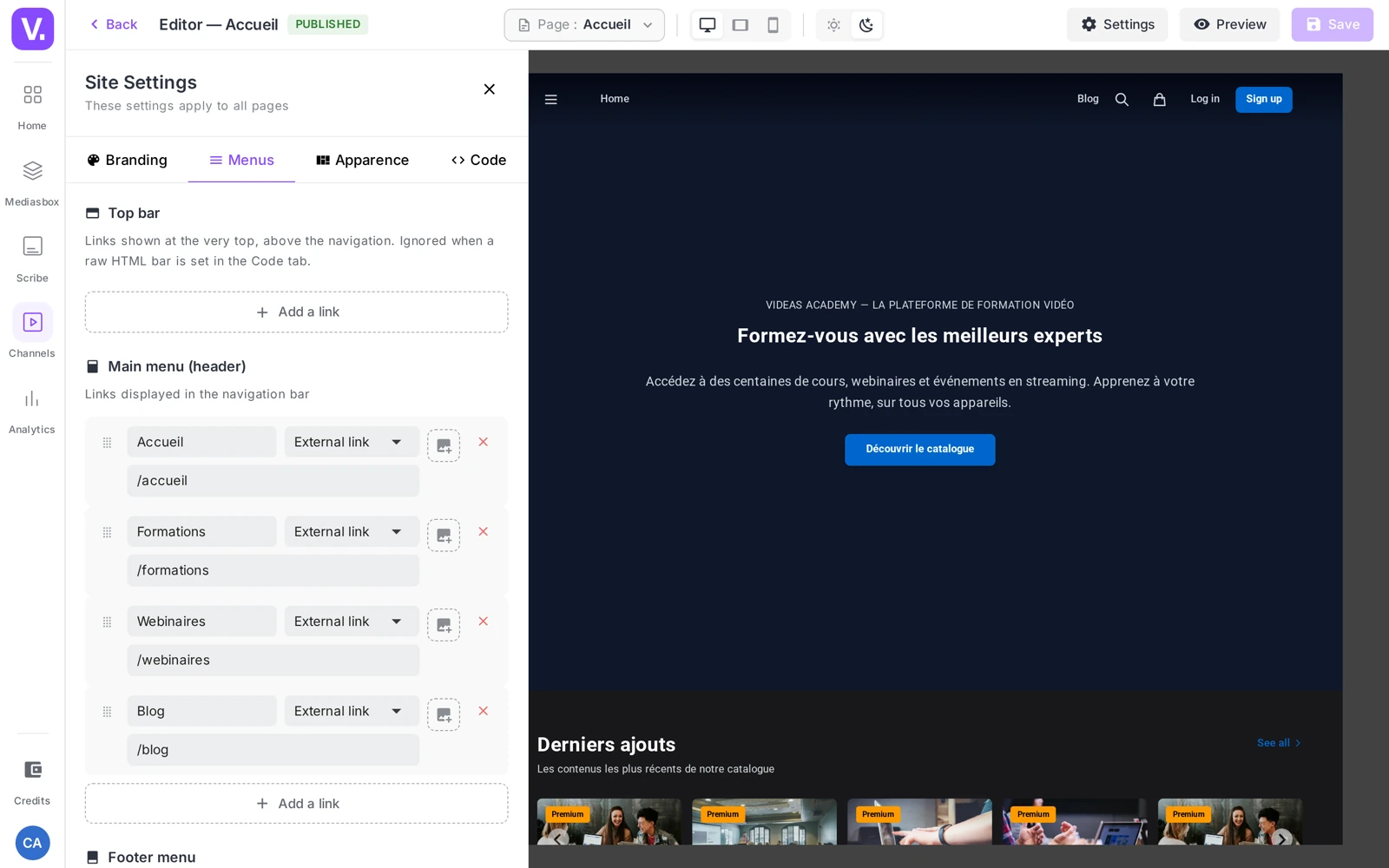
Three sections, all of which work in exactly the same way:
- Top bar — “Links shown at the very top, above the navigation. Ignored when a raw HTML bar is set in the Code tab.”
- Main menu (header) — “Links displayed in the navigation bar”
- Footer menu — “Links displayed in the footer”
Add a link
Click Add a link. Each row has a Label (the text shown), a Type selector, then a Destination. The three types of link:
- Internal page — one of your custom pages or a system page, shown according to the features you have switched on: Catalog (always), Categories (always), Subscriptions (if monetization is on), Login / Sign-up / My profile (if authentication / sign-up is allowed), Blog (if the blog is enabled), Legal notice (always).
- Category — one of your categories (the tree is indented).
- External link — a full URL (
https://…), to point to your corporate site, a LinkedIn page, a partner, and so on.
Reorder: grab the handle and drag the link. Delete: click the red cross on the right. Changes apply to the public site once you save.
Best practices
- Keep the header to 5-7 links: beyond that the bar gets crowded and becomes unreadable on mobile. Expose the rest in a Categories block in the Page Builder.
- Match label and destination: a “Courses” link that points to “Tutorials” loses the visitor.
- Use the footer for legal identity: legal notice, privacy, terms, contact — everything your visitors (and the GDPR) expect.
- Flat menu: sub-categories do not appear as drop-down sub-menus; link the parent category to the menu and let the visitor navigate from its page.
Category or menu: what is the difference?
A category is a thematic grouping of content, with its own page. A menu is a list of navigation links, in the top bar or the footer. The two exist independently: a category can perfectly well exist without appearing in any menu.
The order of work follows from that: create your categories first, then build the menus that lead to them. The reverse would have you pointing at pages that do not exist yet.
How many levels of subcategories?
Two levels, unless the catalogue is very large. Videas handles hierarchy across several levels, but a four-storey tree becomes more expensive to walk than a search.
“Tutorials” with three subcategories reads at a glance. Hierarchy is set at creation through the Parent category field, or afterwards in the Tree view, where you drag one category onto another to make it a child — the same gesture reorders, and position determines the public display order.
How should I name my categories?
From your audience’s point of view, not your internal organisation’s. “Beginner tutorials” speaks to a visitor; “Training Department” speaks only to you.
The question to ask before settling on a name: is this the word my visitor would use if they were looking for this content? The URL slug follows the same logic, since it forms the category’s public address.
Do subcategories appear as drop-down menus?
No. The menu is flat: subcategories do not unfold under their parent in the navigation bar.
The arrangement to adopt: link the parent category to the menu, and let the visitor go down from its page. To expose more routes, a Categories block in the Page Builder on the home page does the job better than an overloaded header.
How many links in the main menu?
Five to seven; beyond that the bar saturates and becomes unreadable on mobile. It is the most concrete constraint on this page.
Keep the footer for legal identity — legal notice, privacy, terms of use, contact — which your visitors and the GDPR both expect there. And check that every label matches its destination: a “Courses” link that leads to “Tutorials” loses the visitor in a second.
Can I hide a category without deleting it?
Yes, with the Category active toggle in the Visibility settings section. Unticked, the category disappears from the public site without you losing its content, its SEO or its access rights.
It is the right move for a seasonal category, or to prepare a launch: you build the category, attach the content, and make it visible on the day.
Can content belong to several categories?
Yes, without limit. Attaching is done from a category’s Content tab, through Add content — either from the channel’s existing content, or by importing from Mediasbox.
That is what lets the same tutorial sit in both “Beginners” and “Editing”, with no duplication and no copy.
In summary
- Categories are managed in the Categories section (Grid / Tree / List views). A category has Information, SEO (SEO title / SEO description), Appearance (Icon, Thumbnail, Banner image, Accent color), Display and Visibility settings (Category active) sections.
- Hierarchy across several levels, reordering by drag and drop; an item can belong to several categories (Content tab → Add content).
- The Access rights tab restricts a category to certain users.
- The menus are configured in Settings → Menus tab, in three sections (Top bar, Main menu (header), Footer menu); three link types: Internal page, Category, External link.
Related articles
Screenshots were taken on Videas Academy, an example channel built for this help center. It belongs to a fictional customer, not to Videas: your own channel carries your name, your branding and your prices.