Create a blog on your channel
To create a blog on your Videas channel, open Settings → Options and switch on the Blog toggle in the Content management section. A Blog section then appears in your channel management: click New post, write it, then click Publish. Your posts complement your videos, attract search traffic and give your channel an editorial voice.
This guide covers turning the module on, writing in the editor, managing statuses, and exposing the blog on your site.
Enable the Blog module
The blog is not enabled by default. To switch it on:
- Open your channel and go to Settings → Options.
- In the Content management section, switch on the Blog toggle (“Enable a blog / posts section on your site”).
A Blog section then appears in your channel management navigation.

Good to know: enabling the blog creates no posts. Publish at least one before exposing the Blog link in your channel menu.
Create a post
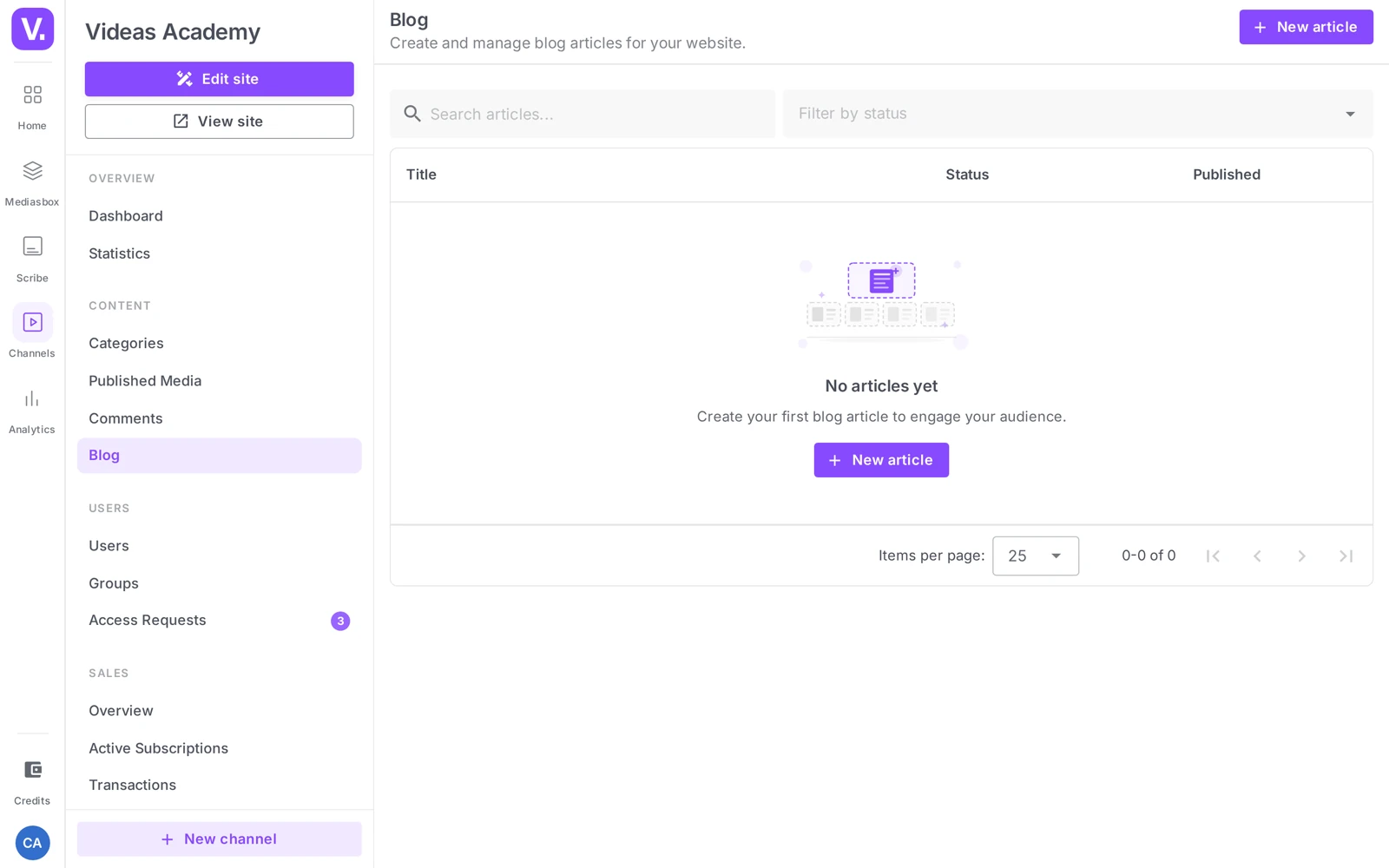
Open the Blog section (title “Blog”, subtitle “Create and manage the blog posts of your site.”). The list offers a search box, a Filter by status control, and shows the Title and Status columns, a Featured indicator and Published on. Click New post.
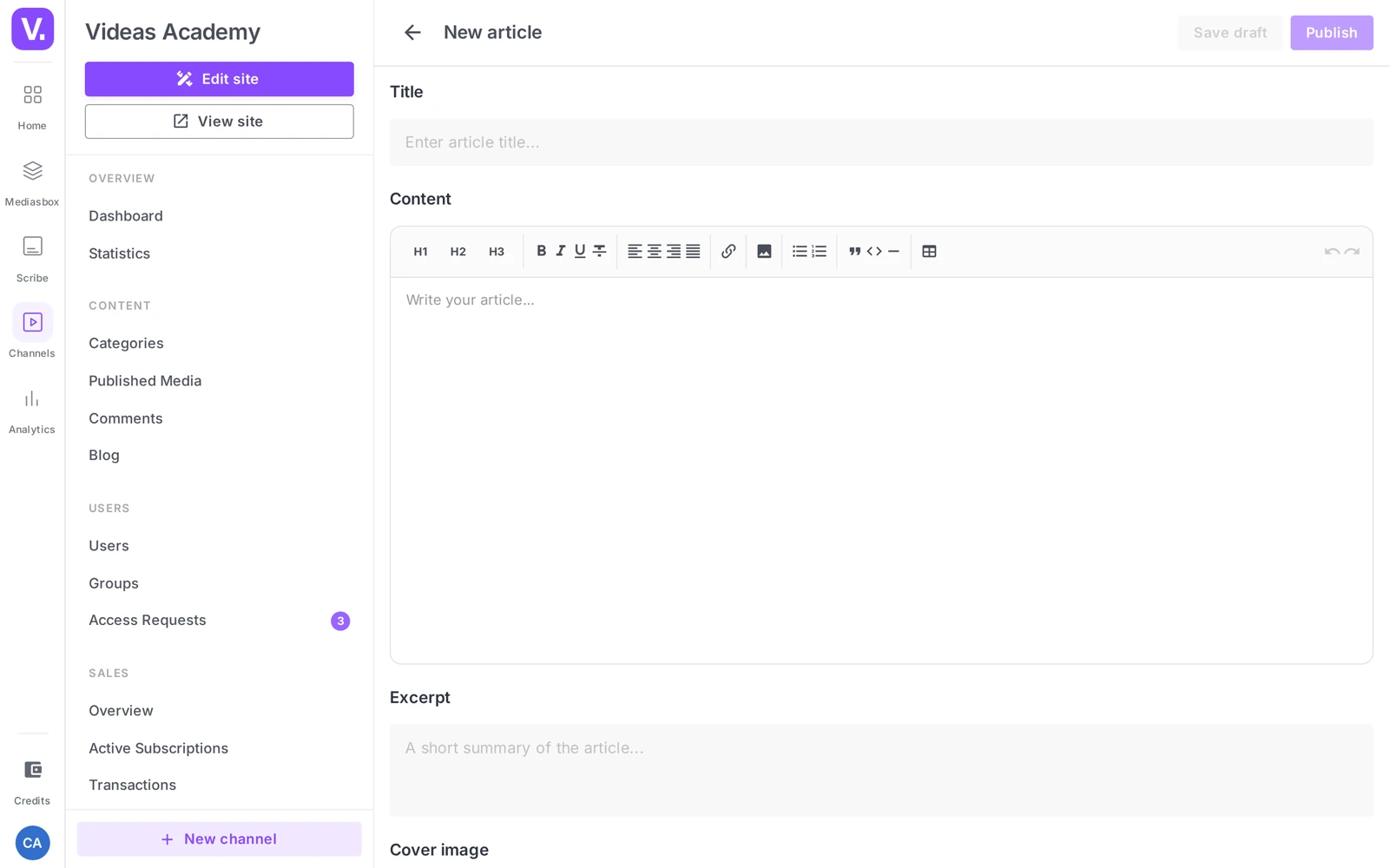
The editor has the following sections, in order:
- Title (required) — the heading of the post.
- Content (required) — a rich editor offering: heading levels, bold, italic, underline, bulleted and numbered lists, links, images, tables and text alignment.
- Excerpt — the short text shown in listings and in the Page Builder Articles blocks. This is your hook.
- Cover image — the main visual, also used as the social share image (1200 × 630 recommended).
- Options — the Featured toggle (highlights the post on your blog). In edit mode, this section also holds the status selector.
- Tags — an autocomplete field (“Add tags…”) to classify your posts.
- Categories — an autocomplete field (“Attach categories…”); you can create a category on the fly (“Create the category ‘…’”).
- SEO settings — see below.
SEO settings
The SEO settings section covers:
- Meta title — by default, the post title. Aim for 50-60 characters.
- Meta description — by default, the excerpt (otherwise the beginning of the content). Aim for 150-160 characters.
Tip: two minutes spent customizing the meta title and meta description is one of the most profitable SEO levers there is — they determine your click-through rate from Google. See Optimize the SEO of your content.
Drafts, publishing and statuses
The editor offers two actions:
- Save draft — saves the post as a Draft (invisible on the public site).
- Publish (or Update on an existing post) — moves the post to Published and sets the publication date.
There are three statuses:
| Status | Visible on the public site | In the management list |
|---|---|---|
| Draft | No | Yes (gray badge) |
| Published | Yes | Yes |
| Archived | No | Yes (dedicated filter) |
Archiving retires an old post without losing its content; you can move it back to draft or published at any time. Videas also calculates an estimated reading time automatically, shown in the listings.
To delete a post for good, the Danger zone at the bottom of the editor offers Delete this post.
Expose the blog on your channel
Two ways to make your blog visible:
- A link in the menu — from the channel editor, open the Site settings drawer then the Menus tab; add a link of type Internal page and choose Blog (the option only appears if the module is enabled). See Organize the catalog: categories and menus.
- The Page Builder Articles block — the Articles block (4 variants) shows your posts on any page. Its options: Source (Recent or Manual selection), number of columns, card style, display toggles (thumbnail, category, date, author, reading time, excerpt) and a View all link. See Build your pages with the Page Builder.
Tip: combine an Articles block in spotlight mode (your flagship post) followed by an Articles block as a carousel of your latest writing: your channel instantly gains an editorial dimension.
Best practices
- The blog extends your videos: context for an interview, a summary of a series, a written tutorial completing a demo (Google indexes text), behind the scenes, news.
- Take care of the cover image: listings without a visual get far fewer clicks.
- Publish regularly: one post a week, sustained, beats ten at once followed by three months of silence.
- Cross-link videos and posts both ways: mention your videos in a post, and link to the post from the video description.
Why doesn’t the blog appear on my channel?
Three causes follow on from each other, to check in this order. The module is not enabled by default: you have to switch on the Blog toggle in Settings → Options → Content management. Then, enabling the module creates no articles — you have to publish at least one. Finally, the blog is only visible if you expose it yourself.
Two ways to expose it: an Internal page → Blog link in a menu from the Site settings drawer, or an Articles block in the Page Builder on an existing page.
What is an article’s excerpt for?
To make people want to click. It is the short text shown in listings and in the Page Builder’s Articles blocks — your hook, in short.
It has a second, quieter role: it feeds the article’s default meta description, the one Google shows under the title. A well-written excerpt therefore works in two places at once.
What format should the cover image be?
1200 × 630 pixels, the recommended ratio — because that image also serves as the social share image, the one shown when someone posts your article on LinkedIn or X.
Do not neglect it: listings with no visual are markedly less clicked, and an image unreadable at thumbnail size undermines an otherwise good article.
What does the “Archived” status do?
It removes an article from the public site without losing its content. The article stays in your management list, reachable through a dedicated filter, and you can put it back to Draft or Published at any time.
It is the right move for a dated article — an expired announcement, a finished offer — that you want neither online nor erased. For actual deletion, the Danger zone at the bottom of the editor offers Delete this article.
Should I customise the meta title and meta description?
Yes, and it is one of the highest-return SEO levers for two minutes of work. By default, Videas reuses the article’s title and its excerpt — which works, but takes no account of what people type into Google.
Count on 50 to 60 characters for the meta title and 150 to 160 for the meta description. They are what determine your click-through rate from search results.
What should I publish on a video channel’s blog?
What extends your videos rather than repeating them. Context for an interview, a summary of a series, a written tutorial complementing a demo — Google indexes text, not your video.
Behind-the-scenes pieces and news work too. And in every case, link both ways: cite your videos in the article, and link the article from the video’s description.
Is it better to publish regularly or in waves?
Regularly. One article a week sustained over time beats ten published at once followed by three months of silence — for your readers and for search engines alike.
The blog is also what gives a channel an editorial voice: an irregular rhythm gets noticed, and an abandoned blog says more than no blog at all.
In summary
- The Blog module is switched on in Settings → Options → Content management → Blog toggle.
- You create a post with New post: Title, Content (rich editor), Excerpt, Cover image, Options (Featured), Tags, Categories (created on the fly), SEO settings.
- Two actions: Save draft or Publish; three statuses Draft / Published / Archived; reading time calculated automatically.
- You expose the blog through an Internal page → Blog link in one of the menus of the editor’s Site settings drawer, or the Page Builder Articles block.
- Customize the Meta title and Meta description (SEO settings section), publish regularly, and cross-link videos and posts.
Related articles
Screenshots were taken on Videas Academy, an example channel built for this help center. It belongs to a fictional customer, not to Videas: your own channel carries your name, your branding and your prices.