Enable and moderate comments on your channel
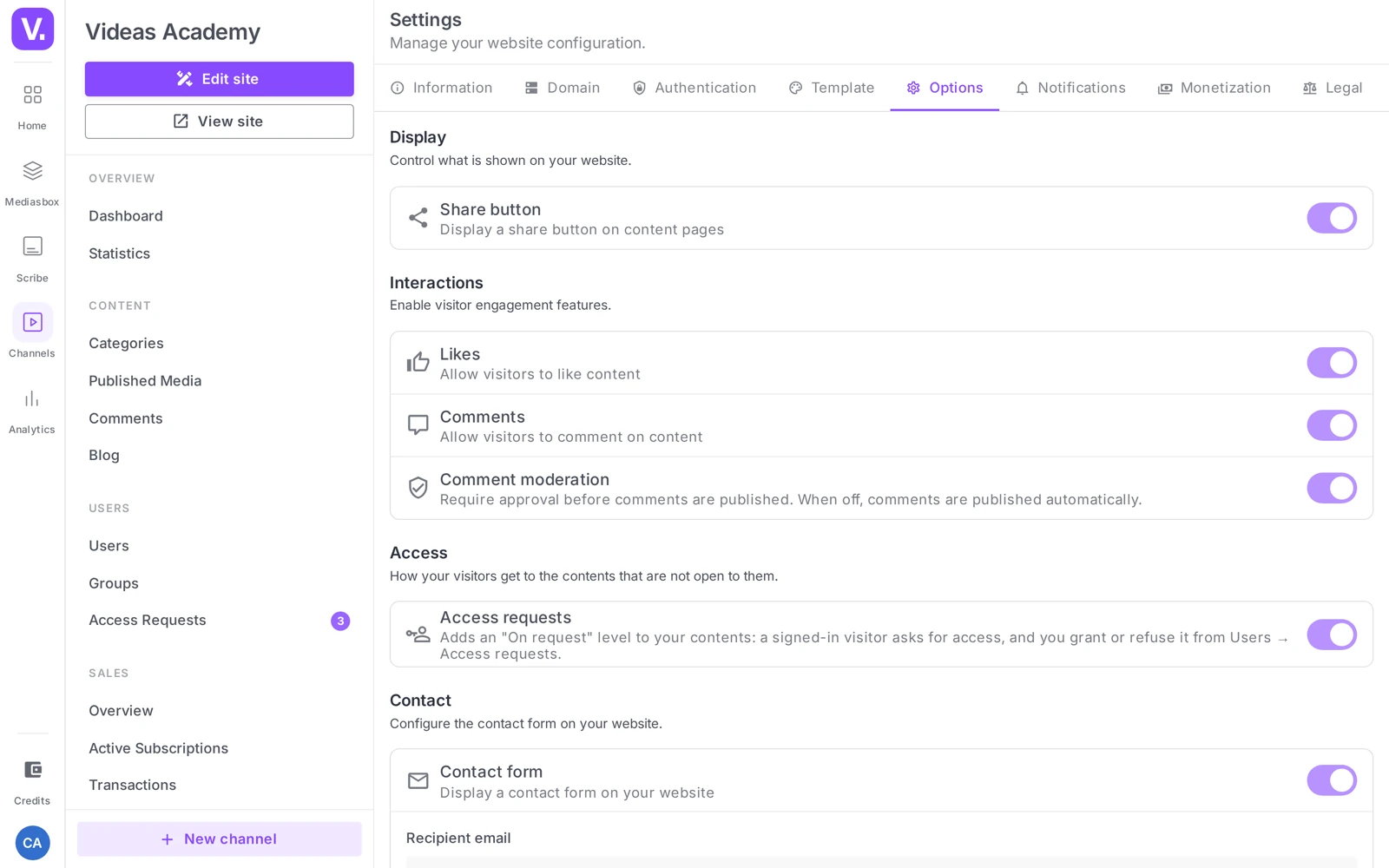
To enable comments on your Videas channel, open Settings → Options and switch on the Comments toggle in the Interactions section. A second toggle, Comment moderation, lets you choose: on, every comment waits for your approval; off, comments are published automatically. You then moderate from your channel’s Comments section.
This guide covers turning the module on, choosing your moderation setting, and the moderation center (statuses, actions, replies).
Enable comments
The module is off by default.
- Open your channel and go to Settings → Options.
- In the Interactions section, switch on the Comments toggle (“Let visitors comment on your content”).
A second toggle then appears: Comment moderation.
- On — “Require approval before comments are published”: every message arrives as Pending and is only visible once approved.
- Off — “comments are published automatically”: they appear immediately, and it is up to you to remove the problematic ones.
The same Interactions section also offers the Likes toggle (allow “likes”).
Which setting should you choose? Keep moderation on for a high-visibility channel or one where reputation is at stake — nothing appears without your say-so. Turn it off if you are running a trusted community and want a live thread in real time.
Allow or switch off comments per item
Once the module is enabled, comments are open item by item. On a piece of content (the Content section), the Allow comments option (“Visitors can comment on this content”) is on by default; untick it to close comments on that specific item. Each item also has a Comments tab (“View and moderate comments on this content”) so you can moderate its own comments directly — available for as long as the option is on.
The three statuses of a comment
| Status | Publicly visible | Where it comes from |
|---|---|---|
| Pending | No | Initial status when moderation is on |
| Approved | Yes | After approval (or automatically if moderation is off) |
| Rejected | No | Turned down by a moderator, with a mandatory reason |
The replies you post as an administrator are approved automatically.
Moderate from the moderation center
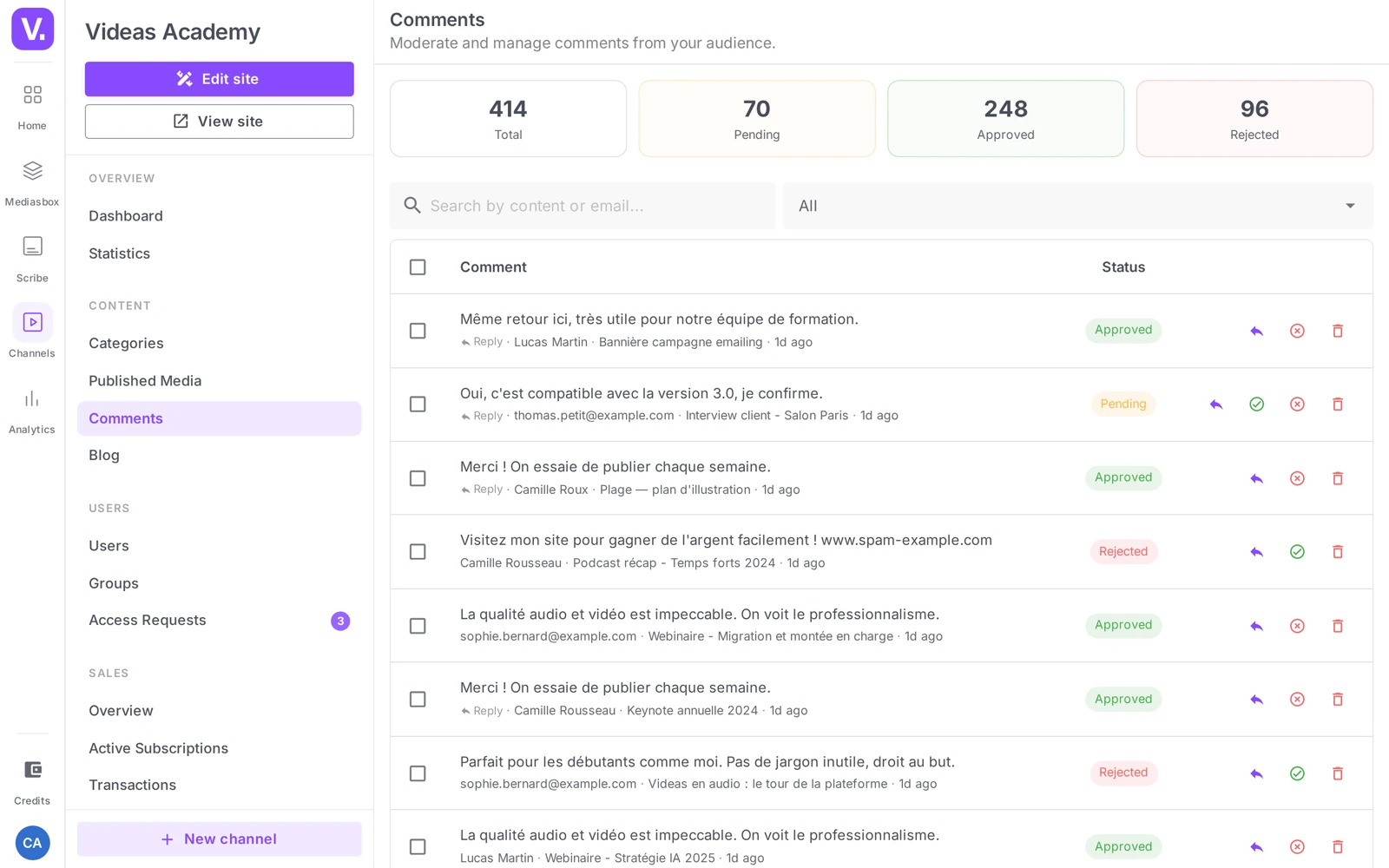
Open your channel’s Comments section (subtitle “Moderate and manage your audience’s comments”). At the top, four indicators: Total, Pending, Approved, Rejected. A search box (“Search by content or email…”) and a Filter by status control (All / Pending / Approved / Rejected) round out the screen.
Actions on a comment
- Approve — makes it publicly visible.
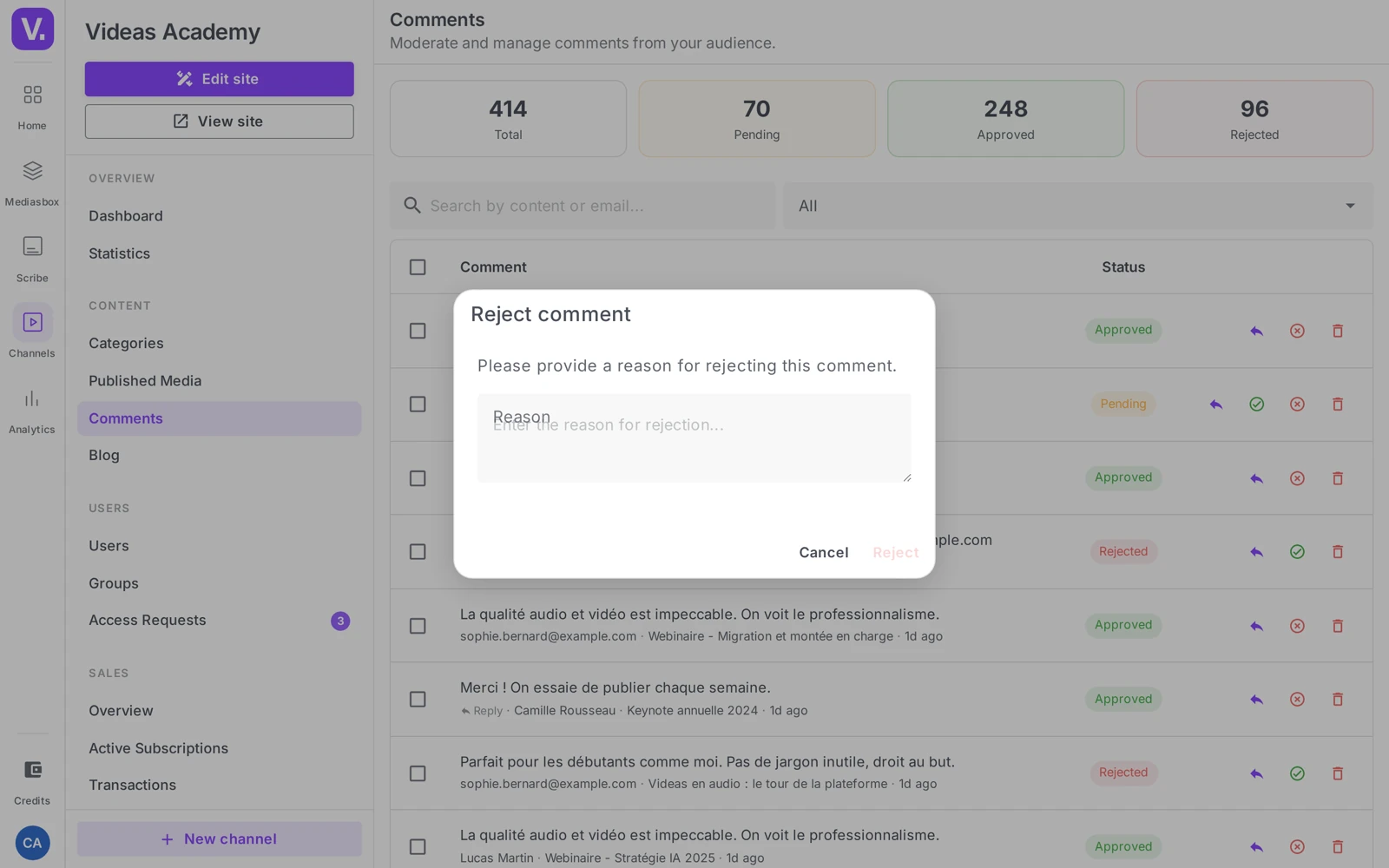
- Reject — opens the Reject comment dialog with a Reason field (“Enter the reason for rejection…”). The reason is mandatory: the button stays disabled while the field is empty.
- Delete — removes the comment for good.
- Reply — you write a Reply (button Send reply), auto-approved and signed with an Admin badge.
Bulk actions
Tick several comments (the bar shows “{n} selected”) then apply Approve, Reject or Delete in bulk — handy for working through a moderation session or a wave of spam.
A comment’s details
A comment’s page recaps: Published on, Edited on, Likes, Replies, along with the Moderation information (Moderated by, Moderated on, Rejection reason).
Reply to your audience
Replying as an administrator is useful for thanking someone for a good comment, correcting a mistake, pointing to another video, or reframing an exchange. Your reply is immediately visible (auto-approved) and carries the Admin badge that sets it apart from visitors’ messages.
Best practices
- If moderation is on, work through the queue regularly: a comment held too long disengages its author. A daily routine beats a weekly catch-up.
- Publish a moderation policy (insults, off-topic, spam, self-promotion…): it frames your rejections and reassures your audience — the mandatory Reason field helps you stay consistent.
- No time to keep up? Leave moderation on (nothing gets through without you), or switch the module off temporarily.
- A firm but friendly admin reply often defuses a drifting thread better than a silent rejection.
Good to know
- No email notification for comments: you are not alerted on every new message; check the moderation center (make up for it with a routine).
- Identified commenters: depending on your access settings, commenting generally requires being logged in to your channel — there is no anonymous mode.
Should I enable comment moderation?
Yes on a high-visibility channel or where reputation is at stake: nothing appears without your approval, and every message arrives as Pending.
Turn it off if you run a trusted community and want a live thread — comments are then published automatically, and it is up to you to remove the problematic ones. The cost of moderation is delay: a comment held too long disengages its author, which calls for a daily routine rather than a weekly catch-up.
Can I close comments on a single video?
Yes. Once the module is on, comments are opened content by content: on a content’s page, the Allow comments option is on by default, and unticking it closes that specific item.
Each item also has its own Comments tab, to moderate what concerns it directly without going through the moderation centre.
Am I notified when a comment arrives?
No. There is no email notification for comments: you are alerted to no new message.
That is the reason for a routine: visit the moderation centre at regular intervals. The four indicators at the top of the screen — Total, Pending, Approved, Rejected — tell you at a glance whether there is work to do.
Why does the Reject button stay disabled?
Because the Reason field is empty. The rejection reason is mandatory: the modal stays blocked until you have entered something.
It is an accepted constraint, and a useful one. Publishing a moderation policy — abuse, off-topic, spam, self-promotion — gives you a stable vocabulary for that field, and your rejections become consistent from one session to the next.
Do my replies need approval?
No. Replies you post as an administrator are auto-approved and immediately visible, with an Admin badge that sets them apart from visitors’ messages.
Replying is often more effective than a silent rejection: a firm but well-meant reply defuses a drift, thanks a good comment, corrects an error or points to another video.
How do I handle a wave of spam?
With bulk actions. Tick several comments — the bar then reads “{n} selected” — and apply Approve, Reject or Delete in one go.
The status filter helps frame the session: isolate the Pending ones, process the batch, and move on. That is also what keeps weekly moderation workable as volume rises.
Can an anonymous visitor comment?
Not in practice. Depending on your access settings, commenting generally requires being signed in to your channel: there is no anonymous mode.
That makes moderation simpler than elsewhere — every comment is tied to an account, and the moderation centre’s search accepts an email address as a criterion.
In summary
- Enable the module in Settings → Options → Interactions → Comments toggle.
- The Comment moderation toggle makes approval optional: on = review before publication; off = automatic publication.
- Three statuses: Pending / Approved / Rejected; the rejection reason is mandatory.
- The moderation center (the Comments section) offers indicators, search, filters, individual actions (approve / reject / delete / reply) and bulk actions.
- Your admin replies are auto-approved and marked with an Admin badge.
- No email notification on comments — moderate at regular intervals.
Related articles
Screenshots were taken on Videas Academy, an example channel built for this help center. It belongs to a fictional customer, not to Videas: your own channel carries your name, your branding and your prices.