Build your pages with the Page Builder
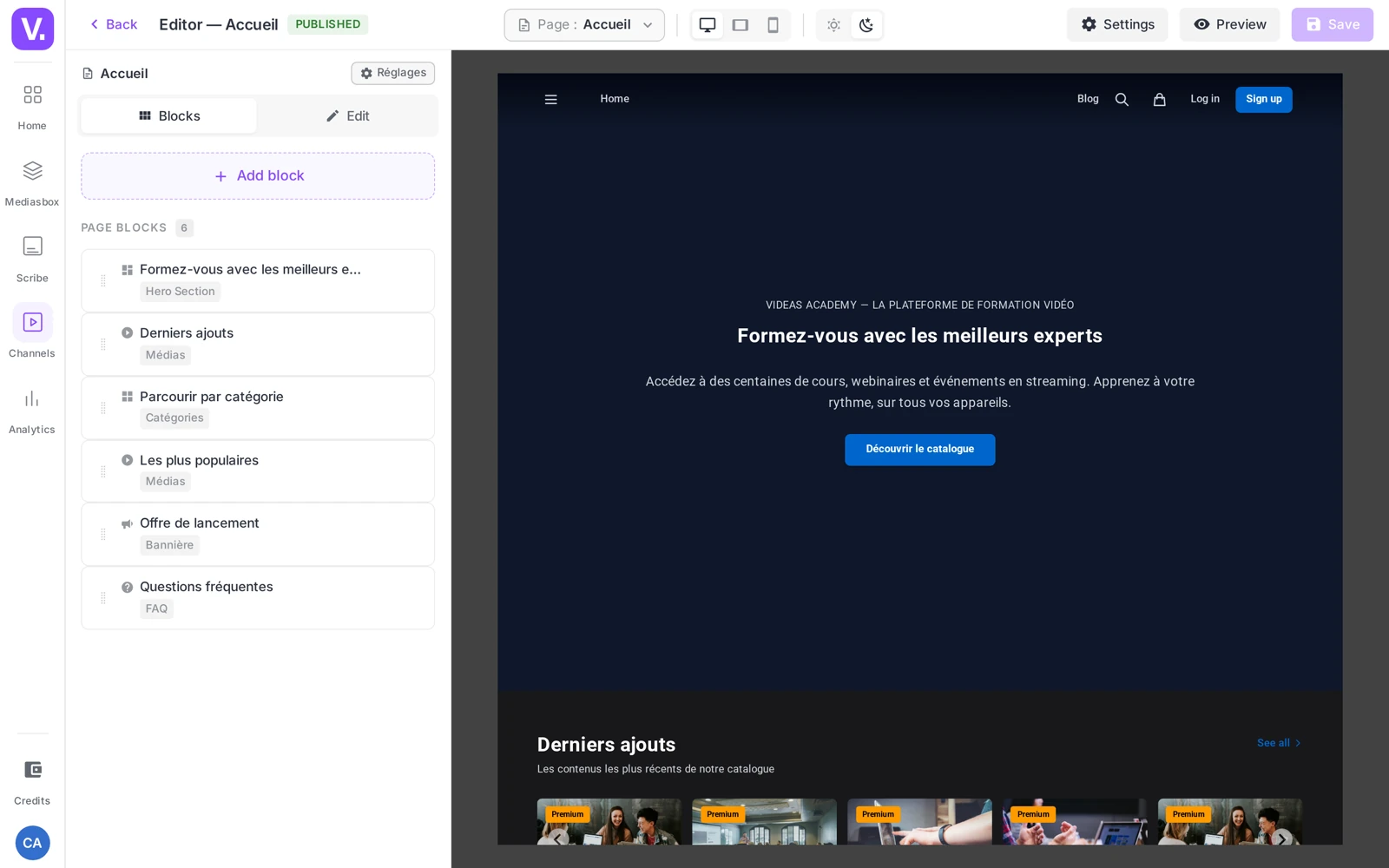
To build your channel’s pages in Videas, open the channel editor: the left-hand panel offers the Blocks tab (with the Add a block button) and the Edit tab (the inspector for the selected block). Choose a block from the 15 types available, configure it with a click, reorder by drag and drop, then click Save. All without writing a line of code.
Where the Identity tab sets your color and your logo and the Appearance tab your navigation and thumbnail styles (see Customize your channel’s appearance), the Page Builder composes the content of each page: hero section, media carousels, category blocks, FAQ, testimonials, and more.
Open the Page Builder
The Page Builder is built into the channel editor. At the top, a toolbar offers the Page: … selector (to switch page), the previews by device (desktop / tablet / mobile) and by theme (Light mode / Dark mode), and the Settings, Preview and Save buttons.
On the left, two tabs:
- Blocks — the list of blocks on the current page, with the Add a block button
- Edit — the inspector for the selected block
In the middle, the live preview shows the page as your visitors will see it.
Understanding the page model
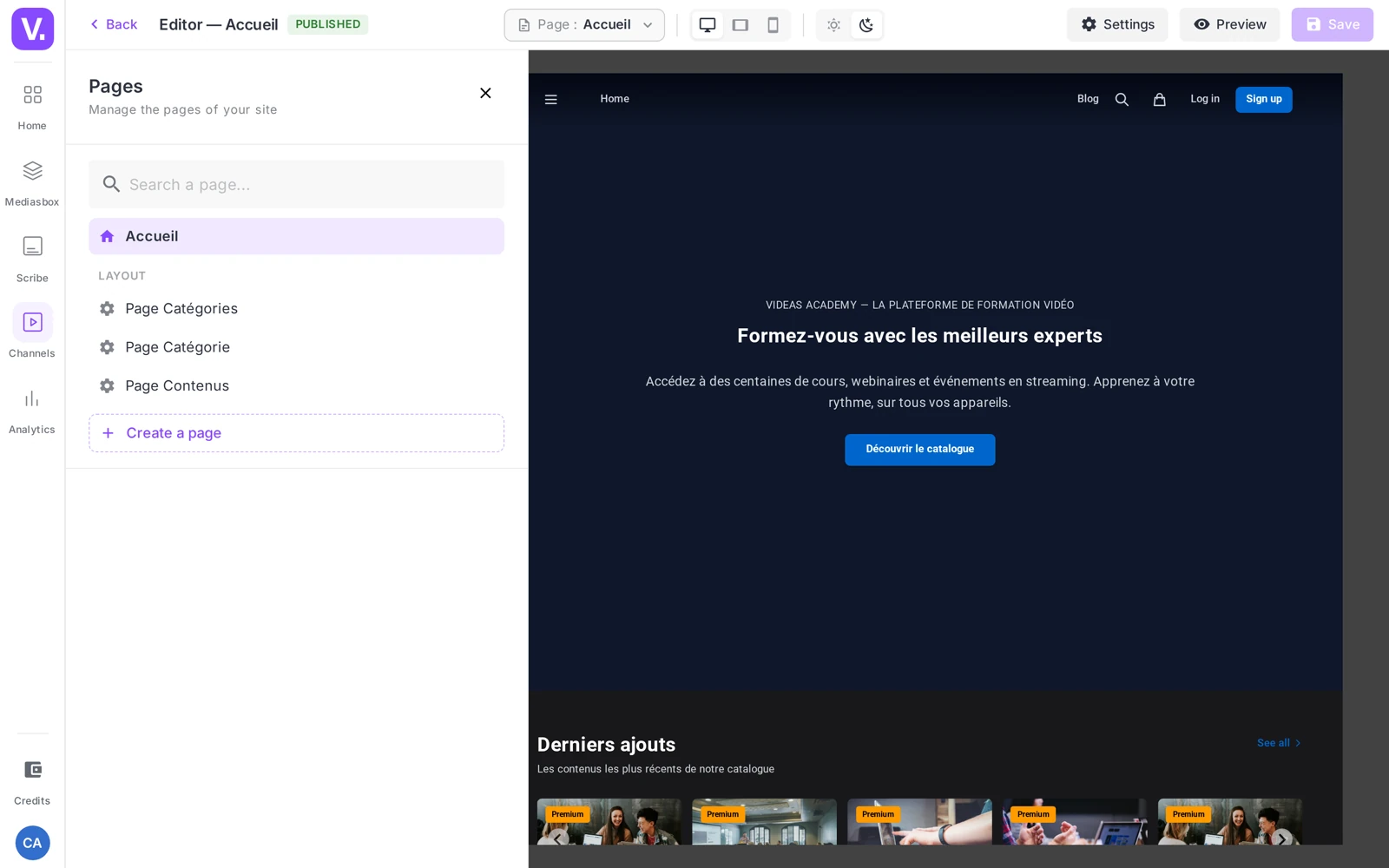
The Page: … selector opens the page manager. There you find:
- The home page and your custom pages (About, Pricing, Contact, landing pages…), each with a Published or Draft status.
- Three template pages, grouped under Layout, which drive the look of the automatically generated pages: Categories page (the list of your categories), Category page (one category and its listing), Content page (a single media item).
Create a page
In the page manager, click Create a page and fill in the Page title — that is the only field asked for. The slug (the identifier in the URL) is generated automatically and can still be changed afterwards in the page settings.
The page settings (reachable from the page manager) cover: Information (Title, Slug, Path / URL), SEO (Meta title, Meta description — see Optimize the SEO of your content), Access (Public / Logged in / Restricted), Publishing, and the Duplicate / Delete actions.
Add a block
From the Blocks tab, click Add a block. A picker opens, organized into 4 categories:
- VOD / Video
- Layout
- Content
- Interactive
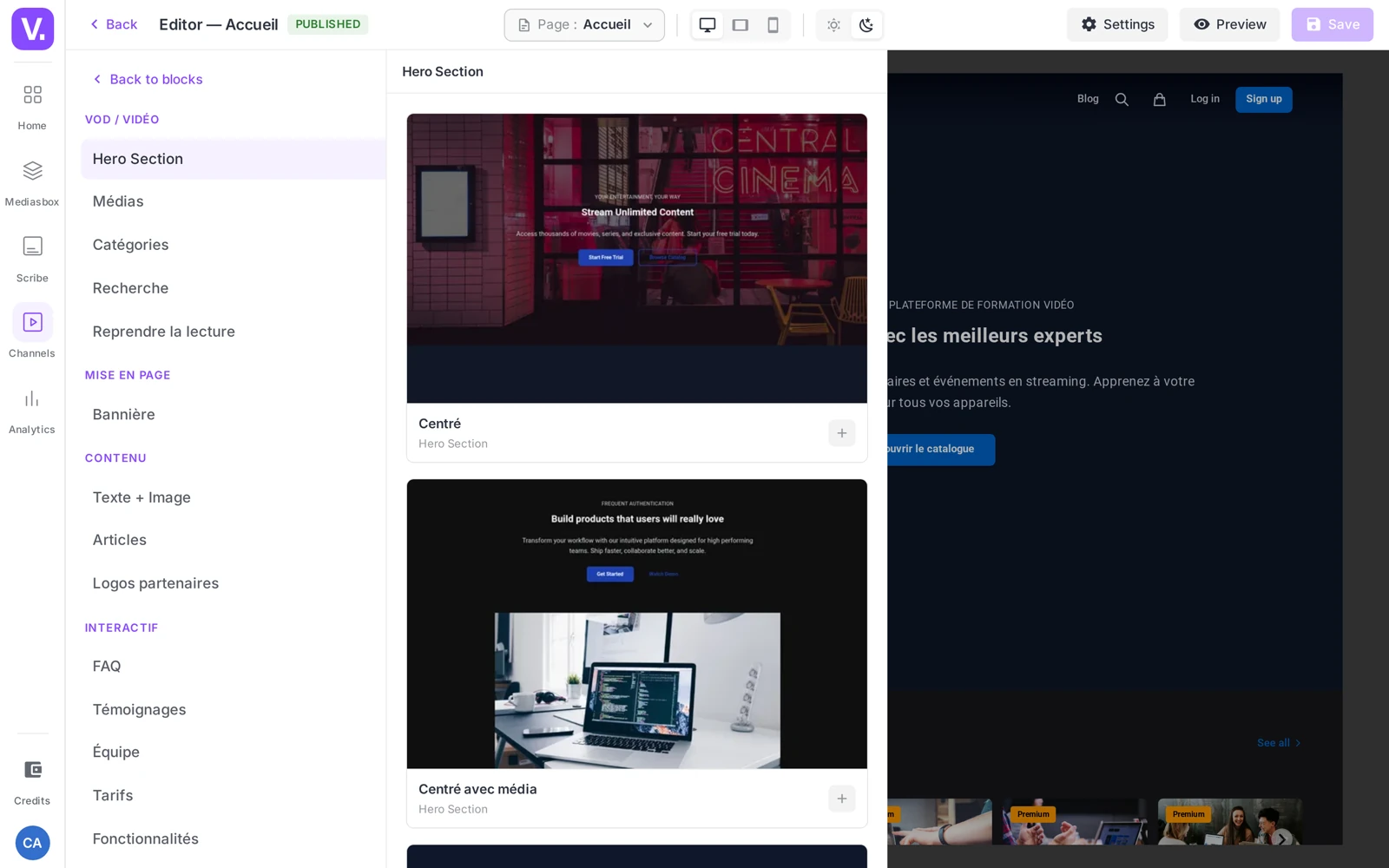
Hover a type to see its variants (the Hero Section block offers 9: centered, centered with media, left/right split, Netflix-style overlay, with an item slider, featured video, compact…). Click a variant: the block is added after the selected block (or at the end of the page), and the editor switches to the Edit tab with that block selected.
Configure a block
The Edit tab shows the settings specific to the block. Depending on the type, you find the variant (changeable at any time without losing the content), a title / subtitle, a content source (for example Recent or Manual selection), a number of columns, a card style, the spacing, and display options (thumbnail, category, date, author, reading time, excerpt…).
Tip: when a block points to a smart collection (a dynamic filter), its content updates by itself as new media match the filter. See Group media automatically.
Reorder, hide, delete
In the Blocks tab, each block can be handled directly:
- Reorder — grab the handle and drag the block to the position you want (drag and drop).
- Hide / Show — the eye icon makes the block invisible on the public site without deleting it (handy for preparing a section or switching off a seasonal block).
- Delete — the trash icon; a confirmation appears (“Are you sure you want to delete this block?”). The deletion only takes effect on the public site once you save.
Save
The Page Builder has no auto-save. As long as you have unsaved changes, the Save button is active; once clicked, it changes to Saved.
Remember: the preview is local until you save. If you close the tab without saving, your changes are lost — get into the habit of saving after each working session.
The catalog of 15 blocks
VOD / Video (5 types)
| Block | Variants | What it does |
|---|---|---|
| Hero Section | 9 | Opening section with a title, subtitle and CTA (centered, split, overlay, slider, featured video…) |
| Media | 6 | Displays media as a carousel, grid, list, spotlight (Featured), showcase or player |
| Categories | 9 | Displays your categories (card / minimal / overlay / poster grid, carousel, poster carousel, horizontal list, detailed list, one row per category) |
| Search | 3 | Search bar — hero, floating or minimal style |
| Continue watching | 1 | Resume playback for logged-in visitors |
Layout (1 type)
| Block | Variants | What it does |
|---|---|---|
| Banner | 1 | Full-width banner with a background image or video |
Content (3 types)
| Block | Variants | What it does |
|---|---|---|
| Text + Image | 4 | Text and/or image block (text only, image only, image left/right) |
| Articles | 4 | Displays the posts from your blog. This block is only offered in the picker if the blog is enabled in the channel settings |
| Partner logos | 3 | Partner or client logos |
Interactive (6 types)
| Block | Variants | What it does |
|---|---|---|
| FAQ | 4 | Frequently asked questions (accordion, cards, two columns) |
| Testimonials | 3 | Customer reviews (grid, slider, centered) |
| Team | 5 | Introduce the team |
| Pricing | 3 | Pricing plans and subscriptions |
| Features | 3 | Highlight your features or services |
| Custom HTML | 1 | Embed HTML code (third-party widget, external embed…) |
Best practices
- Give the home page a rhythm: a Hero Section as the hook, a Media block as a carousel of your latest content, a Categories block, a Media block as a spotlight, an editorial Text + Image block, then an FAQ or Testimonials for reassurance.
- Keep pages short: 5 to 8 blocks are enough for most channels. Too many carousels drown attention — go for several themed pages instead.
- Settle your identity first (color, theme): it applies automatically to the CTAs and accents of the blocks.
- Test on mobile with the device preview before publishing.
- Use Custom HTML sparingly: a badly written third-party script can break the layout.
See what others built with it: the Pages product page presents the builder and layouts made with these same blocks.
How many blocks should a page have?
Five to eight is enough for most channels. Beyond that, attention thins out — and a home page stacking carousels ends up highlighting nothing at all.
A composition that works: a Hero Section as the hook, a Media block as a carousel of your latest content, a Categories block, a featured Media block, an editorial Text + Image block, then an FAQ or Testimonials for reassurance. If you have more to say, favour several themed pages over one endless one.
Why doesn’t the Articles block appear in the selector?
Because the blog is not enabled in the channel settings. That block is only offered if the feature is — the only one in the catalogue that depends on an outside setting.
Enable the blog, and it joins the Content category of the selector, alongside Text + Image and Partner logos.
What are template pages?
Three pages grouped under Layout in the page manager, which drive the appearance of automatically generated pages: the Categories page (the list of your categories), the Category page (one category and its listing) and the Content page (a media item’s page).
You do not create or delete them: you lay them out, and the layout chosen applies to every page of that type. That is what saves you composing one page per category.
Does changing a block’s variant lose its content?
No. The variant can be changed at any time from the Edit tab, without losing what you entered. That makes exploring cheap: the Hero Section block offers nine variants, and you can try them all on the same content.
Take advantage of it with the device previews in the toolbar: a variant that convinces on desktop can behave quite differently on mobile.
How do I prepare a section without publishing it?
With the eye icon in the Blocks tab, which hides the block on the public site without deleting it. You compose calmly, save, and reveal it on the day.
It is also the right move for a seasonal section — a campaign block, an event banner — that you will switch back on next year rather than rebuild.
What happens if I close the tab without saving?
You lose your changes. The Page Builder has no autosave: the preview is local until you click Save, and even deleting a block only takes effect on the public site once saved.
Build the habit of saving after each working session — the button switches to Saved, which tells you where you stand.
Can a block update itself?
Yes, when it points to a smart collection. Its content then follows the filter: as new media match it, they appear in the block without you touching the page.
That is the arrangement that keeps a home page alive with no upkeep — a Latest tutorials carousel fed by a tag, refreshing itself with every publication.
In summary
- The Page Builder lives in the channel editor; the Page: … selector moves between the home page, custom pages and template pages (Categories / Category / Content).
- 15 blocks in 4 categories: VOD / Video (Hero Section, Media, Categories, Search, Continue watching), Layout (Banner), Content (Text + Image, Articles — only when the blog is enabled —, Partner logos), Interactive (FAQ, Testimonials, Team, Pricing, Features, Custom HTML).
- You add one with Add a block → hover → variant; you configure it in the Edit tab.
- Reordering by drag and drop; the eye to hide, the trash icon to delete (with confirmation).
- No auto-save: use the Save button; status Published vs Draft.
Related articles
Screenshots were taken on Videas Academy, an example channel built for this help center. It belongs to a fictional customer, not to Videas: your own channel carries your name, your branding and your prices.