What your buyer goes through, from cart to payment
The checkout journey takes place directly on your channel, with no external redirect: built-in cart, billing form, payment through Stripe, immediate access. Most of it is ready to use — Videas handles the cart, the checkout, VAT and Stripe; you keep control of the strategic levers (prices, subscriptions, promo codes, pricing page).
This article describes what your customer goes through and what you can configure (Channel owner role).
The six steps of the journey
- Add to cart from a content page or the pricing page
- Cart page — summary of the items, optional promo code
- Log in — required to complete the order (no guest checkout)
- Billing — customer details (Individual or Business), address, VAT
- Payment — payment method through Stripe
- Confirmation — thank-you page, receipt by email, immediate access
Everything happens on your domain; card entry is built in, with no redirect — which protects your conversion rate.
Cart or direct checkout?
- Purchases and rentals go through a multi-item cart: the customer collects several items (“Buy / Rent”, “Add to cart”, “View cart”) before completing the order.
- Subscriptions go straight to checkout (the “Subscribe” button) — you sign up for one plan at a time, with no cart.
The Cart page
On My Cart, the customer sees each item (title, purchase type, price) and the subtotal, and can remove an item or empty the cart. A Promo code field lets them enter a code: if it is valid, the discount appears (“Code applied (-€Y)”). Then Place order.
Tip: a code set on a Page Builder Pricing block is pre-applied automatically when the visitor arrives from your campaign page (see Manage promo codes).
Login required
Creating an account is mandatory to complete the order — there is no guest checkout. A visitor who is not logged in sees “Login required to complete your order”. This is what makes it possible to deliver access to the right user and to let them find their purchases again on every device. To reduce friction, take care with your sign-up page (see Configure authentication and sign-up).
The Billing step
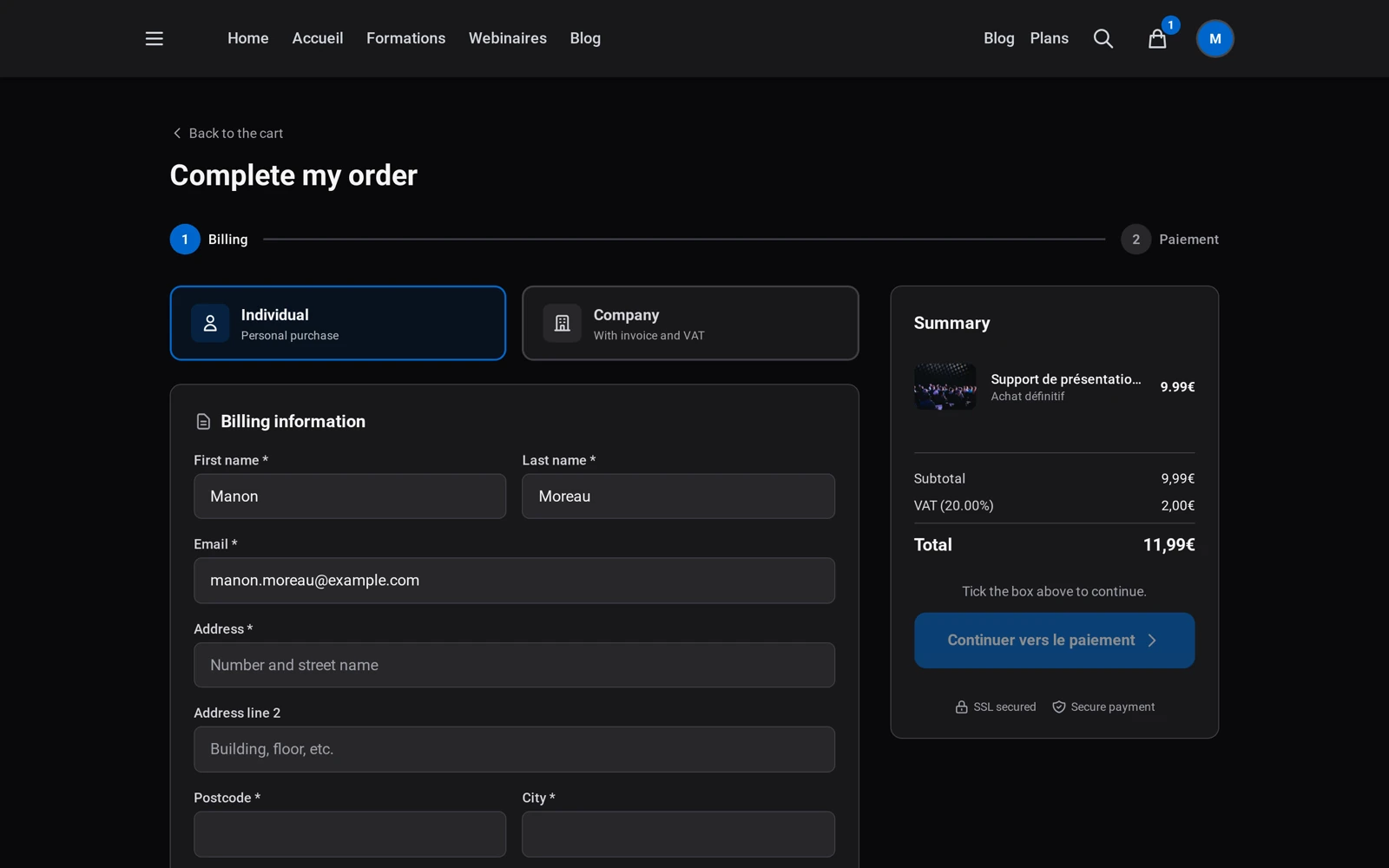
The customer chooses Individual or Business, then fills in their details (name, pre-filled email, address, country). Under Business, they add the Company name and, if relevant, their EU VAT number. A summary column updates in real time: items, subtotal, discount, VAT (depending on the country), tip and Total incl. VAT. Then Continue to payment.
The Payment step
On Secure payment (step 2/2), the customer picks a payment method in the embedded Stripe field: bank card (always), and depending on their situation SEPA, Bancontact, Apple Pay, Google Pay or Stripe Link. They can also add a tip if you have enabled it. Stripe handles 3D Secure validation if the bank requires it.
If it fails (card declined, incorrect 3D Secure), a clear message appears and the customer can try again without re-entering their billing details.
Confirmation and access
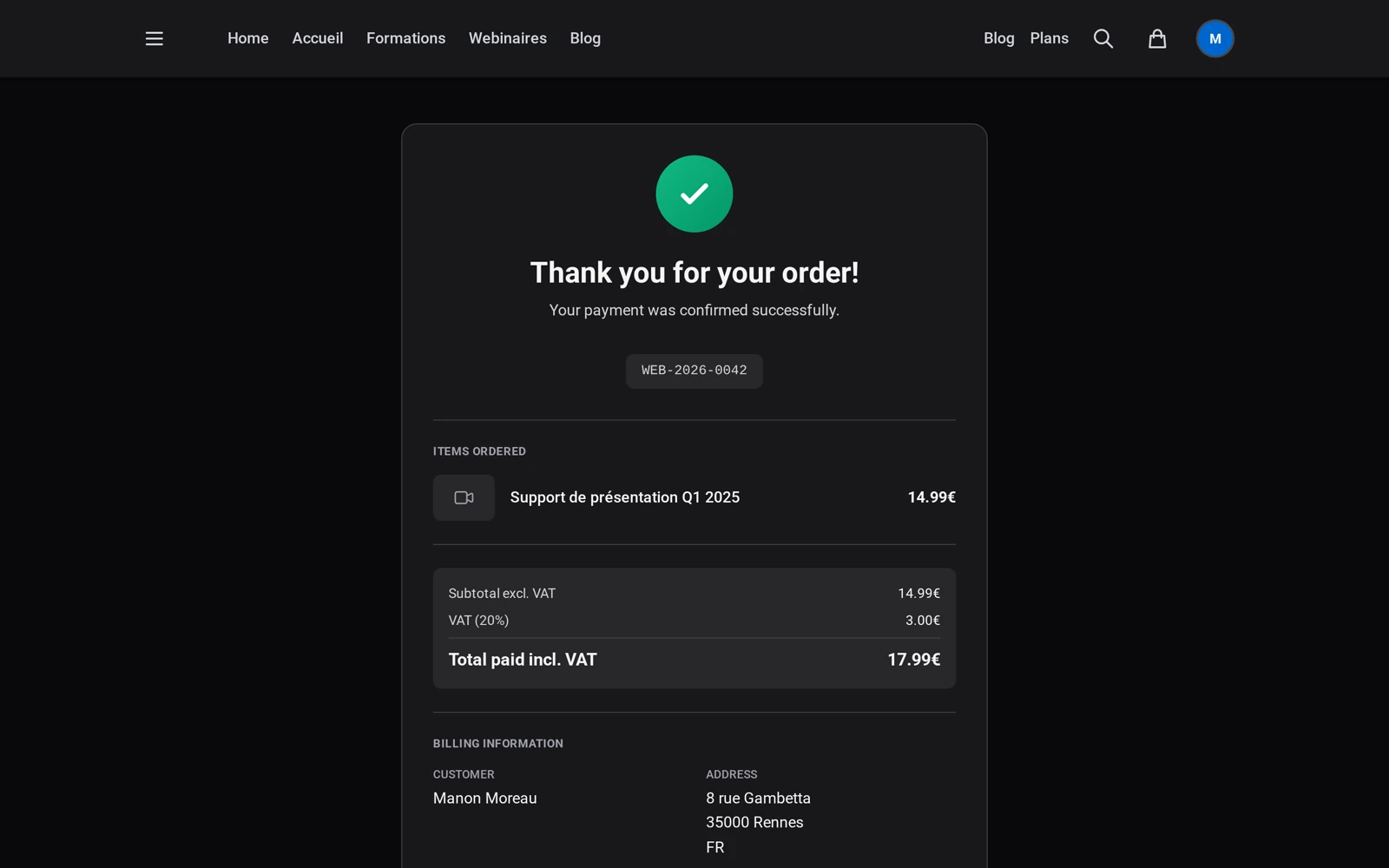
Once the payment succeeds, the customer lands on “Thank you for your order!” (order number, summary, payment method, a note that the receipt has been emailed). Access is activated immediately: the purchased or rented content is unlocked, a subscription opens up all the included content, a rental starts its countdown.
VAT, currency, tips
- Automatic VAT based on the country and the customer type. For an EU business outside your own country with a valid VAT number, the reverse charge applies (VAT is not invoiced, with a note on the invoice) — Videas takes care of it.
- Currency: the channel’s for purchases and rentals, the plan’s for a subscription.
- Tip: when it is enabled on your channel, a box lets the customer add any amount they choose on purchases and rentals (not on subscriptions). That setting is not exposed in Settings → Monetization: it only exists on the Videas administration side, off by default — ask support if you need it.
What you configure on the admin side
The journey is standardized; your levers are: turning monetization on, the pricing page (the Page Builder Pricing block), the prices on your content, the subscriptions, the promo codes, the tip, and how smooth sign-up is. Order tracking happens in the Sales section (see Track your sales and revenue).
Good to know: the cart and checkout wording is standardized. Prepare your terms and conditions of sale on a dedicated page and link to them from your footer (a legal requirement for selling online).
Why is login required to buy?
Because there has to be an account to attach the access to. Without identification, Videas could neither deliver the content to the right person nor let them find their purchases from another device. So there is no guest checkout: a visitor who is not signed in sees “Login required to complete your order”.
It is an accepted point of friction, and the only lever left is how smooth the sign-up is. Look after that page: that is where buyers are lost, not at payment.
Which payment methods can the customer use?
Card always, and depending on their context SEPA, Bancontact, Apple Pay, Google Pay or Stripe Link. The choice appears in the Stripe field embedded at the payment step, with nothing for you to configure.
Stripe decides what is offered, from the customer’s country and device. There is no list to tick and no method to enable on the Videas side.
Is the customer redirected to an external site to pay?
No. The whole journey takes place on your domain, card entry included: the Stripe payment field is embedded in your page, with no redirect. That is what protects your conversion rate, a mid-payment redirect being a classic point of abandonment.
Stripe handles 3D Secure validation when the bank requires it. If it fails — card declined, wrong code — a clear message appears and the customer can try again without re-entering their billing details.
How is VAT calculated?
Automatically, from the country and the customer type. An individual pays their country’s VAT; an EU company located outside your country and holding a valid VAT number gets reverse charge — VAT is not invoiced, and the corresponding wording appears on the invoice.
There is nothing for you to configure: Videas handles it from the information entered at the Billing step, where the customer chooses Individual or Company.
Can a promo code be pre-applied?
Yes, by configuring it on a Page Builder Pricing block. The code is then applied automatically when the visitor arrives from your campaign page, without having to enter it or even know it.
That is the arrangement to favour for a commercial campaign: the discount is visible from the cart, which avoids losing a visitor who forgot to paste their code. Manual entry remains available in the Promo code field on the Cart page.
What happens right after payment?
Access is activated immediately — there is no processing delay. The purchased or rented content unlocks, a subscription opens all the included content, and a rental starts its countdown at that moment.
The customer lands on a thank-you page carrying the order number, the summary and the payment method, and receives a receipt by email. You find the order in the Sales section.
Can I customise the cart’s wording?
No, the cart and checkout wording is standardised. Your levers are elsewhere: the pricing page through the Page Builder Pricing block, the prices, the subscriptions, the promo codes, the tip, and how smooth sign-up is.
One legal obligation goes with that: prepare your terms of sale on a dedicated page and link them from your footer. Videas does not supply them on your behalf.
How do I enable tipping?
By asking support. Tipping lets the customer add a free amount on purchases and rentals — never on subscriptions — but that setting is not exposed in Settings → Monetization: it exists only on the Videas administration side, and it is off by default.
In short
- The journey takes place on your channel, in six steps (cart → login → billing → payment → confirmation → access)
- Multi-item cart for purchases and rentals; direct checkout for subscriptions
- Login required (no guest checkout)
- Checkout in 2 steps (Billing then Payment); payment methods provided by Stripe
- Automatic VAT + intra-EU B2B reverse charge; optional tip
- Confirmation + email receipt + instant access to the content
- Tracking in the Sales section
Related articles
Screenshots were taken on Videas Academy, an example channel built for this help center. It belongs to a fictional customer, not to Videas: your own channel carries your name, your branding and your prices.