Choose which emails your channel sends
To manage your Videas channel’s automatic emails, go to Settings → Notifications. There you enable or disable, type by type, the emails sent to your users (welcome, purchase, subscription, and so on) and the alerts sent to you (new registration, payment, and so on), and you can look through the history of what went out. The expiry reminder is the one with a dial: 1 to 90 days before the date. Every email automatically picks up your channel branding.
This guide lists the available emails, explains how to set them up, and shows you where to follow what has been sent.
Open the notification settings
Open your channel, then Settings → Notifications. The page has three sections: Emails sent to users, Admin alerts, Notification history.
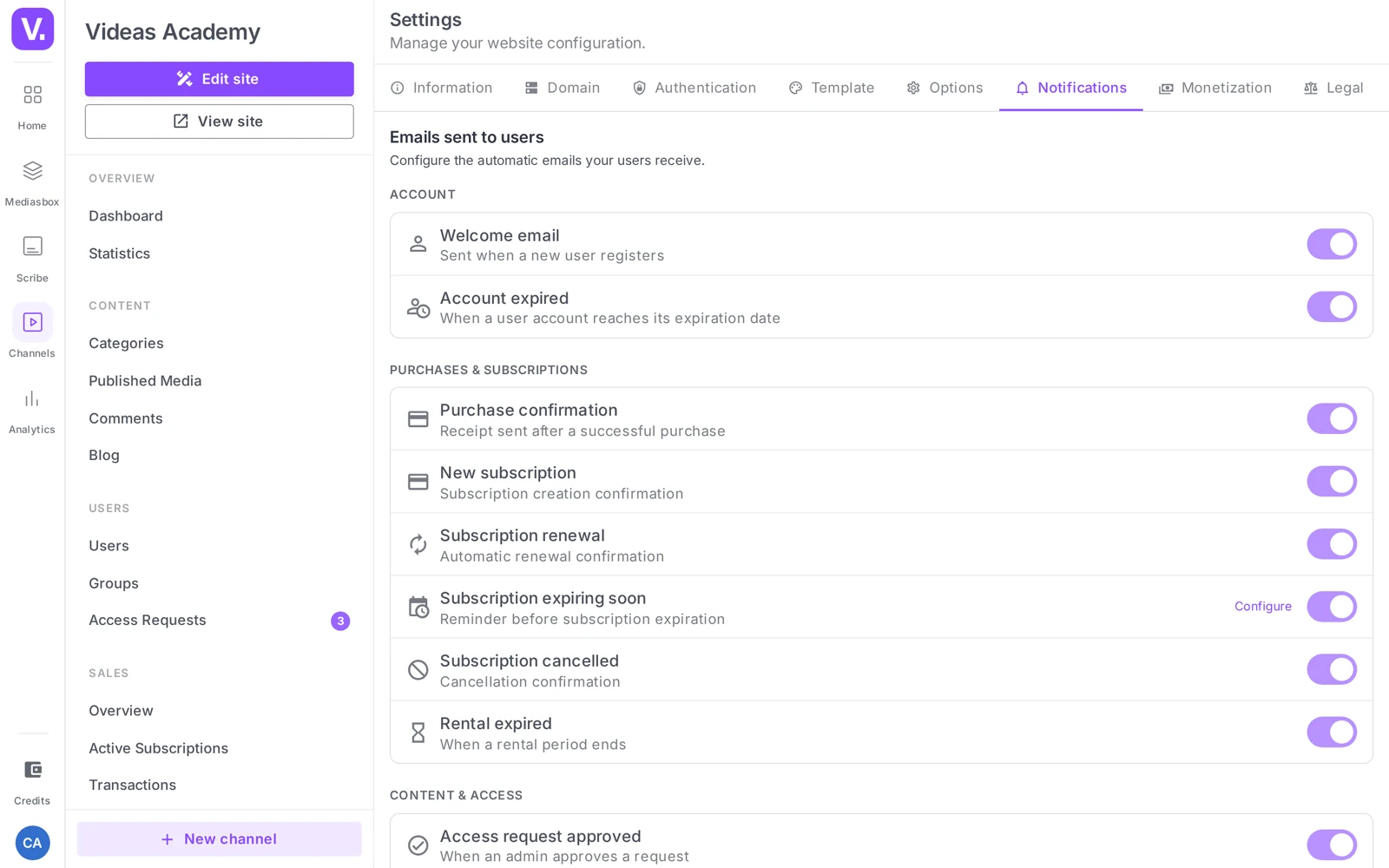
Emails sent to users
Each type has its own toggle.
Account
| Received by the user | |
|---|---|
| Welcome email | When their account is created |
| Account expired | When their access reaches its end date |
Purchases & subscriptions (section only visible if monetization is enabled)
| Received by the user | |
|---|---|
| Purchase confirmation | After a successful one-off purchase |
| New subscription | When a subscription is taken out |
| Subscription renewal | On every automatic renewal |
| Subscription expiring soon | Before the end date (configurable lead time, see below) |
| Subscription cancelled | When the subscription is cancelled |
| Rental expired | When a time-limited rental runs out |
Content & access
| Received by the user | |
|---|---|
| Access request approved | After their access request is approved |
| Access request declined | After their request is declined |
| Access granted | When direct access is granted to them (outside of a request) |
Setting the “Subscription expiring soon” lead time
On the Subscription expiring soon row, the Configure link opens the Reminder lead time field (followed by “days before expiry”). The value must be between 1 and 90 days.
Recommendation: 7 to 14 days gives the user time to act (update their card, renew) without being too early.
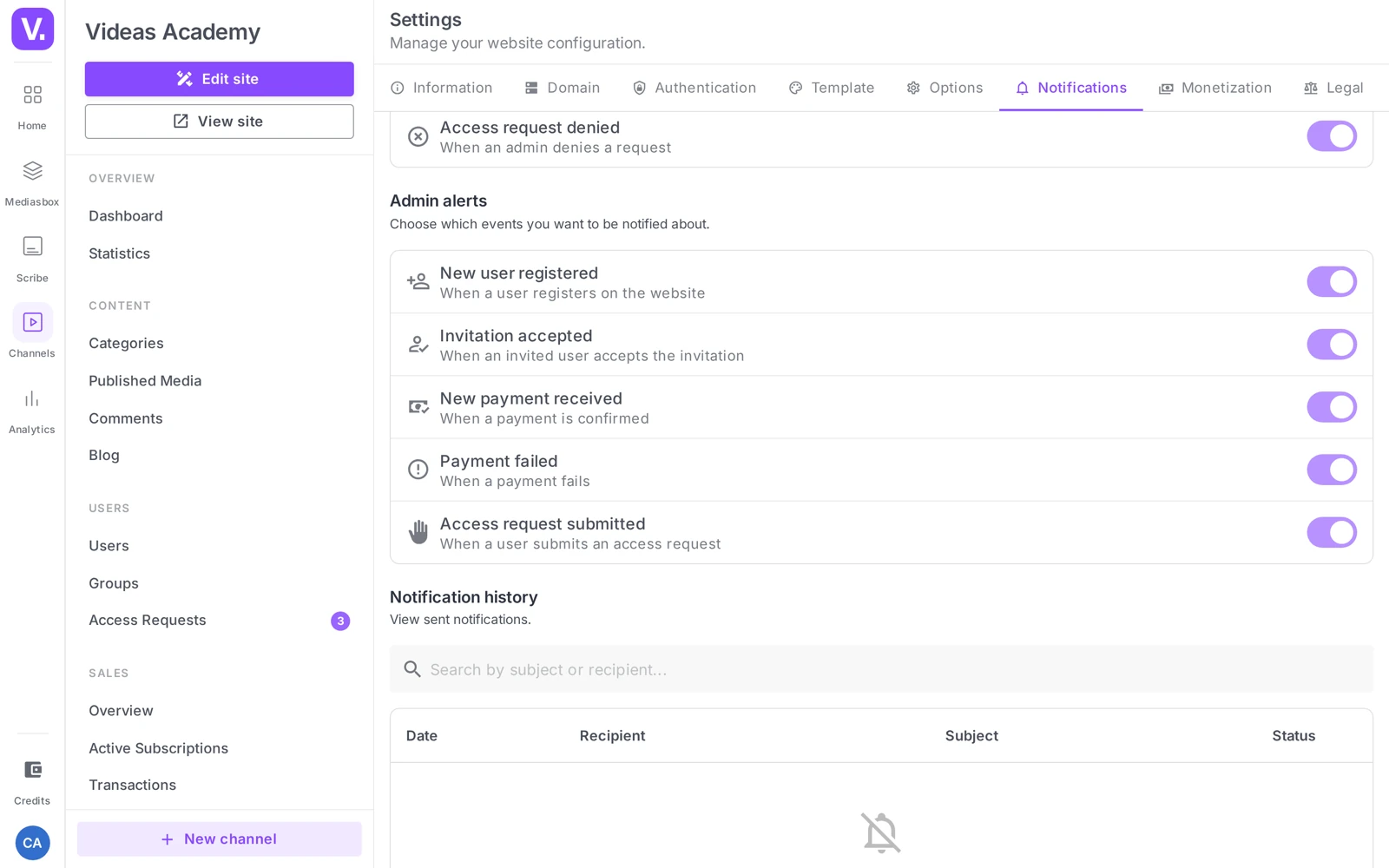
Admin alerts
These emails are sent to you so you stay informed without watching the dashboard.
| Alert | Received when |
|---|---|
| New user registered | On every new registration |
| Invitation accepted | When a user accepts your invitation |
| New payment received | On every confirmed payment (if monetization is on) |
| Payment failed | When a payment fails (if monetization is on) |
| Access request submitted | When a user requests access to a piece of content |
| Contact form submitted | When a visitor submits the contact form |
Tip: on a high-volume channel, the New user and New payment alerts can flood your inbox. Turn them off and check the dashboard instead; keep the rare or critical alerts (Payment failed, Access request).
Notification history
The Notification history section logs every send. Columns: Date, Recipient, Subject, Status (Sent / Pending / Failed).
Useful for diagnosing (a user says they never got their email → check the status), auditing (how many reminders went out this month?) and spotting anomalies (a rising failure rate).
Automatic branding
Emails automatically pick up your channel identity: logo, color and name. Nothing else to do — if you change your logo or your color (see Customize your channel’s appearance), the following sends are updated.
Transactional ≠ newsletter: this page only covers transactional emails (triggered by an event). Marketing campaigns to your user base are a separate feature. See Create an email campaign.
Best practices
- Only enable what is useful: on a channel without monetization, keep Welcome and Account expired and leave the commercial emails off.
- Calibrate the admin alerts to your volume: handy at 5-10 registrations a month, unmanageable at 500.
- Check how they look with a test account: create an account with an address of your own and trigger the events (welcome, access request approved/declined) to see the emails arrive.
- Watch the History from your very first sends so you catch any failure.
Should I enable every administrator alert?
No, calibrate them to your volume. The New user registered and New payment received alerts are handy at five or ten a month, unmanageable at five hundred — they flood your inbox and you end up reading none of them.
On a high-volume channel, turn them off and check the dashboard instead. Do keep the rare or critical alerts: Payment failed, Access request submitted, Contact form.
How many days before expiry should a subscriber be warned?
Seven to fourteen days. That is the window that gives the user time to act — update their card, extend, decide — without being so early that they forget the message.
The setting sits on the Subscription expiring soon row, through the Configure link: the Reminder delay field accepts a value between 1 and 90 days.
Do I need to design the emails?
There is nothing to do: emails automatically pick up your channel’s logo, colour and name. If you change your visual identity, later sends are updated with no intervention.
That is one thing less to watch, and one more reason to look after those three elements in the channel’s appearance settings.
A user says they did not receive their email — what should I check?
The Notification history, at the bottom of the page. It records every send with the Date, the Recipient, the Subject and the Status — Sent, Pending or Failed.
Three possible readings. Status Sent: the email went out, so look at your user’s spam folder. Status Failed: the address or the mailbox is the problem. No row at all: the corresponding notification is disabled in the settings above.
Which emails should I keep on a channel without monetization?
Welcome and Account expired, the essentials of an account’s life cycle. The Purchases & subscriptions section does not appear at all if monetization is off.
Depending on your setup, also keep the Content & access emails — Request approved, Request refused, Access granted — as soon as you use the On request level or direct grants. Those are what stop a user waiting without knowing where they stand.
How do I check how my emails look?
With a test account. Create an account on your channel with an address of your own, then trigger the events: sign up to see the welcome email, submit an access request and approve it, refuse another.
It is the only way to see what your users see, and the moment to check that your logo comes through and your channel name displays correctly.
Do these settings also cover my newsletters?
No. This page covers only transactional emails, triggered by an event — a sign-up, a purchase, an access request.
Marketing campaigns to your base are a separate feature, with their own writing, targeting and tracking screens. Disabling a notification here has no effect on them, and vice versa.
In summary
- Notifications are configured in Settings → Notifications, in three sections: User emails, Admin alerts, History.
- User emails: Account (Welcome, Account expired), Purchases & subscriptions (if monetization is on) including Subscription expiring soon (lead time 1-90 days via Configure) and Subscription cancelled, Content & access (Request approved / declined, Access granted).
- Admin alerts: New user, Invitation accepted, New payment, Payment failed, Access request submitted, Contact form submitted.
- One toggle per type; the branding (logo, color, name) is picked up automatically.
- The History logs every send: Date, Recipient, Subject, Status (Sent / Pending / Failed).
Related articles
Screenshots were taken on Videas Academy, an example channel built for this help center. It belongs to a fictional customer, not to Videas: your own channel carries your name, your branding and your prices.