Track your channel sales and revenue
You track the commercial side of your channel in the Sales section: an Overview of revenue for steering, the Transactions list to trace every payment, and Revenue & billing for your monthly statements and accounting documents. These views require the Channel owner role.
Where to look, depending on the question
| Question | View |
|---|---|
| “How is my revenue trending?” | Sales → Overview |
| “Who paid, and where is that payment?” | Sales → Transactions |
| “My monthly statement, my net, my fee invoice?” | Sales → Revenue & billing |
| “My subscribers, my customers?” | Sales → Active subscriptions / Customers (see Manage your subscribers and customers) |
The Overview
Sales → Overview is your commercial dashboard. At the top, the key metrics: Revenue, Subscription revenue, One-off revenue, Active subscribers, One-off sales, Average sale. Below, the Revenue trend (chart), the Revenue breakdown (a subscriptions / one-off donut), and the Best-selling content, Popular plans and Latest sales rankings.
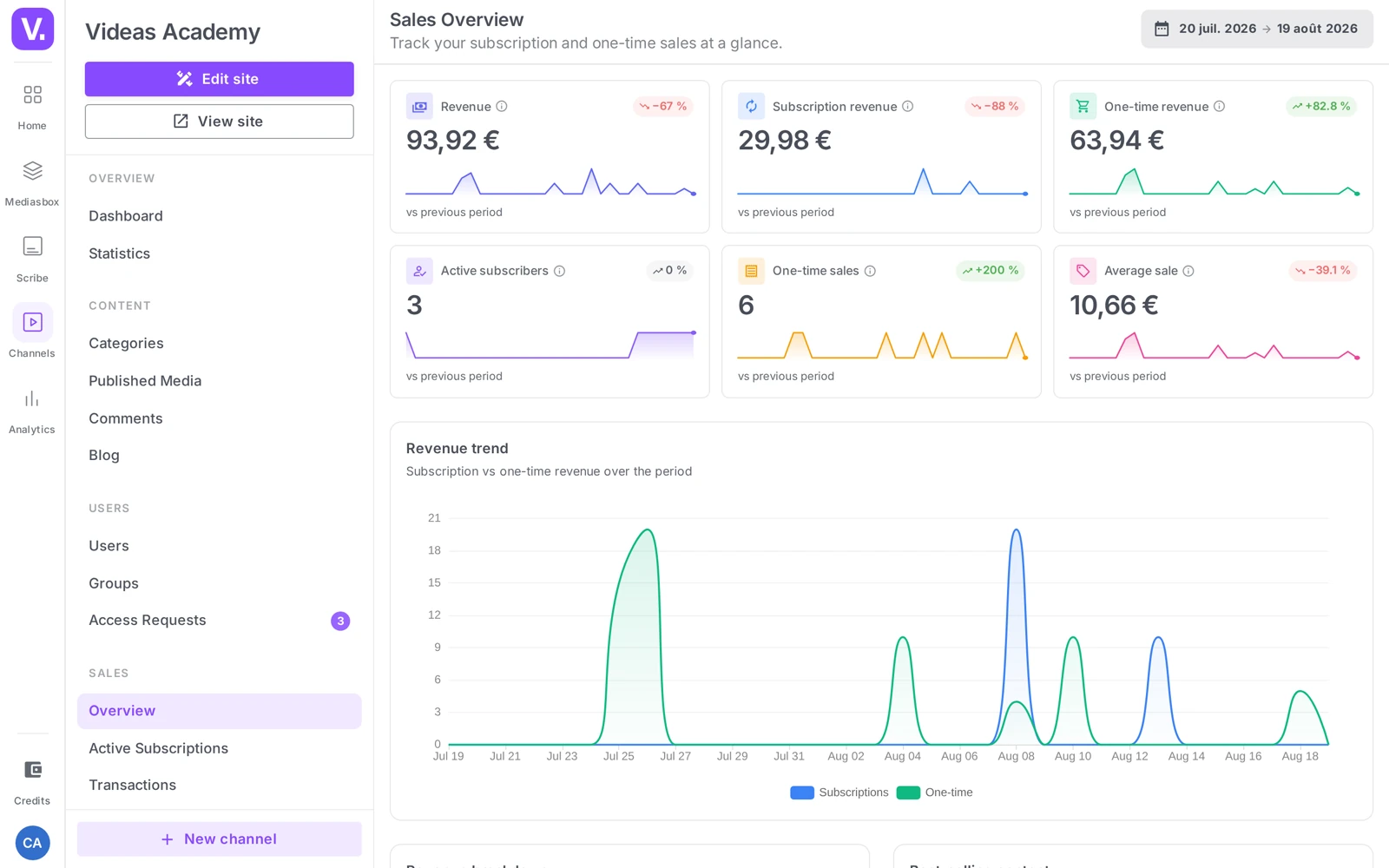
This is the view to check regularly to see the trend and identify what sells best.
The Transactions view
Sales → Transactions lists every payment (subscriptions, purchases, rentals). Columns: ID, Customer, Content, Type (Purchase / Rental), Amount, Status (Completed / Expired / Refunded / Canceled), Date, with search by email and a status filter.
This is the view to open to trace a specific payment a customer has flagged, check that a sale was properly recorded, or spot recent refunds.
Note: every subscription renewal creates a new row. A monthly subscriber active for a year therefore shows up with twelve transactions — for a subscriber count, use Active subscriptions.
Revenue & billing
Sales → Revenue & billing is the financial heart of it: one statement per month, with the Current month at the top followed by the history.
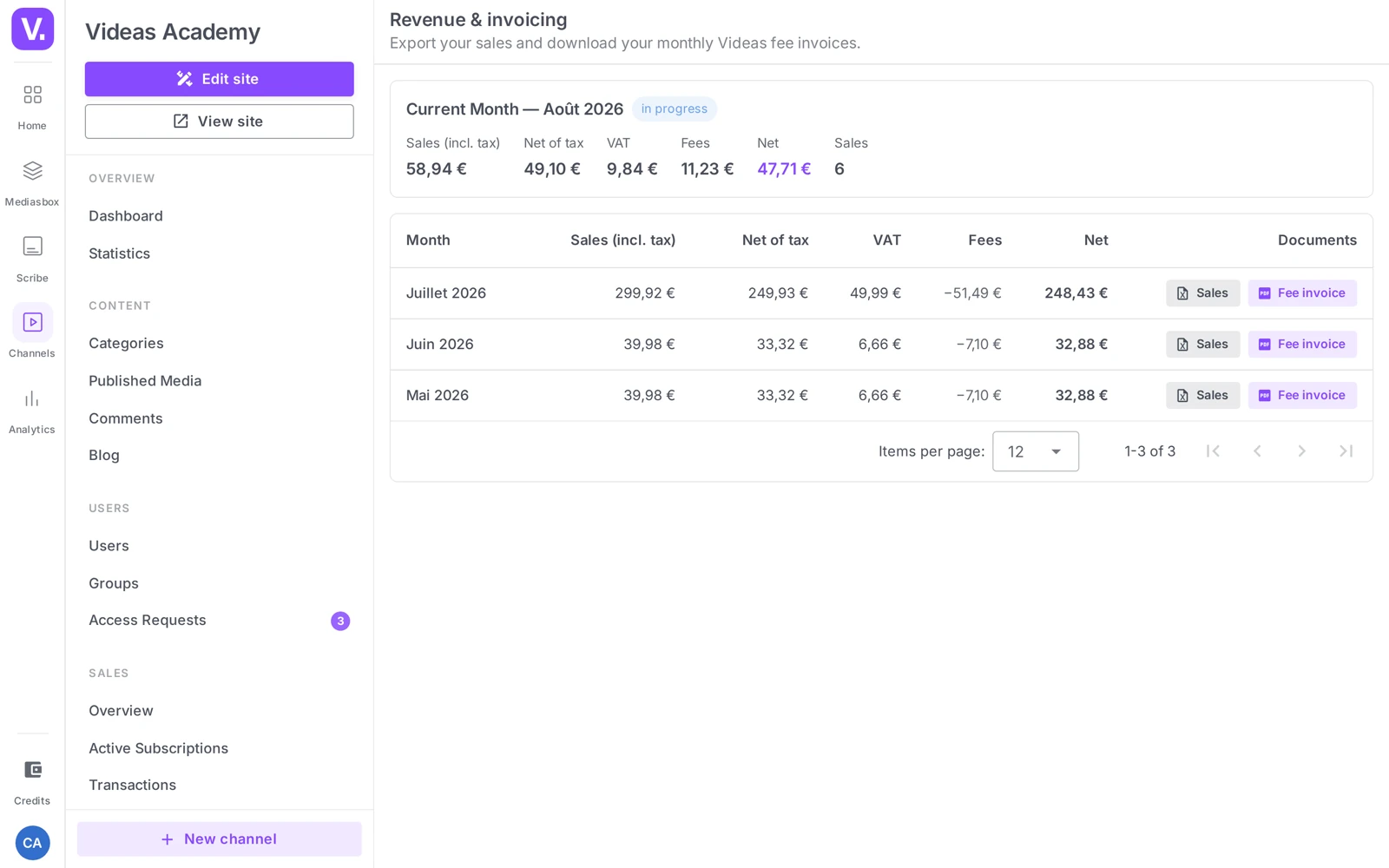
For each month, the statement details: Sales incl. VAT, excl. VAT, VAT, Videas commission, your Net, the number of sales, and the Documents to download:
- the month’s sales export (spreadsheet), for your accounting;
- the fee invoice (PDF) covering the Videas commission.
This is where you see what you actually receive (the Net, after commission and fees) and where you collect the paperwork for your accountant.
Best practices
- Every week: a look at the Transactions of the last 7 days (no unexpected failed payment) and at the Active subscriptions expiring soon without automatic renewal.
- Every month: the Overview for the trend, Revenue & billing for the net and the accounting export, and a check on your best-sellers to guide your editorial decisions.
- Prices excl. or incl. VAT: state it clearly on your site — VAT is calculated automatically at checkout, but a clear note reassures business customers.
Where do I see what I actually receive?
In Sales → Revenue & billing, the Net column of the monthly statement. It is the only place in Videas that gives your revenue after commission.
Every other amount in the Sales section — the Overview, the best-selling content, the transactions — is a sale amount, before fees. It is the most common confusion at month’s end, and it is settled by opening the right screen.
Which documents should I give my accountant?
Two per month, both in Revenue & billing. The month’s sales export, in spreadsheet format, detailing every transaction. And the fee invoice in PDF, covering the Videas commission.
The statement itself gives the summary: sales including tax, excluding tax, VAT, commission and Net, with the number of sales. That trio is enough for monthly accounting.
Why does a subscriber appear several times in the transactions?
Because each renewal creates a new row. A monthly subscriber active for a year therefore appears twelve times — those are not duplicates.
To count subscribers, use Active subscriptions, which gives one subscriber per row. The Transactions view answers a different question: finding a specific payment, checking a sale was recorded, spotting recent refunds.
What monitoring routine should I adopt?
Weekly, a glance at the Transactions of the last seven days to catch an unexpected failed payment, and at the Active subscriptions expiring soon without auto-renewal — that is the window where a follow-up still has an effect.
Monthly, the Overview for the trend, Revenue & billing for the net and the accounting export, and the best-selling content for your editorial decisions.
Should I display prices including or excluding tax?
Either, as long as you say so clearly on your site. VAT is calculated automatically at checkout from the country and the customer type, but an explicit note prevents an unwelcome surprise at payment.
That is particularly true for a business clientele, which thinks in excluding-tax terms and expects to read it.
In short
- Sales tracking happens in your channel’s Sales section
- Overview: revenue metrics, trend, breakdown, best-sellers
- Transactions: every payment, filterable by status (one renewal = one row)
- Revenue & billing: monthly statement (Sales incl. VAT, excl. VAT, VAT, Videas commission, Net), sales export and fee invoice
- Active subscriptions and Customers are covered in Manage your subscribers and customers
- Reserved for the Channel owner
Related articles
Screenshots were taken on Videas Academy, an example channel built for this help center. It belongs to a fictional customer, not to Videas: your own channel carries your name, your branding and your prices.