Keep track of your subscribers, buyers and rentals
You administer your paying customers (subscribers, buyers, renters) in your channel’s Sales section, from three angles: the customer list, the active subscriptions, and a customer profile with all of their access sources. From there you can cancel a subscription or gift one for free. These actions require the Channel owner role.
For general user management (invitations, roles, access requests), see Manage your channel users. Here we focus on the commercial side.
The three views
| View | Question | Path |
|---|---|---|
| Customers | Who are my customers? | Sales → Customers |
| Active subscriptions | Which subscriptions are running? | Sales → Active subscriptions |
| Customer profile | Everything this customer has paid for | Sales → Customers → a customer → Access tab |
The Customers list
In Sales → Customers, the table gathers all your customers: Customer (name + email), Total spent, Subscription, Purchases, Last purchase, with filters (All / Subscribers / One-off purchases) and metrics at the top (Customers, Revenue, Average order value). This is the broadest view for spotting your best customers; click a row to open their profile.
Active subscriptions
In Sales → Active subscriptions, the table lists every subscription currently running: User, Plan, Status (Active / Canceled / Expired / Paused), Start date, End date, Auto-renewal, Days remaining (in orange if ≤ 7 days). This is the view for managing your subscriber base: who expires this week, who has turned automatic renewal off.
You can cancel a subscription directly from this view.
A customer profile — the Access tab
This is the central view for understanding everything a customer has paid for and acting on it.
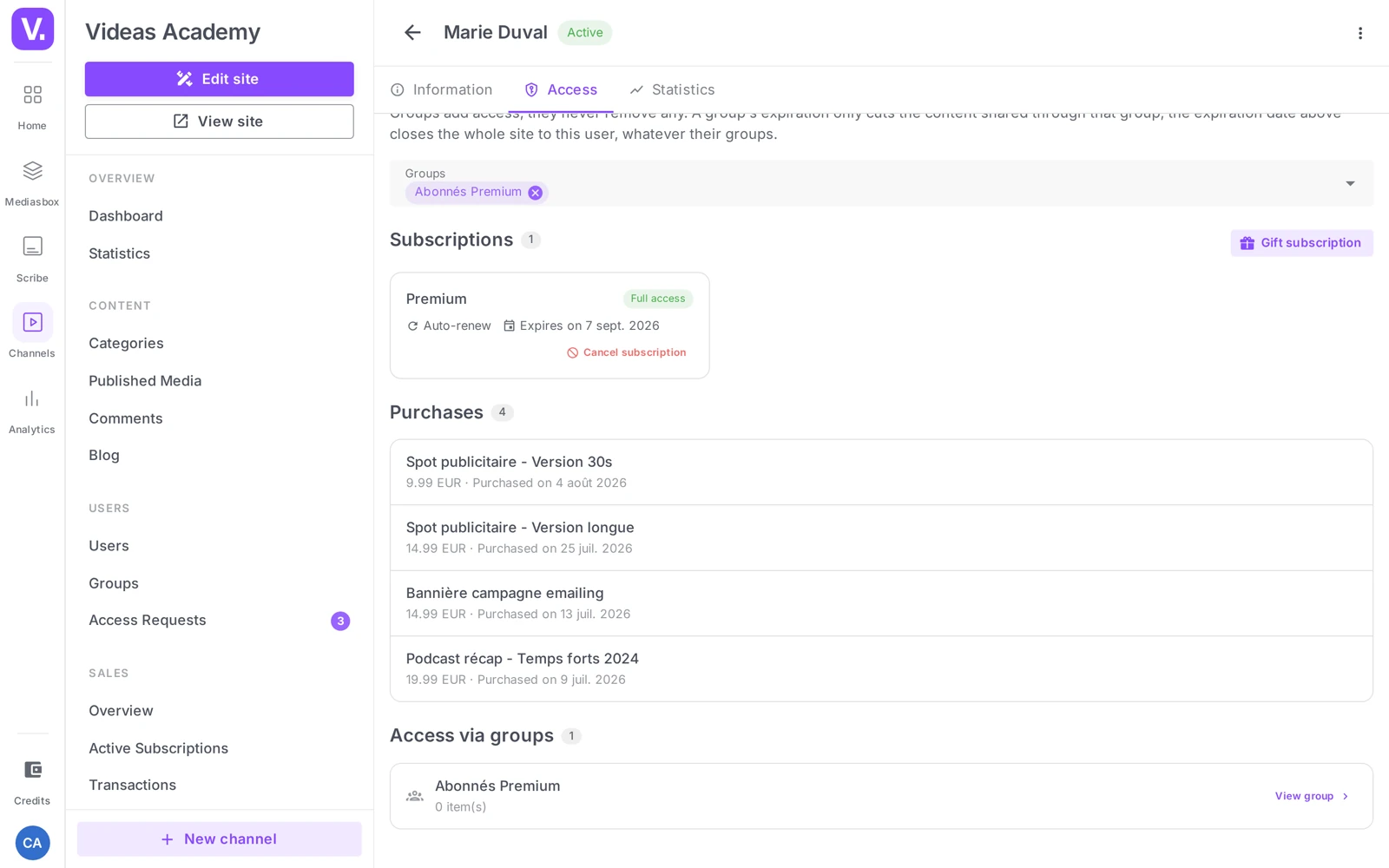
The Access tab (headed Content access) recaps all of their access sources:
- Full access — shows whether they have unlimited access to the catalog
- Subscriptions — plan name, a Complimentary badge where it applies, auto-renewal, expiry date, Cancel subscription button
- Purchases — title, amount paid, date, an indicator for whether download is allowed
- Rentals — title, amount, hours remaining
- Direct content access — the Full access toggle and the Specific content subsection (Grant access button), for access given by hand
- Access via groups — a read-only view of the content opened up by their access groups
Cancel a subscription
Two paths, two confirmations:
- From Sales → Active subscriptions — the Cancel subscription action opens a summary window (User, Current end date) that warns: “This action will cancel the subscription. The user will lose access at the end of their current billing period.” One click on Cancel subscription is enough.
- From the customer profile, Access tab — for a paid subscription, Videas shows “This action is irreversible” then requires you to type the word CANCEL into a field (“Type ‘CANCEL’ to confirm”): the button stays disabled until the word matches exactly.
What happens next depends on the type of subscription:
| Type | Effect of the cancellation |
|---|---|
| Paid | The status switches to Cancelled, the customer keeps access until the end of the period already paid for, then loses it; no new payment is taken. |
| Complimentary | Access is revoked immediately: “Are you sure you want to cancel this complimentary subscription? Access will be revoked immediately.” No word to type in that case. |
Cancellation does not refund the current period (see Refund a customer below).
Gift a free subscription
To give free access to a partner, an influencer or a tester: from the Access tab, Subscriptions section, start Gift subscription, choose the plan and an end date (optional), then confirm. The subscription is created with the Complimentary badge, with no automatic renewal (no payment); it expires on the end date. Careful: cancelling it cuts access off immediately, not at the end of the period.
Use case: a free month for an influencer in exchange for a review, a year for a partner in a visibility swap, a goodwill gesture after an incident.
Refund a customer
Refunds are issued from your Stripe dashboard (see Commission and payouts): open the transaction concerned and refund it, in full or in part. A refunded sale drops out of the month’s statement and is therefore no longer commissioned. A refund does not remove access to the content, though: if a subscription is still running, cancel it at the same time to stop future payments; for a purchase or a rental, contact support to have the access removed.
What happens when I cancel a subscription?
It depends on its type. On a paid subscription, the status becomes Cancelled and the customer keeps access until the end of the period already paid for — no further payment is taken. On a gifted subscription, access is revoked immediately.
The interface reflects that difference: for a paid subscription it requires you to type the word CANCEL in a field, the button staying disabled until it matches exactly. For a gifted one, a simple confirmation is enough.
Does cancelling a subscription refund the current period?
No. Cancellation stops future charges; it returns nothing already paid.
A refund is a separate act, issued from your Stripe dashboard — in full or in part. And it does not remove access either: on a subscription you have to cancel it in parallel to stop future payments; on a purchase or a rental you have to go through support to have access removed.
Where do I see everything a customer has paid for?
On their customer profile, Access tab — the central view. It gathers all their sources of access: full access to the catalogue if they have it, their subscriptions (with the Gifted badge where applicable, auto-renewal and expiry date), their purchases (amount, date, whether download is allowed), their rentals (with hours remaining), the direct accesses you granted by hand, and access through groups, read-only.
It is also from this tab that the actions launch: cancelling a subscription, gifting one, granting access to a specific item.
How do I spot subscriptions about to expire?
Through the Sales → Active subscriptions view and its Days remaining column, which turns orange at seven days or fewer. It is the steering view for your subscriber base.
It also tells you who has turned off auto-renewal — the earliest signal of a departure, often several weeks before actual expiry. That is where a follow-up still has an effect.
Why does a subscriber show twelve transactions?
Because each renewal creates a new row in the Transactions view. A monthly subscriber active for a year therefore appears twelve times, which is normal.
To count subscribers, that is the wrong view: use Active subscriptions, which gives one subscriber per row. The Transactions view is for tracing a specific payment — the one a customer asks you about, or a refund to verify.
When should I gift a subscription rather than sell one?
Three cases come up often: a month gifted to an influencer in exchange for a review, a year to a partner in exchange for visibility, and a goodwill gesture after a customer incident.
Watch one point in that last case: cancelling a gifted subscription cuts access immediately, not at the end of the period. If the gesture has to be withdrawn, letting it run to its end date is gentler than cancelling.
In short
- Three views: Sales → Customers, Sales → Active subscriptions, and the customer profile → Access tab
- The Access tab (Content access) lists all of a customer’s access sources: subscriptions, purchases, rentals, Direct content access and Access via groups
- Cancelling a subscription: from the customer profile, a paid subscription asks you to type “CANCEL” and leaves access until the end of the paid period; a complimentary one is cut off immediately
- Gifting a subscription (Complimentary badge): no auto-renewal, ideal for partners and influencers
- Refunds: from your Stripe dashboard (the commission is refunded on a full refund)
- Reserved for the Channel owner
Related articles
Screenshots were taken on Videas Academy, an example channel built for this help center. It belongs to a fictional customer, not to Videas: your own channel carries your name, your branding and your prices.