Sell a bundle of videos
A bundle is several videos sold together: the six episodes of a series, the four modules of a course, the recordings from one event. The buyer pays once and unlocks the set — not the whole catalogue, only what you put in it.
Videas gives you two ways to do it, and they do not serve the same purpose.
Choosing between the two
| Sell a collection | Create a bundle plan | |
|---|---|---|
| What the buyer sees | a dedicated page, with its episodes | a line on the Plans page |
| Sale modes | permanent purchase or rental | one-time payment or subscription |
| Free trial period | no | yes |
| Same content in several offers | no — a collection is one object | yes |
| Good for | a series, a module, a kit | pricing tiers, upselling from one video |
Start with the collection. It is the shortest path: if your videos form a series, you have already grouped them in Mediasbox — all that is left is a price. The bundle plan becomes useful when you want a free trial, a subscription, or the same video in several offers.
Method 1 — sell a collection
The natural route: the bundle already exists as an object, you give it a price.
- In Mediasbox, create a collection and add your videos (see Organise your videos into folders and collections)
- Publish the collection on your channel, like any other content
- On the channel, open it and set its access level to Paid
- In the Monetization tab, Add a price — permanent purchase or rental
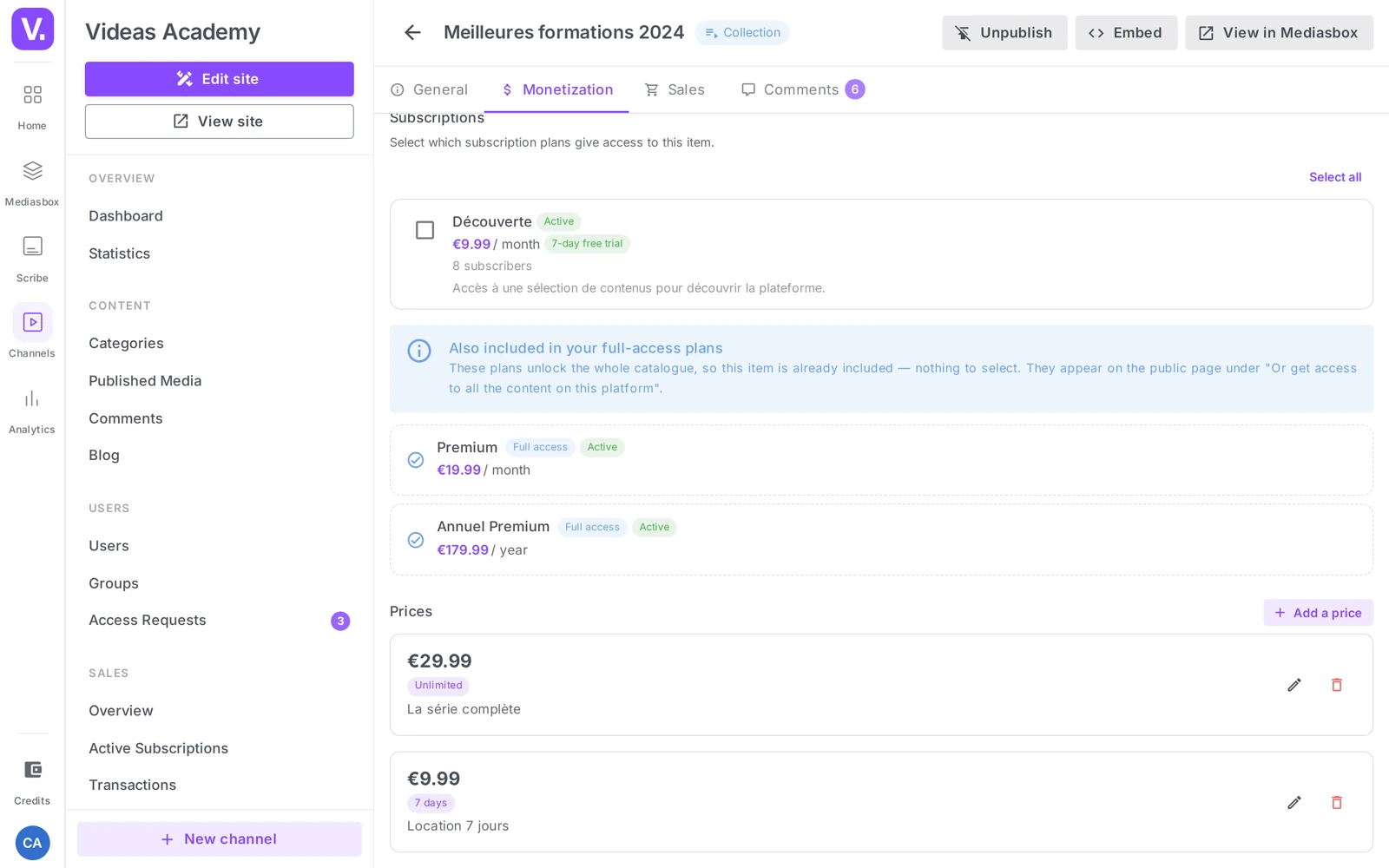
Buying it unlocks every episode. The buyer opens the collection page and plays each video right there. That is what makes a collection a real bundle rather than a grouping thumbnail.
Rental only exists on this route: access to the set for 48 hours, a week, a month. A subscription plan cannot do that.
Method 2 — create a bundle plan
A subscription plan with catalogue access switched off, to which you attach the included content. Do not let the word “subscription” mislead you: the plan can perfectly well be a one-time payment.
- From your channel menu, open Sales → Product catalog, then Subscriptions
- Click Create a plan
- Fill in the Plan name — this is what the buyer sees: “Public Speaking series — 6 episodes” says more than “Bundle 1”
- Under Type and pricing, choose One-time payment (a bundle in the strict sense) or Recurring (for a set that keeps growing)
- Enter the Price
- Leave “Full catalogue access” off — that setting is what separates a bundle from a catalogue
The decisive setting. Switched on, “Full catalogue access” gives the subscriber all content, including new releases — that is no longer a bundle, it is a catalogue.
Once the plan is saved, open its Content tab and add the included videos.
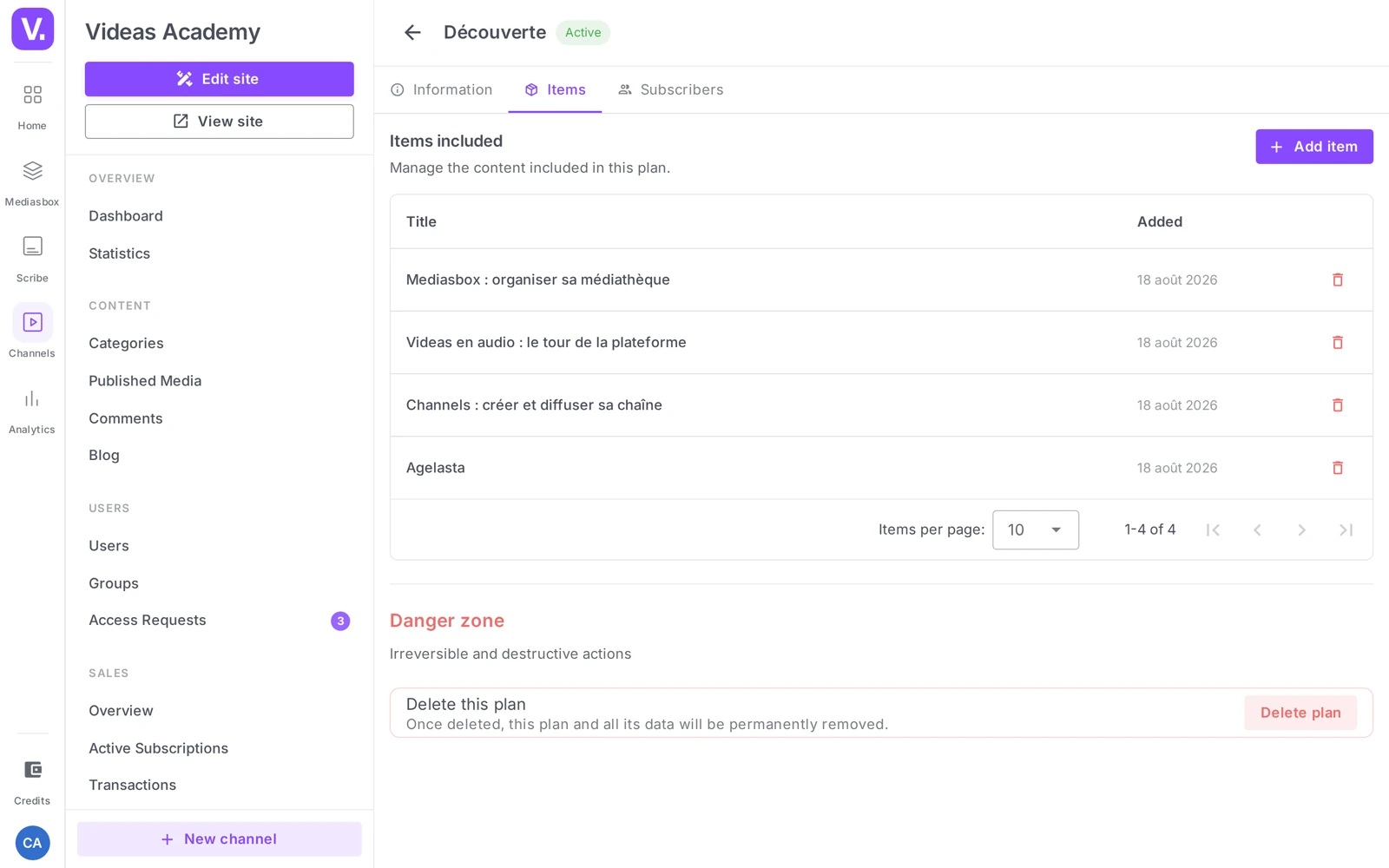
The content’s access level matters. Attaching content to a plan does not make it paid. For it to be reserved for bundle buyers, it must be at the Paid or Restricted level — otherwise it stays visible to everyone (see Set prices for a piece of content).
What the buyer sees
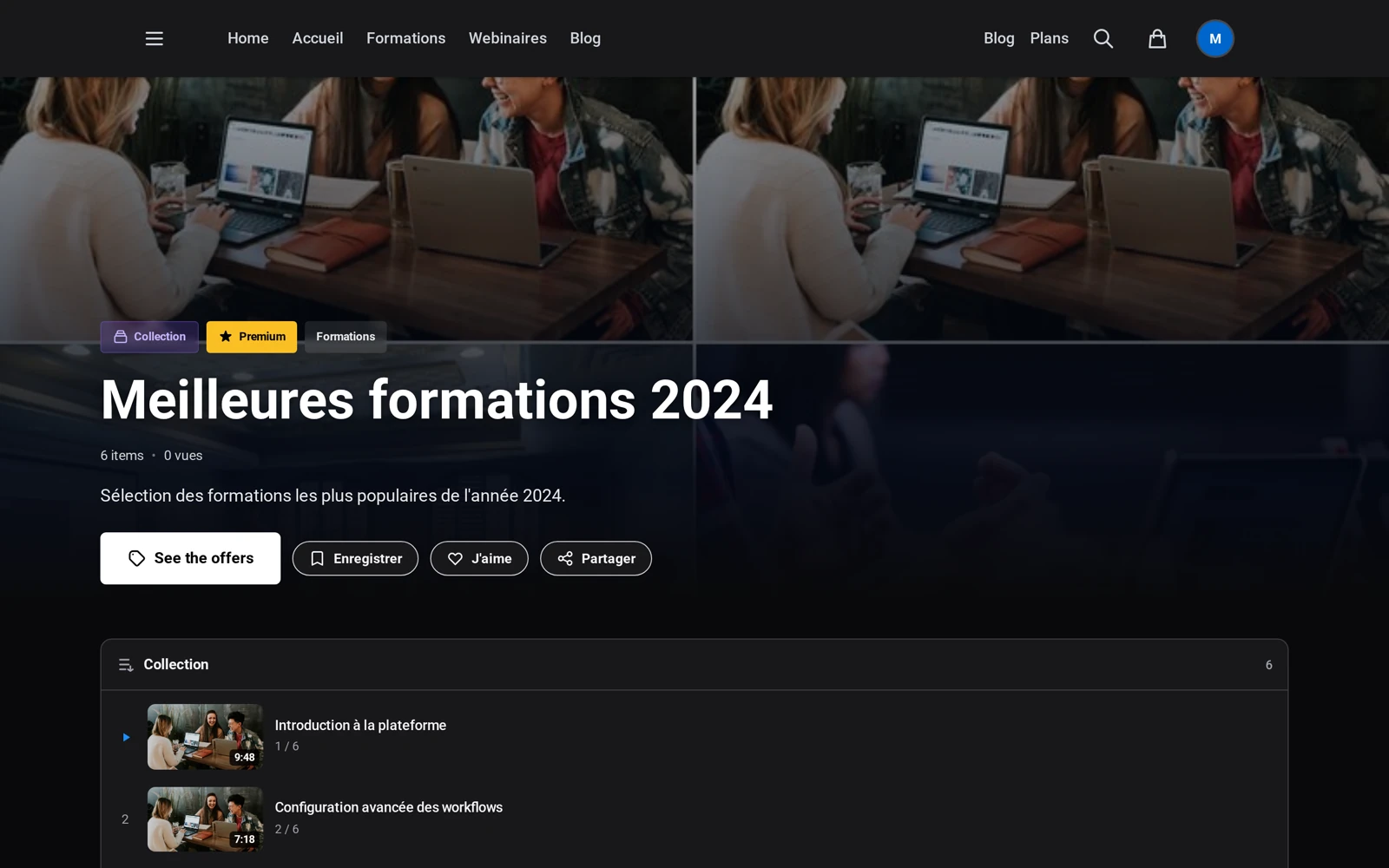
The bundle appears on your channel’s Plans page, and on the page of every content it includes — as an alternative to buying that item alone: “or get access with…”. That is where the upsell happens: someone who came for one episode discovers they can have all six.
Tracking bundle sales
The plan’s Subscribers tab shows who bought it, with the start date, end date and status. Revenue is reported under Sales → Overview, within subscription revenue — including for a one-time bundle, since it is technically a plan.
Collection or plan-pack: where should I start?
With the collection, in almost every case. It is the most direct route: if your videos form a series, you have already grouped them in Mediasbox — all that remains is to publish the collection on the channel, set it to Paid and give it a price. The buyer gets a dedicated page where each episode plays in place.
The plan-pack becomes useful for three specific needs: offering a free trial, selling as a subscription rather than a one-time payment, or placing the same video in several offers. A collection is a single object; it cannot be in two places at once.
Can a video pack be rented?
Yes, but only through the collection. It is the one route that opens up rental: access to the set for 48 hours, a week, a month.
A subscription plan cannot do that — it offers a one-time payment or a recurring subscription, never time-limited access to a set.
Which setting separates a pack from a catalogue?
Access to the whole catalogue, in the plan. Left off, the buyer only gets the content you attached in the Content tab: that is a pack. Turned on, they get “all content, including new releases”: that is no longer a pack, it is a catalogue.
It is the decisive setting on this page, and the mistake it produces is expensive: a pack sold at pack price that actually opens your entire catalogue.
Does attaching content to a pack make it paid?
No. That is the recurring trap of plan-based monetization: adding content to the Content tab does not change its access level.
For it to be reserved for pack buyers, it must be at the Paid or Restricted level. Content left public stays visible to everyone, including those who bought nothing.
Where does the pack appear for the buyer?
In two places, and the second is the more interesting. On your channel’s Plans page, where it sits alongside the other offers. And on the page of each included item, as an alternative to the individual purchase: “or get access with…”.
That is where the upsell happens: someone who came for one episode discovers they can have all six, often for barely more.
How should I name a pack?
With what it contains, not with a number. “Public Speaking series — 6 episodes” tells the buyer what they are buying; “Pack 1” says nothing and ends up on the public page.
The plan name is visible to visitors: it is a sales element, not an internal reference.
Where do I track a pack’s sales?
In the plan’s Subscribers tab, which shows who bought it, with the start date, the end date and the status.
Revenue-wise, it shows in Sales → Overview, under Subscription revenue — including for a one-time-payment pack, since it is technically a plan. Worth knowing when you compare your two models: a pack sold once is counted on the subscription side.
In short
- Two routes. Sell a collection (the shortest) or create a bundle plan
- A collection is built in Mediasbox, published on the channel, set to Paid and given a price: buying it unlocks every episode
- Only the collection allows rental; only the plan allows a free trial, a subscription, and putting one content in several offers
- In a bundle plan, leave “Full catalogue access” off and attach content in the Content tab
- Attaching content does not make it paid: it must be at the Paid or Restricted level
Related articles
Screenshots were taken on Videas Academy, an example channel built for this help center. It belongs to a fictional customer, not to Videas: your own channel carries your name, your branding and your prices.