Create subscription plans on your channel
Subscription plans give recurring access to a set of content in exchange for a periodic payment — your lever for predictable revenue. You create them in Sales → Product catalog → Subscriptions tab → Create a subscription, and they require the Channel owner role.
The same content can be sold individually and included in a subscription: the customer gets access as soon as either payment route is valid (purchase OR active subscription).
Two subscription types
- Recurring — the customer pays at regular intervals (monthly, yearly…) and keeps access as long as they pay. Renewal is automatic.
- One-time payment — the customer pays once and gets access for a fixed period, with no renewal. Handy for selling a bundle (a training pack, a complete series).
Step 1: Open the catalog
- In your channel menu, open Sales → Product catalog
- Subscriptions tab — the list of your plans (Name, Price, Subscribers, Created on, Status), with search and a status filter
- Click Create a subscription
Step 2: Fill in the plan record
The record is organized into three tabs: Details, Content, Subscribers. The last two only become active after the first save. Start with Details.
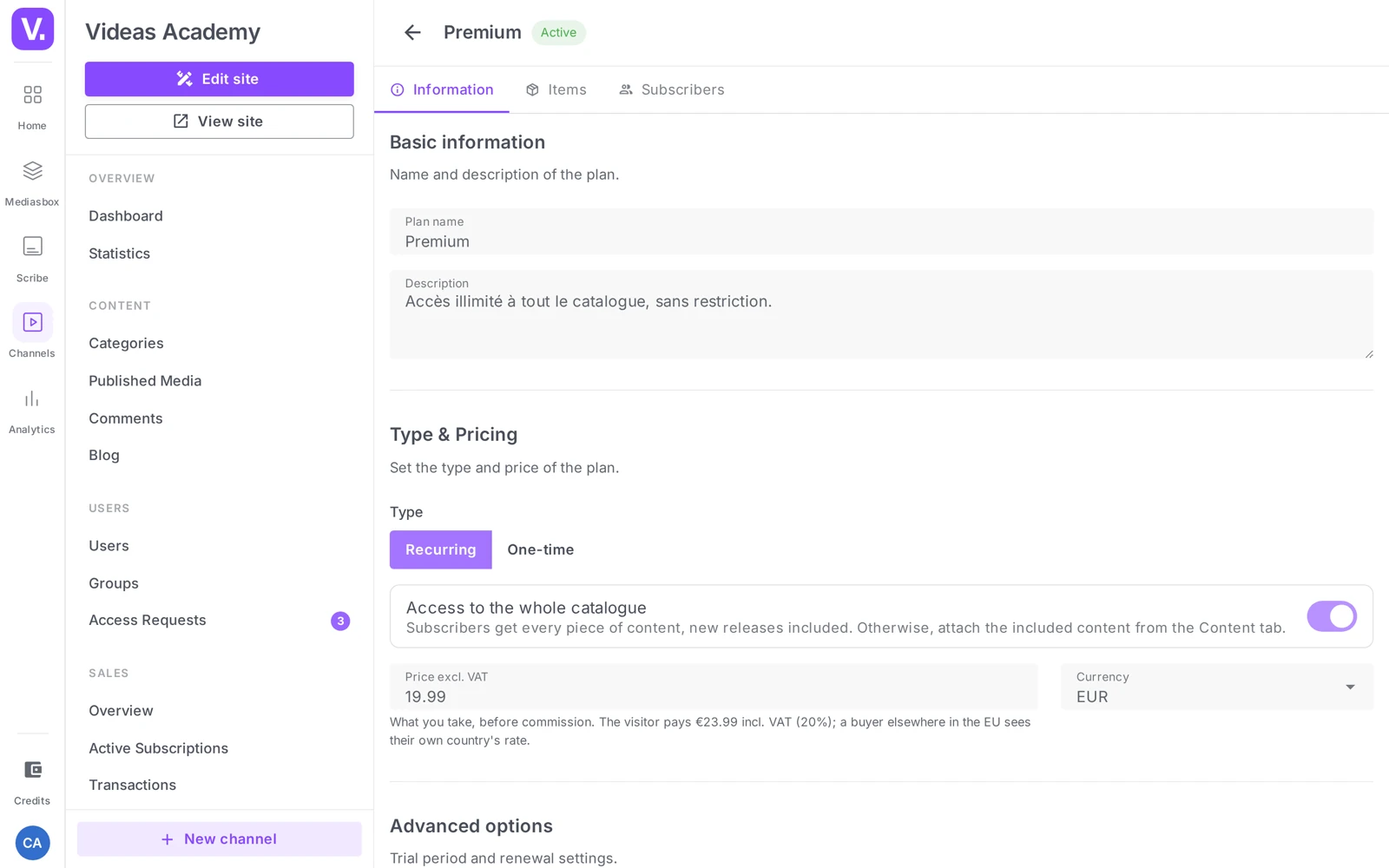
Basic details — Plan name (required, e.g. “Premium Monthly”) and Description (optional, can be shown on the public page).
Type and pricing — Type (Recurring by default / One-time payment), Price, Currency (EUR, USD, GBP, CHF).
Billing period (recurring only) — Weekly, Monthly, Quarterly, Half-yearly, Yearly, or Custom (you set the interval and the number of intervals).
Advanced options (recurring only) — Trial period (days) (0 or empty = no trial) and Auto-renewal (on by default).
Publication — the Active toggle: when on, the plan is visible and visitors can subscribe to it.
Click Save: the Content and Subscribers tabs become available.
Step 3: Pick the included content
In the Content tab, click Add content, search your catalog and select the items to include. They appear with their Title and the date they were added; you can remove them at any time (the content stays in your catalog).
Important: linking content to a plan does not change its access level. To reserve access for subscribers, the content must be at the Paid level (see Set prices for a piece of content) or Restricted.
Step 4: Track subscribers
Once the plan is published and people subscribe, the Subscribers tab fills up.
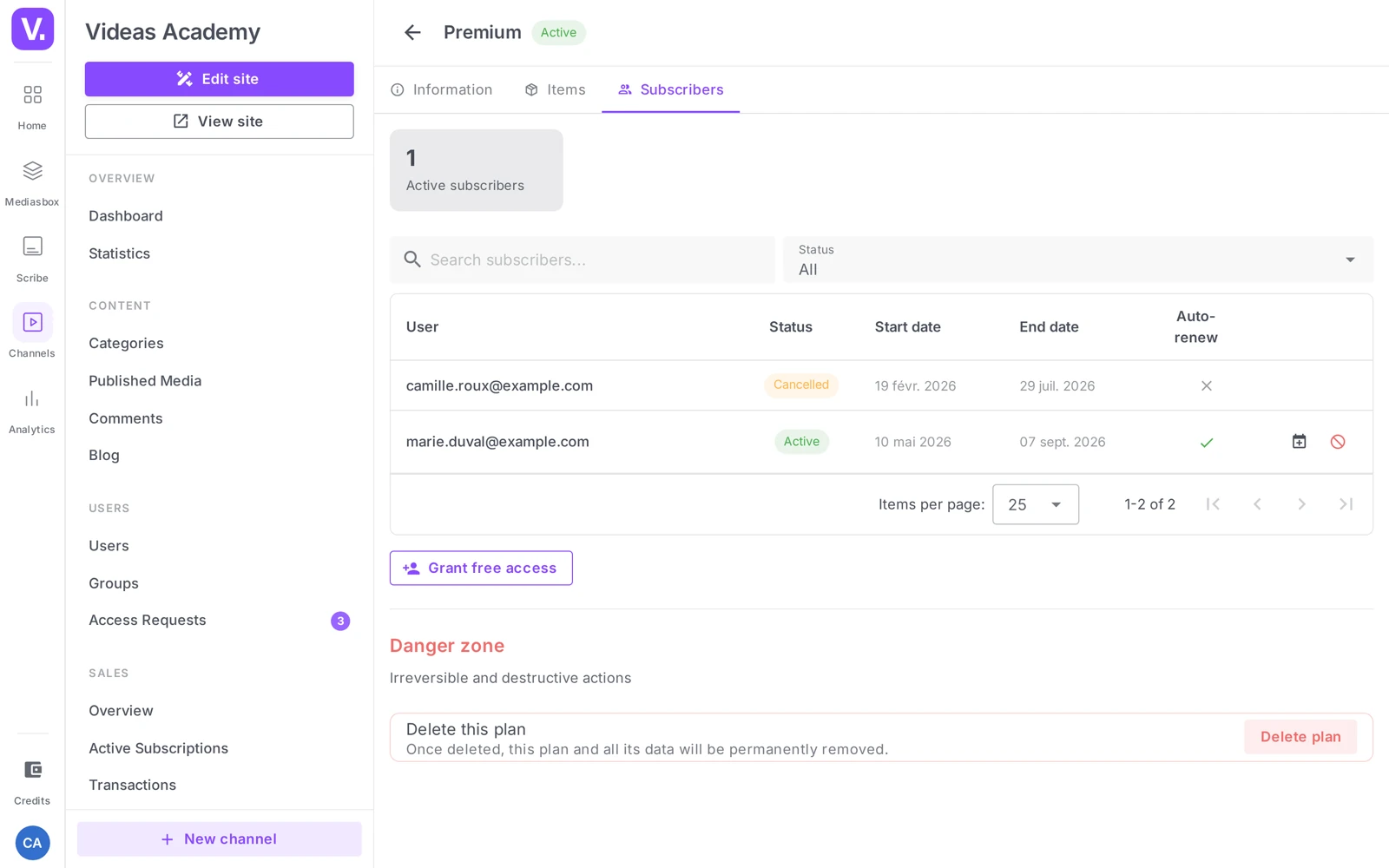
At the top, an Active subscribers counter. Below, the subscriber table (User, Status — Active / Canceled / Expired / Paused —, Start date, End date, Auto-renewal), with search and a status filter. This tab is a read-only view: to act on a subscriber — gift access, extend, cancel — go through their customer profile. See How to give free access to a subscription and Manage your subscribers and customers.
Step 5: Show your plans to visitors
Your Active plans appear on the public page through the Page Builder’s Pricing block (see Build your pages with the Page Builder). Each card shows the name, the description, the price and the period, a “Free trial” badge where relevant, and a Subscribe button leading to checkout.
Edit, deactivate or delete
- Change the price: new subscribers pay the new rate; existing subscribers keep their rate until renewal.
- Deactivate (the Active toggle): the plan is no longer for sale, but existing subscribers keep their access until the end of their cycle. This is the operation to favor when you want to stop selling a plan.
- Delete (Danger zone): not possible while active subscribers exist. In almost every case, deactivating is enough.
Best practices
- Monthly + yearly with a discount: Premium Monthly €9.90/month and Premium Yearly €99/year (≈ 2 months free). The yearly plan secures revenue and reduces churn.
- Trial period: 7 days to let people try it out with no commitment, 14 days for B2B or training; 0 if your offer is clear and the price is low.
- Combining a subscription with individual prices maximizes conversion (occasional vs. regular buyers).
Recurring or one-time payment: which one?
Recurring when you sell access that lasts — the customer pays at regular intervals, renewal is automatic, and they keep access as long as they pay. That is the predictable-revenue model.
One-time payment when you sell a closed set: a training pack, a complete series. The customer pays once, gets access for a fixed duration, and nothing renews. Technically a subscription, commercially a bundle.
Is linking content to a plan enough to protect it?
No, and it is the most common mistake. Adding content to a plan’s Content tab does not change its access level: if it stayed public, everyone reaches it, subscriber or not.
For the restriction to apply, the content must be at the Paid or Restricted level. Check that on the content’s page before announcing your plan.
What happens to my subscribers if I change the price?
New subscribers pay the new rate; current subscribers keep theirs until renewal. So the change is never abrupt, but it does eventually apply to everyone.
If you want to protect a cohort for good — a lifetime launch price, say — the only workable arrangement is to deactivate the old plan and create a new one, rather than editing the existing plan’s price.
How do I stop selling a plan without penalising subscribers?
Deactivate it with the Active toggle. The plan disappears from sale and from your public page, but current subscribers keep their access until the end of their cycle. That is the operation to favour in almost every case.
Deletion is blocked while active subscribers exist — and would erase the history. Keep it for test plans.
Should I offer a trial period?
It depends how clear your offer is. Seven days is enough to validate use on consumer content; fourteen suits B2B and training better, where the decision involves several people. Zero is defensible when the offer is simple and the price low: a trial then adds friction without removing doubt.
The trial is set in days under Advanced options, available only on recurring plans. An empty or zero value means no trial.
How should I structure a monthly / annual grid?
With two separate plans and a discount on the annual one — for instance Premium Monthly at €9.90 and Premium Annual at €99, roughly two months free.
The annual plan secures revenue and reduces churn; the monthly one lowers the barrier to entry. And nothing stops you combining: the same content can be sold individually and included in a subscription, capturing both the occasional buyer and the regular customer.
Can I act on a subscriber from the plan’s page?
No. A plan’s Subscribers tab is a read-only view: it lists subscribers, their status, their dates and their auto-renewal, but allows no action.
To gift access, extend or cancel, you have to go through the customer profile in the Sales section. That is where the commercial actions live.
In short
- Subscriptions are managed in Sales → Product catalog → Subscriptions tab
- Two types: Recurring (automatic renewal) or One-time payment (access for a fixed period)
- 6 billing periods (Weekly → Yearly + Custom), a trial period in days, auto-renewal on by default
- A plan record has 3 tabs: Details / Content / Subscribers
- Content must be at the Paid or Restricted level for the restriction to apply
- Deactivating takes a plan off sale without penalizing existing subscribers
- Reserved for the Channel owner
Related articles
Screenshots were taken on Videas Academy, an example channel built for this help center. It belongs to a fictional customer, not to Videas: your own channel carries your name, your branding and your prices.