Create and manage promo codes
Promo codes boost purchases of your content, subscriptions and rentals: a welcome discount, a seasonal campaign, a partner code. You manage them in Sales → Product catalog → Coupons tab → Create a coupon, and they require the Channel owner role.
Your customers get the discount in two ways: by entering the code in the cart, or through automatic pre-application when they land on a campaign page (via a Page Builder Pricing block).
Step 1: Open the coupons
In Sales → Product catalog → Coupons tab, the list shows for each code: Code, Discount (a -15% or -€5.00 badge), Usage (current / max), Expiry, Status (Active / Inactive / Expired / Limit reached), with search and a filter. Click Create a coupon.
Step 2: Basic details
The record has two tabs: Details and Usage (available after the first save).
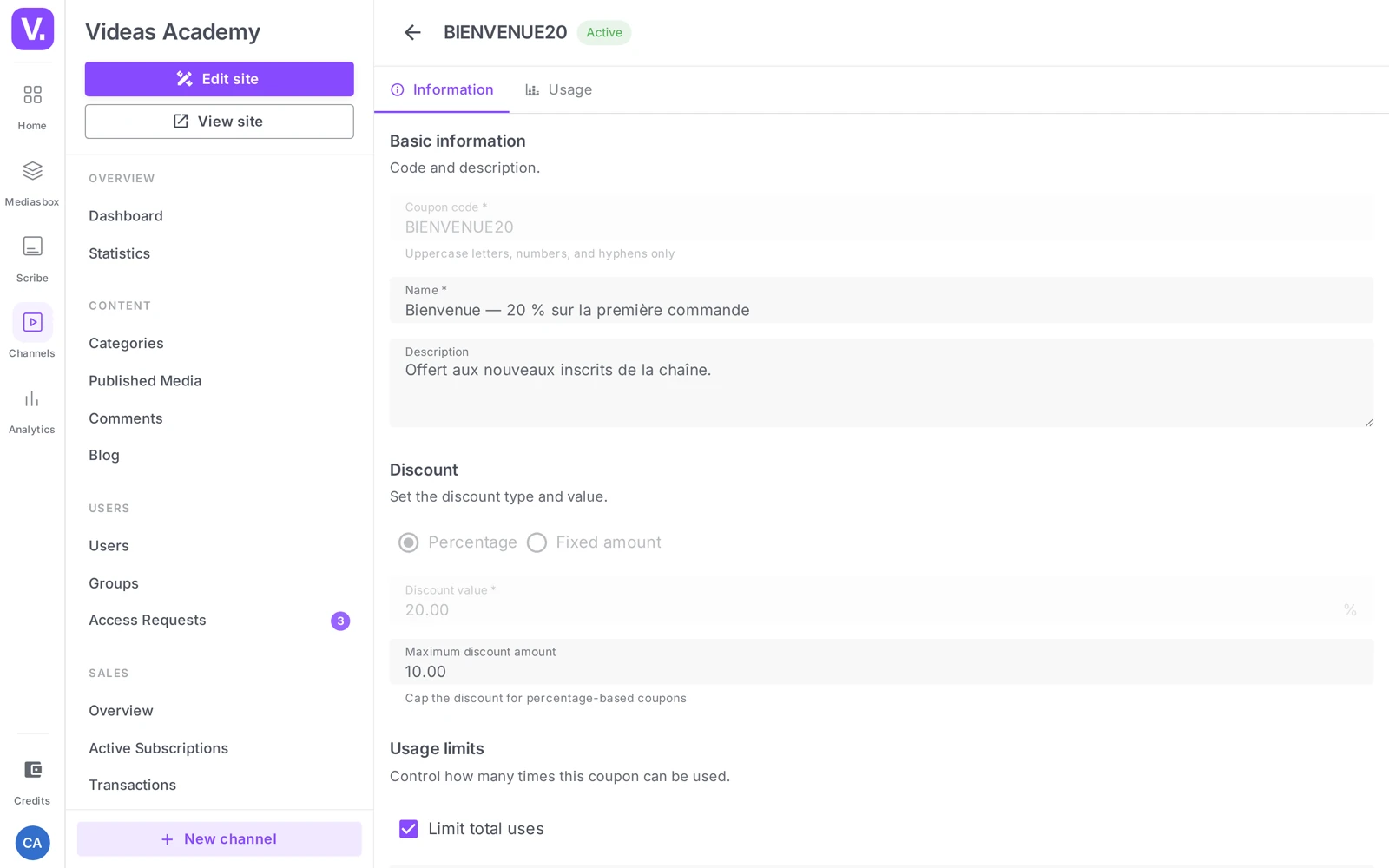
- Coupon code (required) — the text the customer types (converted to uppercase; letters, digits and hyphens). A Generate button creates a random 8-character code. Cannot be changed after saving.
- Name (required) — an internal label, never seen by the customer (“Summer sale”, “Marie influencer code”).
- Description (optional).
Step 3: Discount
- Discount type — Percentage (default) or Fixed amount
- Discount value —
15for 15%,10for €10 (a 100% discount brings the price down to €0) - Currency (fixed amount only)
- Maximum discount amount (percentage only) — a cap, useful on large carts
Locked after creation: the code, the type, the value and the currency. To change a discount, create a new coupon (this preserves your sales history).
Step 4: Limits and validity
- Limit the total number of uses — past the quota, the status switches to Limit reached
- Max uses per user (default 1)
- Start date (today by default, or in the future to prepare a campaign)
- Set an end date — past it, the status switches to Expired
- Minimum purchase amount (optional) — the cart must reach it for the code to apply
Publication: the Active toggle (on by default); when off, the code can no longer be used, even within its validity period.
Step 5: Track performance
Once the coupon has been used, the Usage tab shows five statistics and the detailed history.
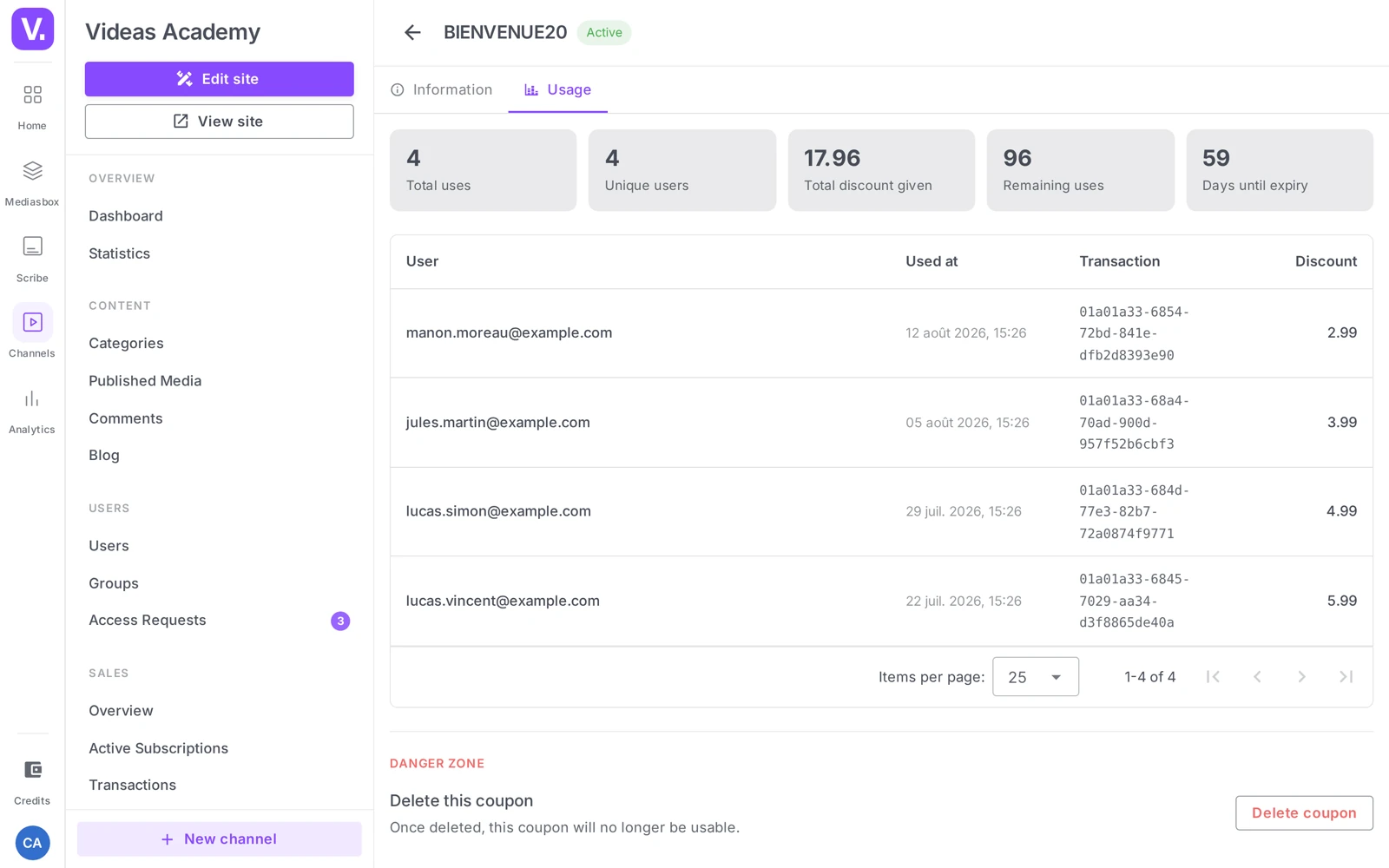
The stats: Total uses, Unique users, Total discount granted, Remaining uses, Days until expiry. The history lists every use (User, Used on, Transaction, Discount) — perfect for measuring the ROI of a partnership.
How your customers use it
- Entered in the cart — the customer types the code in the Promo code field; if it is valid, the discount appears (“Code applied (-€Y)”). Ideal for a code sent by email or shared on social media.
- Automatic pre-application — set the code on a Page Builder Pricing block on a campaign page (e.g.
/black-friday/). The code is then stored in the session and applied to the cart, with nothing to type. Ideal for landing pages and ad campaigns.
Edit, deactivate or delete
- Editable: name, description, cap, limits, end date, minimum amount, Active toggle.
- Deactivating makes the code unusable without losing the history — the recommended way to pause a campaign.
- Deleting (Danger zone) also erases the usage history. Save it for test codes.
What can be changed after a coupon is created?
The name, the description, the discount cap, the usage limits, the end date, the minimum purchase amount and the Active toggle.
The code, the discount type, its value and its currency, however, are immutable. That is deliberate: it preserves a campaign’s commercial history. To change a discount, create a new coupon.
How do I apply a code without the customer entering it?
By configuring it on a Page Builder Pricing block, on a campaign page — /black-friday/, for instance. The code is then stored in the session and applied to the cart automatically.
That is the right arrangement for a landing page or an advertising campaign: the visitor sees the discounted price without knowing anything about the code. Cart entry remains better suited to a code circulated by email or social media, where the customer makes the move themselves.
Can a percentage discount be capped?
Yes, with the Maximum discount amount field, available only on percentage discounts. It sets a cap in absolute value.
That is what stops a -30% code designed for a €20 video costing thirty euros on a €100 cart. On a catalogue with varied prices, the cap is almost always worth filling in.
How do I measure the return on a partnership?
Through the coupon’s Usage tab, which only appears after the first save. It gives five statistics — total uses, unique users, total discount granted, remaining uses, days to expiry — and the detailed history of each use, with the user, the date, the transaction and the discount.
That history is what makes a partner code measurable: one code per influencer, and you know exactly what each brought in.
Should I deactivate or delete an expired code?
Deactivate, in almost every case. The code becomes unusable, but the usage history is preserved — and so are your campaign figures.
Deletion erases the history too. Keep it for test codes, never for a campaign that actually ran.
Can I give content away with a promo code?
Yes: a percentage discount with a value of 100 brings the price to €0. The order goes through normally, with no payment.
It is the only route to grant access to someone who does not yet have an account on your channel — they sign up and place the order themselves. Limit the number of uses to 1 if the gesture targets one person, or to the number of seats for a whole cohort.
In short
- Promo codes are managed in Sales → Product catalog → Coupons tab
- Two types: Percentage (with an optional cap) and Fixed amount
- Conditions: validity period, max number of uses (total + per user), minimum purchase amount
- Usage tab: 5 stats + history (User / Date / Transaction / Discount)
- Two mechanisms: entered in the cart or pre-applied through a Pricing block
- Code, type, value and currency are locked after creation; deactivating preserves the history, deleting erases it
- Reserved for the Channel owner
Related articles
Screenshots were taken on Videas Academy, an example channel built for this help center. It belongs to a fictional customer, not to Videas: your own channel carries your name, your branding and your prices.