Search and filter in Mediasbox
To find a media item in Mediasbox (your media library), type in the search bar at the top of the screen, then narrow things down with the Filters button. You can save a search + filters combination and recall it in one click. This guide details what is actually available.
The search bar
At the top of Mediasbox, the search bar (Search…) filters the list in real time as you type, with a result counter. It searches the name of the media item (case-insensitive, partial matches), with no advanced syntax (no quotes, no -, no tag: operator). To search by tag, subtitles or metadata, use the filters.
Tip: name your media explicitly (
Onboarding 01 — Meet the team.mp4rather thanIMG_2401.mp4) — that is the number one lever for text search.
The filters
The Filters button opens a panel. All filters combine with AND logic, and work alongside the search bar:
| Filter | Options |
|---|---|
| File type | Video, Image, Audio, Document, Archive |
| Collections | Include associated collections + Collection type (Videos, Audio, Images, Documents) |
| Status | Created, Processing, Ready, Error, Archived |
| Visibility | Visible only, Sensitive content only |
| Tags | Multi-select |
| Workspaces | Filter by workspace |
| Custom metadata | If schemas are configured for your organization |
| Subtitles | All, With, Without |
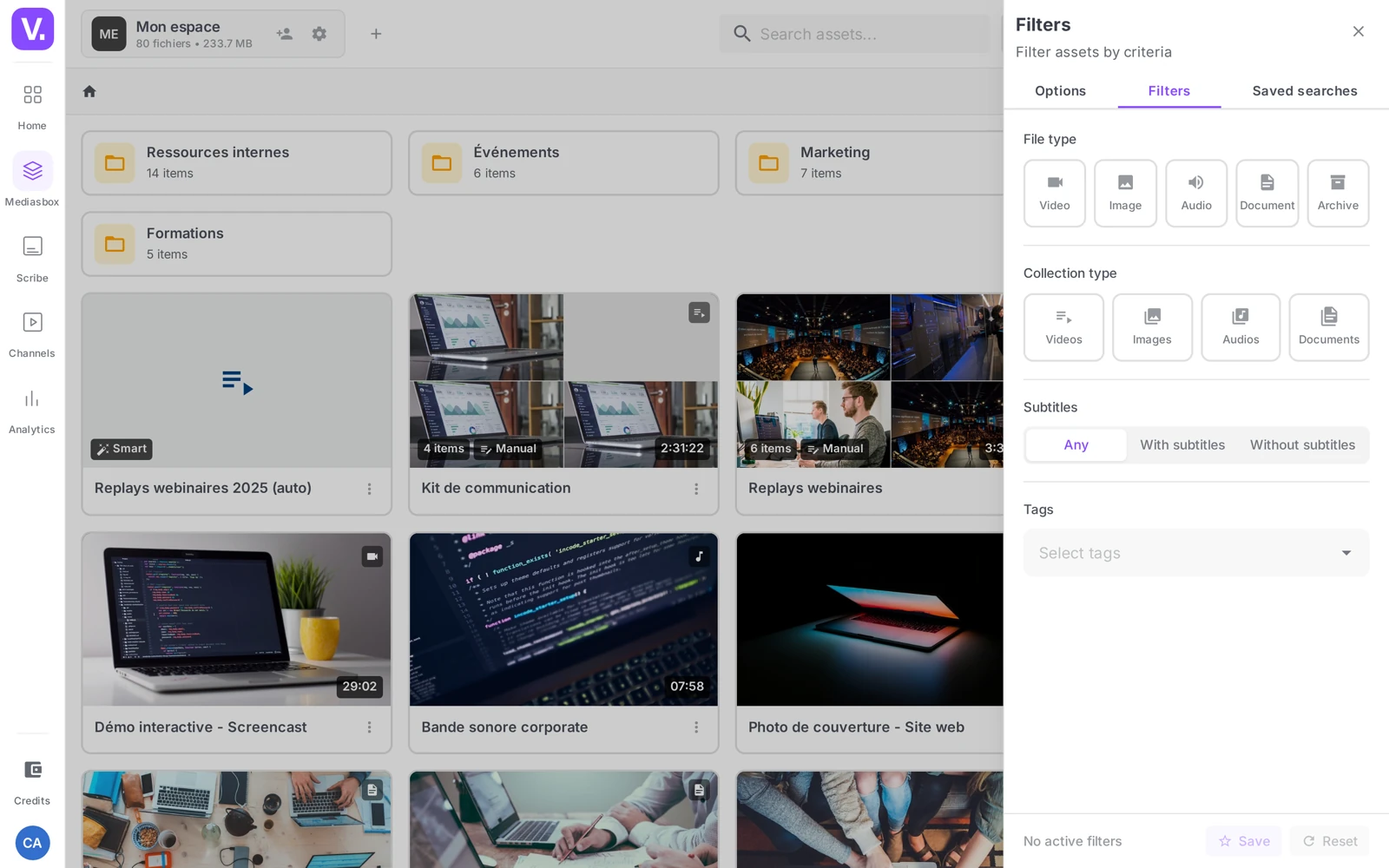
A combined example: Type = Video + Tags = training + Subtitles = Without → every training video that does not have subtitles yet. Add “onboarding” in the bar to narrow it down by name.
Sort and display
Above the list, Sort offers: Name (A → Z), Name (Z → A), Date added (newest), Date added (oldest).
The Grid view / List view button switches the layout. The Display options control the density: Compact, Comfortable or Spacious.
Saved searches
When a combination proves useful again and again (training-tagged videos without subtitles), click the star in the search bar to save it under a name. Your Saved searches then live in the bar’s menu, along with their result count. They are stored server-side (available from any machine) and can be visible in a single workspace or across the whole organization.
Tip: create one saved search per recurring task — To subtitle, To tag, Uploaded this week. A guaranteed daily time-saver.
Search across all workspaces
If you have several workspaces, the Overview (from the Workspaces panel) applies your filters to every workspace you have access to at once — handy for finding a media item when you cannot remember which workspace it is in.
Why search is built this way: the Mediasbox product page explains the data model — types, statuses, metadata — these filters rely on.
Saved search or smart collection?
Both show a list of media matching criteria, but:
- A saved search is an internal management tool: it stays in Mediasbox, covers every type, and can be changed on the fly.
- A smart collection is a publishable object (name, cover image, URL, can be published on a channel or embedded), restricted to one type and based on tags.
Simple rule: for you and your team → saved search; for your viewers → smart collection.
Can I search by tag in the search bar?
No. The bar searches only the media item’s name, in real time, with no advanced syntax: no quotes, no - exclusion, no tag: operator.
Tags, subtitles, status and metadata go through the Filters button, which combines with the bar. A typical example: “onboarding” in the bar, Type = Video and Tags = training in the filters.
Do filters combine with AND or OR?
With AND. Every active filter combines, and an item has to satisfy each of them to appear — the search bar included.
That is what makes a precise query possible, such as Type = Video + Tags = training + Subtitles = Without, which returns exactly the training videos still waiting to be subtitled. It also explains empty lists: one forgotten filter is enough to exclude everything.
How do I find a media item without knowing which workspace it is in?
Through the Overview, from the Spaces panel. It applies your filters to every workspace you have access to at once, instead of making you open each one in turn.
There is also a Spaces filter in the filter panel, to narrow the search to a specific subset when you roughly know where to look.
How do I fit more media on screen?
Through the Display options, which set the density: Compact, Comfortable or Spacious. The Grid view / List view button beside them switches between thumbnails and a dense table — the latter is what makes a large library browsable.
The Sort menu completes the set with four orders: Name (A → Z), Name (Z → A), Date added (newest) and Date added (oldest).
Are saved searches shared with the team?
They can be. A saved search is stored server-side — so you find it again from any machine — and its visibility is configurable: confined to one workspace, or open to the whole organization.
The usage that pays off is creating one per recurring task rather than per subject: To subtitle, To tag, Uploaded this week. Mediasbox then behaves like a shared work queue.
In summary
- The search bar searches the name, in real time, with no advanced syntax
- The filters: File type, Collection type, Subtitles, Tags, Workspaces (all-workspaces view) and Metadata (when schemas exist) — combined with AND
- Sort (Name / Date added) and Grid/List view with Compact/Comfortable/Spacious density
- Saved searches (the star) speed up recurring tasks; the Overview covers every workspace
- For a grouping you want to publish, use a smart collection instead
Related articles
Screenshots were taken on Videas Academy, an example channel built for this help center. It belongs to a fictional customer, not to Videas: your own channel carries your name, your branding and your prices.