Export subtitles, or burn them into the video
From the subtitle editor, the Export button offers two outputs: get the subtitle file (.srt / .vtt), or export a video with the subtitles burned into the picture (an MP4). The first is for archiving or reusing them elsewhere; the second is for platforms that have no Videas player (social media, a file sent as an attachment). You need the Editor role (or above).
Open the export window
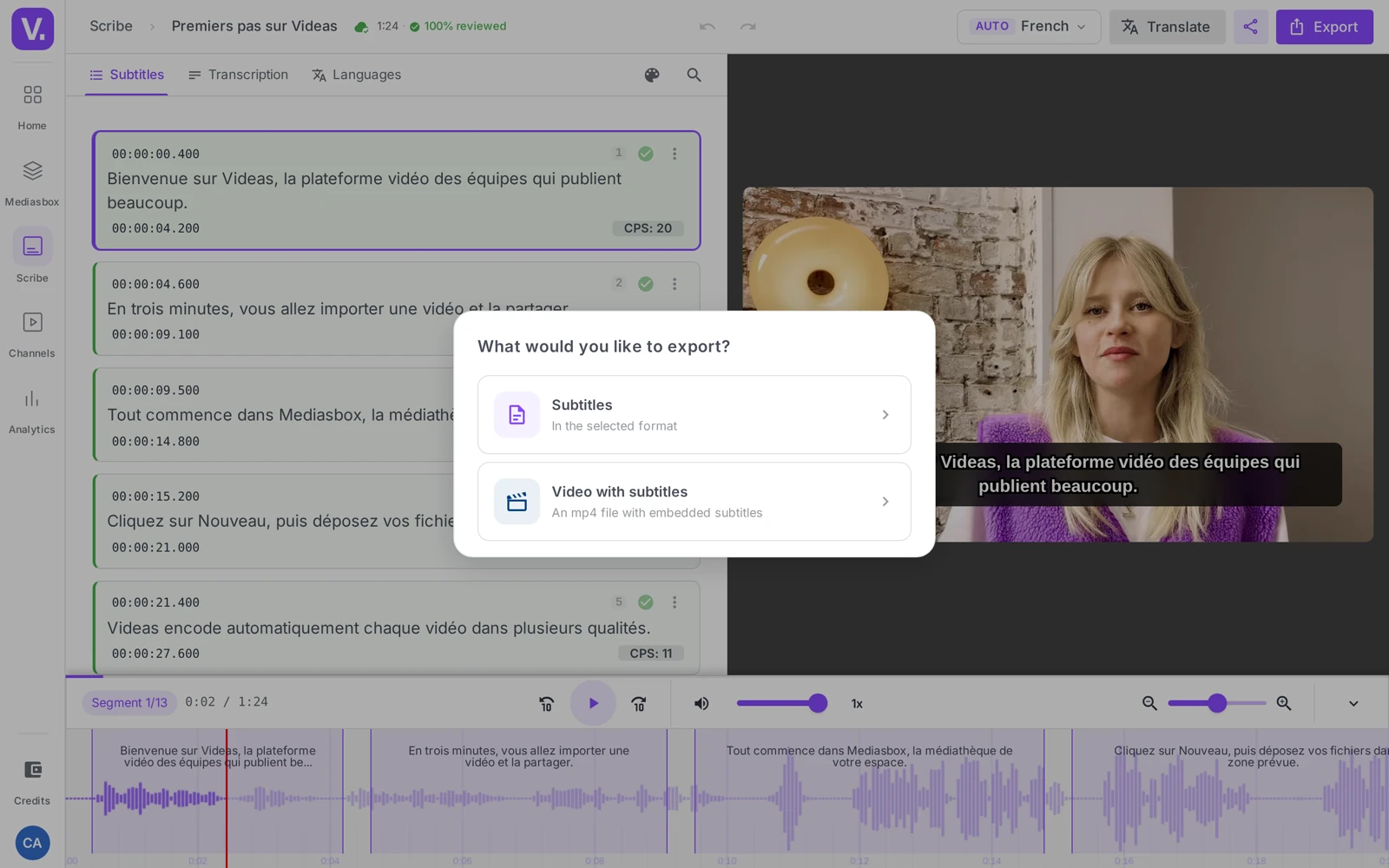
In Mediasbox, open the video → Subtitles tab → Edit (the pencil) on a track. In the editor, click Export (at the top). The window offers two cards:
- Subtitles — the text file on its own
- Video with subtitles — “An mp4 file with the subtitles built in”
Option A — Export the subtitle file
Choose Subtitles to download the track in .srt or .vtt format. Handy for archiving, importing into another tool, or adding subtitles manually on another platform (YouTube accepts an .srt upload, for example).
Option B — Export the video with burned-in subtitles
On the Videas player or an embed, subtitles are displayed as an overlay: the viewer turns them on, turns them off, changes language. On LinkedIn, TikTok, Instagram or a shared .mp4 file, that mechanism does not exist — the subtitles have to be burned into the picture.
Choose Video with subtitles, then:
- Select the subtitle language to burn in — one track per file (for multilingual output, run one export per language)
- Video format — the codec: MP4 (H.264) (the default, maximum compatibility — the right choice almost everywhere) or MP4 (H.265/HEVC) (a lighter file, but played by fewer devices)
Click Export. Videas re-encodes the video (allow roughly the duration of the video); the status is displayed (Processing the video…, Encoding the video with the subtitles), then the MP4 file downloads. You can close the window, the processing continues server-side.
Important: burning in is permanent. The style (font, color, position — see Customize the appearance of subtitles) and the text are welded into the picture. Any correction means exporting again. So validate the track first: read the text through, check the CPS and the proper nouns.
Overlay or burned in: which to choose?
| Overlay (Videas player) | Burned in (into the video) | |
|---|---|---|
| Can be turned on/off by the viewer | Yes | No |
| Language chosen by the viewer | Yes (if several tracks) | No — one language per file |
| Can be changed later | Yes | No |
Social media / shared .mp4 file |
No | Yes |
In short: keep the overlay on Videas and web embeds; switch to burning in only when the video has to travel outside Videas.
Best practices
- One track per file — to publish in FR, EN and ES, run three exports and name the files accordingly (
webinar-fr.mp4,webinar-en.mp4…) - Prepare the format — if the output is 9 (TikTok, Reels), set the format in the editor before exporting, otherwise the subtitles risk being badly positioned
- Do not delete the track after exporting — you will need it to export again (new style, correction) or for the overlay on Videas
Before burning in: if the track came from elsewhere, the Subtitle a video tool lets you regenerate it cleanly rather than burning in an approximate file.
Can burned-in subtitles be changed after the export?
No. Burning in welds the text and the style to the pixels of the picture: a mistake spotted afterwards means correcting the track and then running a full export again. The MP4 you have already distributed stays wrong.
That is why you validate before exporting: reread the text, check the CPS, verify proper nouns, and settle the style. The track itself stays editable in Videas — only the exported MP4 is frozen.
Should I pick H.264 or H.265 for the export?
H.264 in almost every case. It is the default, and the one that plays everywhere: social networks, messaging apps, desktop players, older phones.
H.265 (HEVC) produces a noticeably lighter file at comparable quality, but fewer devices can read it. Only choose it when you control the playback chain at the far end — a smaller file is worth nothing if your recipient cannot open the video.
How do I export a subtitled video in several languages?
By running one export per language: burning in takes a single track per file, since the text lives in the picture and the viewer can no longer switch.
Name the files accordingly as you download them (webinar-en.mp4, webinar-fr.mp4, webinar-es.mp4) — that is the only marker left, as the file carries the language information nowhere else.
How long does a video export take?
Count on roughly the length of the video itself, since Videas re-encodes it entirely. The status is shown during the operation (Processing video…, then Encoding video with subtitles).
You can close the window without losing anything: processing continues server-side, and the MP4 downloads when it is done.
Should I delete the subtitle track once it is burned in?
No, keep it. It stays necessary for two things: re-exporting the day you correct the text or change the style, and feeding the overlay on the Videas player and your embeds, where the viewer picks their own language.
The burned-in file is a distribution output, not a replacement for the track.
In summary
- The editor’s Export button → Subtitles (.srt/.vtt file) or Video with subtitles (burned-in MP4)
- Burning in: choose the language and the Video format (H.264 by default, H.265 lighter), then Export
- Burning in is permanent (style + text frozen) → validate everything first
- One language per file, one format per file
- Keep the overlay for the web, burning in for social media and shared files
- Exporting requires the Editor role (or above)
Related articles
Screenshots were taken on Videas Academy, an example channel built for this help center. It belongs to a fictional customer, not to Videas: your own channel carries your name, your branding and your prices.