Export a transcript to Word, by speaker
In the subtitle editor, the Export button offers a Transcript card: “The text by speaker, with timecodes: Word, Excel or TXT”. It is the document you proofread, annotate or hand over: an interview verbatim, the log of a shoot before the edit, the transcript of a programme delivered to a broadcaster. It takes the Export content permission, which only the workspace Administrator role holds by default; an administrator can add it to another role in Settings → Roles & Permissions (see Roles and permissions).
The document reads without replaying the video only if every turn carries a name: name the speakers before you export.
Name the speakers
In Mediasbox, open the video → Subtitles tab → Edit (pencil) on the track, then open the editor’s Speakers tab.
- Click Identify the speakers (Run the detection again if it has already run on the track). Give the number of speakers if you know it (between 1 and 20): it is optional, but detection is more reliable. Scribe gives each line the voice that speaks most in it, without touching the text or the timings.
- Name each voice once for the whole track. “Name - role” is the form a production document expects: “Claire Martin - director”. Each voice keeps its colour in the editor.
- If a voice escaped detection, Add a speaker creates it; you then assign it to the lines concerned. A misattributed line is corrected the same way.
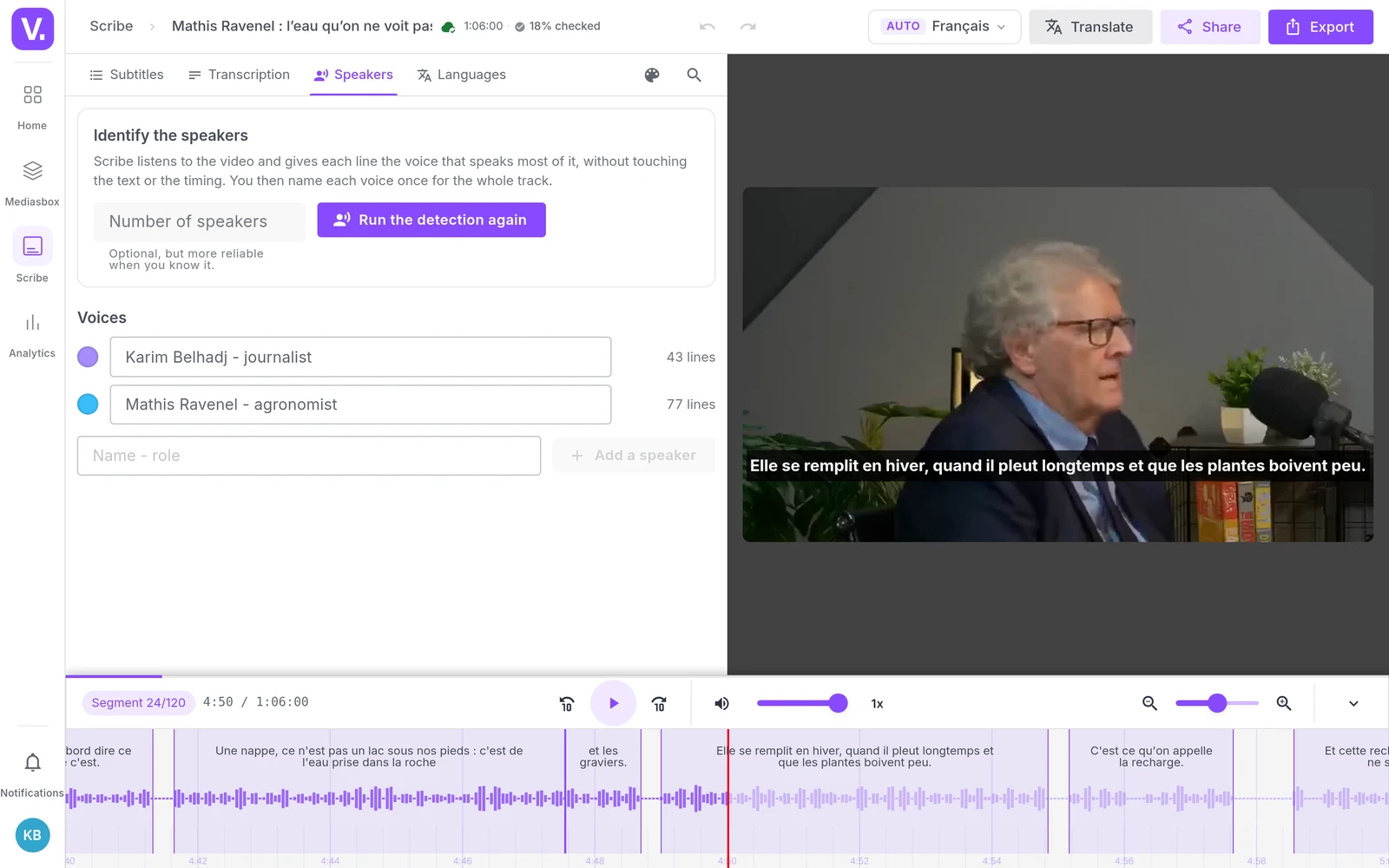
A voice nobody named comes out of the export as “Speaker 1”, “Speaker 2”… numbered as in the editor. In the editor’s Transcription tab, the Show speakers switch shows the text as it will be exported.
Export the transcript
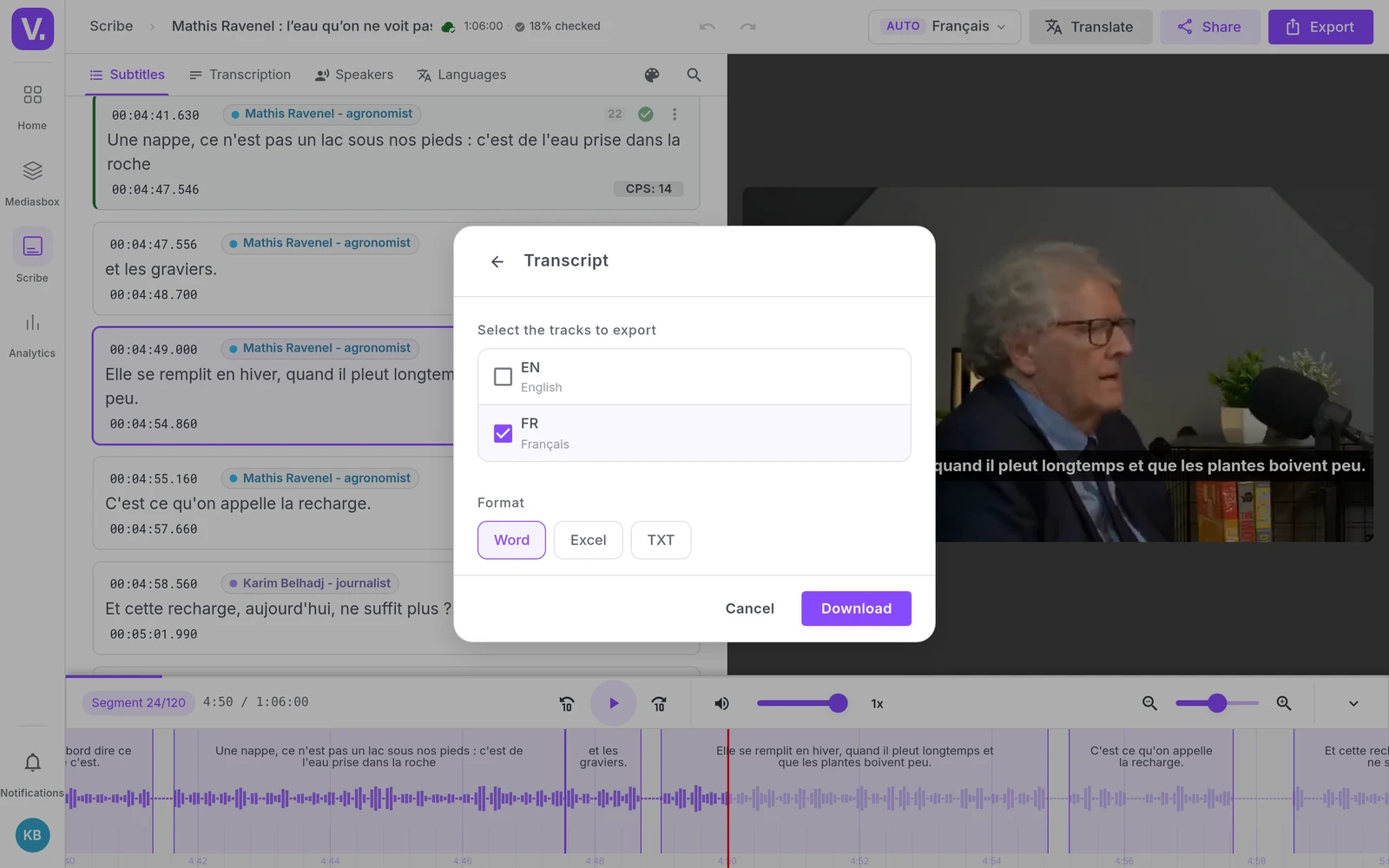
- In the editor, click Export (at the top), then the Transcript card.
- Select the tracks to export: the original track, and its translations if you want one document per language.
- Choose the export format — Word is offered by default — then download.
What each format contains
| Format | Contents | What it is for |
|---|---|---|
| Word (.docx) | One paragraph per speaker turn: the [HH:MM:SS] timecode in grey, the speaker’s name in bold, then the text. No heading or layout to undo. |
Proofreading, annotating, delivering to a client or a broadcaster, logging footage before the edit. |
| Excel (.xlsx) | One row per speaker turn, in three columns: Timecode, Speaker, Text. | Sorting, filtering by speaker, finding passages in a spreadsheet. |
| TXT | The same text as the Word file, without formatting. | Pasting into another tool, archiving. |
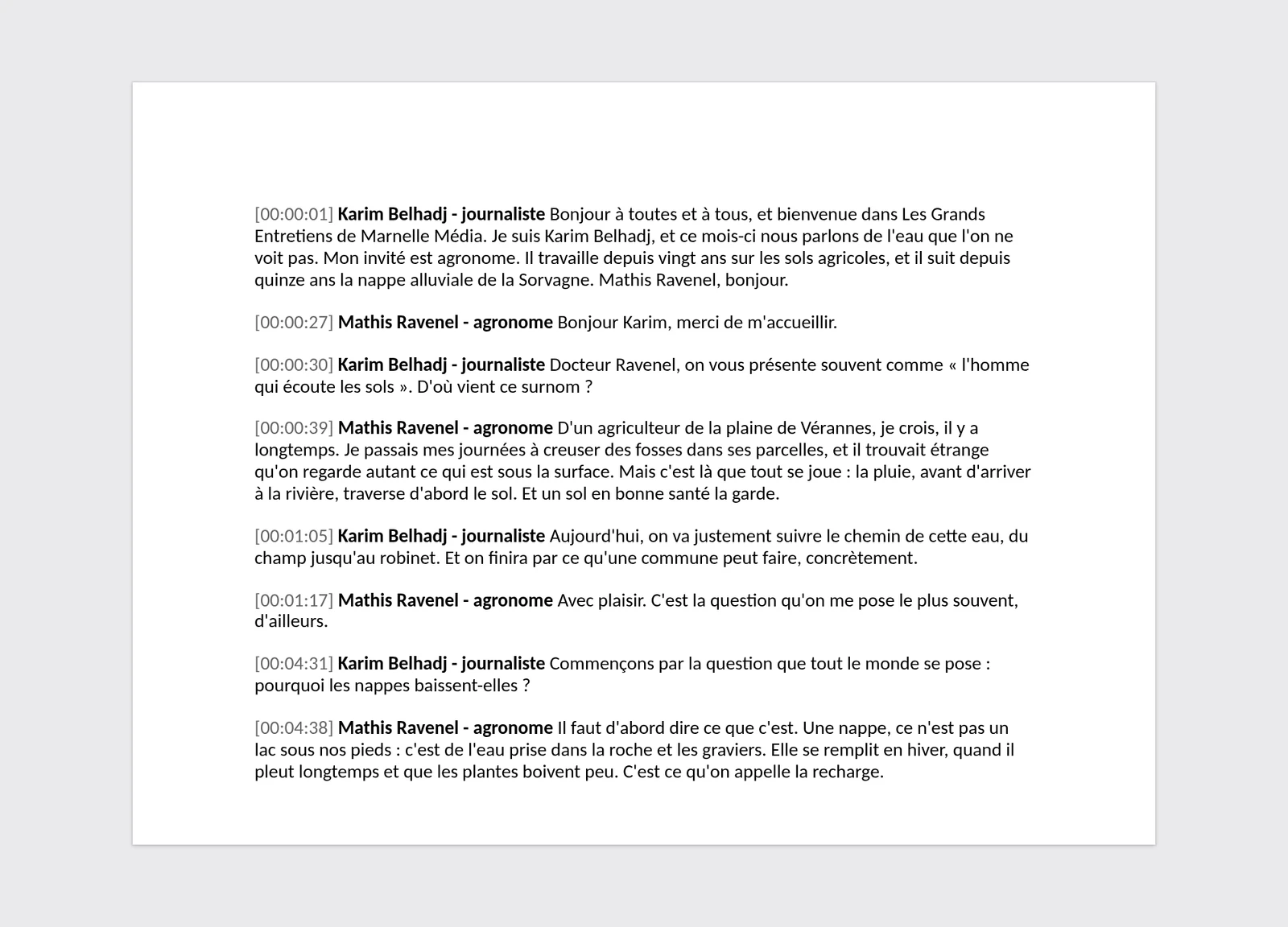
What a turn is. A paragraph ends when the voice changes. Lines no voice was given are split on silences, like the transcript’s own paragraphs. The lines of one turn are joined as you wrote them.
Before you export
- Proofread the text: the export takes the track as it stands. Proper nouns and trade terms are fixed once and for all in the vocabulary glossary, then all at once in the track with the editor’s global replace.
- Want subtitles rather than a document? The Subtitles card of the same window gives SRT or VTT files, and the Video with subtitles card a video with burned-in subtitles: see Export subtitles, or burn them into the video.
- Nothing is charged again: exporting, or exporting again after a correction, does not run the transcription again.
Screenshots were taken on Videas Academy, an example channel built for this help center. It belongs to a fictional customer, not to Videas: your own channel carries your name, your branding and your prices.