Correct and edit the subtitles of a video
To correct a subtitle track, open the video in Mediasbox, go to the Subtitles tab, and click Edit (the pencil) on the track’s row: the subtitle editor opens full screen. There you correct the text, adjust the timing, split or merge segments, and everything is saved automatically. You need the Editor role (or above).
The editor is organized into five tabs — Subtitles, Transcription, Languages, Style, Search — with the synchronized player on the right.
Saving is automatic
There is no Save button: a cloud icon at the top shows the state — Saving…, All changes saved, Unsaved changes, or Failed — Click to retry (click the cloud to try again). Undo / Redo are available (Ctrl + Z / Ctrl + Y).
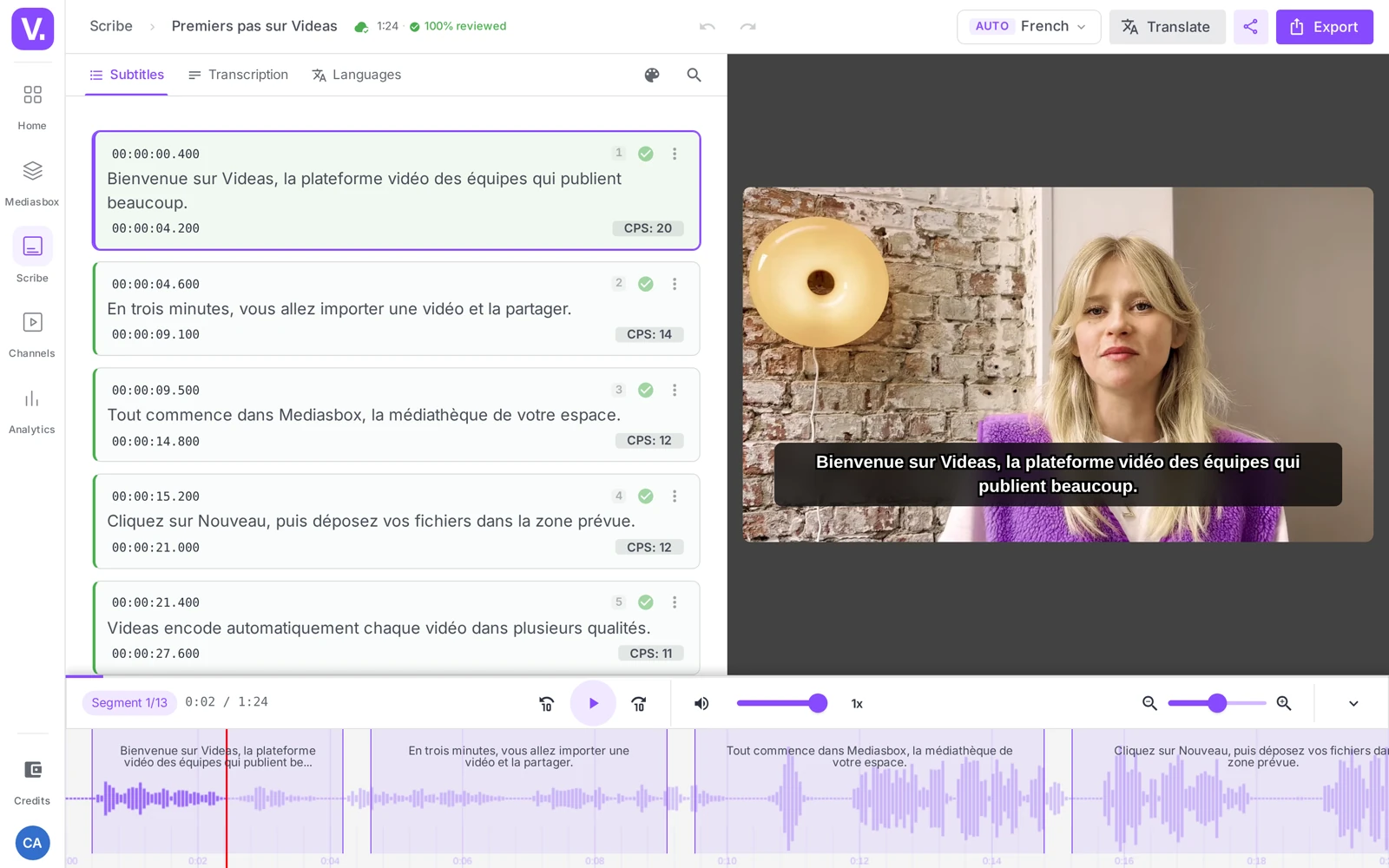
Subtitles tab: correcting segment by segment
This is the main screen. Each segment is a card with:
- its start and end timecode (clickable for fine adjustment)
- its text, editable directly (click in the area)
- a CPS indicator (characters per second): the reading speed being asked of the viewer. The industry rule is to stay under 20; above that, the indicator turns red — the passage is too dense to be read in time.
Split, merge, add
When you hover over a card:
- Add — inserts a segment after this one (the first segment also offers Add before)
- Split — cuts the segment in two at the cursor position in the text
- Merge — joins the segment with the next one
To delete one, open the segment’s ⋯ menu → Delete segment (a confirmation is requested).
Mark a segment as verified
Tick a segment to mark it verified: it gets a green border, which lets you track your review. The ⋯ menu also offers Mark previous as verified, and there is a Show only unverified / Show all segments filter so you can concentrate on what is left. To have a third party review the track, see Get your subtitles reviewed.
The other tabs
- Transcription — a “continuous text” view without timecodes, ideal for reading for meaning and rewording; corrections carry over to the Subtitles tab (it is the same content).
- Languages — the list of the media item’s tracks, with their status. This is where you add a language (which starts a generation in that language — see Translate subtitles) and switch from one track to another.
- Style — the appearance of subtitles in the player (font, color, position…). Details in Customize the appearance of subtitles.
- Search — finds a term across the segments, so you can check that a name or a word is written the same way everywhere.
Switch between languages
If the media item has several tracks, a selector at the top lets you move from one language to another without leaving the editor; each track carries an Auto (AI-generated) or Manual badge. Saving is per track — your corrections are saved before each switch.
Translate and export
Two buttons at the top of the editor:
- Translate — opens Add a language and generates a track in the chosen language or languages (see Translate subtitles)
- Export — opens the download window: an .srt / .vtt file, or a video with burned-in subtitles (see Export subtitles, or burn them into the video)
Recommended workflow
- Transcription tab: a first quick review pass for obvious mistakes
- Subtitles tab, with playback running: check the sync and the CPS, correct, and mark each segment verified
- Search: check the consistency of proper nouns and jargon
- Export to
.srt/.vttif you need it, or leave the track in Videas
Reducing the CPS of a passage that is too dense: lengthen the segment (if the silence allows it), split it, or reword it more concisely.
Need the text alone? The Transcription tool produces a file’s transcript without going through the editor — useful when you want the verbatim, not timed subtitles.
Where is the editor’s Save button?
There is none: saving is automatic. A cloud icon at the top of the editor tells you where you stand — Saving…, All changes saved, Unsaved changes, or Failed — Click to retry.
That last state is the only one that needs action from you: click the cloud to send again. Undo and Redo stay available at all times (Ctrl + Z / Ctrl + Y).
What does the CPS indicator mean, and why does it turn red?
CPS stands for characters per second: it is the reading speed the segment imposes on the viewer. The professional rule is to stay under 20; past that, the indicator turns red because the passage is too dense to be read in the time available.
Three ways to bring it down: lengthen the segment if the silence after it allows, split it in two, or reword the text more briefly. Rewording usually gives the best result — a subtitle does not have to transcribe every word spoken.
How do I keep track of where I am in a long review?
By marking segments as verified as you go: a ticked segment gets a green border. The ⋯ menu also offers Mark previous as verified, to catch up in one move on everything you have already read.
The Show unverified only filter then turns the editor into a list of what is left — which is what makes an hour-long review interruptible without losing your place.
How do I check that a name is spelled the same way throughout?
Through the Search tab, which finds a term across all segments. That is the last check to run, on proper nouns, brands and jargon: Scribe can spell a word correctly in one segment and get it wrong in the next.
If the same terms come back from one video to the next, feed the glossary instead: Scribe will spell them correctly from generation onwards, and this review stops being necessary.
Are the Transcription tab and the Subtitles tab two different texts?
No, it is the same content seen two ways. The Transcription tab shows it as continuous text, with no timecodes; the Subtitles tab cuts it into segments timed to the video. A correction made in one appears in the other.
Hence the recommended run: a first pass in Transcription for meaning and obvious mistakes, where you read fast, then a second in Subtitles, with playback running, for timing and CPS.
In summary
- Full-screen editor, opened via Edit on a track; automatic saving (cloud icon), Undo/Redo
- Tabs: Subtitles, Transcription, Languages, Style, Search
- Per segment: timecodes, editable text, CPS (red above 20), verified marking, Add / Split / Merge
- Multiple languages via the selector (Auto / Manual badges), saved per track
- Translate (= generate a language) and Export (.srt/.vtt or burned-in video) from the top bar
- Editing is restricted to the Editor role (or above)
Related articles
Screenshots were taken on Videas Academy, an example channel built for this help center. It belongs to a fictional customer, not to Videas: your own channel carries your name, your branding and your prices.