How to convert an MP4 video to text: step-by-step guide (2026)
To convert an MP4 video to text, you drop it into an automatic transcription tool: the AI reads the sound track and returns timestamped text within minutes, which you review and then export. With Videas Scribe it works in more than 100 languages, for €0.10 per minute of video, with no subscription.
This guide follows the whole path from video to text file, then helps you pick the export format for what you will do with the text: minutes, an article, subtitles, or logging the footage of a shoot.
Step 1: create a free account
Create a free Videas account: €5 in credits is free every month. The account keeps your videos and their transcripts, and it is what lets you export the text. After that you pay only for what you use, with no subscription.
Step 2: upload the MP4 video
Import your file from your computer. MP4 is the most common format, but transcription also takes MOV and WebM for video, and MP3 and WAV for audio alone: an interview recorded on a voice recorder turns into text exactly like a video. From an account, length is not capped: a two-hour meeting or interview goes through in one pass.
Step 3: start the transcription
Open the video in Scribe and start the transcription. The spoken language is detected automatically: there is nothing to declare first. The cost shows before you start, since it depends on the length of the file rather than on the speech actually detected: a one-hour video comes to €6.
Allow a few minutes for ten minutes of video. You do not have to stay on the page: processing continues and the text is waiting when you come back. The automatic subtitles tutorial walks through this screen.
Step 4: review and correct the text
No automatic transcript is a deliverable without a review. In the Scribe editor, every line jumps to its passage: you click, the video picks up at that point, and you check what the AI heard without hunting for the passage by hand.
Three features save most of the review time:
- Global replace fixes a misheard term across the whole transcript at once: a proper noun, an acronym, a piece of trade vocabulary.
- The vocabulary glossary records your organization’s names and terms once, so they are spelled right in every transcript that follows.
- Speakers: Scribe detects the different voices in a recording. You name each one once, and every turn then carries the name of whoever is speaking.
Step 5: export the text
Open the export: the Transcript card gives the text by speaker as Word (DOCX), Excel or TXT, the Subtitles card the SRT or VTT files. The help article export a transcript to Word walks through the screen. The same text can come out in several formats without running the processing again, and the reviewed transcript stays in your account for a later export.
TXT, Word, SRT or VTT: which format to choose
The right format depends on what you will do with the text, not on the quality of the transcript:
| Format | What it holds | Choose it for |
|---|---|---|
| TXT | Plain text, with or without timestamps | Reusing it in an article, minutes or an AI tool |
| Word (DOCX) | One paragraph per speaker turn, with its timecode and the speaker’s name | A document to proofread, annotate or deliver: an interview verbatim, footage logging before the edit |
| SRT | Short segments, timed to the video | Subtitles read by almost every player and platform |
| VTT | The same segments, with styling support | Subtitles shown on the web |
If what you are after is a subtitled video rather than a document, start straight from the tool to add subtitles to a video: the transcript is the basis for the subtitles, which you can also translate and burn in.
Getting more accurate text on the first pass
The review goes faster when the AI makes fewer mistakes. Three factors weigh more than all the others:
- Sound quality. On clean audio with a single speaker, recognition generally gets more than 95% of the words right. Background noise, the echo of a large room and overlapping voices bring that figure down.
- Vocabulary. Errors cluster on proper nouns, acronyms and numbers. Adding them to the glossary before you start saves correcting them in every video.
- The number of voices. Speaker detection is less reliable beyond two or three voices: on a panel, check the speaker changes while you review.
Other ways to convert a video to text
An online transcription tool is not the only option:
- Transcribing by hand is still possible for a short video. It usually takes several hours of work per hour of recording, which limits it to clips of a few minutes.
- Whisper, the open-source speech recognition model published by OpenAI, is free. It is installed and run from the command line and returns a text or subtitle file, with no editor to review in and no speaker naming: it suits a technical profile transcribing now and then.
- Transcription software such as Videas Scribe adds what comes after the raw text: the synchronized editor, the shared glossary, named speakers, the exports and, when needed, translation into more than 100 languages.
To go further on how businesses use the text, our guide to AI video transcription covers meetings, training and archives.
FAQ
How do I convert an MP4 video to text for free?
With the €5 in credits a free Videas account receives every month. You upload the video, Scribe transcribes it at €0.10 per minute, and those credits cover the transcription of a short video without paying anything. Beyond that you top up your account, with no subscription.
How long does converting a video to text take?
A few minutes for ten minutes of video. It depends mostly on the length of the file, very little on the number of speakers, and processing continues even if you leave the page.
How accurate is automatic transcription?
More than 95% of the words on clean audio with a single speaker. It drops with background noise, strong accents and overlapping voices; errors then fall mostly on proper nouns, acronyms and numbers, which the glossary fixes for good.
Can I convert a video in another language to text?
Yes, in more than 100 languages, and the spoken language is detected automatically. The text can then be translated into other languages from the same interface, keeping the same timecodes.
Can I get the text with each speaker’s name?
Yes. Scribe detects the different voices; you name each one once, and the Word export lays out one paragraph per speaker turn, with its timecode and the speaker’s name.
Which video and audio formats can be transcribed?
The common ones: MP4, MOV and WebM for video, MP3 and WAV for audio. From an account, length is not capped, and a two-hour recording is transcribed in one pass.
How much does transcribing an hour of video cost?
€6, that is €0.10 per minute of video and per language produced. The price depends on the length of the file, not on the speech detected: you know it before you start, and any minute started is billed.
Converting an MP4 video to text takes minutes; the review is what makes the result good. With Videas Scribe, transcription, correction, speakers and export happen in one place, and the reviewed text is also the basis for subtitles and translations.
Related articles
Artificial Intelligence
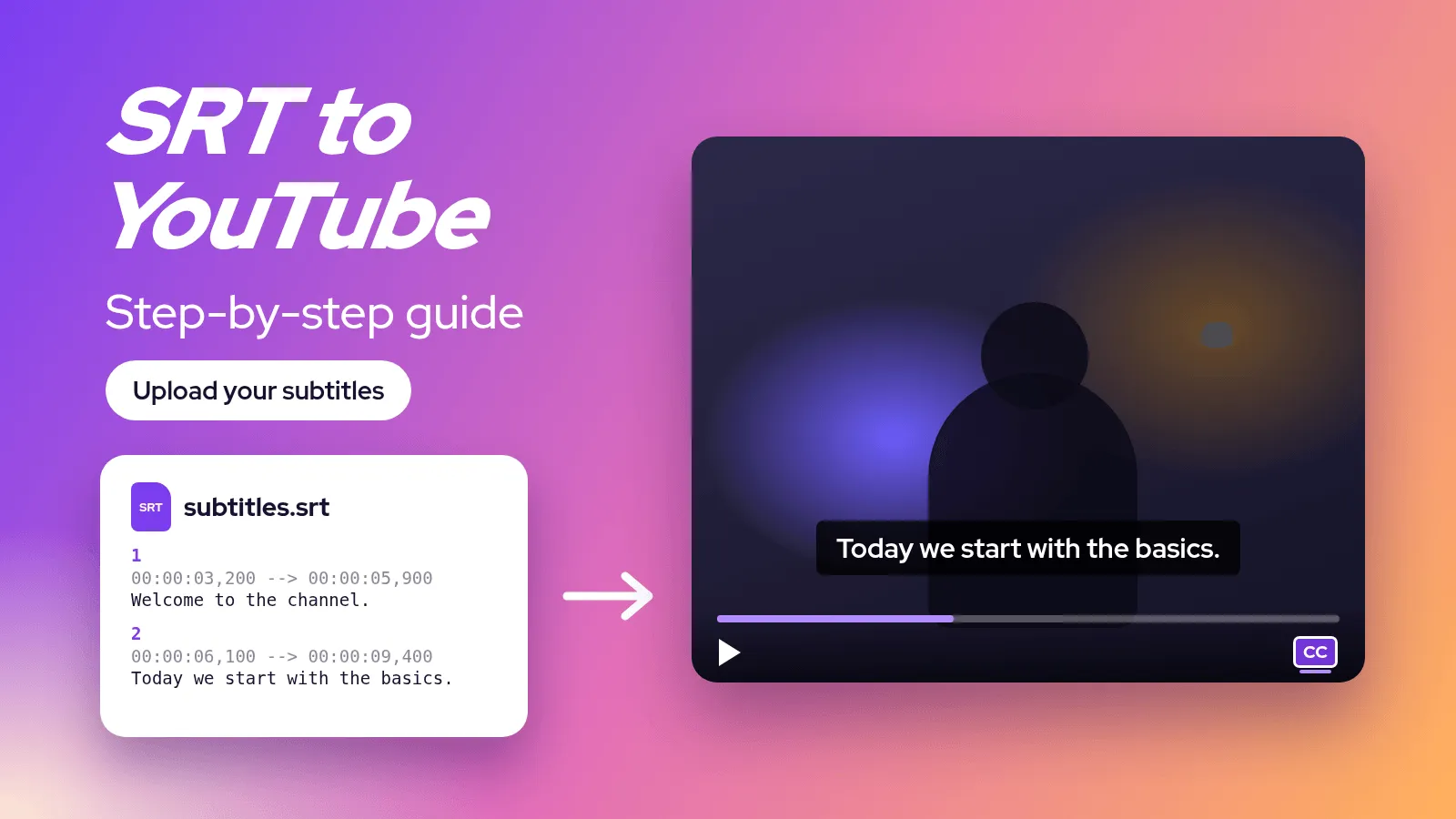
How to add SRT subtitles to a YouTube video, step by step (2026)
An SRT file goes into YouTube Studio in a few clicks. The full tutorial: generate the file, upload it, add other languages and fix the most common upload errors.
Artificial Intelligence
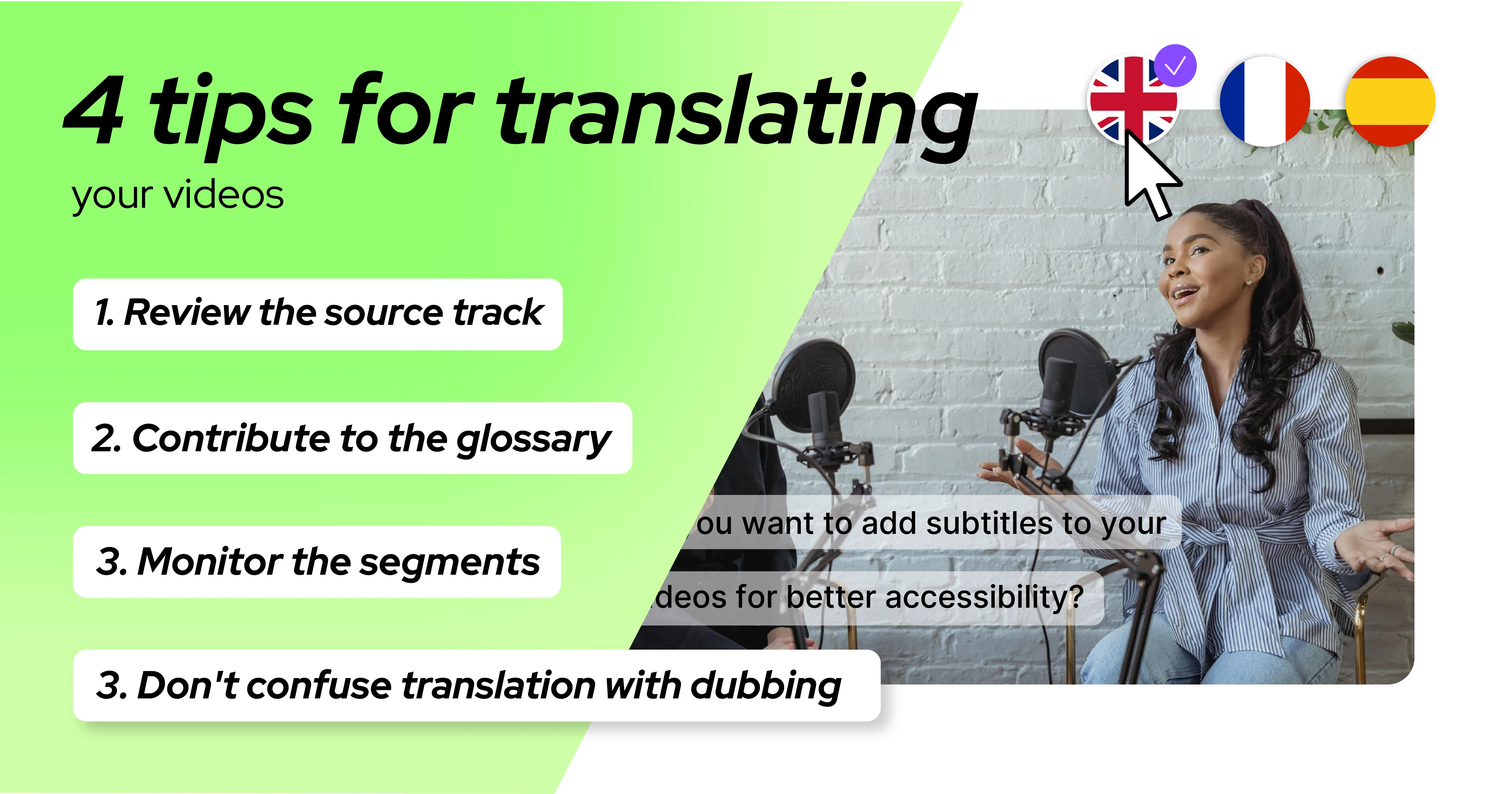
Translating your video subtitles: 4 tips to know
Translating subtitles with AI is fast, but a few habits make the difference between a clean track and a messy one: review order, glossary, text length, dubbing.
Artificial Intelligence
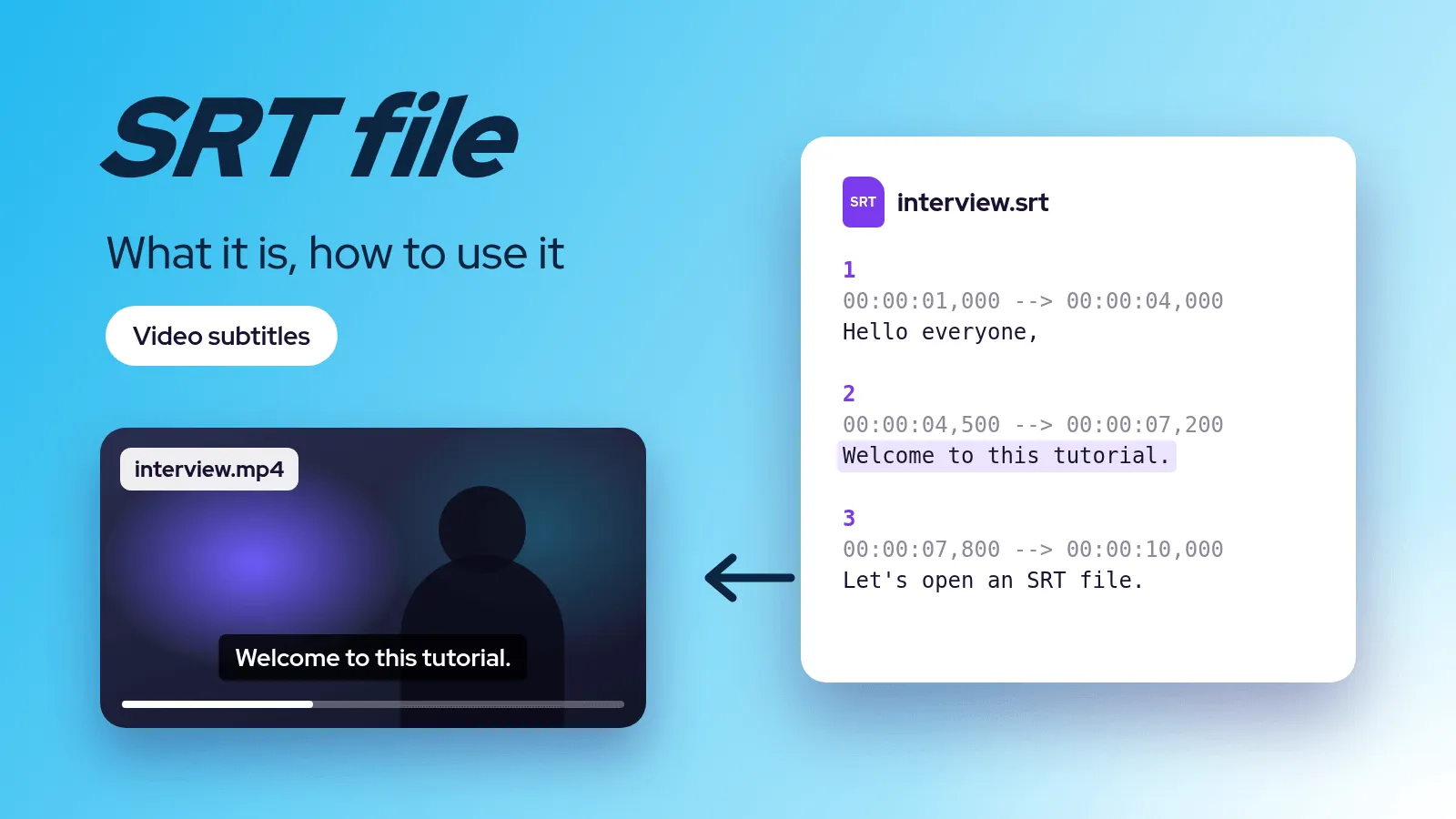
SRT file: what it is and how to open, create and edit one
An SRT file is a plain text subtitle file. Its structure line by line, how to open it, create it by hand or automatically, fix it, and how it differs from VTT.