Discover Scribe, the Videas subtitling tool
Scribe is the AI subtitling and transcription engine of Videas. It generates subtitles in more than 100 languages, on servers hosted in the EU, and it can be used in two ways: as a standalone tool from the side menu (the “rail”), or directly from the Subtitles tab of a media item in Mediasbox. Both lead to the same subtitles — pick whichever entry point suits you.
This guide covers Scribe as a standalone tool: how to open it, start a project there and where its settings are. The detailed tasks (generate, edit, translate, style…) each have their own article, listed at the bottom of this page.
Try Scribe without an account: the Add subtitles to a video tool runs the same generation from the browser, on ten minutes of media — enough to judge the result on your own file before opening a project.
Open Scribe from the rail
In the side menu on the left, click the Scribe icon. You land on the list of your subtitle projects: every media item that has subtitles — generated, imported or in progress — appears there as a card, with its tracks and their status. If you have no project yet, a welcome screen invites you to get started (and to watch a short introduction video).
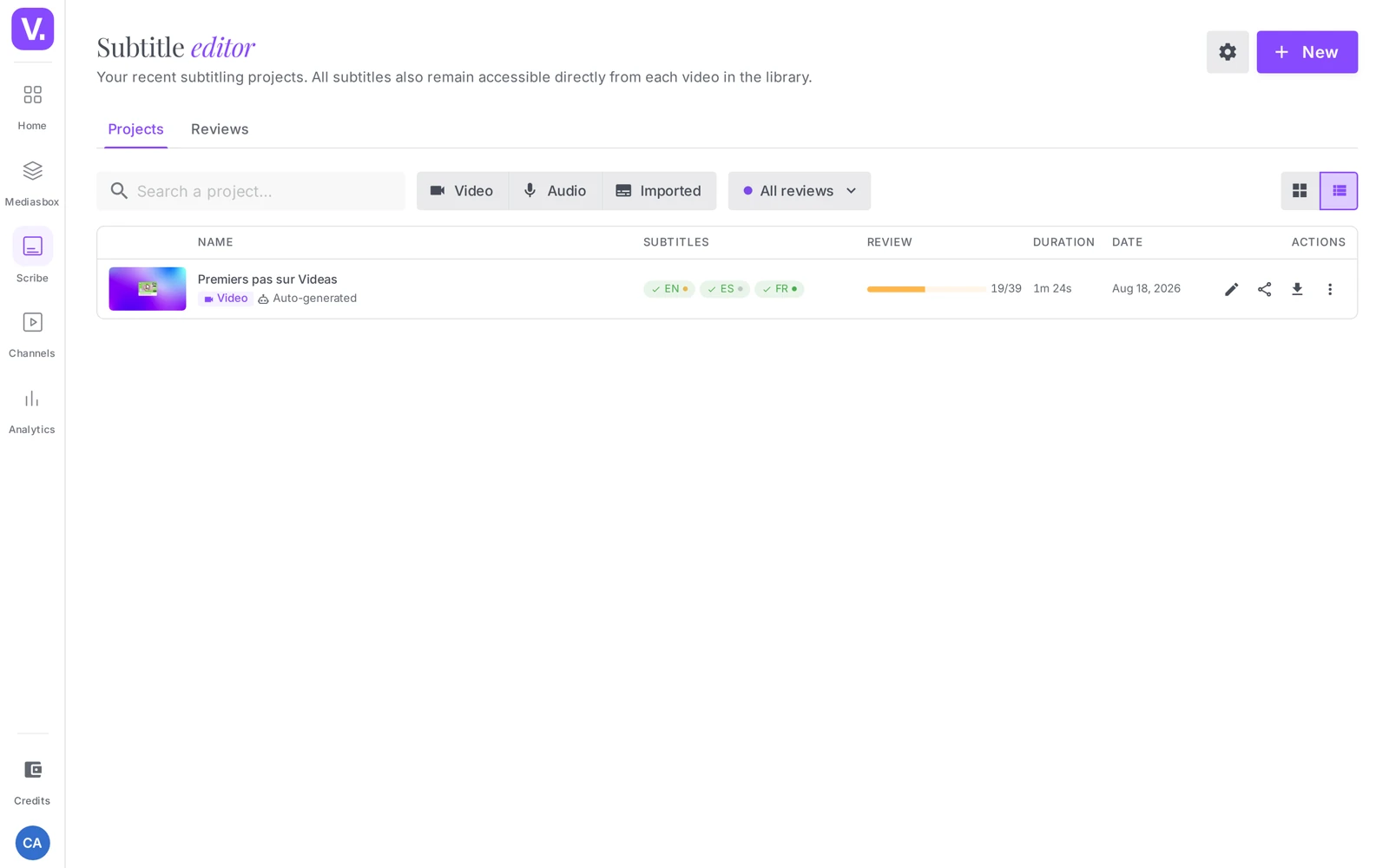
Good to know: the Scribe icon only appears in the rail if the app is enabled on your plan or if your role gives you access to it. If you cannot see it, go through the Subtitles tab of a media item, or contact an Admin in your organization.
Two ways to reach your subtitles
Scribe and the Subtitles tab of a media item work on the same data — a track generated from one appears immediately in the other. The difference is where you start:
| Entry point | Where | Best for |
|---|---|---|
| Scribe (standalone tool) | Side menu → Scribe | Running subtitling as an activity in its own right: seeing all your projects, starting a new one (including by direct upload), tracking reviews |
| Subtitles tab (per media item) | Mediasbox → a media item → Subtitles tab | Managing the subtitles of one specific media item, in the context of its detail page |
Start a project (the New button)
At the top right of the list, the New button opens the Source wizard — “Choose how to add your content”. Three options:
- Upload video/audio — send a file directly into Scribe. It is added to your media library, then Scribe starts the transcription. Handy when the media item is not yet in Videas.
- From the library — choose a media item already present in Mediasbox.
- Import subtitles — load an existing .srt or .vtt file; Scribe opens the editor straight away so you can correct and style it.
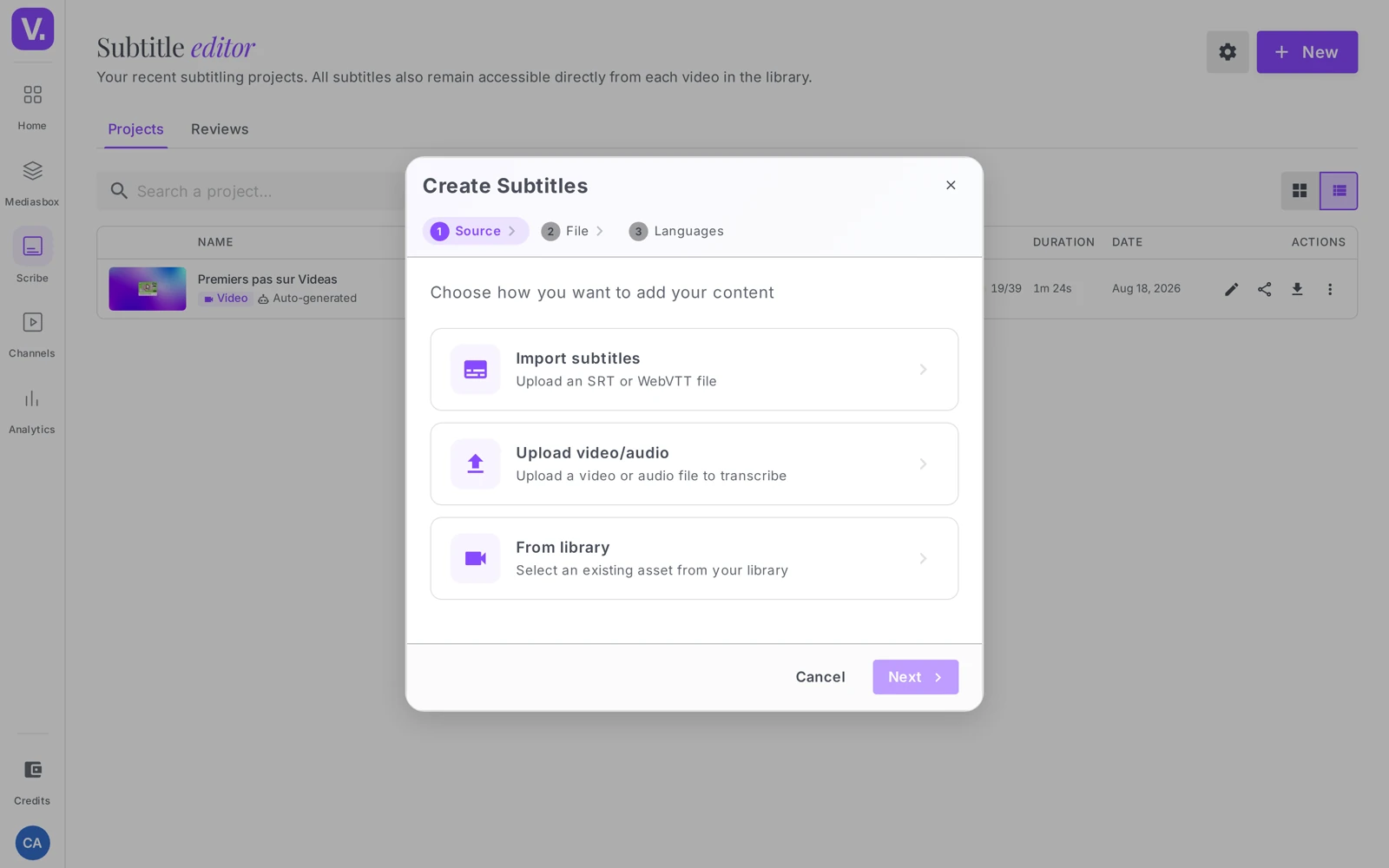
For the first two options, you then choose the language or languages to generate (one track per language). The full procedure is detailed in Generate subtitles automatically.
Find and filter your projects
The list is organized into two tabs:
- Projects — all of your subtitling work
- Reviews — the external review requests, ongoing and completed
On the Projects tab, several filters help you find a media item:
- Search by name
- Type: Video, Audio or Imported (a subtitle file on its own)
- Review status: internal progress (to do / in progress / done) and external review (sent / returned)
- Display as a grid or a list
Hovering over a card reveals quick actions: Download the tracks, Share for review, Delete. Clicking the card opens the editor.
Scribe settings
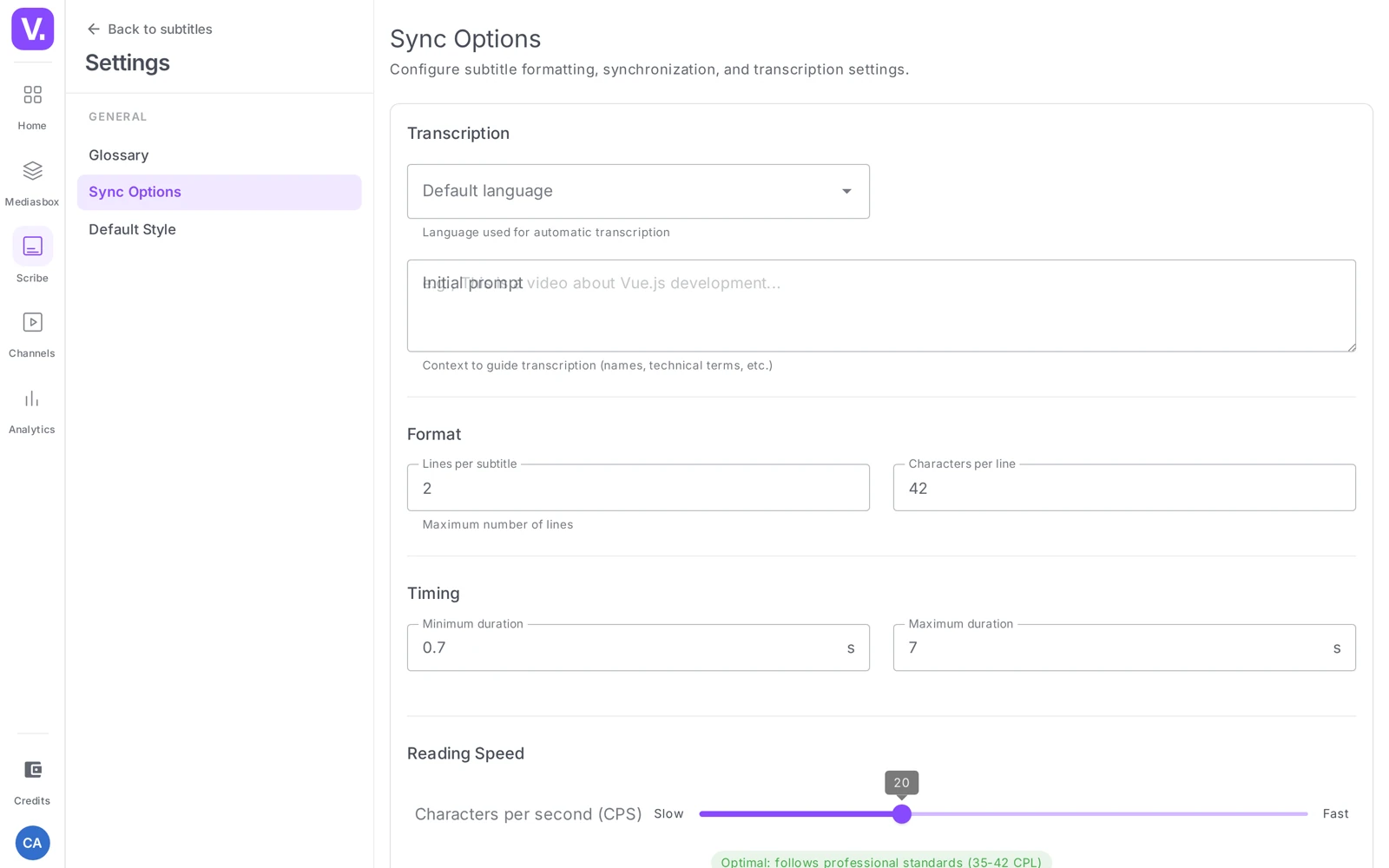
The gear button at the top of the list opens the settings that are common to the whole tool:
- Glossary — the business vocabulary, proper nouns and acronyms that Scribe should spell correctly (Improve transcription)
- Sync options — the formatting and timing applied to subtitles
- Default style — the appearance applied by default when you burn subtitles in to the video
What Scribe can do, in detail: the Scribe product page sets out the languages covered, how the engine works and where the processing is hosted.
Do Scribe and the Subtitles tab give the same subtitles?
Yes: both entry points work on the same data. A track generated from a media item’s Subtitles tab shows up in Scribe immediately, and the other way round. There is no copy and no sync to trigger.
What changes is where you start. Scribe is built to run subtitling for its own sake — see all your projects, start one by direct upload, follow reviews. The Subtitles tab is built to handle one specific media item, in the context of its page.
Can I subtitle a file that is not in Videas yet?
Yes, with the Upload video/audio option under Scribe’s New button. The file is sent straight into Scribe, added to your media library along the way, and the transcription starts right after.
That is the shortest route when the media exists nowhere in your account: it saves the round trip through Mediasbox. The two other options under New start from an item already in the library, or from an existing .srt/.vtt file to correct.
Can I import an existing .srt file instead of generating one?
Yes. The Import subtitles option under New loads an .srt or .vtt file and opens the editor directly so you can correct and style it. No transcription is run: you start from your own text.
That is the route for a track produced elsewhere — by a supplier, by editing software, or by a platform you are leaving.
Why doesn’t the Scribe icon appear in my menu?
Because the application is only shown if it is enabled on your plan, or if your role gives you access. Its absence from the rail is not a display bug.
Two ways out: go through the Subtitles tab of a media item in Mediasbox, which reaches the same tracks, or ask an Admin in your organization to open access.
In summary
- Scribe is the subtitling and transcription tool of Videas: 100+ languages, hosted in the EU
- Two doors to the same data: the Scribe icon in the rail (standalone tool) and the Subtitles tab of a media item
- From Scribe, the New button starts a project by direct upload, from the library or by importing an .srt/.vtt
- The list separates the Projects and Reviews tabs, with search and filters (type, review status)
- The gear opens the shared settings: Glossary, Sync options, Default style
- Generating or editing subtitles requires the Editor role (or above)
Related articles
Screenshots were taken on Videas Academy, an example channel built for this help center. It belongs to a fictional customer, not to Videas: your own channel carries your name, your branding and your prices.