Improve transcription (vocabulary glossary)
If Scribe gets the same words wrong every time — your company name, a brand, an acronym, industry jargon — add them to the glossary: Videas uses it to recognize those terms by ear more reliably during transcription. The glossary lives in Scribe → Settings → Glossary, and it is shared across the whole organization (every video benefits from it).
Open the glossary
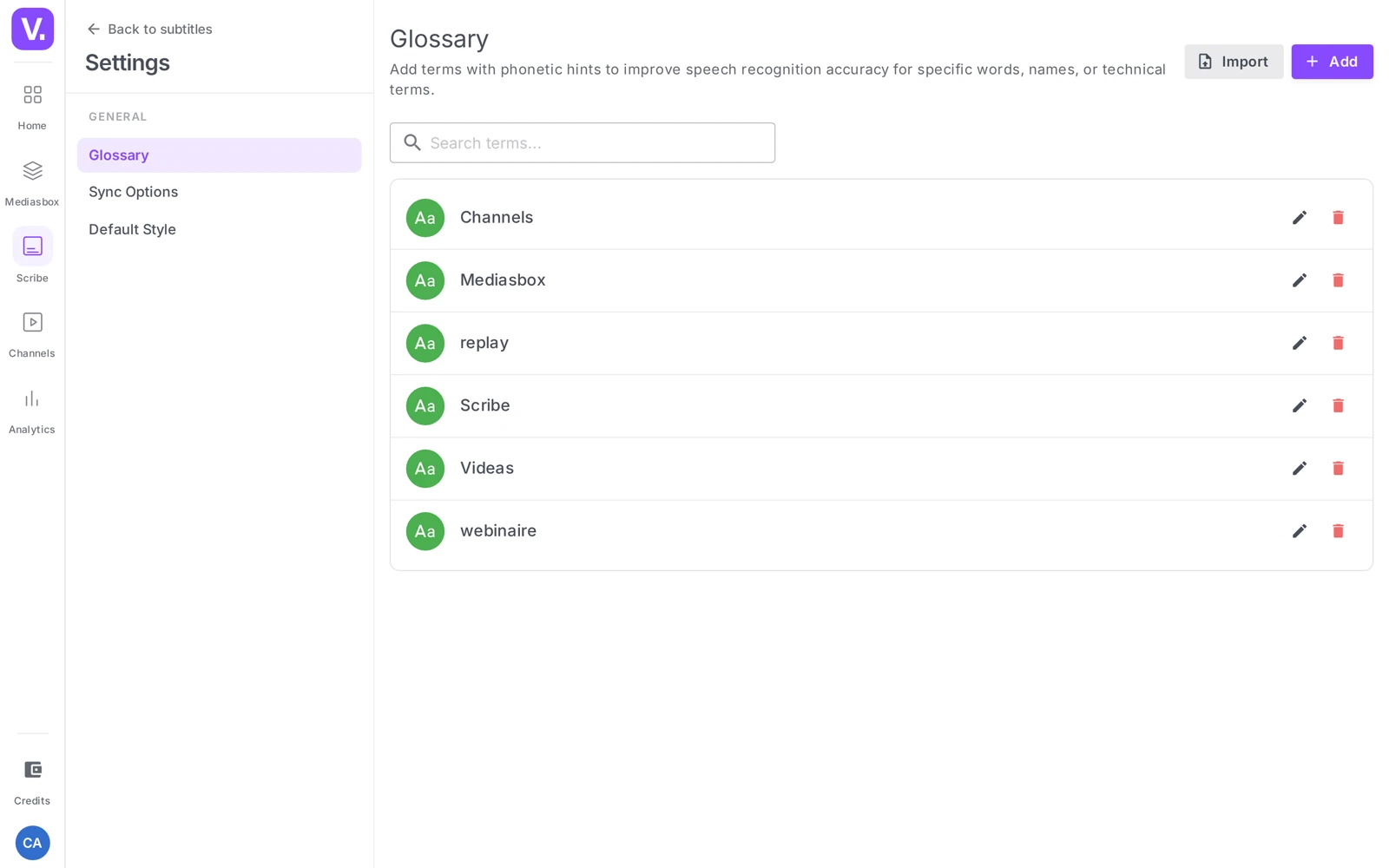
Open Scribe, then Settings → Glossary. The screen lists the existing terms, with a search field and two buttons: Add and Import.
Add a term
Click Add. The Add a term window offers:
- Term (required) — the exact spelling Videas should produce (e.g. Videas, COVID-19, SaaS)
- Phonetic hint — how the word is pronounced, to help recognition (e.g. vee-day-as)
- Category — a free-form label to keep things organized (Brand, Technical, Person…)
- Context — a short sentence to remove an ambiguity
- Active — a switch to disable a term without deleting it
Confirm with Add. The term is taken into account in subsequent transcriptions.
The habit that pays off: as soon as you spot a badly transcribed word while reviewing, add it to the glossary — it takes 30 seconds. The next generation will get it right, and every video in the organization benefits.
The phonetic hint: which words need one?
This is the most useful field after the term itself. Fill it in above all for:
- acronyms pronounced letter by letter: API → A-P-I, GDPR → G-D-P-R
- unusual proper nouns or foreign words: Videas → vee-day-as
- invented or compound words specific to your brand
An approximate phonetic spelling is fine — but a good hint noticeably increases the recognition rate.
Import a list (CSV)
To set up the glossary in one go, the Import button accepts a CSV file (one column of terms at minimum, plus the optional fields). Handy when you already have a list of industry vocabulary in a spreadsheet.
Edit, disable, delete
Click a term to edit it, then Save. The Active switch disables it without deleting it (useful when you are unsure — reactivating is instant, recreating a term takes longer). The Delete button erases it permanently.
Best practices
- Start small: 15 to 30 well-chosen terms (the ones that come up most often) cover the essentials; build it up as you review
- Priority targets: company name, brands (yours and your clients’), acronyms, recurring speakers, technical jargon
- Update it when things change: a renamed product, a new executive, a new technology → add the term before the next video that mentions it
- Categories: they exist only to help you stay organized, not for the AI
Does the glossary also apply to translation?
No, and that is the most common confusion. The glossary acts on recognition by ear: it helps Videas hear a word spoken in the audio correctly and spell it the way you wrote it. It is not a bilingual dictionary, and it does not force a translation for a given term.
In practice it still improves your translations, but indirectly: a source track where your company name is spelled correctly produces a cleaner translation than one where it was misheard.
Is the glossary specific to a video, or shared?
It is shared across the whole organization. A term added from Scribe → Settings → Glossary benefits every later transcription, on every media item and every workspace.
That is what makes the effort pay off: thirty seconds spent adding a mis-transcribed word saves correcting it in every video to come.
How many terms does it take to be useful?
Fifteen to thirty well-chosen terms cover the essentials. They are the ones that come back most often: your company name, your brands and your clients’, acronyms, recurring speakers and the technical jargon of your field.
There is no need to anticipate everything. The method that works is to enrich it as you review: as soon as a word is mis-transcribed, it joins the glossary, and the next generation gets it right.
What is the phonetic hint for?
It is the most valuable field after the term itself: it tells Videas how the word is pronounced, which noticeably raises the recognition rate.
Fill it in above all in three cases: acronyms spoken letter by letter (API → A-P-I), unusual proper or foreign nouns (Videas → vi-day-as), and invented words specific to your brand. An approximate pronunciation is still useful — an imperfect hint beats no hint.
Should I delete a term that no longer applies?
Not straight away: use the Active switch instead, which turns it off without erasing it. Reactivating a term is instant, whereas recreating it means finding its spelling, its pronunciation and its context again.
Keep deletion for what is permanently obsolete — a discontinued product, a brand you sold.
In summary
- The glossary improves recognition of your vocabulary during transcription (it is not a translation dictionary)
- It is shared across the organization: Scribe → Settings → Glossary
- A term has: Term (required), Phonetic hint, Category, Context, Active
- Add them one by one, or Import a CSV list
- The most valuable field is the phonetic hint (acronyms, proper nouns, invented words)
- Start with 15-30 terms and build it up over time
Related articles
Screenshots were taken on Videas Academy, an example channel built for this help center. It belongs to a fictional customer, not to Videas: your own channel carries your name, your branding and your prices.