Get your subtitles reviewed
To have someone else check your subtitles — a native speaker, a colleague, a client — use Share for review in Scribe. The reviewer opens your subtitles directly in Scribe, without creating an account, corrects whatever needs correcting, and their corrections come back to you: you approve them one by one (or let them apply directly). No files to exchange, and the link can expire after 7, 14 or 30 days — or never, whichever you choose. Sharing requires the Editor role (or above).
This is particularly useful for checking a translation in a language you do not speak, or having proper nouns and industry jargon validated by an expert.
Share a track for review
From the Scribe project list (or from the editor), use the Share for review action. A window opens — “The reviewer corrects your subtitles directly in Scribe. Their corrections come back to you as suggestions — no files to exchange.”
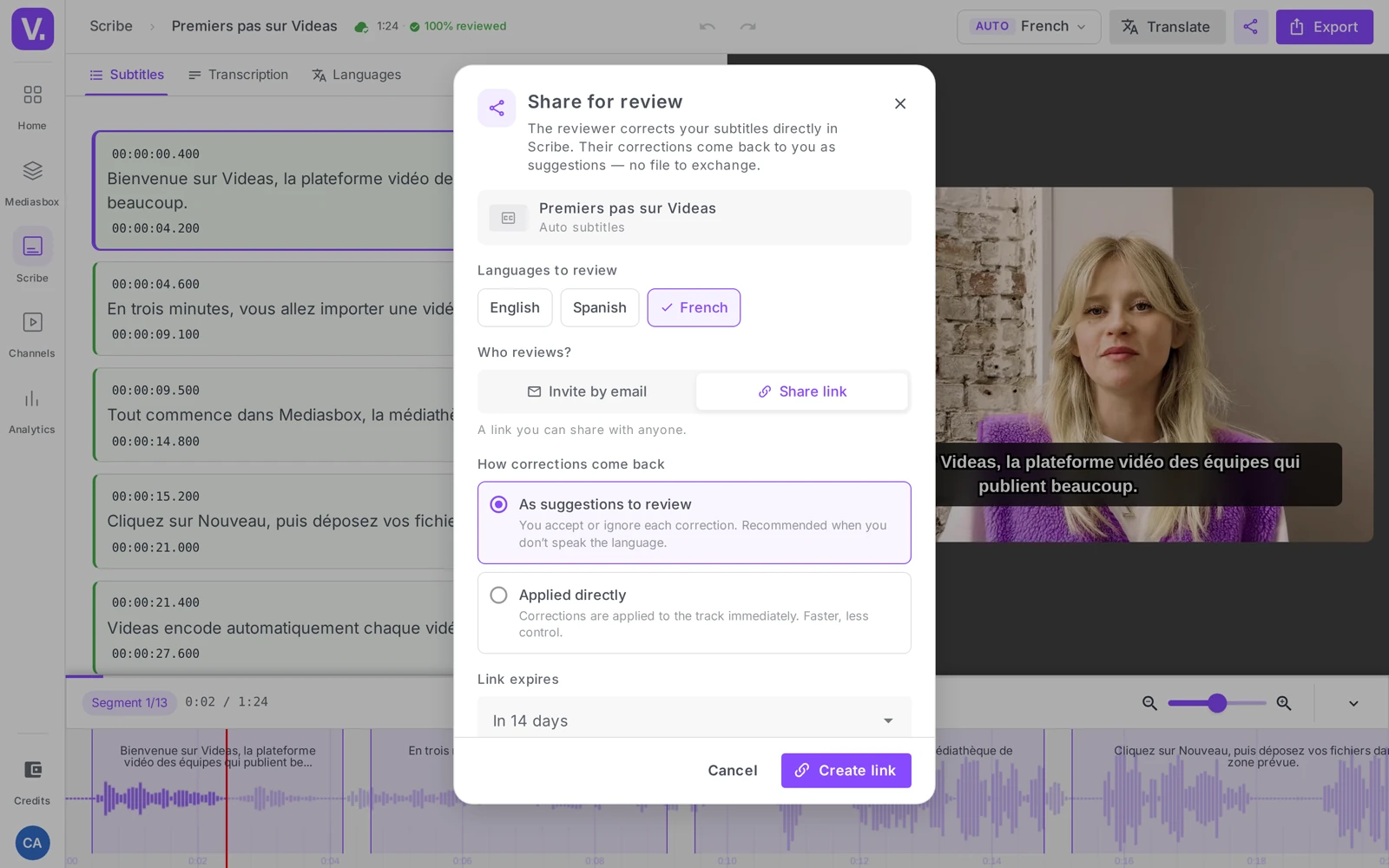
There you set:
- Languages to review — tick the track or tracks to be checked (a single review can cover several languages at once)
- Who reviews? — Invite by email (Videas sends the link to the reviewer) or Share link (a link you send yourself to whoever you want)
- How corrections come back:
| Mode | What happens | When to choose it |
|---|---|---|
| As suggestions to approve | You accept or dismiss each correction before it applies | Recommended, especially if you do not speak the language |
| Applied directly | Corrections are applied to the track immediately | Faster, less control — for a reviewer you trust |
- The link expires — In 7 days, 14 days, 30 days or Never
- Message (optional) — a note for the reviewer (“Hi, could you check the translation? Thanks!”)
Confirm with Send invitation (email mode) or Create link (link mode) — in that case, Copy the link and send it out yourself.
What the reviewer sees
The reviewer opens the link and lands in Scribe in review mode, with no account and nothing to install. A welcome screen sums up their job in three steps: Listen, Correct, Confirm.
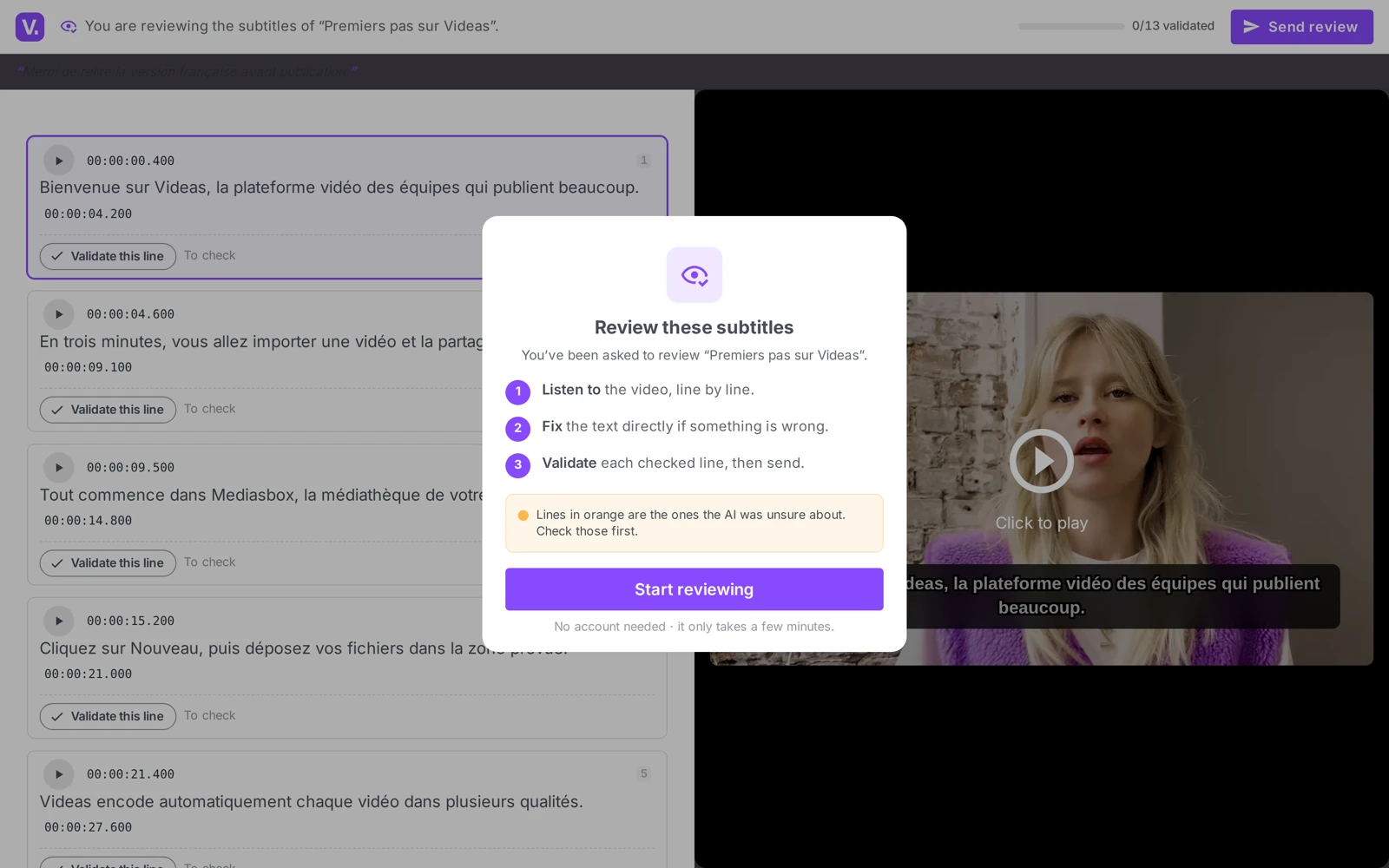
For each line, they can Listen to this passage, correct the text if it is wrong, then Confirm this line. Lines in orange flag the passages where the AI hesitated — to be checked first. Once the review is finished, they click Submit review; a message thanks them and lets them know the owner will apply their corrections.
Good to know: the reviewer sees only the subtitles you share — not your media library, nor the rest of your workspace. The link can expire according to the delay you chose.
Retrieve and apply the corrections
Reviews are tracked in Scribe → Reviews tab. When a reviewer has sent their work back, the review moves to Corrections received: click View corrections.
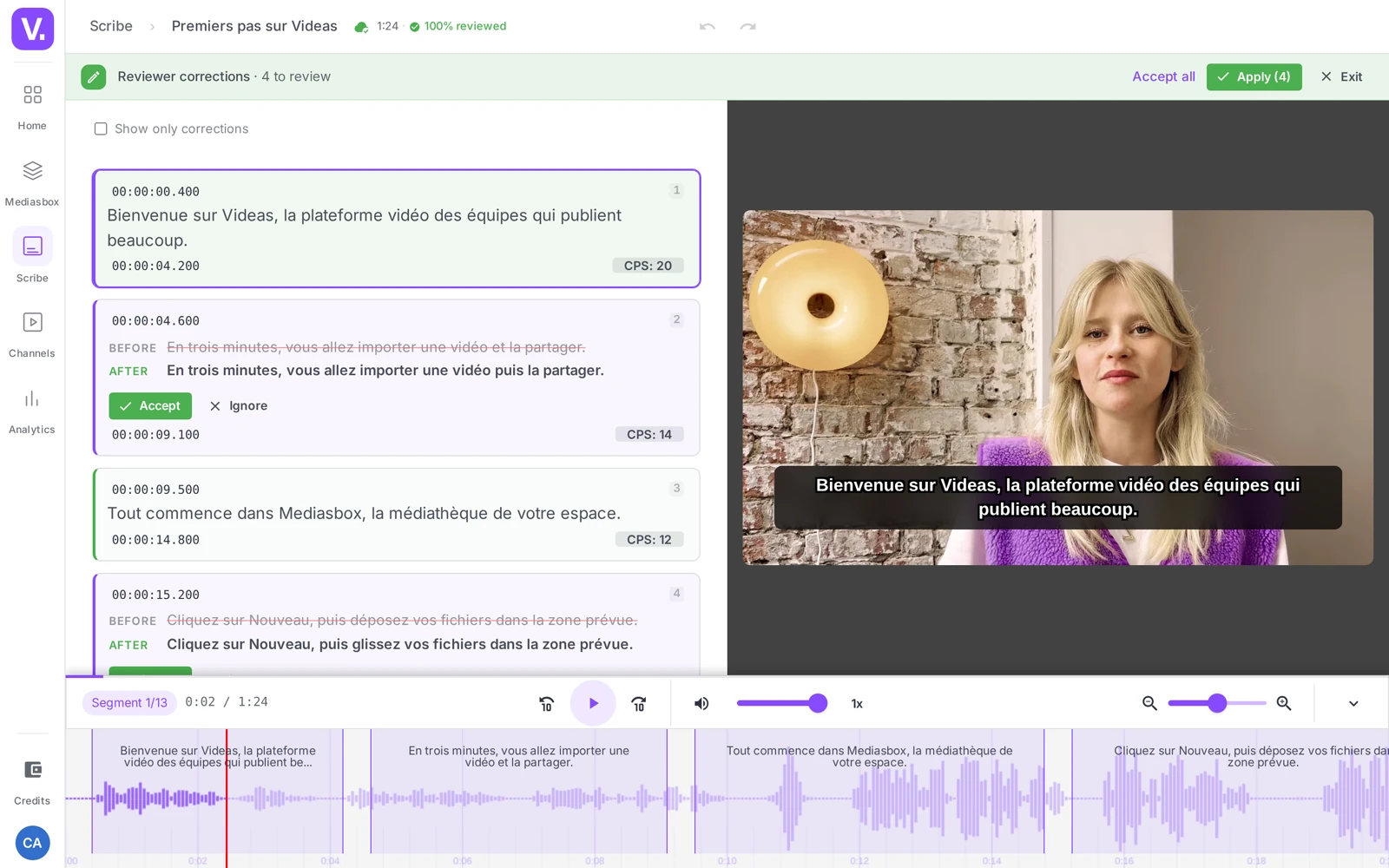
The Suggested corrections panel shows each change as Before / After. For each one, Accept or Dismiss; the Accept all and Apply buttons handle the whole batch at once. Once the corrections are applied, the review is closed (status Applied) and the media item gets a Reviewed badge.
If you chose the Applied directly mode, there is nothing to approve: the corrections are already in the track. The suggestions mode is the only one that takes you through the Accept / Dismiss step.
Track the state of a review
Each review carries a status, visible on the Reviews tab:
| Status | Meaning |
|---|---|
| Waiting for the reviewer | The link has been sent, the reviewer has not opened it yet |
| Opened by the reviewer | They have started their review |
| Corrections received | They have sent their work back — over to you to approve |
| Applied | The corrections are in, the review is closed |
As long as the reviewer has not delivered, the Resend link button lets you chase them (copy the link or send it again by email).
Does the reviewer need a Videas account?
No. They open the link you send and land straight in Scribe in review mode, with no account and nothing to install. A welcome screen sums up their job in three steps: Listen, Correct, Approve.
They see only the subtitles you shared — not your media library, not the rest of your workspace. The link can also expire at the delay you picked (7, 14, 30 days, or never).
Suggestions to approve, or corrections applied directly: which one?
Suggestions to approve in most cases, and always if you do not speak the language being reviewed. You then get every change as Before / After, and accept or ignore them one by one — the Accept all and Apply buttons handle the batch at once when you are confident.
The Applied directly mode is faster but has no safety net: corrections enter the track without passing through you. Keep it for a reviewer whose work you know.
What do the orange lines mean on the reviewer’s side?
They are the passages where the AI hesitated — the signal that the transcription is less certain there than elsewhere. They tell the reviewer where to start when time is short.
That does not mean the other lines are right: a transcription can be confident and wrong, typically on a proper noun. Orange lines are a priority, not a scope.
Can several languages be reviewed at once?
Yes. The Share for review window lets you tick several tracks in the Languages to review section: one invitation then covers the lot.
That helps when the same reviewer is bilingual, or when you send the batch to an agency. For different reviewers per language, create one review per person instead — each has its own status and its own link.
How do I know where a review stands?
Through Scribe’s Reviews tab, where every request carries a status: Waiting for the reviewer (the link went out, they have not opened it), Opened by the reviewer (they have started), Corrections received (yours to approve), Applied (it is closed, and the media gets a Reviewed badge).
Until the reviewer has returned their work, the Resend the link button lets you nudge them, by copying the link or by email.
In summary
- Share for review (Scribe) sends a track to a third party with no file exchange and no account to create
- Two delivery methods: email or share link; the link can expire (7 / 14 / 30 days or never)
- Two ways corrections come back: as suggestions to approve (you stay in control) or applied directly
- The reviewer listens, corrects and confirms each line; orange lines are where the AI hesitated
- You get everything back on the Reviews tab: Before / After, Accept / Dismiss, then Apply → status Applied plus a Reviewed badge
- Sharing a review requires the Editor role (or above)
Related articles
Screenshots were taken on Videas Academy, an example channel built for this help center. It belongs to a fictional customer, not to Videas: your own channel carries your name, your branding and your prices.