Offer your subtitles in several languages
A video can carry several subtitle tracks — one per language. You manage them in two places: the track list on the Subtitles tab (and the Languages tab in the editor), and the Configure button, which controls which track is shown to which visitor. You need the Editor role (or above).
Only one video to translate? The Translate a video tool transcribes and translates in one pass, without setting up the workflow described here. ⚠️ Translation needs a free account; transcription does not.
The right production order
For clean multilingual output, the order matters:
- Generate the original language (the one spoken in the video) — see Generate subtitles automatically
- Review and correct that source track in the editor — an uncorrected mistake risks ending up in every other language
- Translate into your target languages, using multiple selection — see Translate subtitles
- Review each translated track (proper nouns, consistency, CPS, which can overflow: a German translation is longer, a Japanese one shorter)
- Configure the display (below)
How many languages? Better 3-4 languages kept in good shape than ten left to rot: each track needs a little maintenance whenever the video changes. Aim for the languages where you genuinely have an audience.
Manage the tracks
In the editor, the Languages tab lists all of the media item’s tracks: there you add a language, switch from one to another, and delete the ones you no longer need. Each track carries a badge — Default, Auto (AI-generated) or Manual, and Pending / Failed while it is processing. The default track cannot be deleted: designate another one as the default first.
In the list on the media item’s Subtitles tab, badges are also a reminder of each track’s status: Default in the player, Hidden in the player, Auto-generated, Imported.
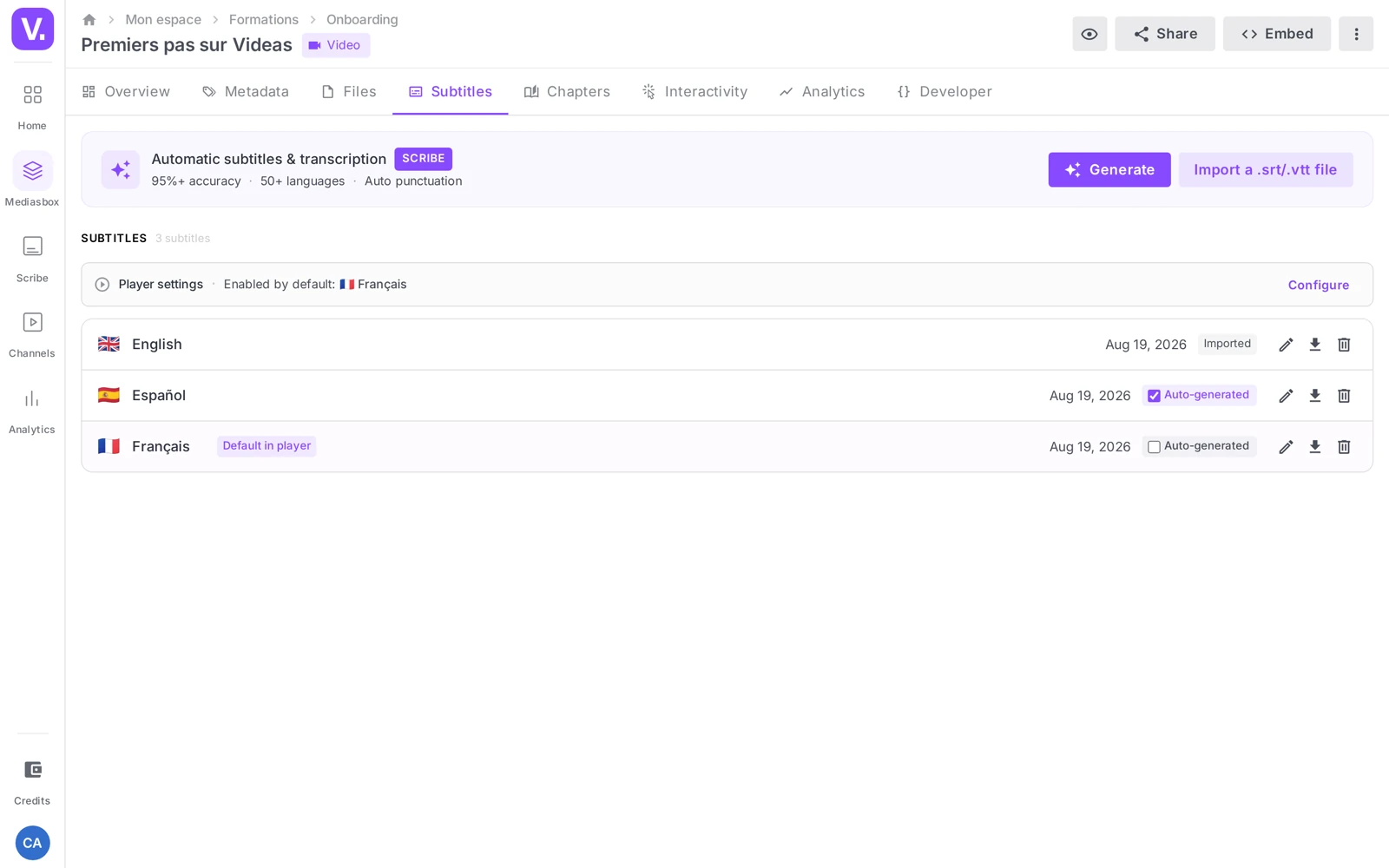
Show the right track to each visitor
The Configure button (Subtitles tab) opens the Player configuration:
- Default subtitle — the track offered when a viewer turns subtitles on. Two modes: Specific subtitle (always the same track) or Browser language (the player activates the track matching the visitor’s language, if it exists)
- Show subtitles automatically — subtitles are on as soon as playback starts
- Visible in the player — tick the tracks offered to viewers; untick a working track you are keeping internal
For multilingual content, choose the “Browser language” mode. A French visitor sees French, an English speaker sees English — without anyone having to touch the selector.
Publishing outside Videas
On the Videas player and on embeds, tracks are displayed as an overlay (the visitor picks their language). On social media or in a shared .mp4 file, you have to burn in one language per file: run one video export per language.
Maintaining over time
Translations do not regenerate on their own when you correct the source track. Decide in advance how you will propagate a correction: carry it over by hand into each language, re-translate the language concerned, or ignore it if it is minor. And if you re-edit the video (the timecodes move), start from a fresh source track rather than patching up the old ones.
How many languages should I offer?
Three or four, well maintained, rather than ten left to rot. Each track needs upkeep as soon as the video changes, and a wrong or outdated translation does more harm than a missing language.
The criterion is not theoretical coverage but real audience: open your analytics by country before deciding. A language where you have no viewers costs time and returns nothing.
What happens to translations when I correct the source track?
Nothing: they do not regenerate on their own. A correction made to the original track stays in that track, and the translated tracks keep the old wording.
So decide in advance how to propagate a correction — carry it over by hand into each language, re-translate the language concerned, or ignore it if it is minor. That is also what justifies reviewing the source before translating: one correction saves you making five.
Why can’t I delete a track?
Because it is the default track: Videas refuses to leave a media item with no reference track. Designate another track as the Default subtitle from the Configure button first, then delete the one you no longer want.
Note the difference with plain visibility: unticking a track under Visible in the player removes it from the viewer’s selector without erasing it. That is what to do with an internal working track.
Do I have to redo the subtitles if I re-edit the video?
Yes, start from a new source track. Re-editing moves the timecodes: existing tracks end up out of sync from one end to the other, and catching that up segment by segment costs more than regenerating.
The habit that limits the damage: only commit to translation and review once the edit is locked.
How do I distribute a multilingual video outside Videas?
By exporting one file per language, with the subtitles burned in. The overlay — the one that lets the visitor pick their language in the player — only exists on the Videas player and your embeds; it has no equivalent on social networks or in an .mp4 sent as an attachment.
In practice, a video in three languages means three files, to be named explicitly as you download them. That is the price of off-platform distribution, and the reason to keep Videas as your main outlet when you carry many languages.
In summary
- A video carries one track per language; you manage them on the editor’s Languages tab and in the list on the Subtitles tab
- Order: generate the source language → review → translate → review → configure the display
- The default track cannot be deleted (designate another one first)
- Configure → Default subtitle in Browser language mode to serve the right track automatically, plus Visible in the player to hide internal tracks
- Outside Videas: one burned-in export per language (video export)
- Translations do not update themselves — plan for the maintenance
Related articles
Screenshots were taken on Videas Academy, an example channel built for this help center. It belongs to a fictional customer, not to Videas: your own channel carries your name, your branding and your prices.