Translate the subtitles of a video
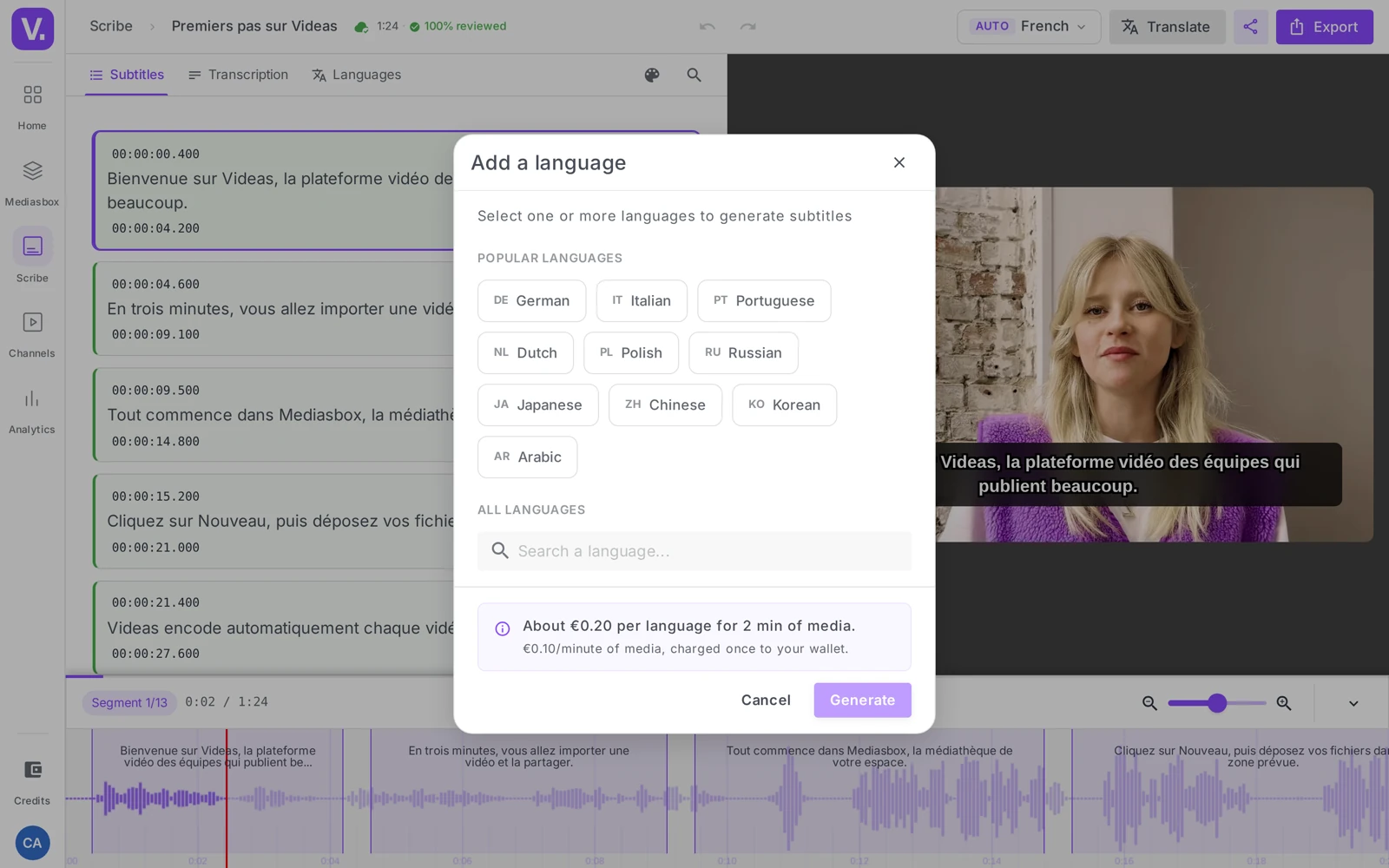
In Videas, “translating” subtitles means generating a track in another language: the editor’s Translate button opens the Add a language window, you choose one or more target languages, and Videas produces a subtitle track for each, in more than 100 languages. You need the Editor role (or above), and at least one subtitle track already on the media item.
Step 1: open the editor and start “Translate”
Translation is triggered from the subtitle editor (not from the media item’s detail page):
- In Mediasbox, open the video, Subtitles tab
- Click Edit (the pencil) on an existing track — the editor opens
- Click Translate (at the top) — or go to the Languages tab, then Add a language
No track yet? Generate the subtitles first: translation needs a starting point.
Step 2: choose the target languages
The Add a language window offers: “Select one or more languages to generate subtitles”.
- Click in the Popular languages shown, or search in All languages (the Search for a language… field, by name or code)
- Select several languages at once: the generations run in parallel
- Languages already present on the media item are hidden (no duplicates)
Confirm with Generate (or Generate {n} languages). One row appears per language, with the status In progress.
Step 3: review each translated track
Each language produces its own track, to be reviewed independently. In the editor, switch to the new track using the language selector at the top, then go through the segments (see Correct and edit subtitles). Machine translation is a very good starting point, but check above all:
- the proper nouns (your company, your clients, brands) — validate them 100%
- the industry vocabulary and idiomatic expressions (which do not translate word for word)
- consistency: the same term should come back with the same translation everywhere (use the editor’s Search)
Text length: a German translation is often longer, a Japanese one shorter — which can push the CPS above 20 on dense segments. Where needed, split those segments or make them longer.
Improve quality with the glossary
If the AI keeps stumbling on the same terms (company name, jargon, acronyms), feed your organization’s glossary: it improves recognition of your vocabulary. The most effective approach: generate one language, spot the terms that come out wrong, add them to the glossary, then launch the remaining languages. See Improve transcription (vocabulary glossary).
Offer the right language to each visitor
When you have several tracks, set the Default subtitle to the Browser language mode (the Configure button on the Subtitles tab): a French visitor sees French, an English speaker sees English, with nothing to set. Details in Generate subtitles automatically.
For a one-off file: the Translate subtitles tool translates an
.srtor.vttwithout uploading it to your media library.
Should I review the source track before translating?
Yes, and that order changes the outcome more than anything else. A translation starts from the text of the source track: every transcription error is reproduced and amplified in each target language, and you then have to correct it as many times as there are tracks.
The efficient run: generate the spoken language, review it, settle it — then launch the translations. Correcting once beats correcting five times.
Can I launch several languages at the same time?
Yes, the Add a language window accepts multiple selection, and the generations run in parallel. Languages already on the media item are hidden, which avoids duplicates.
One nuance is worth the detour, though: if you suspect terms are coming out wrong, generate one language first, spot the problems, feed the glossary, then launch the rest. That saves you propagating the same mistake into ten tracks.
Why does the CPS of my translations go over 20?
Because text length changes from one language to another for the same meaning. A German translation is often longer than the original, a Japanese one shorter: on segments that were already dense, the extra length pushes the CPS past the readability threshold.
The timing itself stays that of the source. On the segments concerned, split the segment, lengthen it if the silence after allows, or reword more briefly in the target language.
What should I check first in a machine translation?
Three things, in this order. Proper nouns — your company, your clients, your brands — to be validated 100%, because machine translation happily translates what should be left alone. Industry vocabulary and idioms, which do not survive word-for-word treatment. And finally consistency: the same term must come back with the same translation throughout, which the editor’s Search tab lets you check.
How do I serve the right language to each visitor automatically?
Set the Default subtitle to Browser language mode, from the Configure button on the Subtitles tab. The player then turns on the track matching the visitor’s language when it exists, without them touching the selector.
That setting is what makes your translation work visible: without it, your tracks exist but have to be found by hand in the player menu.
In summary
- “Translating” = generating a track in another language, via the editor’s Translate / Add a language button
- More than 100 languages; multiple selection and generation in parallel
- Each language = a track to review (proper nouns, vocabulary, consistency)
- Your organization’s glossary improves how your vocabulary comes out
- The Browser language mode automatically offers the right track to each visitor
- Translating requires the Editor role (or above)
Related articles
Screenshots were taken on Videas Academy, an example channel built for this help center. It belongs to a fictional customer, not to Videas: your own channel carries your name, your branding and your prices.