Customize the appearance of subtitles
To change the appearance of your subtitles (font, color, outline, position), open the subtitle editor and the Style tab: choose a ready-made theme, or switch to Customize to set every detail, with a live preview in the player. You need the Editor role (or above).
Choose a theme
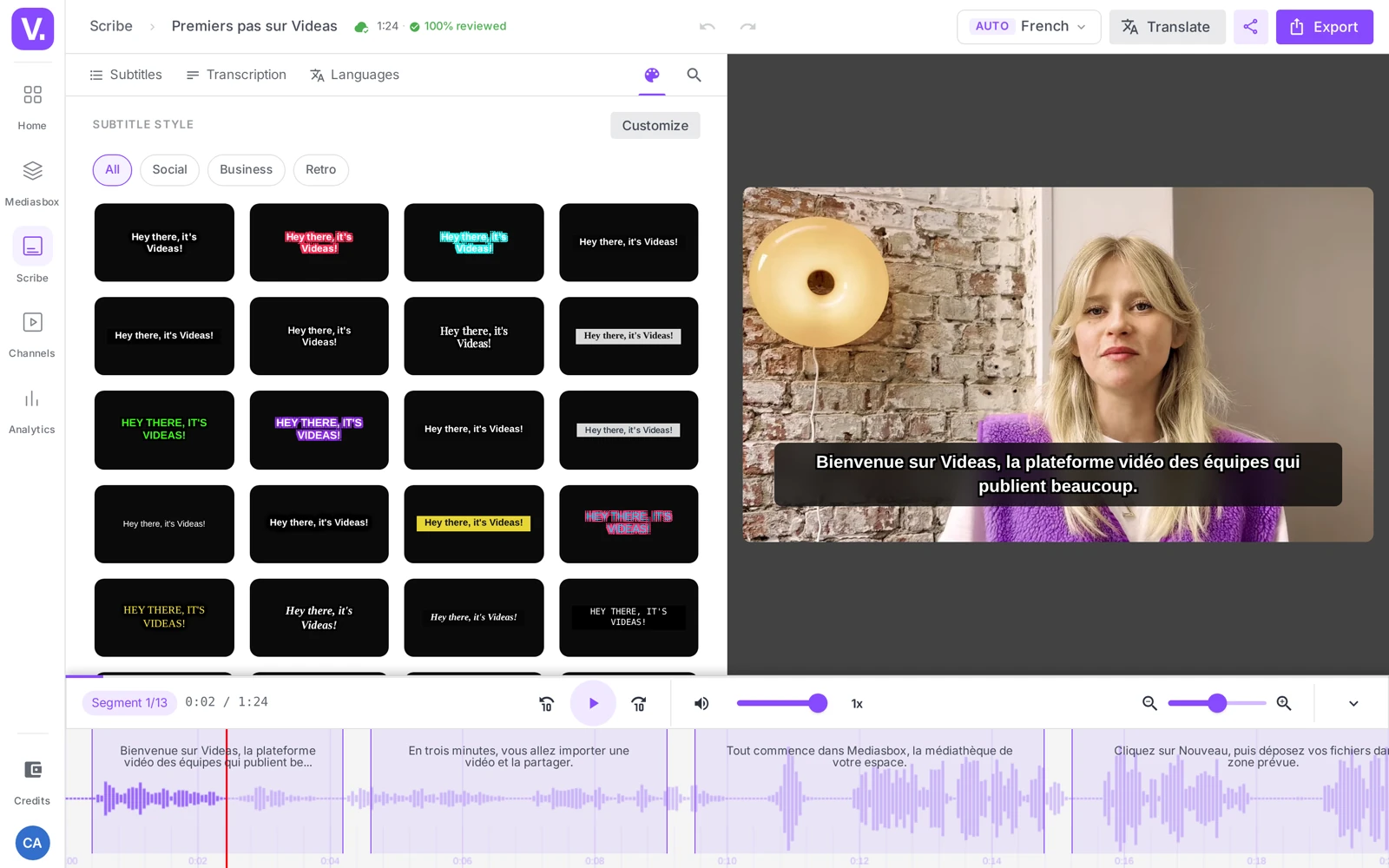
On the Style tab (Subtitle style), you get a gallery of ready-made themes, filterable by category: All, Social (TikTok, Reels, YouTube…), Business (corporate, understated) and Retro. Click a theme: the result applies immediately in the player on the right, and you can try several in a row.
Fine-grained customization
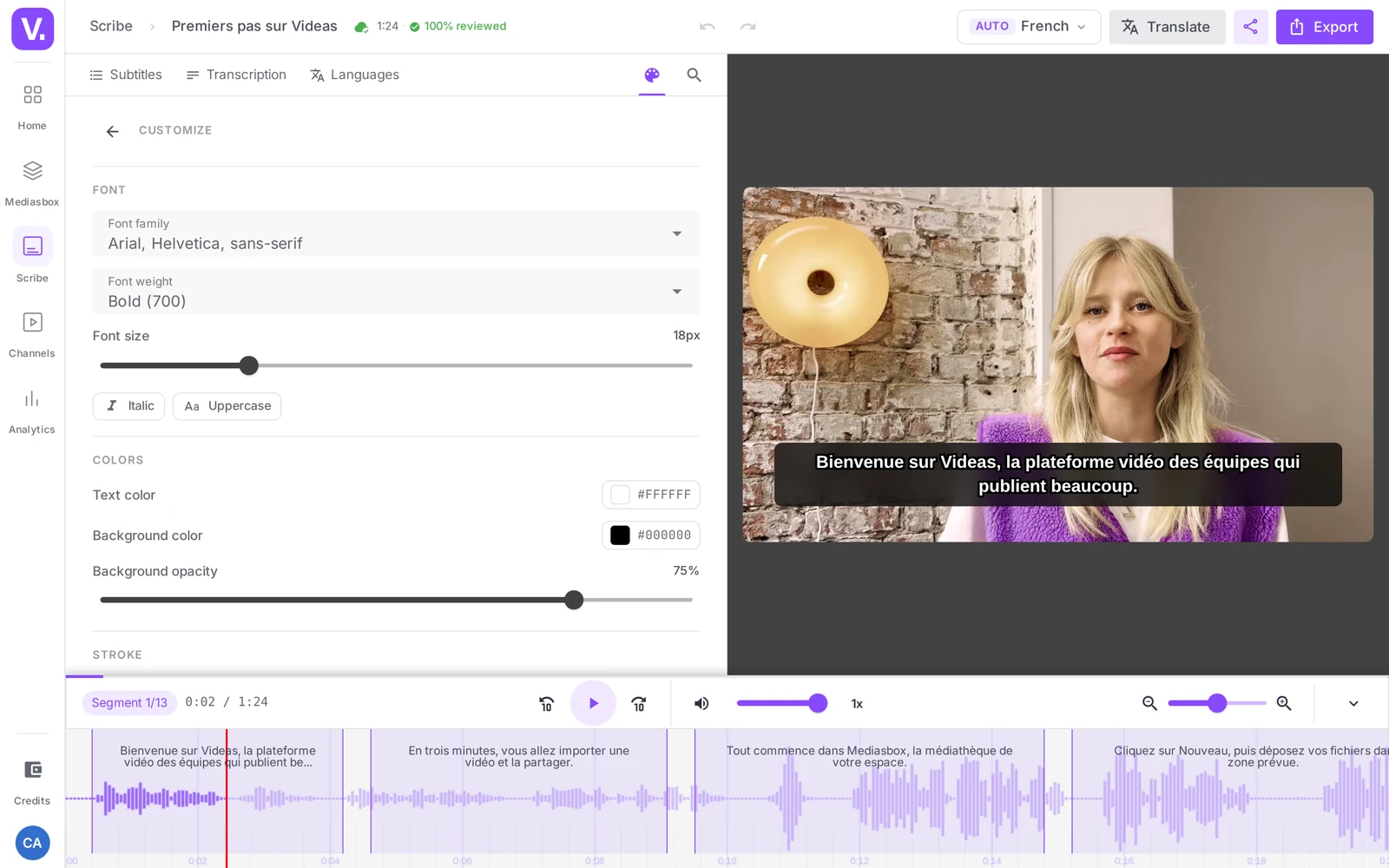
The Customize button opens the detailed settings:
- Font: Font family, Font weight, Font size (slider 12–36 px), plus the Italic and Uppercase options
- Colors: Text color, Background color, Background opacity (0 → 100%)
- Outline: Outline width (0 = off) and Outline color
- Position: Vertical position (measured from the bottom)
Readability — the rule that works everywhere: white text + black outline (2–3 px). The outline keeps the text readable on any background without the opaque band that eats into the picture. Otherwise, a semi-transparent background (60–90% opacity) does the job too. Avoid: light text with no outline and no background over a video with varied shots.
Preview in another format
The Video format selector changes the aspect ratio of the preview (square, portrait, landscape, platform presets). Handy for checking the result in 9 before a vertical export. Tip: for a story (LinkedIn, Instagram), raise the Vertical position so that the story interface (avatar, mention, CTA) does not cover the subtitles.
Karaoke mode: highlight the word being spoken
Karaoke mode highlights each word as it is spoken — the word-by-word effect of social videos. You can turn it on in two places:
- In the editor, right at the top of the Customize panel, the Karaoke card: flip the switch, then choose the Current word color.
- In Scribe → Settings → Default style, section Karaoke mode (Highlight the current word), to apply it by default to all of your subtitles.
Shortcut: the Karaoke theme (in the Social category) already enables it, with yellow highlighting.
Important — auto-generated tracks only: karaoke relies on the word-by-word timing that Scribe produces at generation time. It therefore works only on automatically generated tracks — not on an imported .srt/.vtt file, which only carries per-line timing. On those tracks the option is disabled, with the message “Karaoke only works on automatically generated tracks”.
The karaoke effect is burned in at export: when you burn the video with its subtitles, the animated highlighting is frozen into the picture. With “soft” subtitles (a track the viewer can turn on in the web player), the word is not highlighted — the effect is reserved for burned-in subtitles.
Set a default style
To apply an appearance by default to all of your subtitles without redoing it on every video, go to Scribe → Settings → Default style. You will find the same settings there — including the Karaoke mode described above. A Preview button shows the result, Save applies it.
Where the style applies
The settings are saved automatically (the editor’s cloud icon) and apply to the preview and to the video export: if you export a video with burned-in subtitles, it is this exact style that gets frozen into the picture.
Guaranteed rendering: as an overlay in the player, the display can vary slightly depending on the viewer’s browser. For a result that is identical everywhere, burning in (video export) remains the most reliable solution.
Best practices
- Brand guidelines: paste your brand’s exact color code into the text color
- Social format: Social theme, uppercase, thick outline, bold font
- Corporate format: Business theme, normal case, semi-transparent background
- Test during playback on several shots (close-up, wide shot, movement) — a style that is readable on a static shot may not be on a moving one
Which subtitle style stays readable on any video?
White text with a 2 to 3 px black outline. That is the combination that holds on every background — bright shot, dark shot, movement — without the opaque band that eats into the picture. Failing that, a semi-transparent background (60 to 90% opacity) does the job too.
What to avoid: light text with no outline and no background on a video with varied shots. It vanishes the moment a shot goes white. The test that settles it: play three very different shots — close-up, wide, moving sequence — before approving.
Why is karaoke mode disabled on my track?
Because the track was imported, not generated. Karaoke relies on the word-by-word timing Scribe produces at generation time; an imported .srt or .vtt file only carries line-level timing, which is not enough to highlight a word at the instant it is spoken.
The option then shows “Karaoke only works on automatically generated tracks”. To get it, regenerate the track with Scribe rather than importing your file.
Does karaoke show on the web player?
No. In “soft” subtitles — the track the viewer turns on in the player — the current word is not highlighted. The karaoke effect only exists when burned in: it is frozen into the picture at video export time.
That fits its purpose: karaoke is a social-video effect, meant for a file travelling on LinkedIn, TikTok or Instagram, where there is no subtitle selector at all.
Do I have to set the style video by video?
No. Scribe → Settings → Default style applies one look to all your subtitles, with the same settings as the editor — karaoke mode included. The Preview button shows the result before you save.
Keep the editor’s Style tab for exceptions: a vertical video that needs a different position, a recording whose background calls for a thicker outline.
Why does the result differ slightly between browsers?
Because in overlay mode it is the viewer’s player that draws the subtitles: the font, the anti-aliasing and the outline rendering vary from one browser to another.
When an identical result everywhere is essential — a campaign, a strict brand guide, a client delivery — go through burning in: the exact style you set is then frozen into the picture, and nothing depends on the browser any more.
How should I place subtitles for a story or a vertical format?
Raise the Vertical position, which is measured from the bottom of the frame. On LinkedIn or Instagram, the story interface — avatar, handle, action button — occupies the bottom of the frame and would hide subtitles sitting too low.
Check the result before exporting with the Video format selector, which previews in another ratio (square, portrait, landscape, platform presets).
In summary
- The editor’s Style tab: a gallery of themes (All / Social / Business / Retro) or Customize mode
- Settings: Font family / weight / size, Italic / Uppercase, text and background colors plus opacity, outline (width + color), Vertical position
- The Video format selector previews in another aspect ratio
- Karaoke mode highlights the word being spoken — automatically generated tracks only, visible in the burned-in export; enabled in the editor or in the Default style
- A Default style (Scribe → Settings) applies to all of your subtitles
- Everything is auto-saved and applies to the burned-in export; for a guaranteed result, prefer burning in
- Customizing requires the Editor role (or above)
Related articles
Screenshots were taken on Videas Academy, an example channel built for this help center. It belongs to a fictional customer, not to Videas: your own channel carries your name, your branding and your prices.